Copy, archive or delete risk assessments
Copy assessments to another site as drafts, archive current active assessments, or delete an eligible draft or refused revision.
Last updated
Open Safety → Risk Assessments to copy assessments to another site, retire active assessments with Archive, or remove an eligible draft with Delete. You can act on one assessment from its actions menu or right-click menu. The selection bar also offers bulk copy and archive.
Before you begin
Select the plant that owns the source assessment. You need View safety (safety.view) to open the list and Create risk assessment (safety.create_assessment) for these actions. Copying also needs access to another active site in the same workspace.
| Action | Eligible assessment | Result |
|---|---|---|
| Copy to Another Site | An assessment you can access, in any status | A new draft at the destination, with a new assessment number and revision 0 |
| Archive | The current active revision | Retained as Archived and no longer in use |
| Delete | The latest draft or refused working revision | Removed from normal lists; there is no user-facing Undo |
Pending Approval and Active assessments cannot be deleted. An older draft or refused revision cannot be deleted while a newer revision exists. Archive and delete actions appear only when the assessment is eligible and you have permission.
Copy one assessment to another site
- Open the assessment and its Assessment actions menu, or right-click its row in Risk Assessments.
- Select Copy to Another Site.
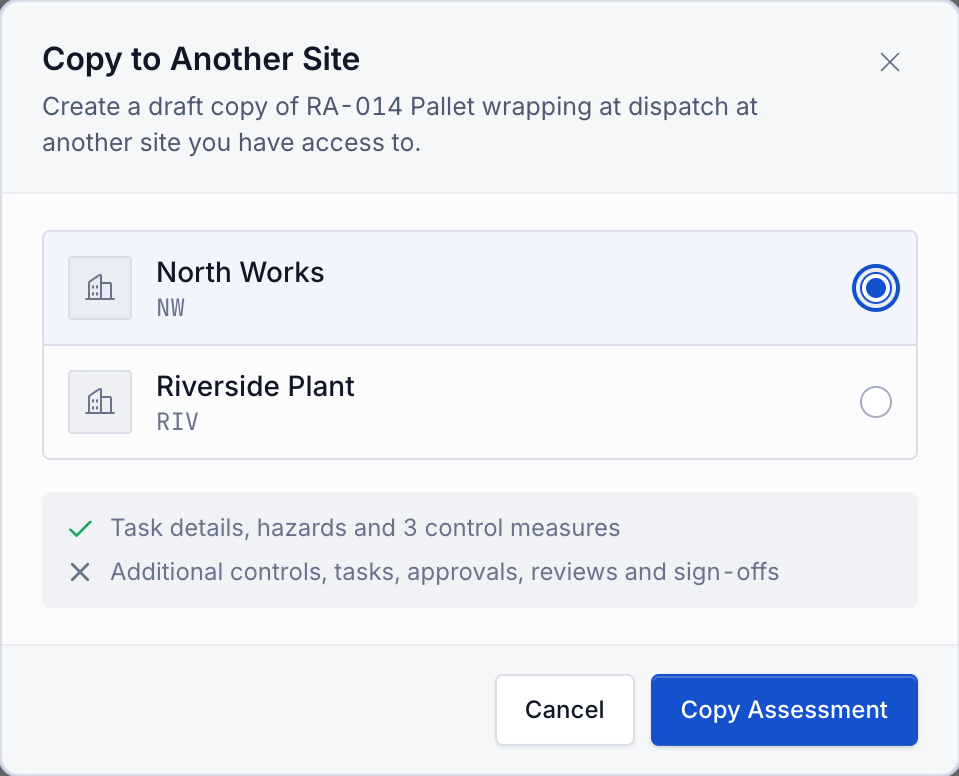
- Choose the destination. Only other active sites you can access are listed. With one choice it is selected automatically; longer lists have Search sites.
- Review what will be copied, then select Copy Assessment.
- The success message gives the new assessment number. Select Open to switch to the destination site and open its draft.
Task details, identified hazards, control measures, and initial and residual risk ratings are copied. Additional controls, linked tasks, approvals, reviews, sign-offs and assistant history are left behind. Add the destination site's controls and complete its approval process before using the copy. Later edits at either site do not update the other assessment.
Copy several assessments
- In Risk Assessments, select the rows you want. Check the selected count in the floating action bar.
- Select Copy to Another Site and choose a destination.
- Check the assessment and control-measure counts, then select Copy Assessments.
- Select Open site in the success message to switch to that site's draft assessments.
Copy up to 50 assessments per action. All selected assessments must be copyable. A failed batch saves none of its copies; the dialog stays open so you can correct the selection or destination and retry. Do not assume copies were saved until the success message appears.
Changing the status filter or search clears the selection. Review the selected count again before a bulk action.
Archive one active assessment
- Open the current active assessment's Assessment actions, or right-click its row.
- Select Archive.
- Confirm Archive in Archive Assessment?.
The assessment becomes Archived and stays in history. Open sign-off requests for that revision are cancelled, so assigned people are no longer prompted to sign it. Switch the list's status filter to Archived to find the record again.
The current menus do not offer a Restore action. If the work needs a valid assessment again, use the revision and approval process described in Review a risk assessment.
Archive several assessments
- Select rows in Risk Assessments and select Archive in the floating bar.
- Read Archive N Assessments?. Only current active revisions are included. If your selection contains other statuses, the confirmation says how many are skipped.
- Confirm Archive. A success message reports the number archived and clears the selection.
At most 50 eligible assessments can be archived in one action. The eligible subset is saved together: if any included assessment is no longer eligible or accessible, none of that batch is archived. The selection remains available to review and retry.
Delete an eligible assessment
- Find the latest Draft or Refused working revision.
- Open its Assessment actions menu or right-click its row and choose Delete.
- Check the assessment before confirming Delete in Delete Assessment?.
Deletion removes the assessment from normal use. There is no restore or Undo control in this workflow. Bulk retains the attributed deletion event. Use Archive to retire a current active assessment while keeping it available as an archived record.
Troubleshooting
- Copy to Another Site is missing or disabled. Check Create risk assessment permission and access to another active site. In a bulk selection every selected assessment must be copyable.
- The destination is missing. It must be active, in the same workspace, accessible to you, and different from the current site.
- The copy has no additional controls or signatures. Those are intentionally excluded. Add controls and request fresh approvals and sign-offs at the destination.
- Archive is missing. The record must be the current active revision, and you need Create risk assessment permission.
- A bulk action fails. Reduce the batch to 50 or fewer eligible assessments, refresh changed rows and retry. Copy and archive do not report partial success for a failed batch.
- Delete is missing. Check that this is the latest draft or refused working revision. Pending approvals, active and archived records cannot be deleted through this action.
Related guidance
Review a risk assessment
Schedule, complete, and cancel periodic reviews of an active risk assessment, recording whether it is still up to date or needs a new revision.
Request and complete risk assessment sign-offs
Ask named people to sign an active assessment, review a required sign-off, record a refusal, and check the signature roster.