Request and complete risk assessment sign-offs
Ask named people to sign an active assessment, review a required sign-off, record a refusal, and check the signature roster.
Last updated
On an active risk assessment, use Sign-offs → Request sign-off to ask named people to read and sign it. Each person receives a Sign-off required dialog for that site. The assessment's Sign-offs section shows who is waiting, who signed and who refused.
Approval makes the assessment active. These requested signatures record each person's sign-off afterward. To approve a draft, follow Submit and approve a risk assessment.
Before you begin
- Select the site that owns the assessment.
- To request signatures, the assessment must be Active and you need Approve risk assessment (
safety.approve_assessment). You also need View safety (safety.view) to open the assessment and its roster. - Choose eligible people from the site's people picker. Signing is personal: each assigned person must sign in as themselves.
An assigned person can read and sign the requested content in the sign-off dialog even if they cannot open the full Safety area. Access to that dialog does not grant access to other assessments or signatures.
Request sign-offs
- Open the active assessment from Safety → Risk Assessments.
- Find Sign-offs, described as Required digital sign-off for this assessment.
- Select Request sign-off.
- In Select people to sign off..., choose the people who must review it.
- Select Request sign-off. The success message reports how many people were newly asked.
People already on the same open request are not added again, and existing signatures are not cleared. You can reopen the dialog to add more people to that request. Cancel closes an unsent dialog; it does not withdraw requests already sent.
The request keeps a snapshot of the assessment revision, including its task, hazards, risk summary and control measures. People added to the same open request read that same snapshot. A large assessment's dialog can contain up to 200 control measures; use the full assessment to review further detail where you have access.
Read and sign a required assessment
The Sign-off required dialog appears when you open the app with the relevant site selected, or when a request arrives while you are working there. It shows your oldest outstanding request first.
- Read the task, hazards, risk summary and control measures in the dialog. Scroll through the content before deciding.
- Draw your signature in Your signature using a pointer or touch.
- Select Clear Signature if you need to draw it again.
- Select Sign. The button stays disabled until you draw a signature.
- Wait for Signed. The completed request leaves your queue, and the next outstanding item appears if there is one.
Your signature and signing time are saved against that request. The requester receives a completion notification. If the upload or save fails, the error is shown and the dialog remains available to retry. A drawn signature alone does not mean it was saved.
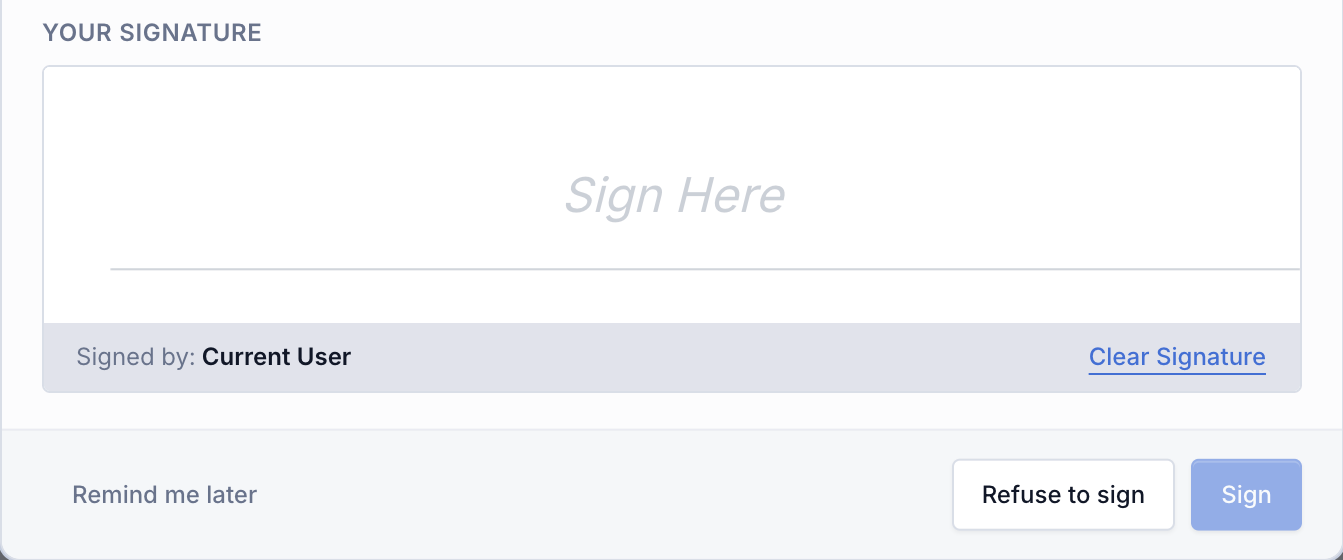
Refuse a sign-off
If you cannot sign the content:
- Select Refuse to sign.
- Enter a clear Reason for refusing.
- Select Confirm refusal. An empty reason cannot be submitted. Use Back to return without recording a refusal.
Bulk records the refusal and reason and notifies the requester. The dialog is hidden for the current browser session. Refusal leaves the request outstanding, so it returns next session with your previous reason until it is signed or the request is retired. A later signature clears the current refusal label while retaining the refusal event in history.
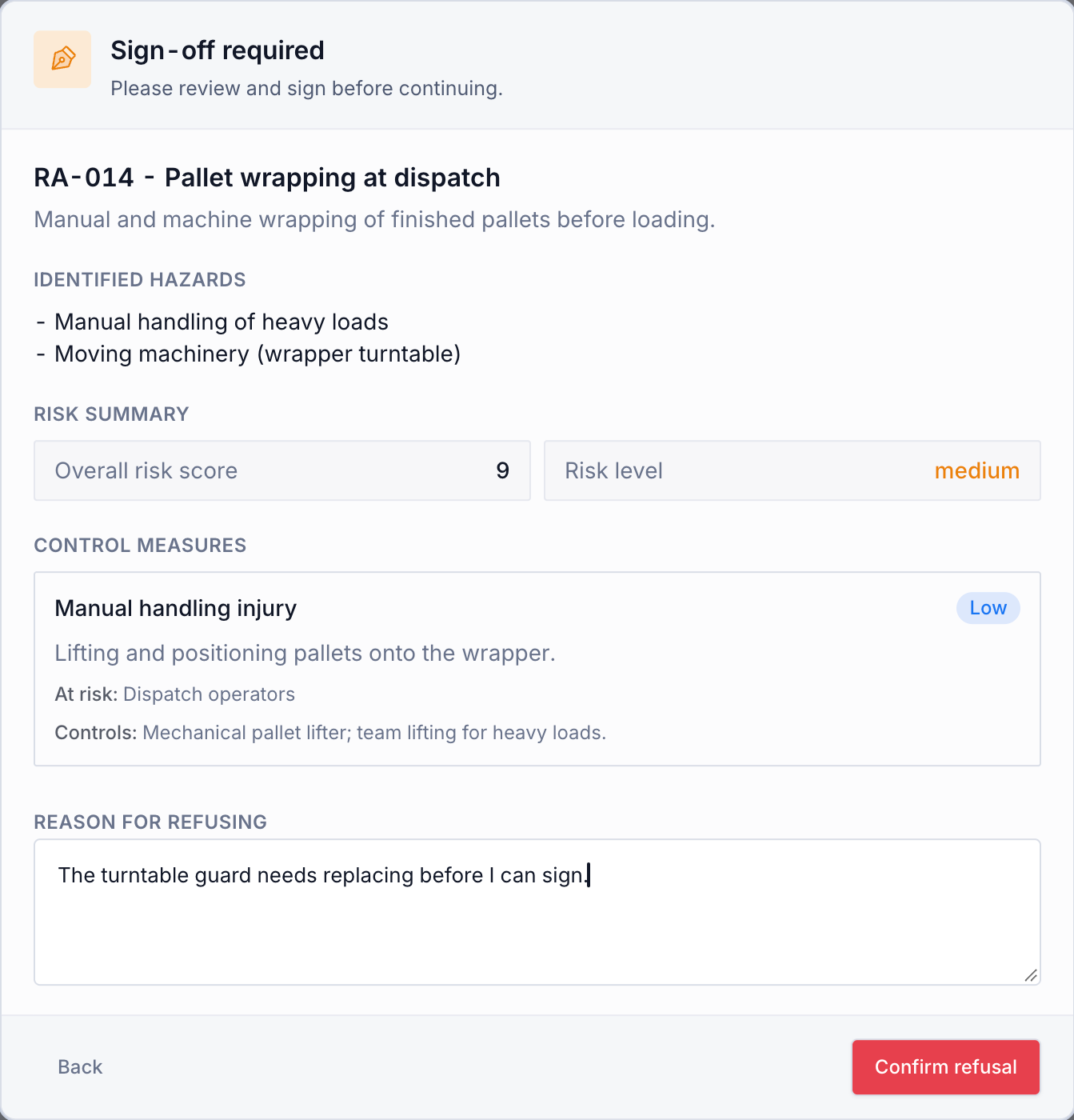
Remind me later
Remind me later hides this item for the current browser session. It does not sign, refuse or complete the request. It returns in a new session while still outstanding. Closing the dialog with Escape or clicking outside is disabled; use the explicit actions.
Check the sign-off roster
Open the assessment's Sign-offs section to read each person's state:
| Shown in the roster | Meaning |
|---|---|
| Awaiting signature | A request exists and the person has not signed |
| Signed, with date and time | The signature was saved; its image is shown when available |
| Refused, with a reason | The person recorded an objection and still has an outstanding request |
Earlier voluntary signatures, where present, appear separately as read-only Acknowledgements, with the person's name and signing time. They are retained history and do not replace a newly requested signature.
Archiving an assessment cancels its open requests. Approving a replacement revision retires the old revision's requests. Those people stop receiving the old prompt, and the current roster excludes retired requests. Request fresh sign-offs on the new active revision; signatures are not copied forward.
Troubleshooting
- Request sign-off is missing. Check that the assessment is Active, you have Approve risk assessment permission, and you opened the full assessment page rather than a read-only view.
- A person was not added. Repeated selections on an open request are deduplicated. Check their existing roster entry and that they are eligible for this site.
- The signer cannot open Safety. They can still read and sign their assigned snapshot in the required dialog. Opening the full assessment needs separate access.
- Sign is disabled. Draw a signature first. While a submission is running, wait for it to finish.
- A refusal or reminder comes back. Both leave the obligation open; they only hide it for the current browser session.
- The prompt is not in another site. Requests are scoped to their owning site. Select that site and check whether the assessment has since been archived or replaced.
Related guidance
Copy, archive or delete risk assessments
Copy assessments to another site as drafts, archive current active assessments, or delete an eligible draft or refused revision.
Report a safety incident
Capture a workplace safety incident on one report page that saves as you type, share the draft live with your team, and submit it for approval.