Print a risk assessment
Download an active risk assessment as a PDF in Bulk, then print it for a briefing, workstation, or paper sign-off.
Last updated
To print a risk assessment, open it in Bulk, choose Download PDF from Assessment actions, then open the downloaded file and print it from your PDF viewer.
Before you begin
- Select the plant that owns the assessment.
- You need View safety (
safety.view) and access to that plant to open the assessment and download its PDF. - The assessment must be Active. Draft, Pending Approval, Refused, and Archived assessments cannot be exported to PDF. If your assessment is still a draft, follow Submit and approve a risk assessment first.
Download the risk assessment
- In the left navigation, open Safety > Risk Assessments.
- Use the Active status filter and find the assessment by its task name or RA code.
- Select the assessment to open its detail page. Check the RA code and revision below the title. On Overview, check that Details > Status says Active.
- Select the three-dot Assessment actions button at the top right.
- Select Download PDF. The menu item shows Generating... while Bulk prepares the file.
- Wait for PDF downloaded, then find the PDF in your browser's downloads.
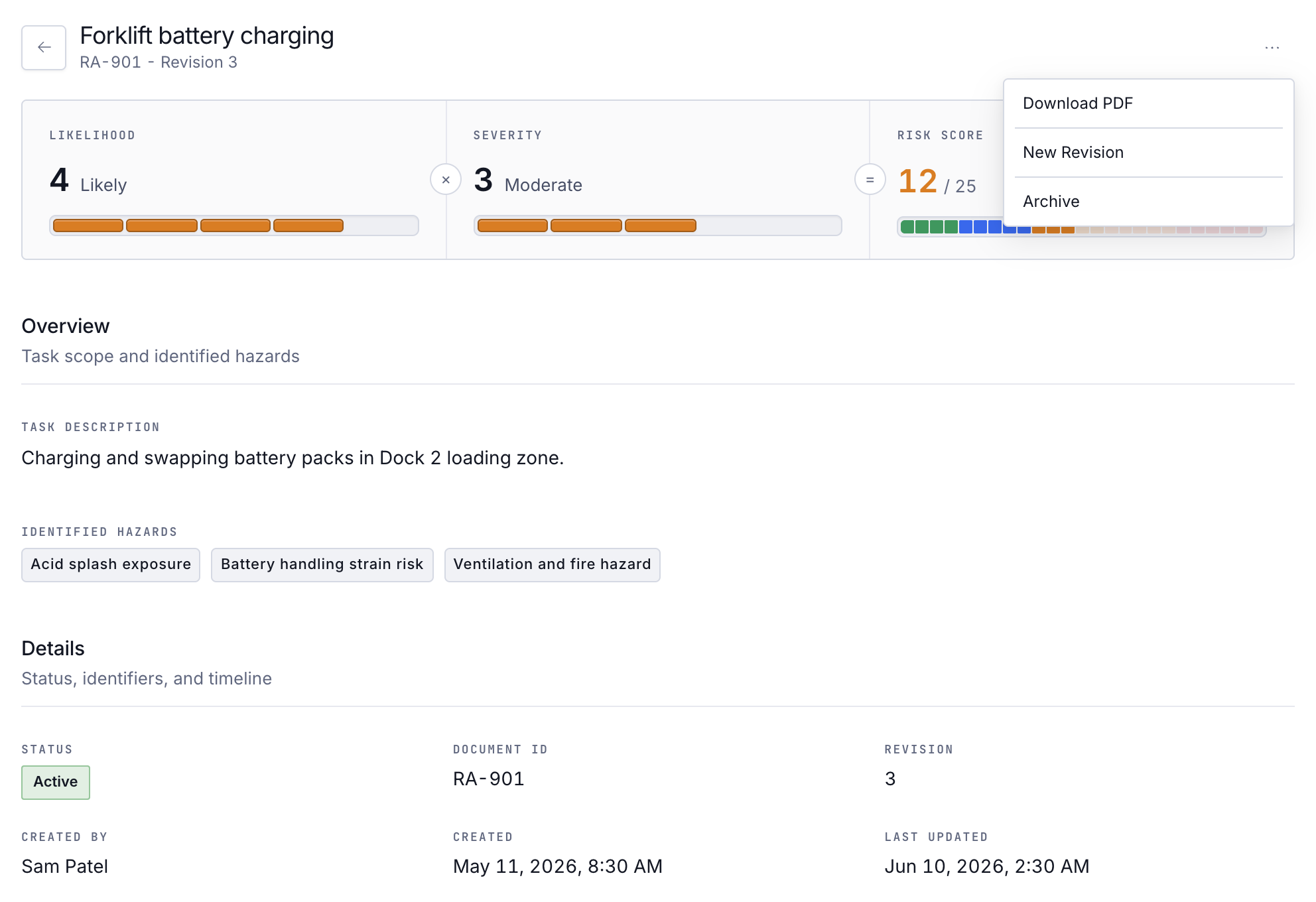
The filename includes the RA code, revision, and export date. For example, risk-assessment_RA-901_rev3_2026-10-16.pdf identifies revision 3 of RA-901.
You can also right-click an assessment row in the list and select Download PDF. The same Active-only export rule applies.
Print the downloaded PDF
- Open the downloaded file in your browser or PDF viewer.
- Choose Print, or press Ctrl+P on Windows or Command+P on Mac.
- Select your printer, page range, and number of copies.
- Check the preview. Bulk generates the report in A4 landscape. Use landscape orientation and fit to the printable area if your viewer does not choose those settings automatically.
- Select Print in the print dialog.
The report contains the task details, hazards, control measures, risk ratings, and a sign-off register. The register has blank rows for handwritten signatures; it does not reproduce signatures already captured in Bulk.
Before using the paper copy, check its RA code and revision against the active assessment in Bulk. Download a fresh copy when an updated revision becomes Active.
Troubleshooting
- Download PDF is missing from Assessment actions. Check Overview > Details > Status. The detail-page download action appears only for Active assessments. Complete approval first, or open the Active revision.
- The export says "Only active assessments can be exported to PDF". The selected revision is not Active. Return to the list, choose Active, and open the assessment from there.
- The PDF did not download. Check your browser's downloads and any download warning. If Bulk shows an export error, retry Download PDF. If it keeps failing, contact your administrator with the RA code and error message.
- The table is cut off on paper. Check landscape orientation, paper size, and scaling in the PDF viewer's print preview. Fit the page to the printable area before printing again.
Related guidance
-
Copy, archive or delete risk assessments: manage single assessments or selected batches.
-
Request and complete risk assessment sign-offs: collect named signatures and review refusals.
Submit and approve a risk assessment
Send a draft risk assessment for review, then approve or refuse it so the assessment becomes the active, official version your team works to.
Review a risk assessment
Schedule, complete, and cancel periodic reviews of an active risk assessment, recording whether it is still up to date or needs a new revision.