Create a miscellaneous invoice
Bill one-off or off-route charges by building a miscellaneous invoice with lines you enter yourself, attached to an order or directly to a customer.
A miscellaneous invoice — shown as Misc across Bulk — bills charges that do not come from production work. Where a standard invoice is built from an order's finished jobs, a misc invoice has no job links: you write every line yourself, or pull priced lines from your catalogue or a pricing template. Use it for the things that fall outside the normal route — freight and delivery recharges, one-off agreements, expedite surcharges, or an ad-hoc service you agreed with a customer.
You can attach a misc invoice to an existing order (so it shares that order's customer and currency) or straight to a customer with no order at all.
When to use a misc invoice
Reach for a misc invoice when the charge is not already priced on a production order:
- A one-off or off-route service you want to bill by hand.
- Freight, carriage, or a delivery surcharge that was not part of the job price.
- An extra agreement or goodwill charge tied to an order, but not to its jobs.
- Any charge for a customer who has no active order to bill against.
If instead you are billing finished production jobs on an order, create a standard invoice — see Create a standard invoice. Both types are introduced side by side in Select an invoice type.
Before you start
You need the Create invoices permission (production_invoicing.create).
In the default roles this is granted to Super user, Entity admin,
Manager, and Invoicing. Operators can submit and confirm invoices but
cannot create them, so if the New invoice button is missing, this is why.
You also need something to bill:
- Attaching to an order — the order must be open (not closed or cancelled) and must already have a customer. The customer and the invoice currency are taken from that order.
- Attaching to a customer — you need a customer set up for your entity. The invoice currency comes from that customer's currency.
A customer's status can also gate billing. If a customer is set to a status that blocks draft invoices, Bulk stops the draft and explains why; a warning-level status lets you continue with a note.
Currency is inherited, not chosen
You do not pick a currency while creating a misc invoice. It is inherited from the order (for an order attach) or the customer (for a customer attach), so make sure the customer's currency is correct first.
Create the draft
The new-invoice flow is a short three-step wizard: choose the type, attach it, then add lines and review.
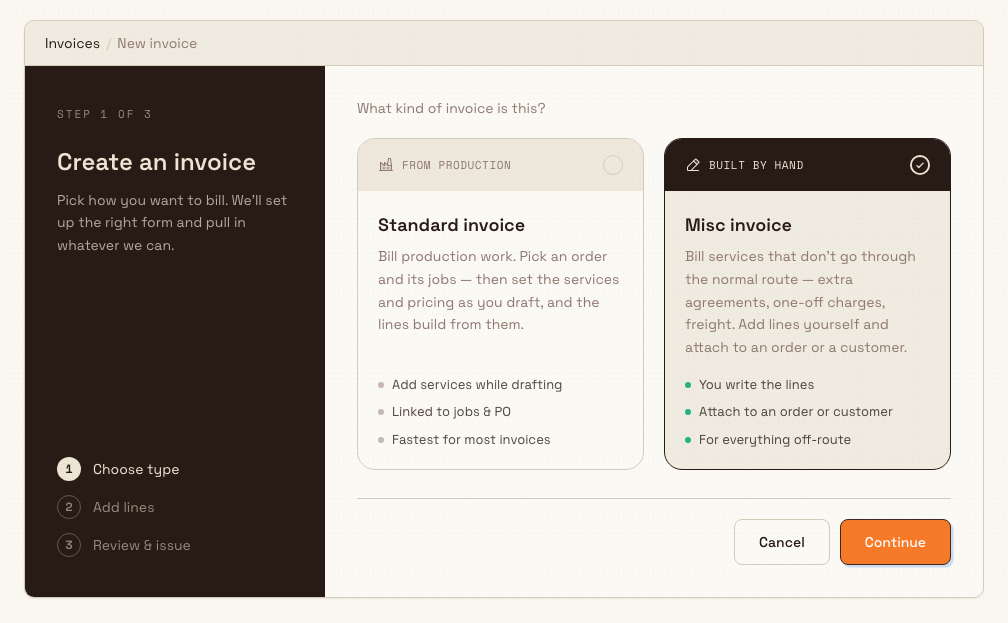
- Open Finance in the sidebar and choose New invoice (or open Finance -> Invoices and select the New invoice button in the top right). Both land you on step 1, "Create an invoice".
- On the Choose type step, select the Misc invoice card — its heading reads "Built by hand" — and select Continue.
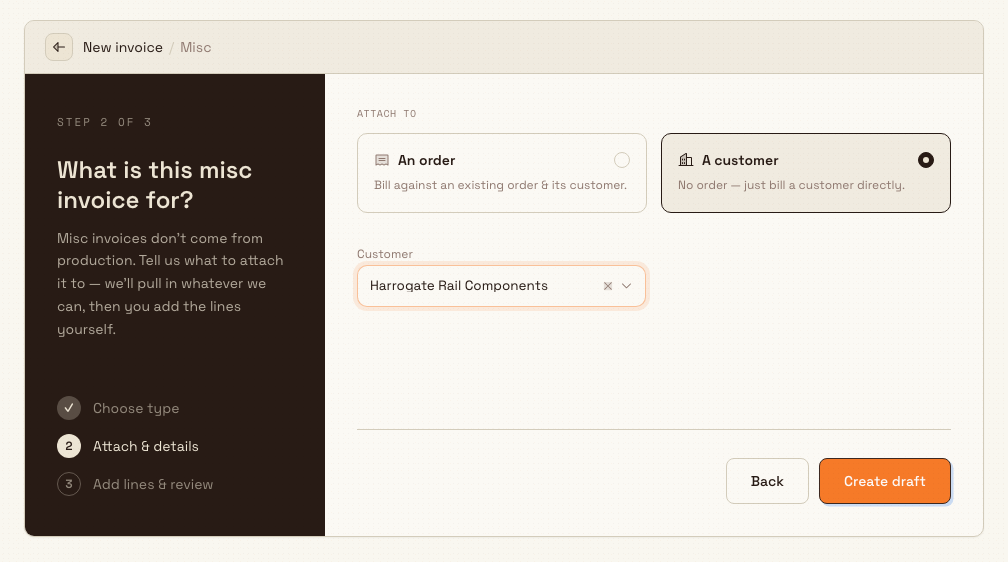
- On the Attach and details step ("What is this misc invoice for?"), choose
what to attach the invoice to under Attach to:
- An order — bill against an existing order and its customer. Pick the order from the Order list; the Customer field fills in from the order and cannot be edited here.
- A customer — bill a customer directly with no order. Pick the customer from the Customer list.
- Select Create draft. Bulk creates the draft, shows a "Draft invoice created" confirmation, and opens the invoice.
finance.create-miscellaneous-invoice-01
finance.create-miscellaneous-invoice-02
Add lines and review
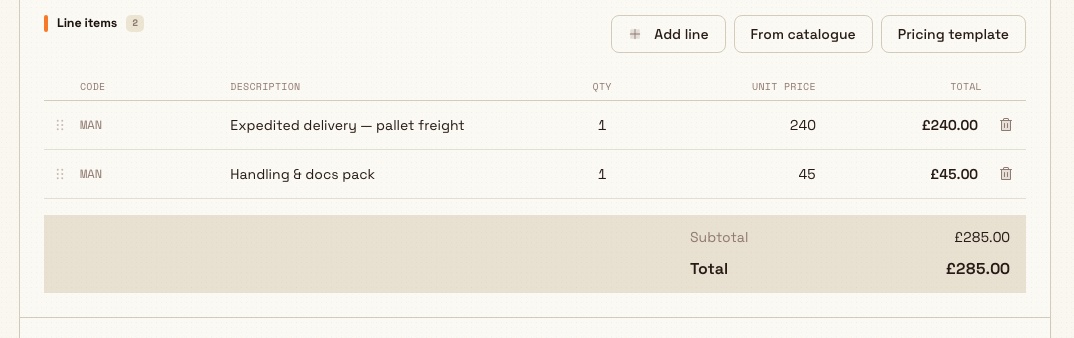
Creating the draft takes you to the invoice detail page, where the misc draft shows Bill from and Bill to cards and an editable Line items grid. This is where you build the invoice by hand.
Use the buttons at the top of the Line items card to add lines:
- Add line — a blank manual line. Type a description, quantity, and unit price directly in the grid.
- From catalogue — open Add catalogue service and pick a priced service from the customer's catalogue; Bulk snapshots its price onto the line.
- Pricing template — open Add pricing template and pick a rate template; its effective total becomes the line price.
Each line shows a Code, Description, Qty, Unit price, and Total. Edit the description, quantity, and unit price inline; drag the handle on the left to reorder lines; and use the trash icon to remove one. The Subtotal and Total update as you go. You can also add optional Notes and fill any Custom fields your entity has configured for invoices.
finance.create-miscellaneous-invoice-03
When the invoice has at least one priced line, the primary action in the header becomes available. Depending on your entity's approval settings this is either Issue (bill it now) or Submit for approval (send it to an approver first). Until a priced line exists, that action stays disabled with a hint such as "Add a priced line to issue". A draft you no longer want can be removed with Discard.
Issuing freezes the invoice
Issuing assigns the final invoice number and locks the document — you can no longer edit its lines. If an issued invoice is wrong, the recovery path is to Void it (and, where needed, raise a credit note), not to edit it. Review the lines and totals before you issue.
Granite Peak example
Leeds Fabrication Plant agrees to expedite a pallet of finished brackets to Harrogate Rail Components by overnight courier, at the customer's cost. The freight was never priced on any job, so there is nothing to bill on a standard invoice.
An Invoicing user opens Finance -> New invoice, selects Misc invoice, and continues. Because there is no order to bill against, they choose A customer and pick Harrogate Rail Components, then select Create draft. On the draft they select Add line, enter "Expedited delivery — pallet freight", quantity 1, unit price 240.00, and add a second line for a handling charge. They add a short note referencing the delivery date, review the total, and select Issue. The invoice is now billed to Harrogate Rail Components with no link to production.
What to expect
- The draft appears immediately in Finance -> Invoices with a Misc tag in the Type column. While a draft, it carries a draft number until it is issued.
- After you issue it, Bulk assigns the real invoice number, the document becomes read-only, and it moves through the issued lifecycle (issued, sent, confirmed) like any other invoice.
- To find misc invoices later, open the invoices list and filter by type, or scan the Type column for the Misc tag.
Limits and behaviour
- Misc invoices are generally available. They have no tax or VAT lines and no payment or accounts-receivable tracking inside Bulk — the totals are the billed amounts only.
- You cannot choose a currency by hand; it is inherited from the order or customer, as described above.
- A misc invoice attached to an order does not pull in that order's jobs or job pricing — the job links are exactly what a misc invoice omits. If you want the lines built from finished jobs, use a standard invoice instead.
- Voiding is terminal: a voided invoice stays in the list for the record but cannot be reactivated.
Troubleshooting
- No "New invoice" button. Your role lacks the Create invoices
permission (
production_invoicing.create). Ask an administrator to grant it or assign a role that has it (Entity admin, Manager, or Invoicing). - An order is not in the Order list. Only open orders that already have a customer appear. Closed or cancelled orders, and orders with no customer, are excluded — attach to the customer directly, or reopen or fix the order first.
- The draft will not create, or shows a blocked message. The customer's status may be set to block draft invoices. Check the customer's status, or choose a customer whose status allows billing.
- Issue and Submit for approval are greyed out. The invoice has no priced line yet. Add at least one line with a unit price above zero, then try again.
Related
Create a standard invoice
Draft a standard invoice from a production order and its invoiceable jobs, including who can create one and what happens after the draft is made.
Review an invoice
Open a production invoice to check its customer, order, line items, and totals before you submit, approve, or issue it.