Issue or void a credit note
Commit a draft credit note so its credit becomes usable, or void an issued credit note to cancel it and return the credited amounts to the affected invoices.
A credit note is a finance document that records money owed back to a customer — for a return, a negotiated discount, a disputed charge, a goodwill gesture, or a price correction. A credit note starts life as a draft, where nothing is committed. Two actions move it through the rest of its life:
- Issuing is the financial commit. It turns the draft into a permanent, locked document: Bulk assigns a real credit note number, freezes the customer, seller, currency, and line detail onto the document, generates the PDF, and makes the credited amount available to apply against invoices.
- Voiding cancels a credit note you have already issued. Bulk keeps it on record for audit, marks it Voided, reverses any credit already applied to invoices, and returns those amounts to the affected invoice balances.
You issue a credit note once its lines and amounts are correct. You void one when an issued credit was raised in error or is no longer owed. This article covers both actions. Creating the draft, and applying an issued credit to specific invoices, are separate steps with their own guides, linked at the end.
The credit note lifecycle
A credit note follows a short, three-state lifecycle:
| Status | Meaning |
|---|---|
| Draft | Being prepared. Editable. No number, no committed credit yet. |
| Issued | A permanent, locked document exists, with a credit note number and available credit ready to apply to invoices. |
| Voided | Cancelled after issue. Kept on record for audit; holds no usable credit. |
Issuing is the single step from Draft to Issued. Voiding is the single step from Issued to Voided. There is no other path between these states.

finance.manage-credit-note-01
Before you start
Permissions. Issuing needs the Issue credit notes permission (production_credit_notes.issue); voiding needs the Void credit notes permission (production_credit_notes.void). Both are granted by default to the Super user, Entity admin, Manager, and Invoicing roles. The Master data role can view credit notes but cannot issue or void them, and the Operator role has no credit-note access at all. If you lack a permission, its action button does not appear — ask an administrator to grant the permission or to act for you.
A draft can be issued only when all of these are true. The Issue credit note button appears only for a draft that already passes the first two checks; the rest are enforced when you confirm:
- The credit note has at least one line and a total greater than zero. An empty or zero-value draft cannot be issued.
- The credit note has no more than 200 lines.
- Your entity's invoicing profile is configured — the "credit from" seller needs a name and address. Without it, issuing fails with
Invoicing profile not configured. An entity is one site or plant; each entity keeps its own seller details. - Any required credit-note fields (custom fields your plant marks as required) are filled.
- If the credit note was raised from an invoice, that source invoice must be issued — not still a draft, and not voided.
Voiding applies only to an issued credit note. A draft has never committed anything, so there is nothing to void; the Void action is shown only once a credit note is Issued.
Issue a credit note
- In the left sidebar, open Finance, then select Credit notes to reach the credit notes list at
/finance/credit-notes. - Open the draft you want to commit. It opens on its detail page, titled Draft credit note with a Draft badge.
- Review the lines and amounts in the Credit lines card and the header details in the summary card on the right. While it is a draft you can still correct it.
- In the page header, select Issue credit note. Issuing runs immediately — there is no extra confirmation step — and the button reads Issuing… while it works.
- On success, a message reads
Credit note issued — <number>with the new permanent number, and the page updates to the Issued state.
If the Issue credit note button is missing on a draft, the draft has no lines or a zero total (or you lack the issue permission) — see Troubleshooting.
What happens when you issue
Confirming the issue changes several things at once:
- A permanent credit note number is assigned. Numbers are gapless and sequential, in a year-prefixed format such as
2026-CRN-000045. The number is generated only at issue. - The document is frozen. The customer, seller ("credit from"), currency, line detail, and custom-field values are snapshotted onto the credit note so it stays self-contained even if that master data changes later.
- The status becomes Issued and an issue date is set (today).
- The full amount becomes available credit. A freshly issued credit note shows its total as Available credit in the summary, ready to allocate against one or more of the customer's invoices. Allocating (applying) the credit is a separate step.
- A PDF is generated in the background. The header first shows Preparing PDF…, then a Download PDF button once it is ready. A refresh control lets you restart generation if it does not appear.
Issuing locks the credit note
An issued credit note cannot be edited. If an issued credit is wrong, you void it and raise a fresh one — there is no edit path after issue.
Void a credit note
- Open the issued credit note from Finance, then Credit notes.
- In the page header, select Void.
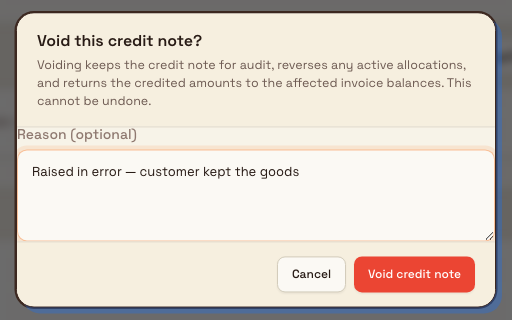
- In the Void this credit note? dialog, optionally type a Reason (optional) — for example,
Raised in error — customer kept the goods. The reason is saved with the credit note and recorded in its activity history. - Select Void credit note to confirm, or Cancel to close the dialog with no change.
- On success, a message reads
Credit note voidedand the status badge changes to Voided.
Voiding cannot be undone
Voiding is permanent — there is no un-void action, and it reverses any credit already applied to invoices, so those invoices will show the higher amount owed again. Confirm you have the right credit note before you select Void credit note. To cancel a credit that has been applied, void it and, if the customer is still owed money, raise a new credit note.
finance.manage-credit-note-02
What happens when you void
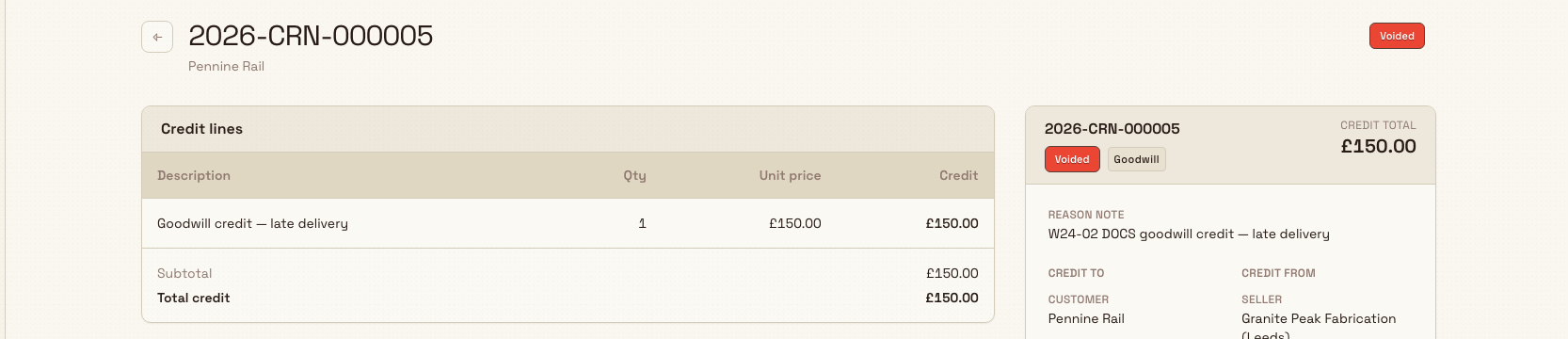
- The credit note becomes Voided and is kept for audit. Its badge changes to Voided; the record stays searchable. Nothing is deleted.
- Any applied credit is reversed. Every active allocation the credit note holds against an invoice is reversed, and each affected invoice's balance is recomputed back up — the customer owes those amounts again. An "allocation" is a portion of a credit applied to a specific invoice.
- The credit note holds no usable credit. Its available credit is set to zero; a voided credit cannot be applied or refunded.
- The reason and event are recorded. If you entered a reason, it is saved on the credit note, and the void is logged in its activity history with who acted and when.
- Automations can react. Voiding raises a credit-note-voided event, so any workflow you have built to respond to it runs automatically.
finance.manage-credit-note-03
Example: Granite Peak Manufacturing
Granite Peak Manufacturing runs its billing from the Leeds Fabrication Plant entity. Dana Winters, the plant's finance lead, works with two credit notes in the same week.
Issuing a goodwill credit. After a late delivery, Granite Peak agrees a 150.00 GBP goodwill gesture for a structural-steel customer. Dana has already created a standalone Goodwill draft with a single line. She opens it from Finance → Credit notes, checks the line and the customer, and selects Issue credit note. Bulk assigns number 2026-CRN-000045, freezes the document, starts the PDF, and shows Credit note issued — 2026-CRN-000045. The credit note now shows 150.00 GBP of Available credit, ready to apply to the customer's next invoice.
Voiding a credit raised in error. Earlier, Dana had issued a 480.00 GBP credit note against an invoice for six returned brackets and allocated it against that invoice, reducing what the customer owed. The customer then decides to keep the brackets after all, so the credit is no longer owed. Because the credit note is already issued, Dana cannot edit it. She opens it, selects Void, enters the reason Raised in error — customer kept the goods, and confirms with Void credit note. Bulk reverses the 480.00 allocation — the invoice balance climbs back by 480.00 — marks the credit note Voided, and keeps it on file with Dana's reason so the audit trail explains exactly what happened.
Feature state and limits
Issuing and voiding credit notes are generally available. A few behaviours are worth knowing:
- Only drafts can be issued, and only issued credit notes can be voided. Issuing anything but a draft, or voiding anything but an issued credit note, is rejected.
- Drafts have no discard action. The current release does not provide a delete or discard action for a draft credit note. A draft can be issued or left as a draft; it cannot be removed from the detail page.
- Voided is terminal. A voided credit note cannot be reissued or un-voided. Raise a new credit note if the customer is still owed money.
- Issuing and voiding are safe to repeat. Issuing an already-issued credit note returns its existing number without re-committing, and voiding an already-voided credit note does nothing — so a double-click never creates a second document or double-reverses a balance.
Troubleshooting
| Message or symptom | What it means and how to recover |
|---|---|
| The Issue credit note button is missing on a draft | The draft has no lines or a zero total, or you lack the Issue credit notes permission. Add at least one line with a positive amount, or ask an administrator to grant the permission. |
Invoicing profile not configured | Your entity's seller ("credit from") name and address are incomplete. An administrator must complete the invoicing profile before any credit note can be issued. See Configure the invoicing profile. |
The referenced invoice must be issued before crediting it. | The credit note was raised from a source invoice that is still a draft or has been voided. Issue the source invoice first (a voided invoice cannot be credited), then issue the credit note. |
Required credit-note fields are not filled. | A custom field your plant marks as required on credit notes is empty. Fill the required fields on the draft, then issue again. |
| The Void button is missing on an issued credit note | You lack the Void credit notes permission, or the credit note is a draft (nothing to void) or already voided. Confirm the status and your role. |
| You voided the wrong credit note | There is no un-void. Any applied credit was reversed automatically, restoring the affected invoice balances. Raise a new credit note if the customer is still owed money. |