Select an invoice type
Decide whether to bill production work with a standard invoice or capture off-route charges with a misc invoice, then continue into the matching draft.
When you start a new invoice in Bulk, the first thing you do is choose what kind of invoice it is. This is Step 1 of the three-step invoice wizard (Choose type, Add lines, Review and issue), and your choice decides which drafting form opens next and where the invoice lines come from.
Bulk offers two invoice types on this screen:
- Standard invoice — bills production work by pulling in a production order and its jobs. "Jobs" are the individual pieces of work Bulk tracks against an order as it runs through your plant.
- Misc invoice — an invoice you build by hand for charges that do not go through the normal production route, such as one-off fees, separate agreements, or freight. "Misc" is short for miscellaneous.
Picking the right type up front saves rework: a standard invoice does most of the line-building for you from production data, while a misc invoice gives you a blank set of lines to fill in yourself.
Before you start
To create an invoice you need the Create invoices capability (permission production_invoicing.create) in addition to view access to Finance. In Bulk's default roles, invoice creation is included in admin-level roles, the Manager role, and the dedicated Invoicing role. If you do not have this capability, the New invoice button does not appear and the chooser is not reachable — ask your administrator to grant it.
Selecting a type does not create anything on its own. No invoice exists until you complete the drafting step that opens after you choose, so you can safely open the chooser to compare the two options.
Open the invoice type chooser
You reach the chooser from the Finance area:
- In the left navigation, open Finance, then select New invoice. This takes you to the invoice type chooser.
- Or open Finance then Invoices, and select the New invoice button at the top right of the Invoices page.
If the Invoices list is empty, the same New invoice action is offered on the empty-state message.

finance.select-invoice-type-01
Choose a type
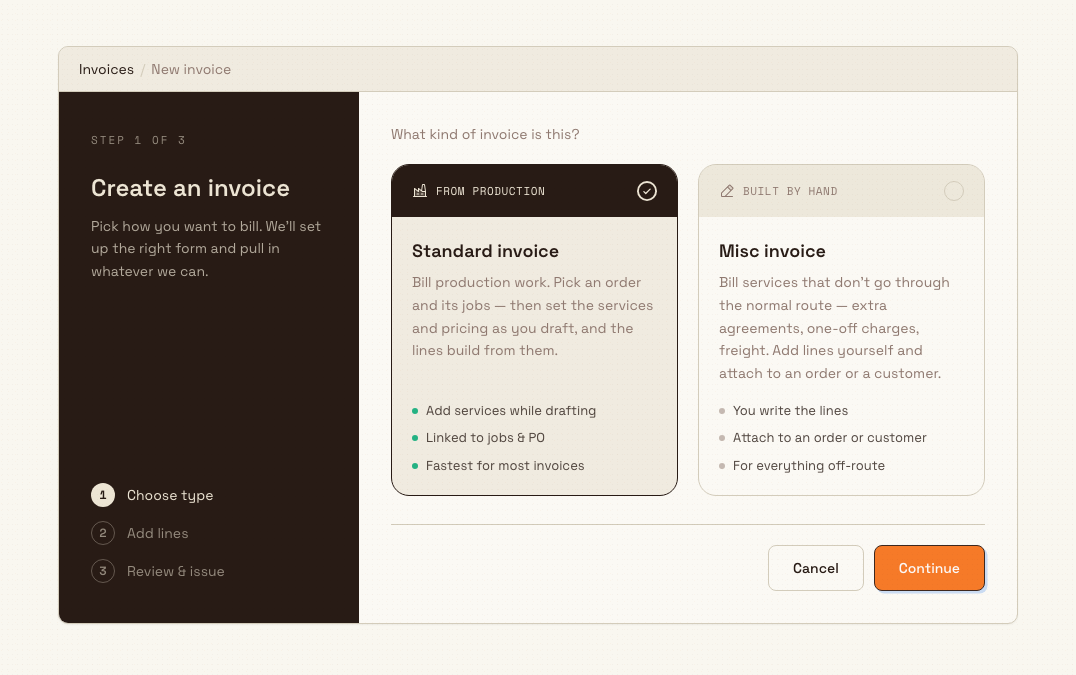
On the chooser screen (headed Create an invoice, Step 1 of 3), you answer one question: What kind of invoice is this? Two cards are shown side by side.
Standard invoice (labelled From production) reads:
Bill production work. Pick an order and its jobs — then set the services and pricing as you draft, and the lines build from them.
Its highlights are Add services while drafting, Linked to jobs & PO, and Fastest for most invoices. "PO" here means the customer's purchase order.
Misc invoice (labelled Built by hand) reads:
Bill services that don't go through the normal route — extra agreements, one-off charges, freight. Add lines yourself and attach to an order or a customer.
Its highlights are You write the lines, Attach to an order or customer, and For everything off-route.
To make your choice:
- Select the card for the type you want. Standard invoice is preselected because it is the right choice for most invoices; a check mark shows which card is active.
- Select Continue. Standard opens the order-and-jobs flow; misc opens the manual-lines flow.
- To back out without starting a draft, select Cancel.
finance.select-invoice-type-02
Quick rule of thumb
If the money you are billing comes from work Bulk tracked as jobs on a production order, choose Standard invoice. If it is a charge that never ran through production — a separate agreement, a surcharge, or freight — choose Misc invoice.
Granite Peak Manufacturing example
Granite Peak Manufacturing runs the Leeds Fabrication Plant. Two billing situations land on the same chooser but take different paths:
-
Billing a finished production run. A customer order for 400 laser-cut steel brackets has run through cutting, forming, and finishing jobs. Dana in the finance team opens New invoice, keeps the default Standard invoice, and selects Continue. On the next step she picks that order and its completed jobs, and the invoice lines build from the services and pricing recorded against them.
-
Billing a one-off freight surcharge. The same customer asked for an expedited overnight delivery that was agreed separately and never became production work. There are no jobs to bill from, so Dana opens New invoice, selects Misc invoice, and selects Continue. On the misc flow she attaches the invoice to the customer (or the related order) and types the freight line herself.
What happens after you choose
Both choices continue into the same three-step wizard, so the progress rail (Choose type, Add lines, Review and issue) stays consistent:
- Standard invoice opens the Select an order step, where you choose an invoiceable order to see its jobs and then draft lines from them. See Create a standard invoice.
- Misc invoice opens the What is this misc invoice for? step, where you attach the invoice to an order or a customer and add the lines by hand. See Create a miscellaneous invoice.
Your type choice is not locked in permanently. If you picked the wrong one, use Cancel or your browser back to return to the chooser and start again before you build the draft.
Credit notes are separate
This chooser covers the two invoice types only. A credit note — a document that reduces what a customer owes — is not created here. Start one from Finance then Credit notes. See Create a credit note.
Limitations and feature state
- The chooser offers exactly two types: Standard invoice and Misc invoice. There are no other invoice types on this screen.
- The screen is a routing step only. It records your choice and moves you to the matching draft flow; it does not save an invoice, and nothing is billed until you complete drafting and issue the invoice.
- Access is gated. Reaching the chooser requires both view access to Finance and the Create invoices capability; without the create capability the New invoice button is hidden.
Troubleshooting
- You cannot see the New invoice button, or the chooser will not open. This is a permission gate, not an error. You need the Create invoices capability (
production_invoicing.create) alongside Finance view access. Ask an administrator to add it to your role, then reload. - You chose the wrong type. Select Cancel on the flow, or go back to
/finance/new, and pick the other card. Because the chooser has not created anything yet, nothing needs to be undone.
Related guidance
Finance
Understand the Finance area in Bulk — create, approve, issue, and confirm production invoices and raise customer credit notes — and open the step-by-step guide for each task.
Create a standard invoice
Draft a standard invoice from a production order and its invoiceable jobs, including who can create one and what happens after the draft is made.