Finance
Understand the Finance area in Bulk — create, approve, issue, and confirm production invoices and raise customer credit notes — and open the step-by-step guide for each task.
The Finance area is where you turn completed production work into invoices and raise customer credits. You reach it from the left sidebar under Finance (the currency icon); it opens straight to the Invoices list, and next to it you will find Credit notes and a New invoice shortcut. Invoice timing and approval rules still come from each site's invoicing profile under entity settings, which uses the same framed settings cards as other Settings pages.
"Invoicing" here means billing a customer for production. Bulk builds a standard invoice from orders and jobs you have already run — a "job" is one step of production work, and an "order" groups the jobs for a customer — so the customer, purchase-order reference, and amounts come from real production data instead of being retyped. A "credit note" is a customer credit raised against an invoice (for example, to correct an over-bill) or as a standalone credit.
Use the Finance area when a job or order is finished and ready to bill, when you need to raise an ad-hoc charge that did not flow through the normal production route, or when you need to credit a customer.
Find invoices on the list
The Invoices list is a sheets-style grid. The status pills across the toolbar show counts for All, Draft, Pending approval, Approved, Issued, Sent, Confirmed, Issued Confirmed, and Voided; select one to narrow the grid. Open Filters for customer, type, and issue date.
Type in the list search box to match invoice numbers, customers, order numbers, and the values of invoice custom fields and linked order custom fields (the fields configured under Settings). When a search is active, match chips under the invoice number show which fields matched so you can see why a row appeared.
Default columns cover Invoice, Customer, Order, Type, Issued, Status, and Total. Use the columns control to show optional invoice field and order custom field columns — they are hidden by default so the list stays compact, and you can save the layout as a view. Date and date-time custom fields display in the plant's timezone.

finance.overview-01
Invoices belong to one entity
The invoicing profile, the invoices, and the credit notes you see are all scoped to the entity (site) you are working in, so each plant keeps its own seller and company details on the documents it produces.
Who can use it
Finance is gated by two permission groups:
- Invoices use
production_invoicing.*permissions — separate flags for viewing, creating, submitting for approval, approving, issuing, confirming, voiding, and configuring. - Credit notes use
production_credit_notes.*permissions — viewing, creating, issuing, voiding, and allocating.
Out of the box, the Entity admin and Manager roles carry the complete
invoice and credit-note permission sets, including invoice configuration. The
dedicated Invoicing role carries the operational permissions to view,
create, submit, approve, issue, confirm, and void invoices and to work with
credit notes, but it does not include invoice configuration. The Operator
role carries submit and confirm actions only; it does not include
production_invoicing.view, so that role alone does not expose the Finance
pages. If you cannot see Finance in the sidebar, ask an administrator for a
role that includes invoice viewing.
Set up before you invoice
Two one-time settings shape every invoice and credit note:
- Invoicing profile (Settings, then Invoicing) — the company and seller details printed on invoices and credit notes, the approval policy (whether approval is required before an invoice can be issued, and an optional value threshold above which approval is required), and the post-issue confirmation mode.
- Invoice fields (Settings, then Invoice Fields) — any custom fields you want to capture on invoices and credit notes.
See Configure an invoicing profile and Configure invoice fields.
Create an invoice: two types
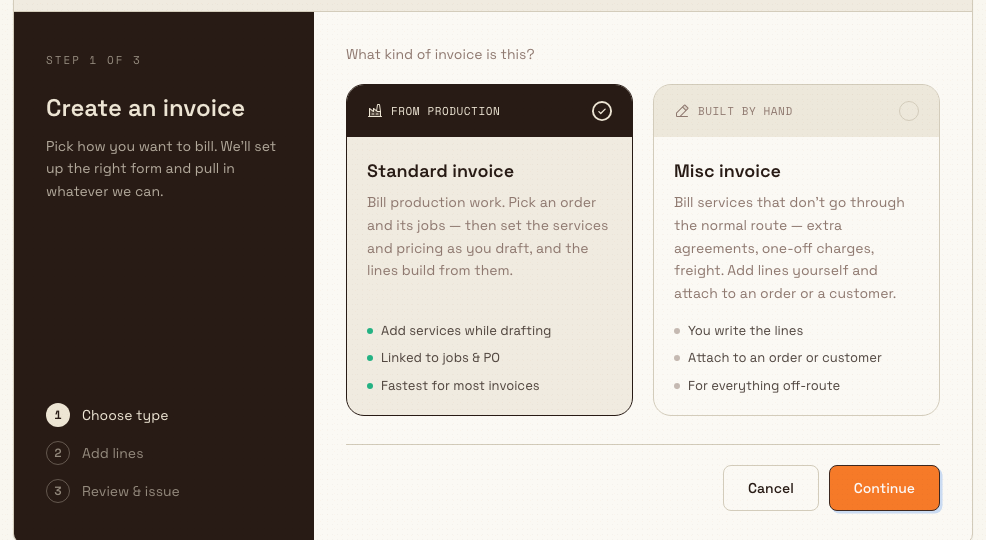
When you select New invoice, Bulk first asks what kind of invoice this is (step 1 of 3, Choose type):
- Standard invoice — bills production work. You pick an order and its jobs, then set the services and pricing as you draft, and the invoice lines build from them. This is the fastest path for most invoices and stays linked to the jobs and purchase order.
- Misc invoice — for charges that do not go through the normal route, such as extra agreements, one-off charges, or freight. You write the lines yourself and attach the invoice to an order or a customer.
For a standard invoice, each job line uses the job's base price and each order service is added once as its own service line. A service already allocated across jobs for production reporting is not added again to those job lines, so the invoice does not count the same charge twice.
A Timed / process hours service uses the billable amount already calculated on the production order. Its quantity comes from matching job timings, not from a number entered on the invoice. If several jobs contribute, Bulk adds their individually calculated amounts so the invoice matches the order exactly. To inspect the hours behind the charge, open the service on the production order and select its quantity.
Bulk matches an invoice service to the order's unique service-row ID (for example SVC-04), not only to its reusable service code. This means an order can contain two service rows with the same registry code and invoice them independently when their descriptions, prices, or job assignments differ.
finance.overview-02
Follow the task guides: Select an invoice type, Create a standard invoice, and Create a miscellaneous invoice.
The invoice lifecycle
Every invoice moves through a fixed set of statuses, shown as a coloured badge on both the list and the detail page:
- Draft — being built; you can still edit lines, services, and custom fields. A draft has no invoice number yet.
- Pending approval — submitted and waiting for a reviewer (this step appears only when your invoicing profile requires approval).
- Approved — cleared and ready to issue.
- Issued — finalised and locked, with a permanent invoice number and a downloadable PDF.
- Sent — you have marked it as sent to the customer.
- Confirmed and Issued Confirmed — the invoice has been confirmed and finalised.
- Voided — cancelled and no longer active.
The primary button on a draft is either Submit for approval or Issue, depending on whether your invoicing profile requires approval and whether the total is above the approval threshold. If approval is required, a reviewer opens the invoice, checks the lines, and approves it before it can be issued. After an invoice is issued, the follow-on steps are Mark sent, Confirm, and Mark issued-confirmed. Void invoice is available while an invoice is active.
Invoice state changes can start a published workflow, but workflow automation does not replace this lifecycle or its existing approval steps. Any certified invoice Action shown in the Workflow catalog calls the same Finance operation and applies the same validation and user permissions as the invoice screen. The workflow run log records success or failure so an administrator can fix the cause and retry safely.
Issuing and voiding are permanent
Issuing assigns a permanent invoice number and locks the draft for editing. Voided is a terminal status, and voiding cannot be undone. To correct an issued invoice you void it — which keeps the record for audit and releases its jobs so they can be billed again — and then create a replacement invoice. You may add an optional reason when you void.
Step-by-step guides for each stage: Review an invoice, Submit and approve an invoice, Issue or confirm an invoice, and Void an invoice.
Credit notes
The Credit notes list holds customer credits raised against an invoice or as standalone credits. Select New credit note to raise one. Like invoices, credit notes have their own lifecycle (draft, issued, voided) and can be allocated against invoices so the credit reduces what a customer owes.
Guides: Create a credit note, Issue or void a credit note, and Allocate a credit note.
A Granite Peak Manufacturing example
Leeds Fabrication Plant has just finished order LFP-2043 for its customer Northwind Aerospace — a batch of machined brackets. To bill it, a finance user opens Finance, selects New invoice, chooses Standard invoice, and picks order LFP-2043 and its completed jobs. The customer, purchase-order number, and priced lines come straight from the order.
Because the plant's invoicing profile requires approval on invoices above a set threshold and this one is over it, the draft's primary button reads Submit for approval rather than Issue. A plant manager opens the invoice, reviews the lines, and approves it. The finance user then selects Issue, confirms in the Issue invoice? dialog, and the draft becomes an Issued invoice with a permanent number and a PDF. They select Mark sent when the PDF goes to Northwind, and Confirm once the customer acknowledges it.
When Northwind later reports two brackets short, the finance user goes to Credit notes, raises a New credit note against that invoice for the shortfall, and allocates it — crediting the customer without editing the original, now-locked invoice.
What Finance does not cover
Keep the current scope in mind so you do not look for features that are not here:
- The lifecycle ends at Issued Confirmed. The Finance area does not track payment collection, accounts-receivable aging, or tax calculation — there is no payment status or "record payment" control on an invoice, and the totals footer shows only the subtotal and total.
- Only the standard customer invoice is available. Other document types that exist in the data model (such as debit notes, pro-forma invoices, and deposits) are not yet enabled in the app.
- A timed service cannot be added as an unrelated standalone invoice line because its quantity depends on production jobs. Add it to the production order first, then create the standard invoice from that order.
This area is generally available; the behaviour described above reflects the current release.
Related guidance
- Invoice, credit-note, issue, and due dates are calendar days owned by the invoice's plant and stay on that day across screens, exports, PDFs, and scheduled reports. Creation, approval, issue, send, and confirmation timestamps preserve their exact recorded moment.
- For finance teams — the role-based overview of everything a finance user does in Bulk.
- Insights and finance — how invoicing fits the wider close-the-loop workflow from the shop floor to the office.
- Configure an invoicing profile and Configure invoice fields — the entity settings behind every invoice.
Review production consumption
See how much stock production has drawn down by opening a consumable's movement timeline in the Inventory Stock area, where Production Usage and Production Reversal entries show quantities and running balances.
Select an invoice type
Decide whether to bill production work with a standard invoice or capture off-route charges with a misc invoice, then continue into the matching draft.