Review an invoice
Open a production invoice to check its customer, order, line items, and totals before you submit, approve, or issue it.
Reviewing an invoice means opening it and checking that everything on it is
correct before it moves forward. In Bulk, an invoice is the priced bill you
raise against a production order or as a one-off charge. Approval is optional:
a draft either goes through Pending approval and Approved, or issues
directly when approval is not required. The review step is where you confirm the
customer, linked order, services and jobs, custom fields, line items, quantities,
prices, and total before the next lifecycle action.
You will review an invoice whenever you want to check a draft you (or a colleague) built, decide whether it is ready to submit for approval or issue, or simply look back at an invoice that has already gone out. Reviewing never changes an invoice's status on its own — it is the reading surface that the lifecycle actions launch from.
Before you start
To open and read an invoice you need the production_invoicing.view
permission. Simply opening an invoice does not change it; editable controls are
available only on a draft when you have the required action access.
Taking an action from the review screen needs its own permission on top of viewing:
- Submitting a draft for approval needs
production_invoicing.submit. - Approving, requesting changes, or rejecting requires you to be the entity's
configured primary or backup approver and to have invoice-view access. A
designated approver can act even without a separate
production_invoicing.approverole grant. Someone who only has that role permission but is not designated cannot act. - A submitter normally cannot act on their own request. The exception is a single-approver setup where the same person is configured as both primary and backup approver.
- Issuing needs
production_invoicing.issue; voiding needsproduction_invoicing.void.
If you can view but not act, Bulk still shows the invoice detail. Actions that do not apply to your identity, permission, status, or customer restrictions are hidden or disabled.
Open an invoice to review
Go to Finance → Invoices. Each row shows the invoice number, customer, order, type, issue date, status, and total. The toolbar has status pills with counts. Search finds invoice and order numbers as well as configured invoice and linked-order custom-field values; matching custom fields appear as match badges under the invoice number.
Use Filters for customer, type, and issue date. Use Columns to show invoice custom fields or linked-order custom fields; those optional columns are hidden by default. Select a row or its invoice number to open the detail page.
For approval work, choose the Pending approval status pill. This visible queue contains pending invoices you can view; opening a row resolves whether you are the designated approver and may act on it.
What the review screen shows
An invoice opens onto a single detail page that adapts to where the invoice is in its lifecycle. The invoice number sits at the top, with the linked order or customer beneath it, and the available lifecycle actions on the right.
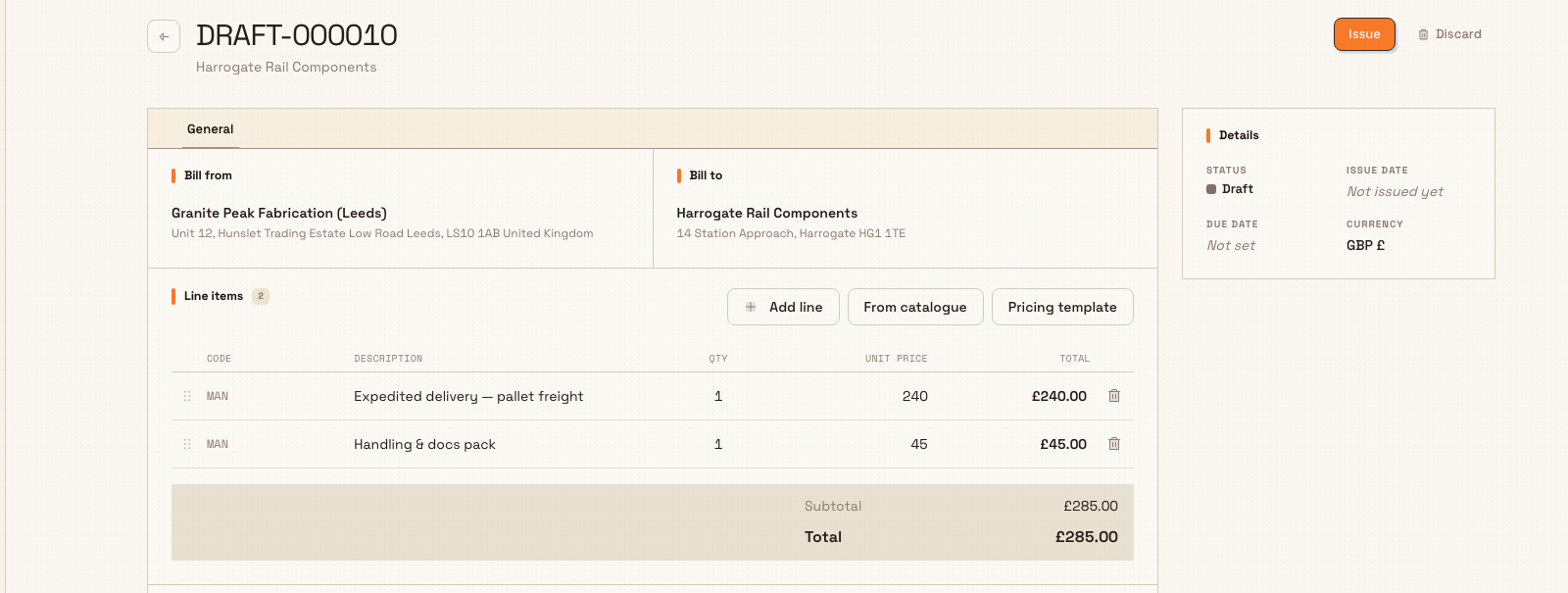
A draft you are still shaping
The Draft, Pending approval, and Approved statuses share the working
document layout:
- Bill from and Bill to cards name the seller (your plant) and the customer, each with its address.
- A Line items table lists every charge with its Description, Qty, Unit price, and Total, and a Subtotal and Total underneath.
- On a standard invoice, Services and Jobs sections show which services generate the lines and which jobs are linked. A warning identifies linked jobs with no active service; they are not reflected in the total and will be removed from the invoice at issue unless corrected first.
- Custom fields and Notes capture extra configured detail. Custom fields are edited only on a draft and autosave. Pending and approved invoices show saved values read-only when values exist.
- A summary rail on the right repeats the key facts: Issue date, Due date, and Currency.
Line items, service assignments, custom fields, and notes can only be changed
while the status is exactly Draft. Once submitted or approved, the same
detail page is read-only.
finance.review-invoice-02
A submitted invoice awaiting approval
Pending approval uses the same detail layout, but all invoice content is
read-only. The banner depends on who is looking:
- The designated approver sees This invoice is awaiting your approval and a Review & approve button in both the banner and page header.
- The submitter sees who must review it. If the submitter is also a designated approver but self-approval is blocked, the banner explains that another configured approver must act.
- Other viewers see the configured primary or backup approver when a name is available, but no decision button.
The Review & approve button opens a dedicated, read-only decision page. It shows the invoice number and status, Bill from and Bill to, line items and totals, plus an approval panel with the approver, backup approver, submitter, amount, and threshold when available. It does not repeat the Services, Jobs, Notes, or Custom fields sections, so check those on the detail page before opening the decision page.
On the decision page:
- Approve accepts an optional note and moves the invoice to
Approved. - Request changes requires a note and returns it to
Draft, unlocking edits. - Reject also requires a note and returns it to
Draft, recording a rejected decision.
The request-changes and reject buttons are visible before a note is entered; choosing either without one shows an error asking for an explanation. While any decision is saving, the note and all decision buttons are disabled and the selected action shows a progress label.
Immediate mode can issue during approval
When the entity's confirmation mode is Immediate, approving calls the issue
step immediately afterward. The approver also needs
production_invoicing.issue; without it, approval cannot complete. Review the
document as carefully as you would before a normal issue action.
An invoice that has already been issued
Once an invoice is Issued, Sent, Confirmed, Issued Confirmed, or Voided, the review screen becomes a frozen record. A lock banner reads "Frozen at issue" (or explains that a voided invoice is no longer active), the lines are read-only, and the summary shows Total, any amount Credited, and the Net invoiced figure (the total minus credits). A history timeline lists each lifecycle step and any credit note applied, so you can see who did what and when.
Extra tabs for order-linked invoices
When an invoice is billed from a production order, the detail page adds Output, Timers, and Quality tabs alongside General. These let you cross-check the invoice against what actually happened on the shop floor — units produced, time booked, and quality results for the linked order — before you sign the invoice off. A misc invoice with no linked order shows only the General tab.
Validation and disabled actions
A draft always keeps its next lifecycle action visible in the header:
- Submit for approval appears when the approval threshold applies.
- Issue appears when approval is not required.
The action is disabled when the invoice has no priced line or its total is zero. It is also blocked while a standard invoice is rebuilding lines after a service assignment. During that sync, both the lifecycle action and Discard show Updating… and cannot be used. Wait for the totals to settle before reviewing or submitting.
A customer operational-status hold can also block approval submission and issue/send actions. If the invoice has priced lines but its action remains unavailable, check the customer's status.
Required custom fields are validated at issue. Submission and approval do not
replace that check. If a required value is missing on a pending invoice, use
Request changes while it can still return to Draft; approving it leaves
the field read-only and the later issue action will fail validation.
How the money reads
Bulk production invoices carry no tax and no accounts-receivable balance. The Total always equals the Subtotal, and there are no VAT or tax lines to reconcile. On an issued invoice the only balance shown is Net invoiced, which is the total less any credit notes applied against it — the review screen never records payments or shows a paid or unpaid state.
Where the prices come from
Line prices on a standard invoice are captured when the draft is built, from the linked jobs, the customer's price agreement, catalogue services, or a rate template. Reviewing is your chance to confirm those captured prices are right before the invoice is locked.
Example: reviewing a Leeds draft before approval
Dana Winters at Granite Peak Manufacturing's Leeds Fabrication Plant opens a Draft invoice raised against order ORD-10432 for the customer Pennine Rail Components. On the review screen Dana checks that:
- Bill to shows Pennine Rail Components with the right delivery address.
- The Line items match the three completed jobs on the order — laser-cut mounting brackets, powder-coating, and assembly — each with the quantity delivered and the unit price from Pennine's price agreement.
- The Total of GBP 8,420.00 looks correct against the order.
- The Output and Timers tabs confirm all three jobs were finished and booked.
Because this total is over the plant's approval threshold, Bulk shows Dana a Submit for approval action rather than Issue. Dana submits it; the invoice moves to Pending approval and now shows a banner naming the approver who needs to review it next. The designated approver opens it from the Pending approval status pill, checks its services, jobs, custom fields, notes, and totals on the detail page, then chooses Review & approve for the decision panel.
What you can do from here
The review screen is the launch point for every lifecycle action, each gated by your permissions and the invoice's status:
- Submit for approval or Issue a draft, or Discard a draft you no longer need.
- Review & approve a submitted invoice, if you are its approver.
- Use the primary Mark sent, Confirm, or Mark issued-confirmed button to advance a manual invoice one legal step at a time.
- Open More invoice actions for Create credit note or Void when those actions are allowed.
Each of these has its own guide — this article covers the reading and checking; follow the linked guides for the steps.
Check carefully before issuing
Issuing an invoice freezes it. An issued invoice can no longer be edited — the only way to correct it is to void it and start again, or raise a credit note. Review the customer, lines, and total on this screen before you issue.
Expected result
After reviewing, you have confirmed the invoice's contents are correct and you know its exact status from the badge at the top of the page. Nothing you did while reviewing changed the invoice — until you deliberately choose a lifecycle action, the invoice stays exactly as it was.
Limitations and feature state
Reviewing invoices is generally available. A few things are true by design:
- Editing is draft-only. Line items, notes, and custom fields can be changed only while the status is Draft. In every later status the review screen is read-only.
- Approval decisions use a reduced view. The dedicated decision page shows parties, lines, totals, and approval metadata. Review services, jobs, notes, and custom fields on the main detail page first.
- Approver identity is entity-specific. A global role grant does not make someone the primary or backup approver for every entity.
- No tax or payments. Invoices never carry tax lines, and the review screen does not track payments or an outstanding balance — only Total, Credited, and Net invoiced.
- Output, Timers, and Quality tabs need a linked order. Misc invoices with no production order show only the General tab.
- Acting needs more than viewing. Submission, issue, and void each need their action permission. Approval decisions require designation as the entity's primary or backup approver; a role permission alone is not enough.
Troubleshooting
- "Invoice not found." The invoice may have been discarded, you may not have access, or you may be working under a different entity than the one that owns it. Return to the Invoices list, confirm you are in the right entity, and reopen it from there.
- You cannot change a line. Only drafts are editable. If it is Pending approval, a designated approver can use Request changes to return it to Draft.
- The main action is greyed out with a hint to add a priced line. A draft needs at least one priced line and a total above zero. If those are already present, check for Updating… service sync or a customer operational hold.
- Request changes or Reject asks for a note. Enter the explanation in Approval note, then choose the action again.
- You cannot approve an invoice you are looking at. You are not the entity's configured primary or backup approver, you submitted it yourself and another approver is available, or the invoice is no longer Pending approval.
- Approval succeeds but issue is blocked later. Review required custom fields and customer status before approving. Required fields are checked at issue, and a customer hold can block issue even after approval.
Related guidance
Create a miscellaneous invoice
Bill one-off or off-route charges by building a miscellaneous invoice with lines you enter yourself, attached to an order or directly to a customer.
Submit and approve an invoice
Send a draft invoice for sign-off, then approve, request changes, or reject it before it can be issued.