Tasks
Track work across projects and folders with owners, status, priority, dates, subtasks, and links to the records each task acts on.
Tasks are how you track a discrete piece of work in Bulk from the moment it is raised until it is done. A task might be a corrective action after a quality escape, a maintenance follow-up, an audit finding to close out, or a document someone needs to prepare. Each task has a status and priority and can carry one or more assignees, dates, and supporting detail. List views use the shared sheets list chrome — status filter tabs, search, and a bulk action bar when rows are selected — so filtering and multi-select feel the same as elsewhere in Bulk.
When you create a task, its Project picker accepts either a project or a folder destination. Choosing a folder places the task in that folder's shared task list; Bulk manages the folder's backing project automatically. Because tasks live alongside your production data, you can also link a task straight to the record it acts on: a risk assessment, a production order, or a production job. The work and its context stay together.
Use a task whenever something needs to be seen through to completion rather than kept as a passing note. Teams across the plant use tasks for corrective and preventive actions, audit follow-ups, shift-handover items, and improvement work.
Before you start
Two things need to be in place before you can work with tasks.
- The right permission for what you want to do. Viewing the task list requires the "view tasks" permission. Creating, editing, assigning, commenting on, and deleting tasks each require their own permission. Standard roles differ: Entity admin and Manager include every task permission, including delete; the Operator role can view, create, edit, assign, and comment but cannot delete; some roles (for example, Dashboards) can only view. If a control you expect is missing, ask an administrator to check your role.
- A project or folder destination. The Project field on a new task is required, but it can point to a project or directly to a folder. Projects are grouped under their folders in the picker. A folder also appears as folder name — folder tasks. If there is exactly one active project, Bulk selects it initially; you can still change the destination when other choices are available.
Tasks are scoped to the plant you are working in
The task list shows tasks for your currently selected plant (entity). Switching plants changes which tasks and projects you see.
Where to find tasks
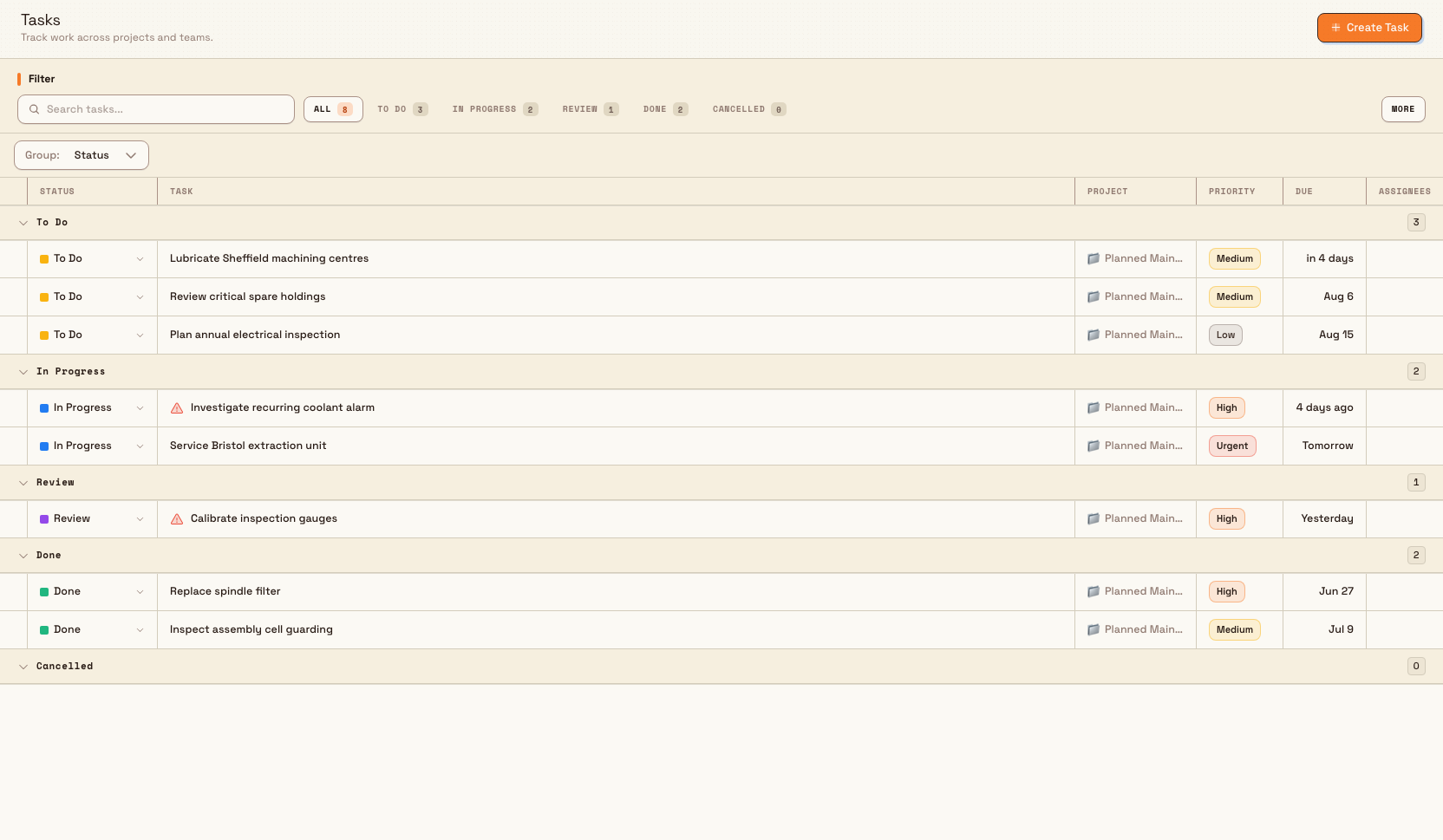
Open the Tasks group in the main navigation and choose Tasks to open the task list for your current plant. Without a text search, this is a live grouped sheet. From here you can:
- Search by task name.
- Filter by status, priority, project, assignee, and due date, with quick filters for overdue and due-today work.
- Group by Status, Assignee, or Priority. Known status and priority groups remain visible even when their count is zero, and every group can be collapsed.
- See subtasks always nested under their parents when both are present in the same visible group. There is no Nested switch. See Break work into subtasks.
- Select Create Task in the top right to add a task, or open any row to see its full detail.
Each group loads its own slice of tasks. A header can show how many loaded rows are visible out of the total, and Load more fetches the next slice. A text search temporarily changes the body to a flat search-results table; clear the search to return to the grouped sheet. The current nested list does not offer manual drag reordering.
Project-scoped lists work the same way on a project’s Tasks tab — see Work with a project.
Select a grouped row to open the task dialog. Right-click it for Open, View Details, and, when allowed, Delete.
Create tasks with a Workflow
Workflow administrators can add the Create task Action to an automation. In Simple mode, choose the Project and any assignees from lists, then set the title, description, status, priority, due date, and Project custom fields. Expression mode can take compatible values and records from earlier Workflow steps.
The Action follows the same Task creation process as the Create Task form. The Workflow's user must have permission to create Tasks in the Project's plant, and every selected assignee must be active and able to access that plant. Missing permissions, an archived Project, invalid fields, or a Task plan limit stop the run before anything is created.
Preview validates the selected values without creating a Task or sending notifications. During a live run, Bulk creates the Task once, records its normal activity and audit history, updates search, and sends the usual Task notifications. If a run is retried after losing its response, the same Task is returned instead of creating a duplicate.
tasks.overview-01
What a task holds
A task brings together the details, conversation, and evidence for one piece of work. From a task you can manage:
- Owner and assignees — assign one or more people to do the work. See Assign a task.
- Status — move the task through To Do, In Progress, Review, Done, and Cancelled. See Complete a task.
- Priority — set Urgent, High, Medium, Normal (the default), or Low to signal how it should be sequenced.
- Start date, due date, and progress — set a start date (the same field the project Gantt timeline uses), a due date, and a 0–100% progress value. Bulk marks a task as overdue once its due date passes, and as due soon within three days.
- Description — write a rich description; type "/" for formatting blocks, or mention "@RA", "@JOB", or "@ORDER" to link records inline.
- Checklist — break the work into steps you can tick off. See Use a task checklist.
- Subtasks — child tasks under a parent when steps need their own owners and dates. See Break work into subtasks.
- Comments — discuss the work in context. See Comment on a task.
- Attachments — add up to 20 files, each up to 10 MB (images, audio and video, PDF, CSV, DOCX, XLSX/XLSM, ZIP/TAR). See Attach a file to a task.
- Followers and notifications — follow a task to be notified of changes. See Follow a task.
- Linked records — connect the task to a risk assessment, production order, or production job. See Link a task to another record.
- Activity — an automatic timeline of every change, from status moves to checklist updates.
- Root cause analysis — record a Fishbone (Ishikawa) diagram and a 5 Why analysis on the task's Root Cause tab for investigative work.
- Custom fields — capture extra data your project defines, such as a cost centre or a reference number.
A worked example
At Granite Peak Manufacturing's Leeds Fabrication Plant, a line supervisor notices that the guard interlock on Press 4 is faulting intermittently. In the plant's Maintenance project she selects Create Task and names it "Investigate Press 4 guard interlock faults". She sets Priority to High and a Due Date of Friday, then assigns the maintenance lead.
In the description she types "@JOB" and links the production job that was running when the fault appeared, so the investigator can see exactly what was on the line. Over the next two days the maintenance lead adds a checklist (inspect wiring, test the interlock, replace the sensor), posts comments with photos attached, and moves the task from To Do to In Progress and then Review. Once the fix is verified, the task is set to Done at 100% progress. The activity timeline and linked job leave a complete, auditable record of what happened and why.
The task detail view
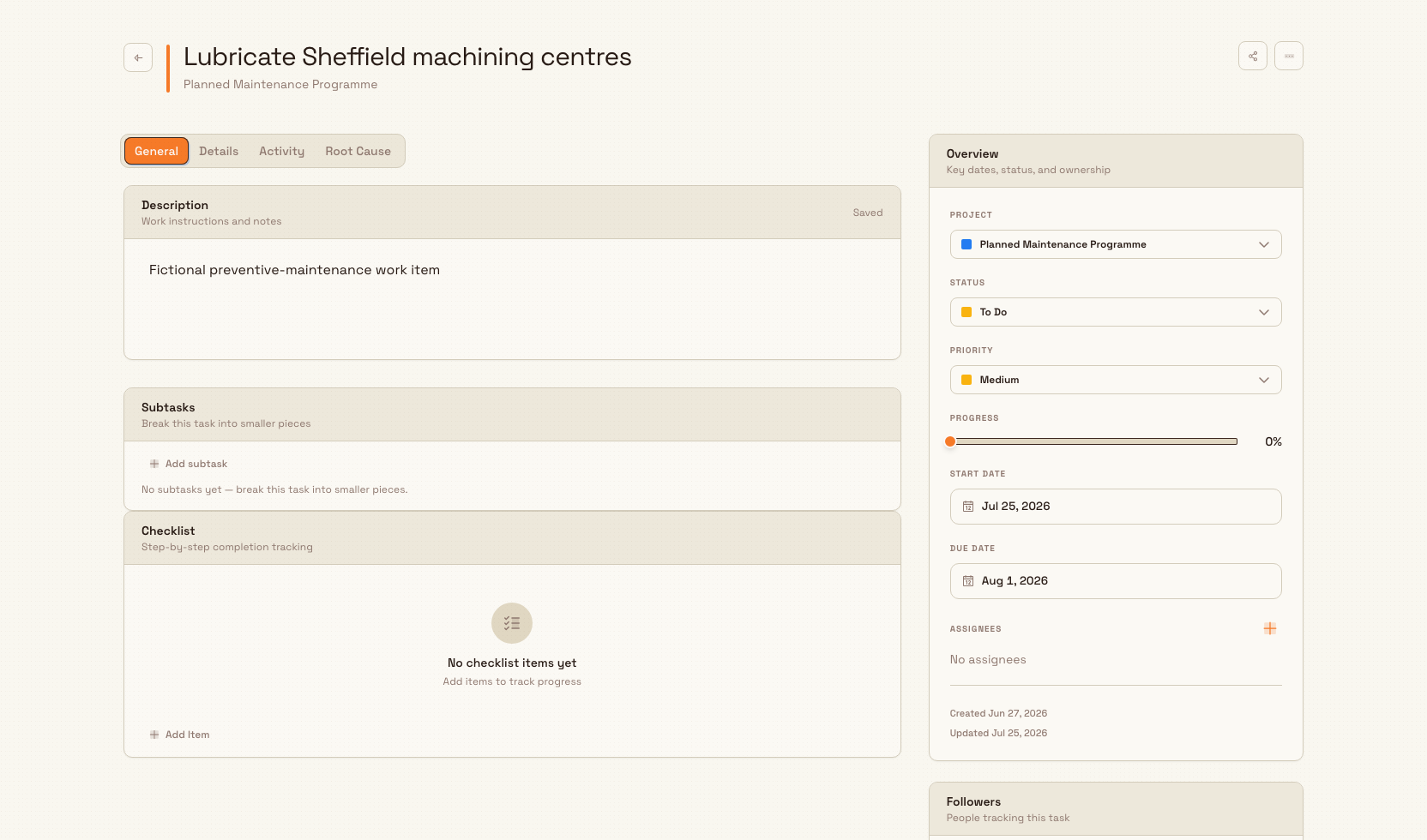
Opening a task shows its full detail. The main area is organised into tabs, with a summary sidebar alongside:
- General — the description, subtasks, and checklist.
- Details — attachments, linked records, and comments.
- Activity — the change timeline.
- Root Cause — Fishbone (Ishikawa) and 5 Why analysis.
The sidebar shows the task's project, status, priority, progress, start date, due date, and assignees, plus its followers and notification toggle. The General tab also includes the task's Subtasks panel above its checklist. Use the header buttons to copy a shareable link, Edit task, or Delete task.
tasks.overview-02
Limitations and behaviour to expect
- Tasks are generally available — this is a standard, released part of Bulk.
- Every task is stored in a project. In the user interface, you can choose a normal project or a folder destination. A folder destination uses a hidden backing project so its tasks appear together on the folder page. If the folder is deleted, Bulk preserves those tasks by turning that backing project into a normal root project named after the folder.
- A restricted project picker does not show folder destinations. Some project-scoped workflows intentionally limit the form to an allowed project list. In that case, choose one of those projects.
- A new task can take a moment to appear in the list. The list is served from a search index, so a task you just created may show a brief "New records are still syncing" note before it is listed.
- AI assistance depends on your organisation's setup. Task pages offer an assistant that can help draft and update tasks; what it can do depends on how AI is configured for your organisation. See Use AI assistance with tasks.
Deleted tasks cannot be restored in the app
Deleting a task removes it from task lists and search, and records the deletion in the audit log. Bulk does not currently offer a restore action. Cancel the task instead if you want to stop the work while keeping its comments, checklist, attachments, and activity available.
Tasks in a demo site are fictional and temporary
If the site shows the demo banner, its tasks are example data. Clear activity removes all tasks while keeping the demo's configuration. Reset demo removes them, then rebuilds only the original example data. Delete demo removes the whole site. Creating a live site also deletes the demo, and no demo tasks — including tasks you created yourself — are copied across. See Complete onboarding.
Troubleshooting
- The destination list is empty when creating a task. Create a project or a folder for the selected site, then reopen the form. See Create a project and Organize projects in folders.
- A task you just made is not in the list yet. Wait a moment for the "New records are still syncing" note to clear, then refresh the list; newly created tasks are indexed in the background.
- "Task not found" when opening a link. The task may have been deleted, or the link may be for a different plant that you cannot access. Invalid task links return you to the task list automatically.
- You cannot see the Tasks area or a specific action. Visibility and actions follow your role. If the Tasks group is missing, or a control such as Delete task is not available, ask an administrator to review your permissions.
Related guidance
- A task's start and due dates are calendar days in the task's plant, so they stay on the same day in lists, Gantt views, imports, exports, and reminders. Activity and comment timestamps keep their exact recorded moment and are only formatted for the viewer.
- Create a task
- Assign a task
- Use a task checklist
- Comment on a task
- Attach a file to a task
- Follow a task
- Link a task to another record
- Complete a task
- Use AI assistance with tasks
- Projects
- Organize projects in folders
Work management
How Bulk connects projects, tasks, and files so your teams can plan improvement work, assign it, track it to completion, and keep the supporting documents in one place.
Create a task
Create a task in an active project or directly in a project folder, choose its assignees and priority, and understand project-picker and validation behaviour.