Setup and connect
Get a new Bulk site ready to run, from organization settings, master data, team, and access to connecting other systems, with links to each setup guide.
Last updated
Setup and connect is the first stage of running a plant in Bulk. Bulk is a Manufacturing Execution System (MES): the software your team uses to run day-to-day work on the shop floor and in the offices around it. Before anyone can plan, produce, check, or invoice work, someone has to get the workspace ready and connect it to the tools your business already relies on. This section covers that groundwork, and links to a task guide for each part.
There are two jobs here:
- Get a site ready to use , configure your organization and each plant (a single site you operate, which Bulk also calls a site or entity), load its master data, add your team, and set who can do what.
- Connect and automate , link Bulk to your other systems (for example your ERP), open up its REST API, and set up automation that reacts to changes on the floor , without disrupting live work.
Each job is a standalone guide, so you can read this page top to bottom or jump straight to the one you need.
Who does this work
Setup and connect is administrator work. What you can open depends on your role , the set of permissions attached to your account. The built-in Super user role has full access to every setting; other roles are granted narrower slices. Two settings areas in particular are gated by their own permissions, so a general administrator may not see them:
- Integrations and API keys
- Workflows automation, the Model Context Protocol (MCP) console, and role management
If a setup area named in these guides is missing for you, your role probably does not include it. Ask an administrator, or use your organization's access-request process to request it. Administrators can review exactly what each role grants in roles and permissions.
Nearly all of this work lives in one place: the Settings area, opened from the left navigation. Its Organization, Entity, and Master Data groups hold the setup screens; Organization › Integrations and Organization › Workflows hold the connect-and-automate screens.
Get a site ready to use
Setting up a plant means configuring it from scratch , its settings, its master data, its team, and their access.
- Organization and site settings. Set naming conventions, working hours, units, currencies, and per-site (entity) settings. See Administration for the full settings map, and Sites and entities for configuring each plant.
- Master data. Master data is the reference data production runs on , customers, parts, assets (equipment), routings (the ordered steps a job follows), processes, and more. See the Master data overview.
- Team and access. Invite people, then assign roles that decide what each person can see and do. Bulk does not offer open self-service sign-up: an administrator creates each account by email invitation. See Users and roles and permissions.
For the end-to-end path , the order to do these steps in when standing up a brand-new plant , follow the task guide:
First sign-in comes first
This section assumes you already have an account and can reach a plant. If you are brand new to Bulk, start with Getting started to create your account, sign in, and choose a site, then come back here to configure it.
Connect Bulk to other systems
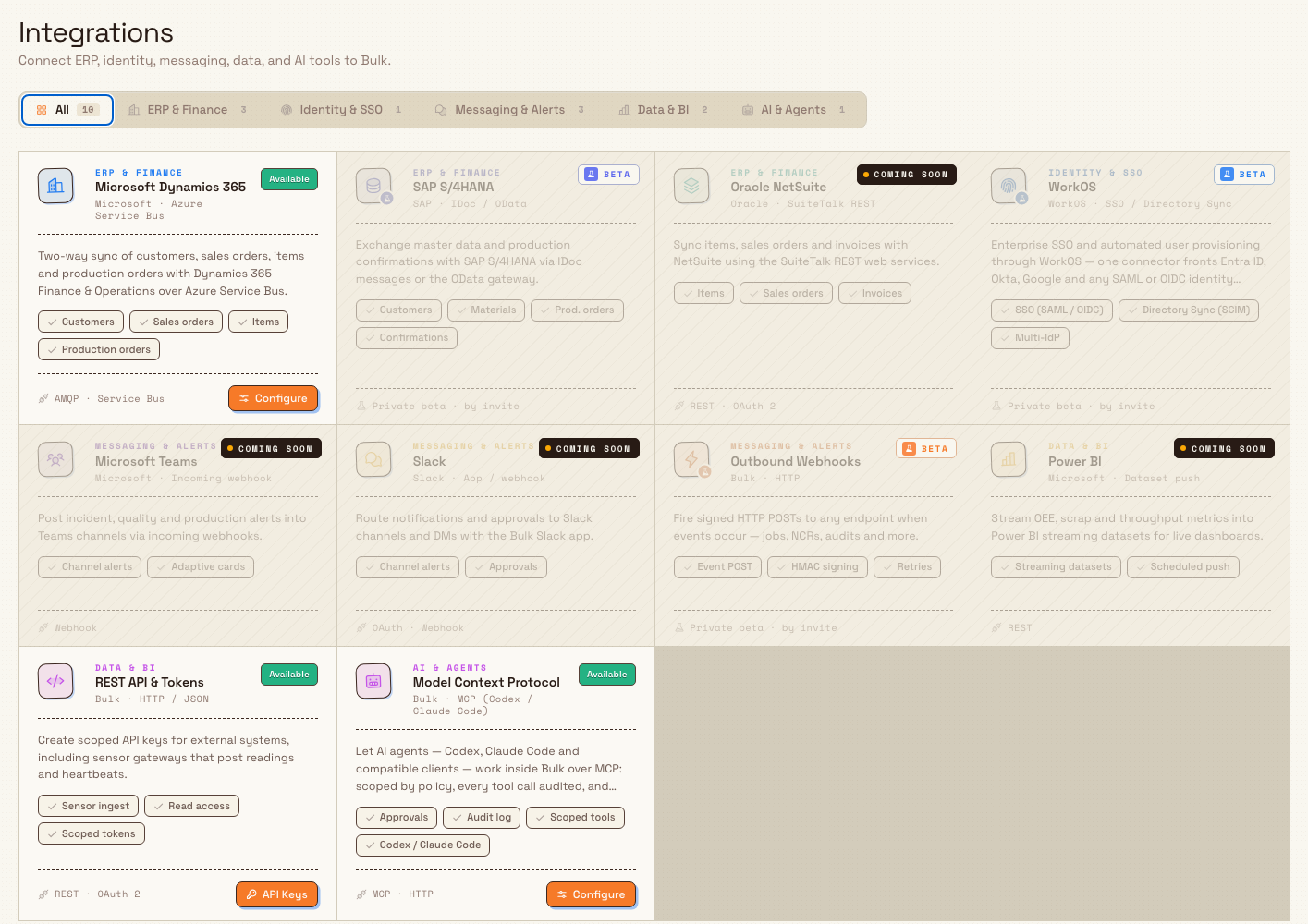
Bulk rarely runs alone. The Integrations catalog , at Settings › Organization › Integrations , is where you connect it to the other tools your plant relies on. Connectors are grouped into ERP & Finance, Identity & SSO, Messaging & Alerts, Data & BI, and AI & Agents, and you can filter the catalog by category.
Three connect surfaces are wired and ready to use today:
- REST API & Tokens , create scoped API keys so external systems, such as sensor gateways that post readings, can talk to Bulk over HTTP. See REST API.
- Model Context Protocol , let AI agents work inside Bulk over MCP, scoped by policy, with every tool call audited and guarded actions gated by approval. See Model Context Protocol.
- Microsoft Dynamics 365 , two-way sync of customers, sales orders, items, and production orders with Dynamics 365 Finance & Operations. See Configure Dynamics 365.
Other connectors in the catalog , such as SAP S/4HANA, WorkOS, Slack, and Power BI , are shown as planned so you can see what is on the roadmap; they are not yet available to configure.
Automate routine work
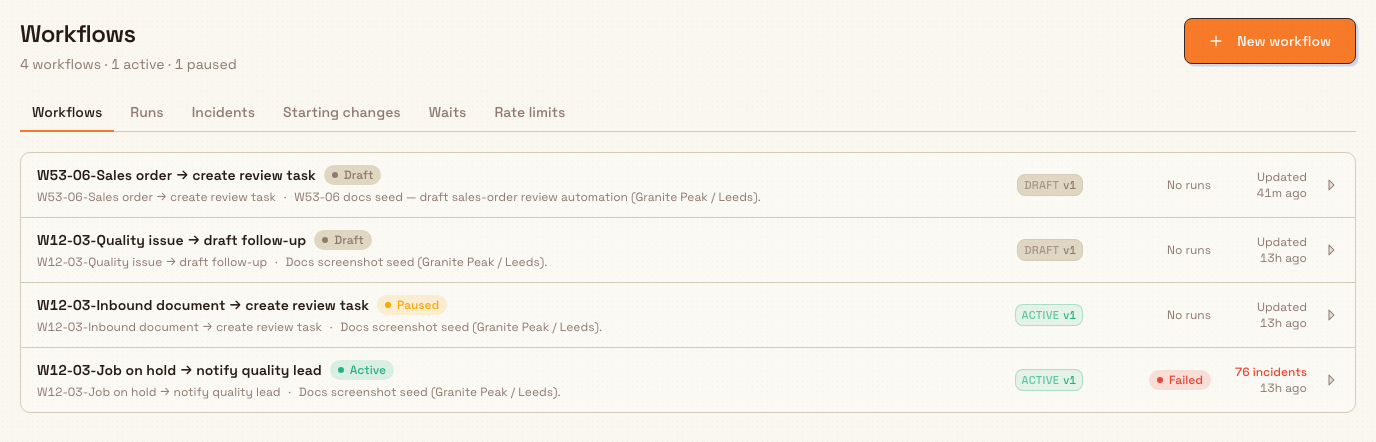
Bulk's Workflows automation feature , at Settings › Organization › Workflows , runs no-code automations inside your plant. A workflow starts on a condition, filters the events it cares about, and then takes actions on your behalf: reacting to shop-floor changes, overdue work, audits, and messages from your integrations. Choose New workflow to build one.
Two different things called 'Workflows'
The Workflows documentation section (the parent of this page) is a set of cross-module journey guides. The Workflows automation feature described here is a separate tool under Settings › Organization › Workflows. This overview means the automation feature.
The automation feature is in Beta: it works, but it is still being refined, so its screens and behavior may change. Set automations up carefully , a workflow acts on live data, and integrations and API keys reach systems outside Bulk , and roll them out without disrupting work in progress.
For the safe way to connect an external system and add automation around it, follow the task guide:
A setup example at Wayne Enterprises
Wayne Enterprises is preparing Gotham Applied Sciences for precision manufacturing. This example describes the setup sequence; the screenshots open existing settings without connecting services or enabling automations.
- An administrator opens Settings › Organization and configures the plant: its name and code, working hours, and units.
- In Master Data, they load the plant's customers, parts, assets, and routings so production has something to run against.
- In Users, they invite the Gotham team by email and, in User roles, give each person a role , station operators get the Tablet user shop-floor role, the site lead gets a broader management role.
- With the plant configured, they open Settings › Organization › Integrations and connect Dynamics 365 so customer and sales-order data flows in from finance, and create a scoped REST API key for the laser cutter's sensor gateway.
- Finally, they open Workflows and build a first automation , when a job runs overdue, notify the site lead , testing it before rolling it out.
By the end, the Gotham plant is configured, its team can sign in with the right access, its data is flowing from Dynamics 365, and one routine reaction is handled automatically.
Expected result
When you finish the setup-and-connect stage, the plant is ready for day-to-day work:
- its organization, site, and master-data settings are configured;
- its team can sign in, each with a role that grants the right access;
- Bulk is connected to the external systems it needs, through the Integrations catalog and API keys; and
- routine reactions are automated where it helps.
From here, your plant is ready for the Plan and produce stage.
Feature state and what to expect
The core setup areas , organization and site settings, master data, users, and roles , are generally available and fully supported. Two things on the connect-and-automate side are worth knowing before you rely on them:
- Workflows automation is in Beta. It works and is safe to try, but treat it as a preview: behavior and screens may change, so validate each automation before it acts on live work.
- Some connectors are limited or planned. In the Integrations catalog, only REST API & Tokens, Model Context Protocol, and Microsoft Dynamics 365 are wired. The Dynamics 365 connector still requires verification of its live sync in your own environment before you depend on it , see its guide for the current state. Other catalog entries are on the roadmap and cannot be configured yet.
Related
- Set up a new organization or site , the end-to-end guide to configuring a plant.
- Automate and integrate safely , the end-to-end guide to connecting systems and adding automation.
- Administration , the full reference for organization, site, master-data, and access settings.
- Integrations , reference guides for the REST API, Model Context Protocol, and Dynamics 365.
- Workflows , the other end-to-end journey guides, once your plant is set up.
Workflows
End-to-end journeys through Bulk, from setting up a site to producing, checking, and invoicing work, each linking to the guide for every step.
Set up a new organization or site
How a Bulk organization and its sites fit together, and the setup journey from a new organization to choosing and working across its sites.