Browse by role
Find Bulk guidance by job: starting tracks for administrators, managers, operators, quality and safety, people and training, and finance teams.
Last updated
Bulk is a Manufacturing Execution System (MES) — the software your team uses to run day-to-day work across the shop floor and the offices around it. It covers a lot of ground: production, quality, safety, scheduling, inventory, people, training, audits, and invoicing. Browse by role is a shortcut through all of it. Instead of reading every module in order, you start from the job you actually do and follow a track built around it.
Use this section when you want the shortest path to "what do I do in Bulk for my role?" — for example on your first week, when you move to a new job, or when you just want the handful of tasks your shift depends on rather than the full product reference.
How roles work in Bulk
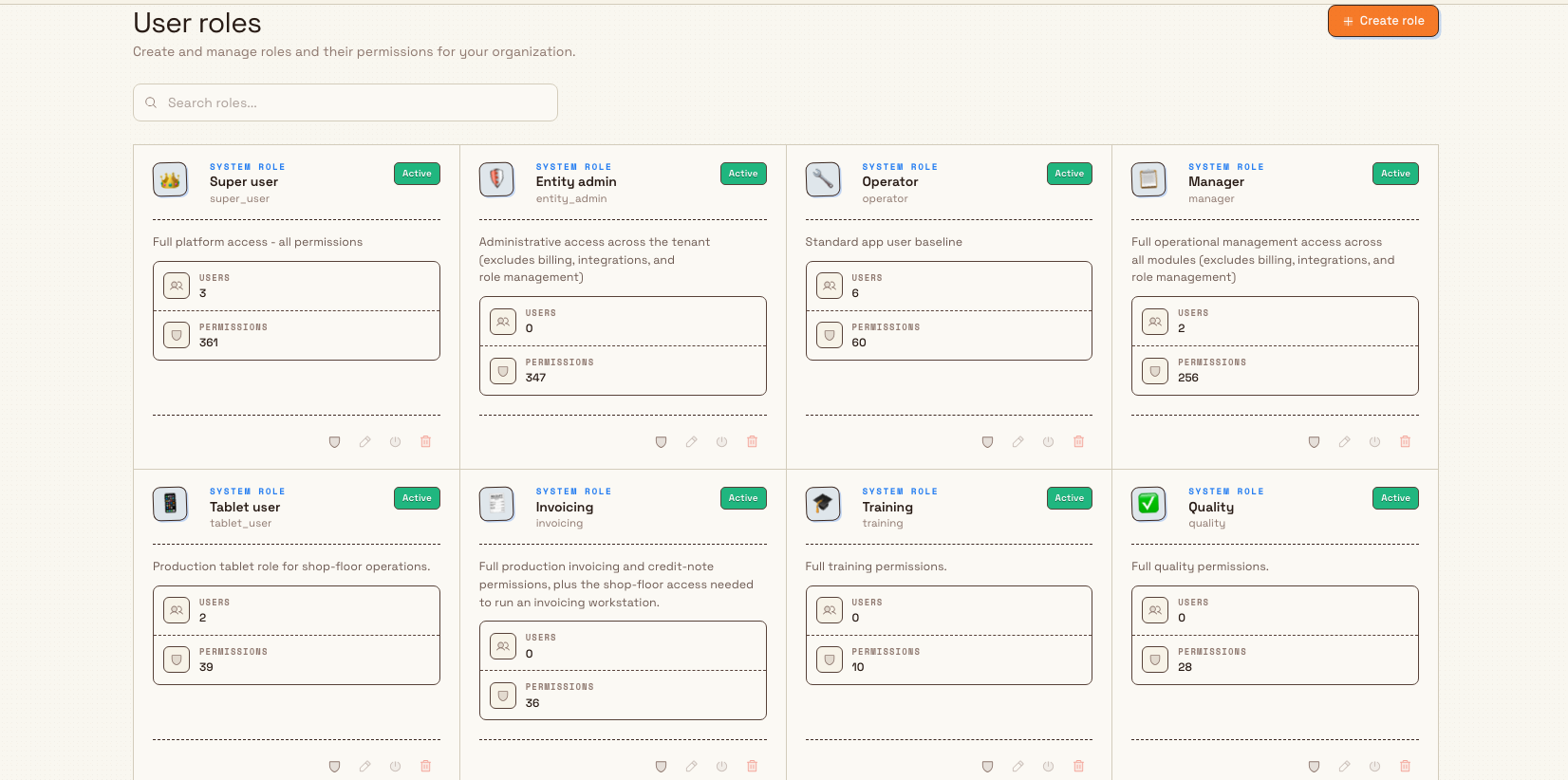
In Bulk, a role is the named set of permissions an administrator assigns to you — for example Operator, Manager, Quality, Safety, or an administrator role. Your role, together with the plants you have access to (a plant, also called a site or entity, is a single site you operate, such as a factory or fabrication plant), decides what you can see and do. Because of this, two people signed into the same organization can see different menus and pages: Bulk hides the features a role does not include, so your workspace is tailored to your job.
Roles are defined and managed by administrators under Settings → Organization → User roles. Every organization starts with a catalogue of built-in roles — including Super user, Entity admin, Manager, Operator, Tablet user, Quality, Safety, People, Training, Master data, Dashboards, and Invoicing — and administrators can add their own. You do not choose your own role; an administrator assigns it when they invite you or later from your user record.
The role tracks below are a reading guide, not your exact permissions
The tracks in this section group documentation by the kind of work you do. They are a way to find guidance quickly, not a literal copy of your permission set. What you can actually open in the app is governed by the role your administrator assigned you and the plants you can access. If a page in a track points to something you cannot see, that is almost always an access matter — ask your administrator.
Choose your track
Pick the track that matches your work. Each links to a role guide that organizes the tasks and reference pages that matter most for that job.
- For administrators — Set up and run the platform: plants (entities), users, roles and permissions, master data, organization settings, and integrations. Start here if you hold a Super user or Entity admin role.
- For managers — Oversee production across the plant: review orders and schedules, track performance on dashboards and analytics, and approve work. Built around the Manager role.
- For operators — Run work on the shop floor: open a workstation, book jobs, and complete production steps. Built around the Operator and Tablet user roles.
- For quality and safety teams — Keep product and people safe: quality checks, non-conformances and holds, risk assessments, incidents, and audits. Built around the Quality and Safety roles.
- For people and training teams — Manage the workforce: employees, departments, job titles, shifts, absence, and training. Built around the People and Training roles.
- For finance teams — Bill for production work: raise invoices and credit notes and run the invoicing workstation. Built around the Invoicing role.
An example at Wayne Corp
Say you have just joined Wayne Corp, a UK precision-fabrication company, and you work at its Gotham Applied Sciences. Different colleagues start in different places:
- Priya, a laser-cutting operator, opens For operators. She follows it to open a workstation at her machine and book the jobs she completes during the shift.
- Marcus, the shift manager, opens For managers. He uses it to review the day's production orders, check the plant dashboard, and see where a schedule is slipping.
- Dana, who administers Bulk for Wayne Corp, opens For administrators. She uses it to invite a new starter, assign the Operator role, and give them access to the Gotham site.
Each person reaches the same conclusion from a different door: they land on the small set of pages their job needs, without reading the whole product first.
Expected result
After you pick a track, you can:
- recognize which Bulk role and plant access your work depends on;
- jump straight to the tasks and reference pages for your job; and
- move to another track when your responsibilities change or you take on a new one.
Feature state and what to expect
Browse by role is generally available as a way to navigate this documentation. The Bulk roles it refers to — Operator, Manager, Quality, and the rest — are the standard, supported roles every organization receives.
A few things are worth knowing:
- Your access is personal. A track lists guidance for a kind of work, but you only see the features your assigned role and plant access allow. Missing a module a track mentions almost always means you have not been granted it, not that something is broken.
- Some areas are in Beta. A handful of modules a track links to — such as 5S Dashboard and Asset Revenue in Analytics — carry a Beta label in the app. They work, but their screens and behavior may still change, so treat them as previews.
- You do not set your own role. Roles are assigned by administrators. If you need different access, ask the administrator for your organization.
Not sure which role fits you?
If more than one track sounds relevant, that is fine — many people wear more than one hat, and you can follow whichever guidance you need. To find out which Bulk role you actually hold, ask your organization's administrator; roles are assigned and viewed by administrators under Settings → Organization → User roles. If you can sign in but a module a track describes never appears, you likely have an account without that access yet — request it from your administrator.
Related guidance
- Getting started — sign in, choose your plant, and find your way around, whatever your role.
- Workflows — end-to-end guides that string individual tasks into a complete process.
- Product reference — detailed descriptions of each module and its concepts.
- Administration — for administrators setting up users, plants, and organization-wide settings.
- Manage roles and permissions — how administrators create roles and choose what each one can do.
- Manage users — how administrators invite people and assign their roles.
Enable two-factor authentication
Add a second sign-in step to your Bulk account with an authenticator app, save your backup codes, and manage or turn off protection later.
For administrators
What administrators do in Bulk: set up the organization and sites, manage users, roles, and access, and configure master data, with links to each guide.