Personal display and connection settings
Choose personal date and time formats or change this browser's connection protocol from the Settings page.
Last updated
Open your avatar menu and choose Settings. Display changes your personal date and time preferences. Connection changes how this browser connects and reloads Bulk after a protocol change. These are separate from the Account page's profile and security controls.
Change display preferences
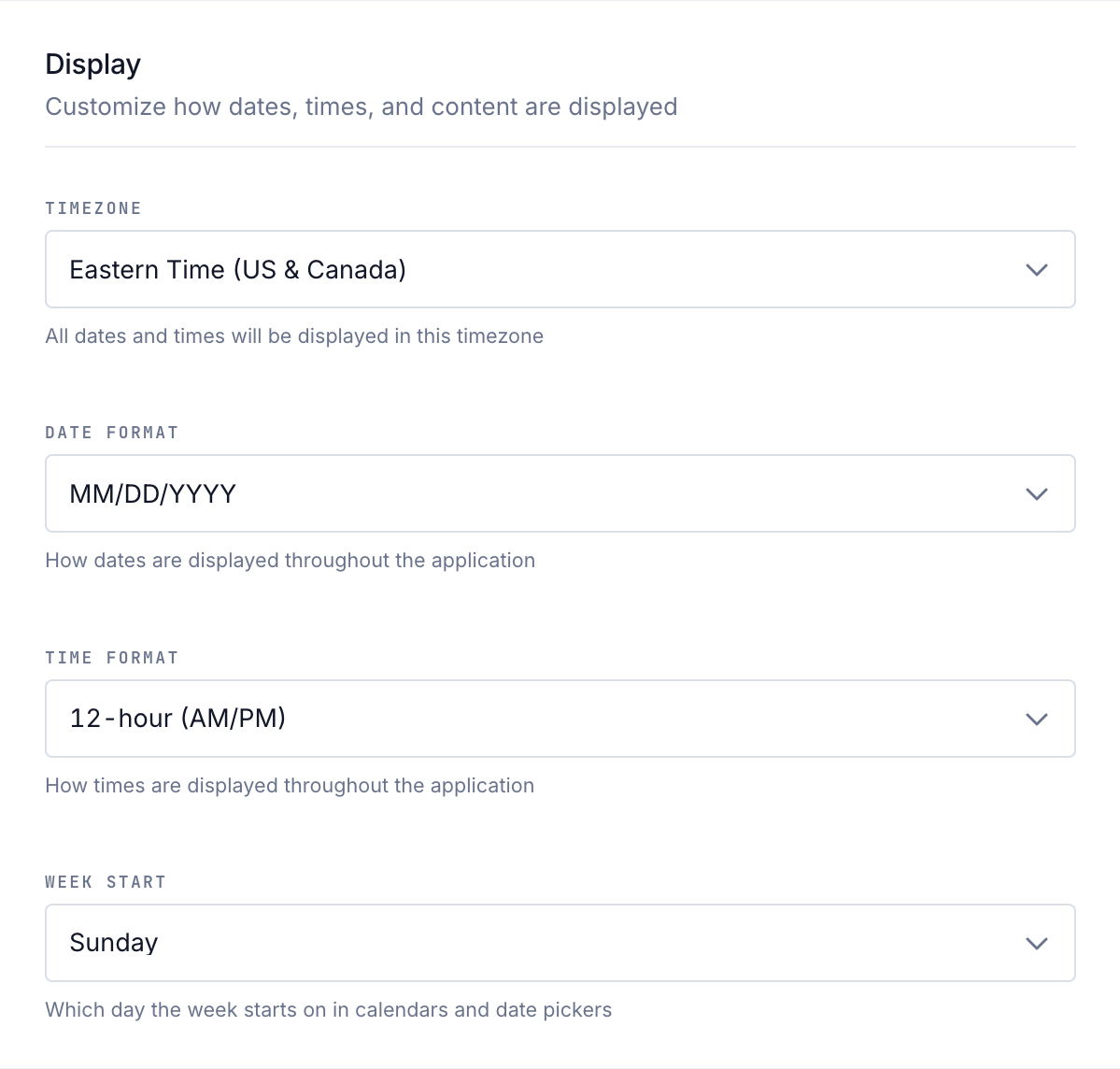
- Sign in and open Settings → Display.
- Choose Timezone for timestamps displayed in your personal time context.
- Choose Date Format: MM/DD/YYYY, DD/MM/YYYY or YYYY-MM-DD.
- Choose Time Format: 12-hour (AM/PM) or 24-hour.
- Choose Week Start: Monday or Sunday as your stored preference. Shared business calendars continue to use their business-week rule.
- Wait for Display preferences updated after each change.
Each choice saves immediately for your account. There is no separate Save button. If preferences are loading or cannot be loaded, wait or refresh before trying to change them. An error means the save did not complete; check the displayed value after retrying.
Personal appearance and site-owned dates
Your formats change how supported dates and times are written. They do not move the underlying event or change a site's operating calendar.
A site-owned calendar date, such as an invoice day or required delivery day, stays on the same day even if your personal timezone differs. Site-owned event timestamps display using their owning site's time zone. Personal-context timestamps use your selected timezone. The current Week Start setting does not change shared business calendars or the organization's business week, report periods or week numbering.
For example, changing DD/MM/YYYY to YYYY-MM-DD can show 16/10/2026 as 2026-10-16. It does not change the invoice's date to a different day.
Change this browser's connection
Save any open work before changing the connection, because Bulk reloads the page.
- Open Settings → Connection.
- In Connection Protocol, choose HTTP Polling (Standard) or WebSocket (Performance).
- Read Connection mode changing. Bulk reloads after about two seconds and starts the chosen connection mode.
- Check that the page reconnects and your current data loads.
HTTP Polling is the standard default. WebSocket can provide faster live updates when your network supports it. If WebSocket has connection problems, select Reset to standard connection, or choose HTTP Polling in the dropdown. Reset also reloads the page.
The connection choice is stored locally in this browser, not as a workspace-wide policy or a setting shared across your devices. The sign-in, invitation and password-recovery pages use polling to protect access even if your signed-in preference is WebSocket. A restricted browser that cannot keep local settings may not retain your choice.
Changing the protocol does not alter your permissions, data or the site's server settings.
Related guidance
Update personal account settings
Manage your own Bulk account from the Account page. Change your display name and avatar, update your password, and reach two-factor authentication.
Enable two-factor authentication
Add a second sign-in step to your Bulk account with an authenticator app, save your backup codes, and manage or turn off protection later.