Use table views and row selections
Save and maintain personal column layouts, reset a table's arrangement, and understand selection rules before a bulk action.
Last updated
Use Columns to arrange a supported table and the Default view, Custom view or named-view menu to save and reuse that arrangement. Row selection is separate: read the selected count and action eligibility before applying a bulk change.
Save and apply a view
- Open the table at the site you work in. Use Columns and the available header controls to choose visible columns, order, pinning, widths and sorting.
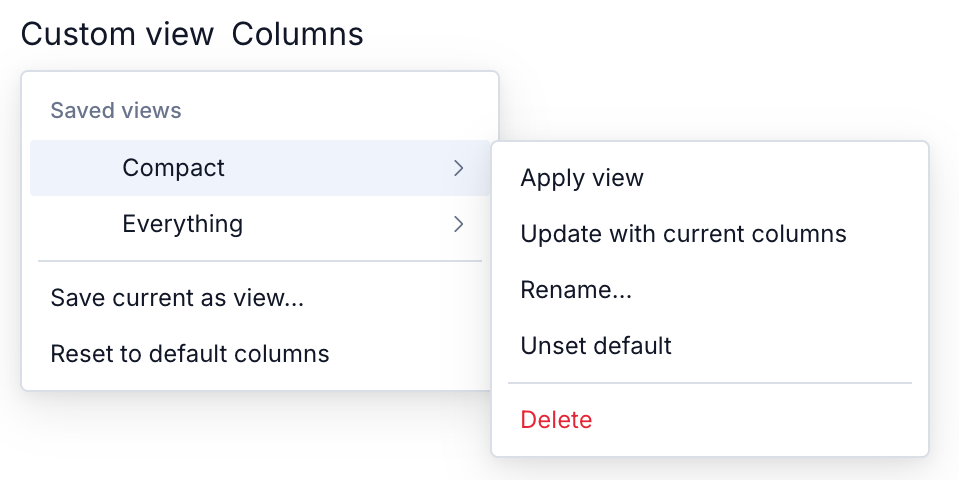
- Open the view menu beside Columns. It shows Default view, Custom view or a saved view's name.
- Choose Save current as view..., enter View name, and select Save. An empty name cannot be saved.
- To use a saved arrangement later, open its submenu and choose Apply view.
Views belong to your account, that table and the selected site. No special role is required to manage your own views. Another person or site can have a different layout. A view changes presentation; it does not grant access to hidden records.
Supported arrangements store columns and sorting, plus a sheet freeze boundary where that table supports it. They do not save selected rows or promise to save every search/filter control on the page.
Maintain saved views
Open a saved view's submenu for these actions:
| Action | Result |
|---|---|
| Update with current columns | Replace that view's stored arrangement with the current one, including supported sorting |
| Rename... | Enter a new View name and select Rename |
| Set as default | Mark this as your default for this table and site |
| Unset default | Remove that default designation |
| Delete | Remove the named preset; this does not delete any table records |
A default preset offers Unset default in its submenu. The current working arrangement is also saved automatically, so it can take precedence over a default you just designated. Apply the desired view, or use Reset to default columns, when you want to return to the default arrangement.
Reset to default columns appears when the arrangement has customisations. It clears the working arrangement and restores your saved default view if one exists, otherwise the table's built-in defaults. It does not delete your named views. Changing columns after saving a preset does not overwrite that named preset until you choose Update with current columns.
Check row selection by list
There is no single selection rule for every Bulk list. Paging or sorting can leave records selected outside the visible page. Always read the selected count, the action's eligible count and any skipped note. Clear the selection when you want to start a different batch.
| List | Selection and select-all behavior |
|---|---|
| Invoices | The header checkbox selects this page. Selection survives paging, sorting and leaving/returning to the list in the current app session. A different person, site, search or filter clears it. Reloading clears it. See Act on several invoices. |
| Quality Issues | Selected issues share one status. Selection survives paging and sorting; changing site, search or column filters clears it. The select menu separates This page from All pages, with a named status choice for each. Select all Open, for example, selects matching editable Open issues across pages. Read any truncation warning and narrow the filters if the result is capped. |
| Risk Assessments | Changing status filter or search clears the selection. Copy requires every selected assessment to be copyable; Archive uses the eligible current-active subset. See Copy, archive or delete risk assessments. |
| Production Jobs | The header action toggles editable jobs on the current page while retaining previously selected jobs. Check the full selected count and clear it before starting a different batch. |
For Quality Issues, the current page's selected records are rechecked as their status or edit eligibility changes. Bulk removes records that no longer fit and shows a warning. The bulk action must be allowed for the selected issues; selecting rows does not bypass their permission or status rules. Use Clear selection in the select menu to start over.
Other tables may expose different selection controls. A checkbox marked This page does not mean every matching record across the site. Review the list's own guide and the final confirmation, especially after moving through pages or changing a view.
Related guidance
Build and edit with Hugo
Follow Hugo's live changes, inspect the activity summary, undo an eligible reply, and tell saved edits apart from actions that need confirmation.
Open a dashboard
Open your Dashboard, a personal view of a plant built from live widgets, then switch pages, add and rearrange widgets, and save your own layout.