Ask Hugo for product help
Ask how to use Bulk, follow cited guides and Open buttons, and keep documentation beside your work in a floating window.
Last updated
On Home, select Ask Hugo for help in the lower corner. Ask a how-to question, then check the linked documentation. An Open button takes you to the relevant Bulk page while the answer stays on screen.
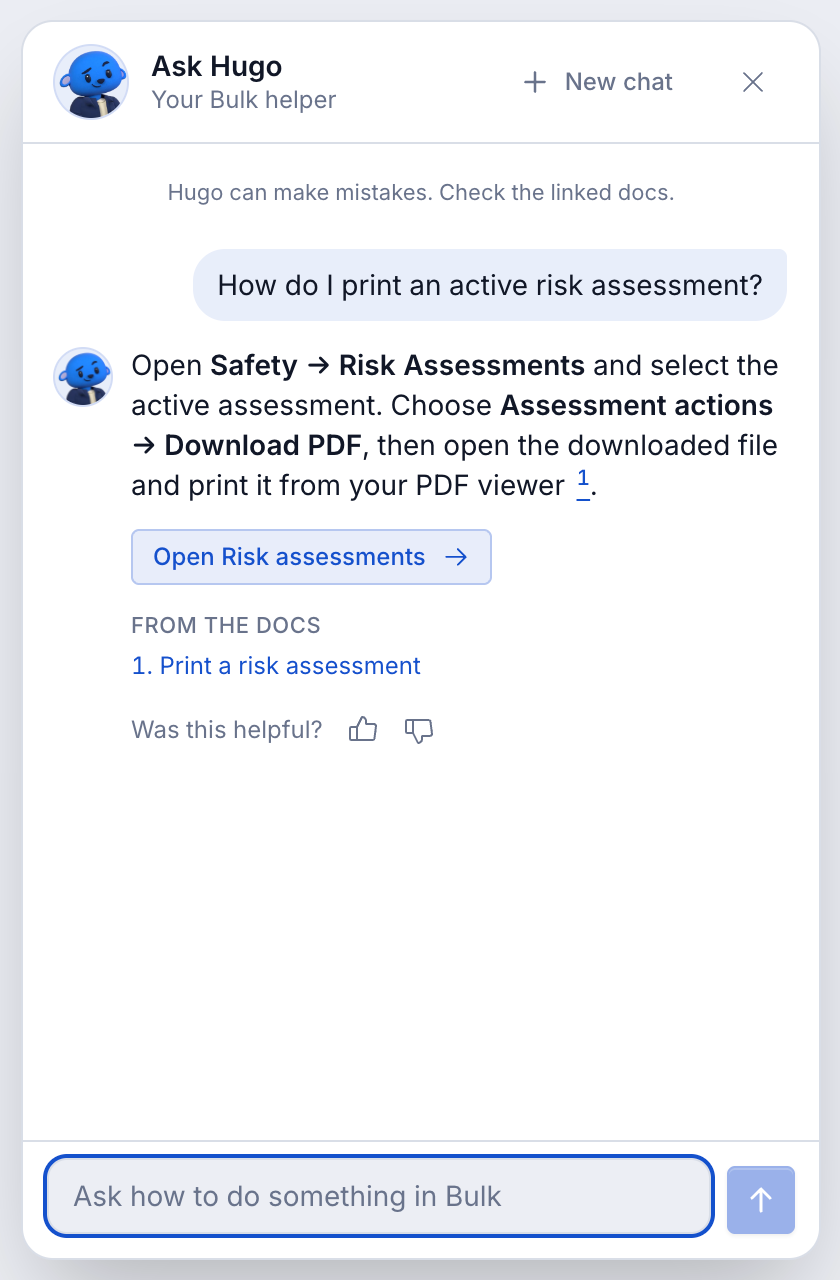
Ask a question
- Return to Home and select Hugo, or the Need a hand? invitation when shown.
- Type in Your question, for example “How do I print an active risk assessment?” You can also select a suggested question.
- Press Enter or Send question. Use Shift+Enter for a new line. A question can contain up to 1,000 characters.
- Wait while Hugo searches the docs and writes the answer. Stop answering stops the response if you need to interrupt it.
- Read the answer and its From the docs sources. Select a citation or source title to open the guide.
Hugo's help answers explain the documented workflow. Check the guide before acting, especially if the answer does not match your current screen. The help chat does not save production records on your behalf; use the page's normal controls to carry out the task.
When an answer offers Open Risk assessments, Open Invoices or another named action, selecting it navigates to that page. It does not grant permission to use it. Your site's access and action permissions still apply.
Continue or start again
Ask a follow-up in the same chat while there is room. The conversation supports six question turns. When This chat is full appears, choose Start a new chat. New chat also clears the current conversation when you want to change topic.
Closing Ask Hugo hides the panel. An open conversation can stay with you while navigating inside Bulk; reloading or leaving the app clears this in-memory chat. Helpful and Not helpful let you rate a completed answer where offered.
Read a guide beside your work
A normal click on a cited Bulk guide opens it inside a floating documentation window. Modified clicks, such as Ctrl-click or Command-click, keep the browser's normal new-tab behavior. Use Open in a new tab in a documentation window if you want a separate browser tab.
On a desktop-sized window:
| Control | What it does |
|---|---|
| Title bar | Drag to move the window; double-click to maximise or restore it |
| Bottom-left or bottom-right corner | Drag to resize |
| Maximise / Restore size | Fill the available workspace or return to the previous size |
| Minimise | Hide the window in the bottom Open windows tray |
| A tray tab | Restore or bring a window forward; selecting the active tab minimises it |
| Close | Close that window; the tray also has a close control per window |
You can focus the title and use arrow keys to move the window, or Shift+arrow keys to resize it. Escape closes the focused floating window. On a narrow screen the window fills the available space above the tray rather than offering desktop resizing.
Minimising preserves the guide's page and scroll position. Select another window to bring it forward. The same window controls apply to task windows that use this floating-window layout. Closing a window is not proof that an unsaved form was saved; finish the form's own save action first.
If Hugo cannot answer
- The connection dropped or Something went wrong: use Try again when offered.
- Your session has expired: refresh, sign in if needed, and ask again.
- This chat is full: start a new chat.
- You've asked Hugo a lot today: try again tomorrow or use Contact support.
- Hugo has answered all it can this month, or Hugo is switched off: use Contact support or browse the documentation directly.
- Hugo is not available on this address: use your normal Bulk address.
- Hugo could not read that question: reword it with the task and screen name.
- Hugo could not load: refresh the page to load the panel again.
The launcher can remain hidden when help is disabled or the documentation service cannot be reached. You can still use the header's Help → Search docs link. Contact support opens the support/feedback flow; review its content before submitting it.
Related guidance
Navigate Bulk
Find your way around Bulk: the Home launcher, the left sidebar with its Platform and Modules groups, the header, and the search that opens any page.
Build and edit with Hugo
Follow Hugo's live changes, inspect the activity summary, undo an eligible reply, and tell saved edits apart from actions that need confirmation.