Complete an audit response
Work through an in-progress audit in Bulk: answer each checklist item, meet comment and photo requirements on failures, and submit to record a Pass, Fail, or Pass with Issues result.
An audit in Bulk is a structured checklist that a person completes against an area or asset on the shop floor, such as a daily safety check, a weekly 5S review, or a monthly maintenance inspection. Completing an audit response means working through that checklist once it has started: you answer every question, add any required comments or photos, and submit your answers so Bulk can score the audit and record a result.
This article covers the execution screen, from the first question to submission. Use it when an audit has already been started and is waiting to be filled out. If you still need to begin an audit, see the start-audit guide linked at the end.
When you would do this
- A scheduled audit is due or overdue and someone needs to carry it out.
- You started an audit earlier, left it part-finished, and want to resume and complete it.
- A supervisor asks for a fresh check on an area or asset before production continues.
Before you begin
You need the following in place:
- The Run audits permission. In Bulk this permission is named "Run audits" (
audits.execute) and it covers filling out the checklist and submitting results for the selected site. It is granted to the Operator, Tablet user, Manager, and Entity admin roles by default. If you cannot open or edit an audit, ask an administrator to check your role. - An audit that is already in progress. You complete responses on an audit that has been started. Starting an audit creates the record you then fill out. See the linked guide on starting an audit.
- The correct site selected. Audits belong to a single site (entity). Make sure the site shown in Bulk is the one you are auditing, because the audit and its result are recorded against that site.
Open the in-progress audit
Audits are managed from the Audits area. The inbox there groups work into Overdue, Due today, In progress, and Completed / last 7 days.
To carry on with an audit that someone has already started, select its row in the In progress group. Bulk opens the execution screen for that specific audit instance without creating a new one. A row you start fresh opens the same screen for a new instance.
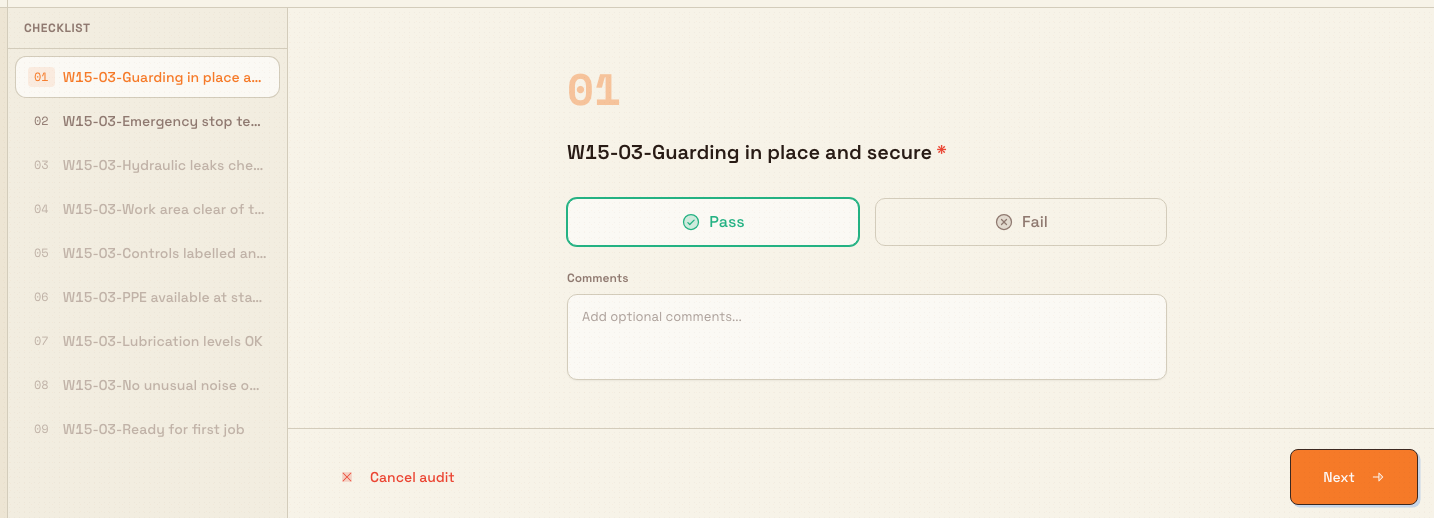
The execution screen shows one question at a time. On wider screens (a desktop or a large tablet) a Checklist panel lists every question down the left side; on smaller screens you move through questions with the on-screen buttons.
audits.complete-response-01
Answer each question
Each question is one checklist item. The centre of the screen shows the question number (as a two-digit label such as 01), the question text, and a red asterisk next to any item that is required. Beneath the question is the input you use to answer it.
Bulk supports several answer types, and the input changes to match:
- Pass / Fail and Yes / No — large buttons for the two choices. An N/A button also appears when the template allows "not applicable" for that item.
- Numeric — a number entry, often with a unit and a pass range defined by the template.
- Text — a short or multi-line comment box.
- Single select and Multi select — choose one option, or several, from a list.
- Photo and Signature — capture or attach an image, or sign on screen.
- Date and Time — pick a date or a time.
Your answers save automatically as you go. There is no separate save button for each question; when you choose or type an answer, Bulk records it against the audit. Because of this, you can leave and resume an in-progress audit without losing the answers you have already given.
Answers save as you work
Each answer is stored the moment you set it. If you close the audit part-way through, reopen it from the In progress group in the Audits inbox and continue where you left off.
Move between questions
Use Next and Previous at the bottom of the screen to move through the checklist in order. On wider screens you can also select any question in the Checklist panel to jump straight to it.
Jumping has one rule: you can open any question you have already answered, and you can open the next unanswered question, but you cannot skip ahead over unanswered questions. Answered questions show a tick in the Checklist panel instead of their number, which makes it easy to see what is left.
If a required question is unanswered, Next is disabled until you answer it. This keeps the checklist complete as you progress.
Handle a failed item
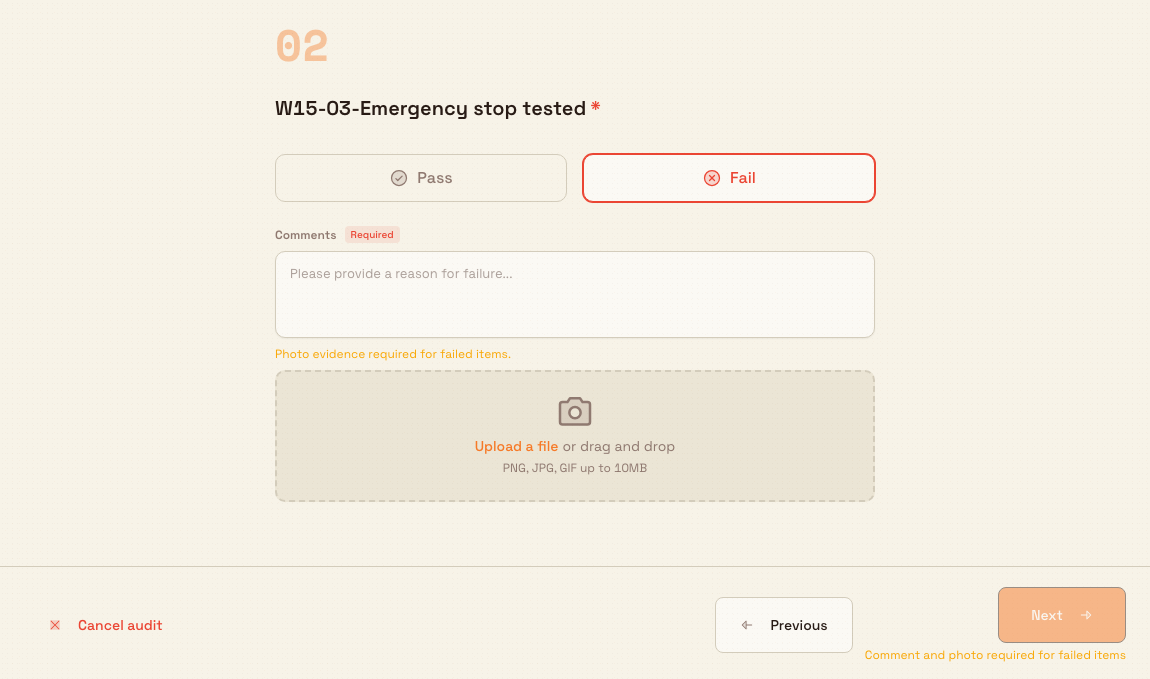
Some templates require extra detail when an item does not pass. When you select Fail (or No), a Comments box is available for you to record the reason, and the template may make that comment mandatory. When a comment is required, a Required marker appears next to the Comments label and the reason text reads "Please provide a reason for failure...".
A template can also require photo evidence on a failed item. When it does, Bulk shows the message "Photo evidence required for failed items." and a photo control so you can attach the evidence in place.
Until you provide the required comment or photo, Next stays disabled and a short reason is shown, such as "Comment required for failed items", "Photo required for failed items", or "Comment and photo required for failed items". Supplying the missing detail clears the block and lets you continue.
audits.complete-response-02
For more on capturing and managing images and signatures on an audit, see the guide on attaching audit evidence.
Submit the audit
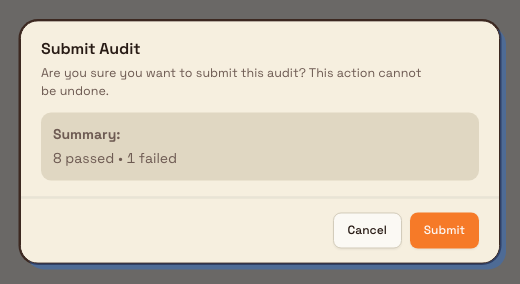
When every required question is answered and any required comments and photos are in place, the final control becomes Submit. Selecting it opens a Submit Audit confirmation that summarises how many items passed and failed and warns that the action cannot be undone. Choose Submit in that dialog to complete the audit, or Cancel to keep editing.
On submission, Bulk scores the audit against the template's rules and records an overall result:
- Pass — the audit met its passing criteria with no failures counted against it.
- Pass with Issues — the audit met its passing score but at least one item failed.
- Fail — the audit did not meet its passing criteria, or a critical item failed.
Bulk also sets how long the result stays valid based on the audit's frequency: daily audits are valid until the start of the next day, weekly audits for seven days, and monthly audits for thirty days. One-off audits do not expire. After a successful submit, Bulk shows a confirmation with the result and returns you to the Audits inbox, where the completed audit appears under Completed / last 7 days.
audits.complete-response-03
Cancelling discards your answers
The execution screen has a Cancel audit control, separate from submitting. Cancelling an in-progress audit discards all the responses you have entered and cannot be undone. Only cancel an audit you genuinely want to abandon; to pause instead, simply leave the screen and resume later.
Granite Peak Manufacturing example
At Granite Peak Manufacturing's Leeds Fabrication Plant, every press brake needs a daily pre-use safety check before its first job. Sam, a press-brake operator, opens the Audits inbox at the start of the shift and sees the daily check for the AMADA press brake under Due today.
Sam works through the checklist one question at a time: guarding in place (Pass), emergency stop tested (Pass), hydraulic leaks (Fail). Because the template requires evidence on a failure, Sam types "Small weep at the front cylinder seal" in the Comments box and attaches a photo of the seal; only then does Next become available. Sam finishes the remaining items and selects Submit. The confirmation shows the pass and fail summary, and after submitting, Bulk records the audit as Pass with Issues, valid until the start of the next day, and returns Sam to the inbox where the check now sits under Completed / last 7 days. The failed item and its photo are on record for the maintenance team to follow up.
What to expect after submitting
- The audit's status changes to completed and it moves to the Completed / last 7 days group in the inbox.
- Bulk records the overall result (Pass, Fail, or Pass with Issues), the pass and fail counts, and a validity window based on the frequency.
- Failed items, their comments, and any photos are kept with the audit so reviewers can act on them. To read a finished audit, see the guide on reviewing audit results.
Limitations and feature state
- Completing an audit response is a generally available capability in Bulk.
- You can only enter or change answers while the audit is in progress. Once an audit is completed or cancelled, the execution screen no longer lets you edit it, and Bulk shows an "Audit Already Completed" or "Audit Cancelled" message instead. To change a completed result, an administrator with the Override audits permission uses the override flow rather than the execution screen.
- Which answer types appear, whether an item is required, and whether a failure needs a comment or photo are all defined by the audit template, not on the execution screen. This article describes the behaviour those settings produce; it does not cover building or editing templates.
- Exact scoring, thresholds, and how a critical failure forces an overall Fail are determined by each template's rules. The result you see on submit reflects those rules.
Troubleshooting
- Submit is not available on the last question. A required item earlier in the checklist is still unanswered, or a failed item is missing its required comment or photo. Open the Checklist panel and look for any question still showing its number rather than a tick, then answer it. On smaller screens, step back through with Previous.
- Next is disabled with a message about a comment or photo. The current item is marked Fail (or No) and the template requires a comment, a photo, or both. Add the detail the message names, and Next becomes available.
- You cannot jump to a later question in the Checklist. You can only open answered questions or the next unanswered one. Use Next to reach questions further ahead.
- The screen says the audit is already completed or cancelled. That audit instance can no longer be edited. Start a fresh audit from the inbox if another check is needed.
Related guidance
Start an audit
Open a scheduled audit as a checklist from the Audits inbox or the guided Type, Audit, Area start flow, then begin recording responses.
Attach audit evidence
Attach photo evidence to audit items while an audit is in progress, satisfy required-photo checks, and view the saved photos in the completed report.