Override an audit response
Let a supervisor clear the production block created by an incomplete, overdue, or failed compulsory audit — for a fixed time, with a signed and logged reason.
In Bulk, an audit is a checklist or inspection you run against a machine or work area — for example a pre-use safety check or a quality inspection. An audit response is one completed run of that audit for a specific asset. When an audit is marked compulsory and its response is not finished (or the response has failed), Bulk can block production on that asset so no new work is loaded until the check passes. The production board also calls these blocking audits "compulsory checks".
An override does not change the answers inside an audit. Instead, a supervisor clears the production block for a set length of time so work can continue while the outstanding checks are still open. Bulk records who authorised it, why, for how long, and captures a signature — so the override is fully traceable.
Use an override when production genuinely needs to start but a compulsory audit response cannot be completed right now — for example the inspector is off-site, the calibration tool is unavailable, or an urgent order cannot wait for a scheduled check that is not yet due.
An override lets work start before a required check is complete
Overriding a compulsory safety or quality audit means production can run before that check has passed. Only override when you have confirmed it is safe to continue, and complete the outstanding audit responses as soon as possible. The block returns automatically when the override expires.
Before you start
You need all of the following:
- The "Override audits" permission (
audits.override). This is granted by default to the Super user, Entity admin, and Manager roles. Without it, the override action does not appear and Bulk rejects any attempt to create one. - An asset type that allows overrides. Each asset type carries readiness rules. The block only exists when Block production if compulsory incomplete is turned on, and overrides are only possible when Supervisor can override is also turned on. These rules are configured on the asset type's Asset Readiness widget, under Settings. If Supervisor can override is off, Bulk returns "Supervisor override is disabled for this asset type" and no override can be created.
- Access to the blocked asset's production home board, reached by selecting the asset from the production area.
Clear the block on a blocked asset
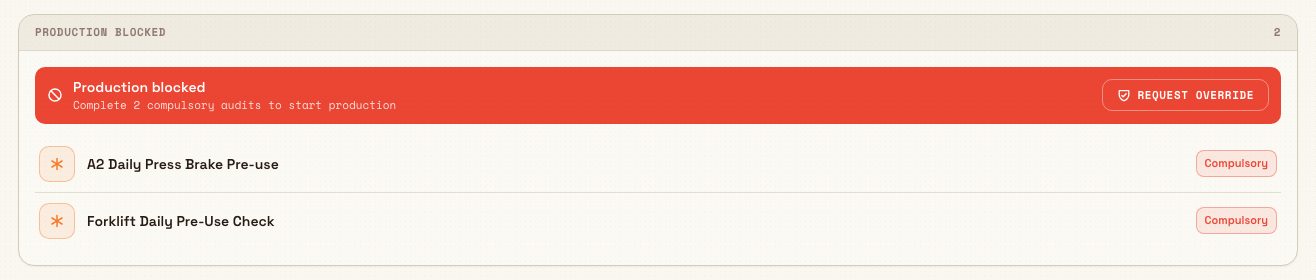
When a compulsory audit response is overdue or has failed, the asset's home board shows a Production Blocked card. It reads "Production blocked" with the count of compulsory audits still to complete, and lists each blocking audit as a row.
audits.override-response-01
To create the override:
- On the Production Blocked card, select Request override.
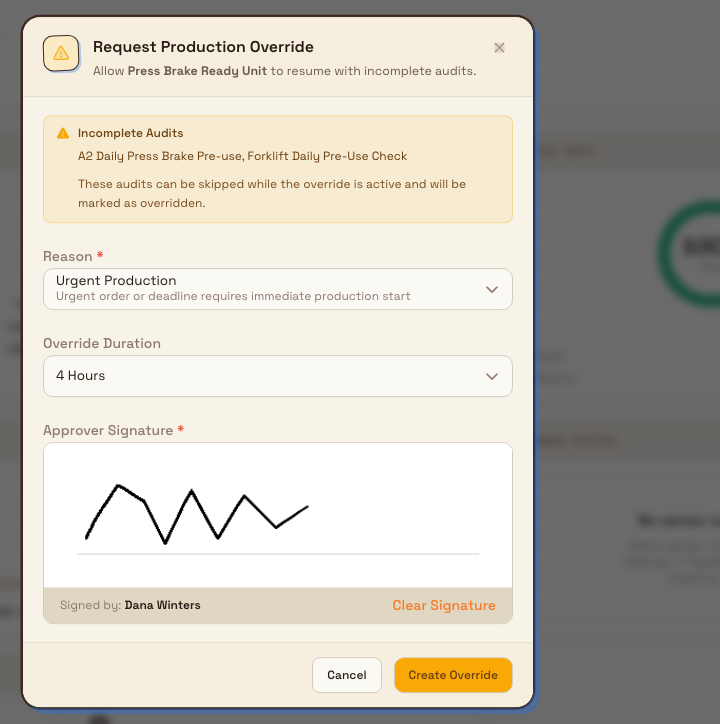
- In the Request Production Override dialog, review the Incomplete Audits list. These are the audits that will be skipped while the override is active and marked as overridden.
- Choose a Reason. The available reasons are Equipment Issue, Urgent Production, Audit Pending, Maintenance Scheduled, and Other. Each option shows a short explanation of when it applies. A reason is required.
- Choose an Override Duration. You can pick 1 Hour, 2 Hours, 4 Hours, 8 Hours, or 24 Hours. The duration defaults to 2 Hours.
- Sign the Approver Signature pad. A signature is required.
- Select Create Override.
audits.override-response-02
The Create Override button stays disabled until you have selected a reason and drawn a signature. A helper line lists whatever is still missing, for example "Complete required fields: reason, signature".
What happens next
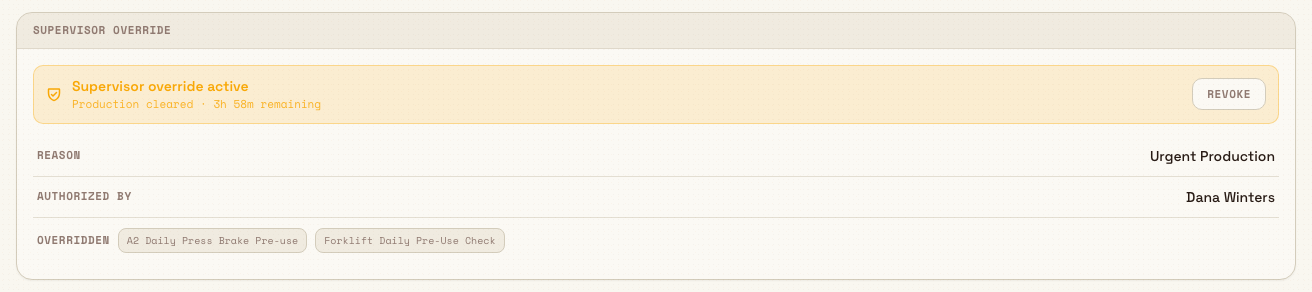
After you create the override, the card changes to Supervisor Override. Its banner reads "Supervisor override active" with "Production cleared" and the time remaining, for example "1h 30m remaining". The card also shows:
- Reason — the reason you selected.
- Authorized by — the name of the person who signed the override.
- Overridden — a chip for each audit that was skipped.
Production can now proceed on the asset. Creating a new override for the same asset automatically supersedes any override that was already active.
audits.override-response-03
Example: an urgent order at Leeds Fabrication Plant
At Granite Peak Manufacturing's Leeds Fabrication Plant, the press brake needs a compulsory Pre-Use Safety Check before any job is loaded. This morning the check is overdue because the safety officer is delayed off-site, and a rush order for a long-standing customer must start now.
Dana Winters, a plant admin who holds the Override audits permission, opens the press brake's home board and sees the Production Blocked card listing the outstanding Pre-Use Safety Check. Dana selects Request override, chooses the reason Urgent Production, sets the duration to 4 Hours, signs the pad, and selects Create Override.
The card switches to Supervisor override active — Production cleared · 4h remaining, with Dana named under Authorized by and the Pre-Use Safety Check listed under Overridden. The operator loads the rush order and starts work. When the safety officer arrives an hour later and completes the Pre-Use Safety Check, Dana revokes the override so normal blocking resumes for the rest of the shift.
Revoke an override early
An override ends on its own when its duration expires, and the block returns automatically. You can also end it early:
- On the Supervisor Override card, select Revoke.
- In the Revoke Override? dialog, enter a Reason for Revocation.
- Select Revoke Override.
Revoking immediately ends the override. Production is blocked again until all compulsory checks are completed. Revoking also requires the Override audits permission, and a reason is required before the Revoke Override button becomes available.
What Bulk records
Overrides are built for traceability. Every override creation and revocation is written to the audit trail, capturing the asset, the reason, the chosen duration, the expiry time, the signer, and — for revocations — the revocation reason. This record supports compliance reviews and does not need any extra action from you.
Limitations and feature state
This capability is available.
- An override clears the whole asset, not one audit. While active, it lets production proceed past every blocking compulsory audit on that asset. You cannot override a single audit response and keep the others blocking.
- Overrides are time-limited. When creating one, you can choose 1, 2, 4, 8, or 24 hours. There is no permanent override, and the "until shift end" option that exists internally is not selectable from the create dialog.
- The create dialog does not take a free-text reason. You choose one of the fixed reason codes and sign. The free-text field appears only in the revoke dialog, where you record why the override is being ended.
- Availability depends on the asset type. If the asset type does not block production on incomplete audits, or has Supervisor can override turned off, no override action is offered.
Troubleshooting
- The Create Override button is disabled. You have not selected a reason or drawn a signature. The helper line under the form names what is missing; complete those fields.
- You see "You do not have permission to request production overrides." Your account lacks the Override audits permission. Ask an administrator to grant it, or have someone with the Super user, Entity admin, or Manager role perform the override.
- There is no Request override button on the blocked card. Either you lack the Override audits permission, or the asset type has Supervisor can override turned off. Check the asset type's readiness rules.
- Bulk returns "Supervisor override is disabled for this asset type." The asset type's Supervisor can override rule is off. An administrator must enable it before overrides can be created for assets of that type.
Related guidance
- Audits overview — how audits, schedules, and results fit together.
- Complete an audit response — the normal way to clear a block by finishing the check.
- Review audit results — where completed and overridden responses appear afterwards.
- Start an audit — begin a required check on an asset.
Attach audit evidence
Attach photo evidence to audit items while an audit is in progress, satisfy required-photo checks, and view the saved photos in the completed report.
Run a safety audit
Run a scheduled, area-based safety audit in Bulk — from opening a due audit to submitting a Pass, Fail, or Pass with Issues result — and see where the report lands.