Run a maintenance audit
Start, complete, and submit a scheduled maintenance audit against a plant asset or area, then review its pass or fail result.
A maintenance audit is a scheduled checklist you run to confirm that a piece of equipment or a facility area is in safe, working condition. It is one of the audit families in Bulk (alongside Safety, Quality, Pre-Use, 5S, and Custom). "Audit" here means a structured inspection: someone opens the checklist, answers each item, attaches any evidence the check calls for, and submits a result that Bulk timestamps and files against the asset.
You run a maintenance audit when a preventive-maintenance check falls due — for example a weekly press inspection, a monthly guard-and-interlock walk, or a filter-and-lubrication routine. Completing it records a pass or fail outcome, and, because each audit runs on a schedule, submitting it sets the next due date automatically.
This article covers running an audit that already exists. Building the checklist, the areas, and the schedule is a one-time setup task done by an administrator (see the related links at the end).
Before you start
You need the Run audits permission (internally audits.execute) for the site you are working in. Among the default roles, Run audits is granted to Super user, Entity admin, Manager, Operator, Tablet user, and Invoicing. Without it, the audits area is read-only for you.
A maintenance audit can only be started if an administrator has already:
- Published a maintenance audit template — the checklist of items to inspect.
- Created an audit area — the location or asset grouping the audit applies to (for example a shop-floor zone or a specific machine).
- Scheduled that template into an area you cover — this is what makes the audit appear on your list.
Nothing to run yet?
If no maintenance template is published and scheduled into an area you cover, the Maintenance family appears greyed out in the start flow with a "No audits" label, and your maintenance inbox is empty. That is expected — ask an administrator to set up and schedule a template in Settings, or confirm you are working in the correct site.
Where maintenance audits live
Two places matter:
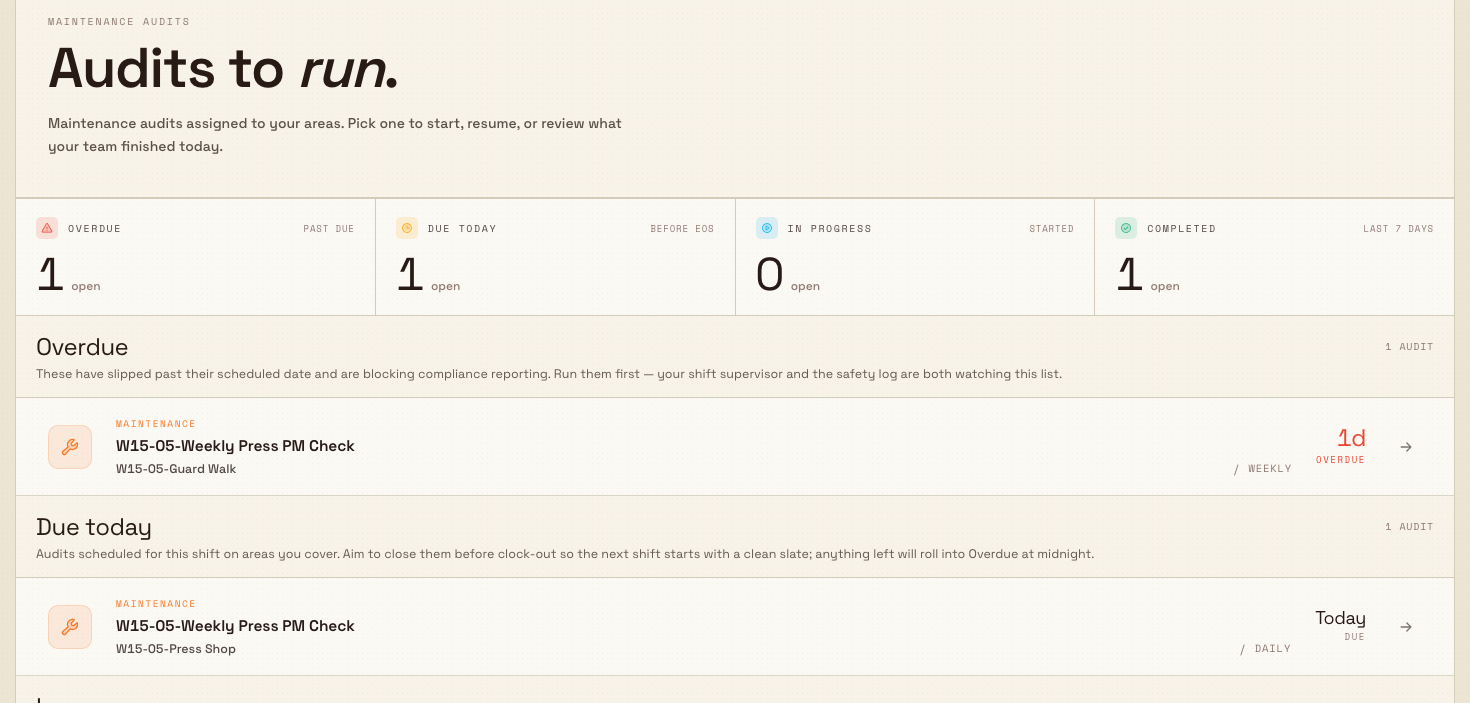
- The audits inbox at
/auditsis your run surface — the audits assigned to your areas, grouped by what needs attention. Open it from the audits start experience; the type-filtered variant at/audits/maintenanceshows maintenance only. - Maintenance Audits in the sidebar, under the Audits group, opens the results list at
/audits/views/maintenance, where completed and in-progress reports are listed and filterable.
audits.maintenance-01
Run a maintenance audit
1. Open or start the audit
There are two ways in:
- From the inbox — On
/audits/maintenance, find the audit under Overdue, Due today, or In progress and click its row. A due or overdue row starts a fresh run; an in-progress row resumes exactly where it was left off, so you or a colleague can hand work over mid-audit. - Start it manually — Use the start flow (the Start a new audit action). Bulk walks you through three steps:
- Select audit type — choose Maintenance (described as "Equipment and facility maintenance checks"). Families with no eligible audits are greyed out.
- Select audit — pick the template you need. Each row shows its cadence (Daily, Weekly, Monthly, or One-Time) and how many areas it covers.
- Select area — pick where you are running it. Only areas the template is scheduled in appear here, and the checklist opens as soon as you choose one.
2. Work through the checklist
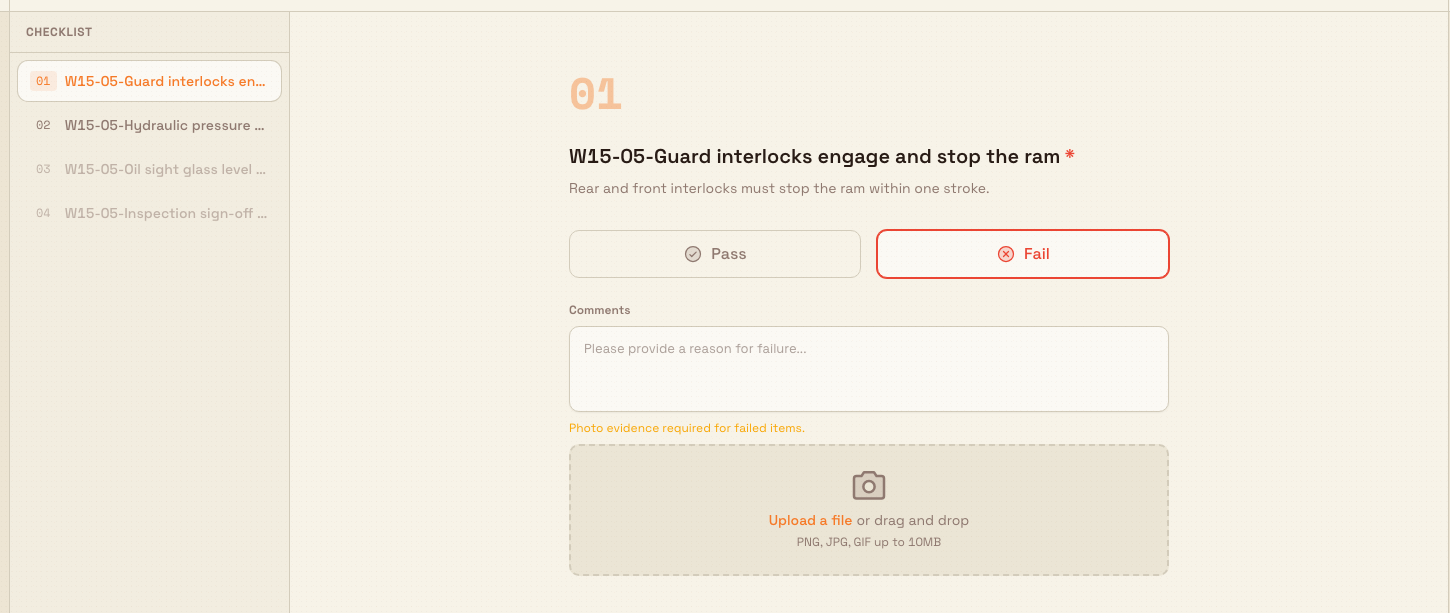
The audit opens as a wizard that shows one question per page, with a checklist panel you can use to jump to any item. Each item is one of several input types — pass/fail, yes/no, a numeric reading, free text, a single or multi-select, a photo, a signature, a date, or a time — so a single maintenance audit can mix a guard-interlock pass/fail with a pressure reading and a photo of a sight glass.
Move through the items with Next, and step back with the Previous control. A few rules govern progress:
- Required items must be answered before you can advance past them or submit.
- A failed check may demand evidence. If you mark a pass/fail or yes/no item as failing and the template requires it, Bulk blocks the Next button and shows the reason — "Comment required for failed items", "Photo required for failed items", or "Comment and photo required for failed items" — until you add the note or photo.
- Attach photos where prompted. Photo items let you capture or upload an image as evidence, which is stored with the response.
audits.maintenance-02
3. Submit the result
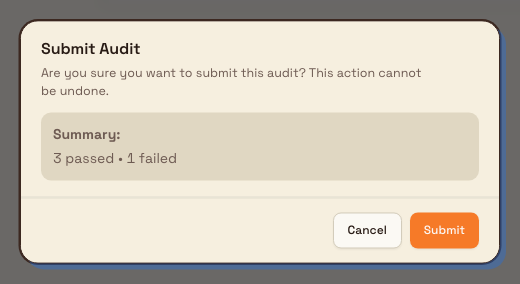
On the last item, the primary button becomes Submit. Submitting opens a Submit Audit confirmation that summarises how many checks passed and failed and warns that the action cannot be undone. Confirm with Submit.
Bulk then grades the audit. Maintenance audits use pass/fail grading: the overall result is Pass, Fail, or Pass with Issues, and a critical item that fails will fail the whole audit. A toast confirms the outcome (for example "Audit submitted: Pass") and returns you to the inbox.
Submitting and cancelling are final
Submitting an audit is irreversible — you cannot reopen and edit your own responses afterward. If you need to fix a submitted result, an administrator with the Override audits permission must override it. Choosing Cancel audit while running discards every response you have entered. Use Keep Working on the cancel prompt if you did not mean to.
audits.maintenance-03
Example: a weekly press check at Granite Peak
Granite Peak Manufacturing runs a weekly preventive-maintenance audit called Weekly Press PM Check at its Leeds Fabrication Plant. It is scheduled into the Press Shop area and covers the hydraulic press HP-02.
On Monday morning, Priya — a shift Manager, so her role includes Run audits — opens /audits/maintenance and sees Weekly Press PM Check under Due today. She taps the row and the checklist opens. She works through it:
- Guard interlocks engage and stop the ram — pass/fail. The rear interlock is slow to trip, so she marks it a fail. The template requires a photo on failure, so Bulk holds Next until she photographs the interlock switch.
- Hydraulic pressure at idle (bar) — she keys in the gauge reading.
- Oil sight glass — she uploads a photo of the reservoir level.
- Inspection sign-off — she signs the item.
On the last page she presses Submit, the confirmation shows one check failed, and she confirms. The overall result is Fail because of the interlock. Because this template is configured to raise a follow-up when a check fails, Bulk creates a maintenance task for the engineering team so the interlock is fixed before the press runs again.
What happens after you submit
- The audit is filed as Completed and shows in Maintenance Audits (
/audits/views/maintenance) with a Status and a Result badge, filterable by status and result. - The same completion appears briefly in your inbox under Completed / last 7 days.
- The schedule advances: the audit's next due date is set from the template cadence, so a weekly audit reappears the following week.
- Opening the report shows each item's answer and any attached photos, giving maintenance and compliance a full record of what was checked and when.
Limitations and feature state
- Availability. Maintenance audits are a generally available feature; nothing here is in beta.
- Setup is a prerequisite, not part of this task. You cannot run a maintenance audit until a template is published and scheduled into an area you cover; that work needs the Create audits and Publish audits permissions.
- Submissions are final. There is no self-service edit after submit — corrections go through an administrator override.
- You only see your areas. The inbox and start flow show maintenance audits scheduled to the areas you cover. If a colleague expects to see an audit and cannot, check the schedule's area assignment and the site they are signed in to.
- Grading is pass/fail. Maintenance audits resolve to Pass, Fail, or Pass with Issues. The weighted scoring used by 5S audits does not apply here.
Troubleshooting
- Maintenance is greyed out or the inbox is empty. No published maintenance template is scheduled into an area you cover. Ask an administrator to publish a template and schedule it, or confirm you are in the right site.
- Next or Submit is disabled. A required item is unanswered, or a failed check still needs its required comment or photo. The wizard shows the reason; use the checklist panel to jump to the unanswered or blocked item.
- "Missing required items" after pressing Submit. One or more required items are still blank. Bulk lists them — answer each and submit again.
- You submitted with a mistake. You cannot reopen your own submission. Ask an administrator with the Override audits permission to override the result.
- You need to stop without a result. Use Cancel audit; be aware it discards every response. To pause instead, simply leave — an in-progress audit is saved and reappears under In progress to resume later.
Related guidance
Run a quality audit
Run a scheduled quality-control checklist against an area of your plant, record pass and fail results with photo evidence, and produce a shareable audit report.
Run a custom audit
Run a custom audit — a checklist your site defines for a routine the standard audit families don't cover — from the shared start flow, then review its pass or fail result.