Audits
How the Audits module works — the way scheduled 5S, safety, quality, maintenance, pre-use, and custom checks reach your team, and where to run, complete, and review them.
Audits are structured, repeatable checks your team runs against a work area or a piece of equipment to confirm it meets a standard. Each audit is built from a template of questions — yes/no, pass/fail, numeric readings, single- or multi-select, photos, and signatures — and produces a scored, timestamped report you can review and act on. Use audits to hold 5S discipline, verify equipment is safe before use, run quality inspections, log maintenance walks, and capture the evidence that compliance reporting depends on.
This page is the map for the Audits module. It explains how audits reach your team, what you can do with them, and links to the step-by-step guide for each task.
For guidance from anywhere in the app, open Help → Search docs. Bulk opens this documentation in a new tab so you can keep your current audit in view.
Audits and the activity trail are different
The Audits module holds scheduled checklists and their results. Operational actions elsewhere in Bulk — including saving or applying an inbound document template and cloning a document into a draft — appear in Settings › Organization › Activity Logs instead. Use that trail when you need to confirm who reused a document and when.
When to use audits
Reach for an audit whenever a check needs to be repeatable, assignable, and recorded rather than done from memory. Typical cases:
- A daily pre-use inspection an operator must pass before starting a machine.
- A weekly 5S walk that scores how well an area holds its standard.
- A quality inspection on a batch, or a maintenance check on an asset.
- Any custom checklist your site wants captured with evidence and a sign-off.
Because every submission is stored with who ran it, when, and the score, audits give supervisors a defensible trail instead of a clipboard that gets lost.
Audit types
Bulk groups audits into six types. Each type has its own guide and its own review view.
- Safety — workplace safety and compliance walks. See Run a safety audit.
- Quality — quality control and inspection audits. See Run a quality audit.
- Maintenance — equipment and facility maintenance checks. See Run a maintenance audit.
- Pre-Use — equipment pre-use inspection checklists. See Run a pre-use audit.
- 5S Audit — Sort, Set in Order, Shine, Standardize, Sustain. See Run a 5S audit.
- Custom — any checklist your site defines. See Run a custom audit.
How audits reach you
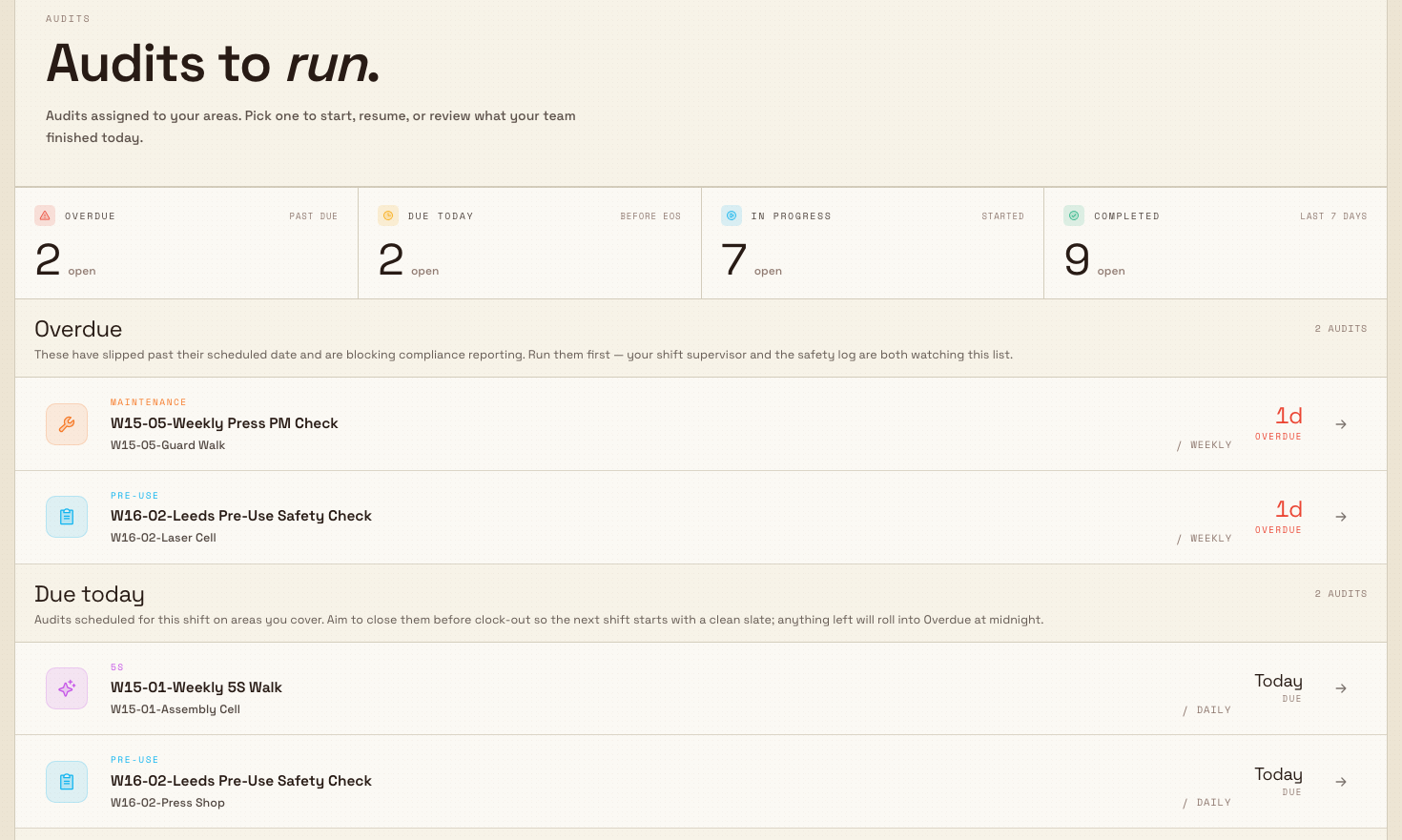
Audits are put on a schedule against the areas you cover, so the right checks appear at the right time without anyone chasing them. The Audits landing page — the inbox at the /audits route — gathers everything waiting for you into four groups:
- Overdue — past their scheduled date and holding up compliance reporting. Run these first.
- Due today — scheduled for this shift on your areas.
- In progress — started by you or a teammate but not yet submitted, ready to resume.
- Completed — closed out in the last 7 days, kept read-only for reference.
A Start a new audit action lets you begin one on demand instead of waiting for the schedule.
Audit state changes can also start a published workflow. Workflow automation does not replace the audit template, schedule, assignee, or completion process. Any certified Audit Action shown in the catalog calls the same standard operation and checks the same user permission. Its result is recorded with the workflow run so a failed attempt can be understood and retried after the cause is fixed.
audits.overview-01
What you can do
Each task below has its own guide:
- Start an audit — pick a type, choose a template, choose the area, and open the checklist.
- Complete an audit response — answer each question, record readings, and submit for scoring.
- Attach audit evidence — add photos, signatures, or notes to back up a response.
- Override an audit response — a supervisor decision to accept or set aside a result, recorded with a reason.
- Review audit results — open completed reports, filter by type, and track scores over time.
The left navigation's Audits section lists the review views: Safety Audits, Pre-use Checks, Quality Audits, Maintenance Audits, and Custom Audits.
Audits and production readiness
An audit can be assigned to an asset at one of three requirement levels — Compulsory, Recommended, or Optional. A Compulsory audit blocks production on that asset until it is complete, so an operator cannot run a machine that has not passed its required check.
When production is blocked, a supervisor with override permission can record a time-boxed override — choosing a reason (Equipment Issue, Urgent Production, Audit Pending, Maintenance Scheduled, or Other), adding a written explanation, setting a duration, and signing — to let work proceed. The override is logged and can be revoked once the underlying audit is cleared.
Overrides bypass a required check
An override lets production continue past a Compulsory safety or pre-use audit that has not passed. Because you are accepting risk on equipment that failed or skipped its check, every override is recorded with its reason, duration, and signer. Use it only when a responsible supervisor has judged it safe, and clear the underlying audit as soon as possible.
Example: Leeds Fabrication Plant
Granite Peak Manufacturing runs audits across its Leeds Fabrication Plant. A few of the checks in play:
- Every laser cutter carries a Compulsory daily Pre-Use inspection. At the start of first shift the operator opens the
/auditsinbox, sees the check under Due today, runs it, photographs the extraction filter, and submits. The cutter is now cleared for production. - The Press Shop area has a weekly 5S walk. The team lead runs it each Friday, scoring Sort through Sustain, and the trend shows whether standards are holding.
- One morning a guarding fault fails a press's pre-use check, which blocks the asset. The shift supervisor records an Urgent Production override for four hours so a safe partial run can finish, signs it, and raises maintenance — then revokes the override once the guard is fixed and the check passes.
By the end of the week the plant has a scored, evidence-backed record of every check, and asset readiness reflects what is actually happening on the floor.
Prerequisites
Access is governed by audit permissions on your role:
- View audits and reports — the
audits.viewpermission. - Run and complete audits — the
audits.executepermission. - Override a blocked audit — the
audits.overridepermission. - Set up templates, areas, and schedules — the
audits.create,audits.update,audits.publish, andaudits.deletepermissions, used from Settings › Audits.
Standard operator roles can view and run audits; supervisor and administrator roles add override and setup. If an action is unavailable or returns a permission error, your role is missing the matching permission — ask an administrator to grant it.
Expected result
When an audit is submitted it is scored and stored against its area and asset, with the person and time recorded. It moves out of Due today or In progress and appears under Completed, and it is available in the matching review view. Any Overdue entry clears once the check is run, and an asset that was blocked by a Compulsory audit becomes ready for production once that audit passes (or while a valid override is active).
Setup and administration
Before audits appear in the inbox, an administrator defines them. These reference pages cover the setup side:
- Audit templates and the template builder — the questions, item types, and scoring.
- Audit areas — the places audits are run and assigned against.
- Audit schedules — the cadence (One-Time, Daily, Weekly, or Monthly) that puts an audit into the inbox.
- Audits administration overview — how the setup pieces fit together.
Feature state and limitations
The Audits module is generally available. A few things to keep in mind:
- This is an overview. It links to each task rather than repeating its steps, so follow the linked guide for the exact fields and buttons.
- The inbox only shows audits that a schedule has generated for the areas you cover. An empty inbox usually means setup is incomplete, not that nothing is due.
- Whether an audit blocks production depends on its assignment requirement level (Compulsory, Recommended, or Optional) and its template scoring, both set during administration.
Troubleshooting
- Nothing appears in the inbox. Audits reach you through schedules on your areas. If the inbox is empty, confirm with an administrator that a template exists, an area is defined, and a schedule assigns that audit to an area you cover. See Audit schedules.
- You cannot start, override, or view an audit. Each action needs its own permission (
audits.execute,audits.override,audits.view). A permission error means your role lacks it — ask an administrator to adjust your role. - Production is still blocked after you passed the check. Only a Compulsory audit blocks production, and it clears when the audit is complete or while a valid override is active. Confirm the audit was submitted (it should show under Completed) and that any override has not expired.
Dates and time zones
Audit schedule and due dates use the audit's plant timezone, so Due today and dashboard review counts cover that whole local calendar day. Submission and completion timestamps preserve the exact moment, and weekly schedules use the organization's shared week-start rule.
Related guidance
Review pre-use-check results
Find, filter, and open completed pre-use safety checks to confirm an asset passed, investigate failed checklist items, review captured evidence, and export a PDF report.
Start an audit
Open a scheduled audit as a checklist from the Audits inbox or the guided Type, Audit, Area start flow, then begin recording responses.