Run a safety audit
Run a scheduled, area-based safety audit in Bulk — from opening a due audit to submitting a Pass, Fail, or Pass with Issues result — and see where the report lands.
A safety audit is a checklist-driven inspection you run against a work area to confirm it meets your workplace health, safety, and environmental (EHS) standards. In Bulk, "safety" is one of the audit types — alongside pre-use, maintenance, quality, 5S, and custom — so a safety audit reuses the same run mechanics as every other audit, with a checklist built for safety walks: guarding, personal protective equipment (PPE), fire exits, emergency stops, housekeeping, and similar checks.
Run a safety audit when a scheduled safety walk falls due, when a supervisor asks for an ad-hoc inspection, or when you want a signed, timestamped record that an area was checked. Each run produces an audit report with an overall result of Pass, Fail, or Pass with Issues, plus a per-item breakdown and any photos you attached as evidence.
What a safety audit covers
Every safety audit is built from a published template. The template defines the sections and questions (each question is an item such as Pass / Fail, Yes / No, numeric readings, photos, or a signature), how the audit is scored, and what should happen when it fails. A template creator can mark individual questions as critical — a critical failure fails the whole audit regardless of the score — and can configure a failed item to require a photo or a comment before you move on.
Safety audits share the general audit flow
This page focuses on the safety-specific angle. The underlying steps — starting, answering, attaching evidence, and reviewing — are the same across all audit types. For the shared mechanics, see the canonical guides linked at the end.
Before you start
You need two things in place to run a safety audit.
- Permission to run audits. Running an audit requires the
audits.executepermission. In a default workspace this is granted to the Operator, Tablet user, Manager, Entity admin, and Super user roles, so most shop-floor and supervisory accounts can run audits. Reviewing finished reports usesaudits.view. - A safety audit that is set up. For the manual run flow described here, an administrator must first create a
Safety-type template, publish it, define at least one audit area, and add an active schedule that links the template to that area. Template, area, and schedule setup live under Settings → Audits (theTemplates,Areas, andSchedulespages) and need theaudits.createandaudits.publishpermissions. Until a safety template has an active schedule, the Safety family is greyed out in the start flow with aNo auditslabel, and nothing appears in your inbox.
Run a safety audit
The audit inbox is the home for running audits. You reach it from the Upcoming Audits dashboard widget or from the Audits area of your workspace; scheduled audits assigned to your areas are listed there.
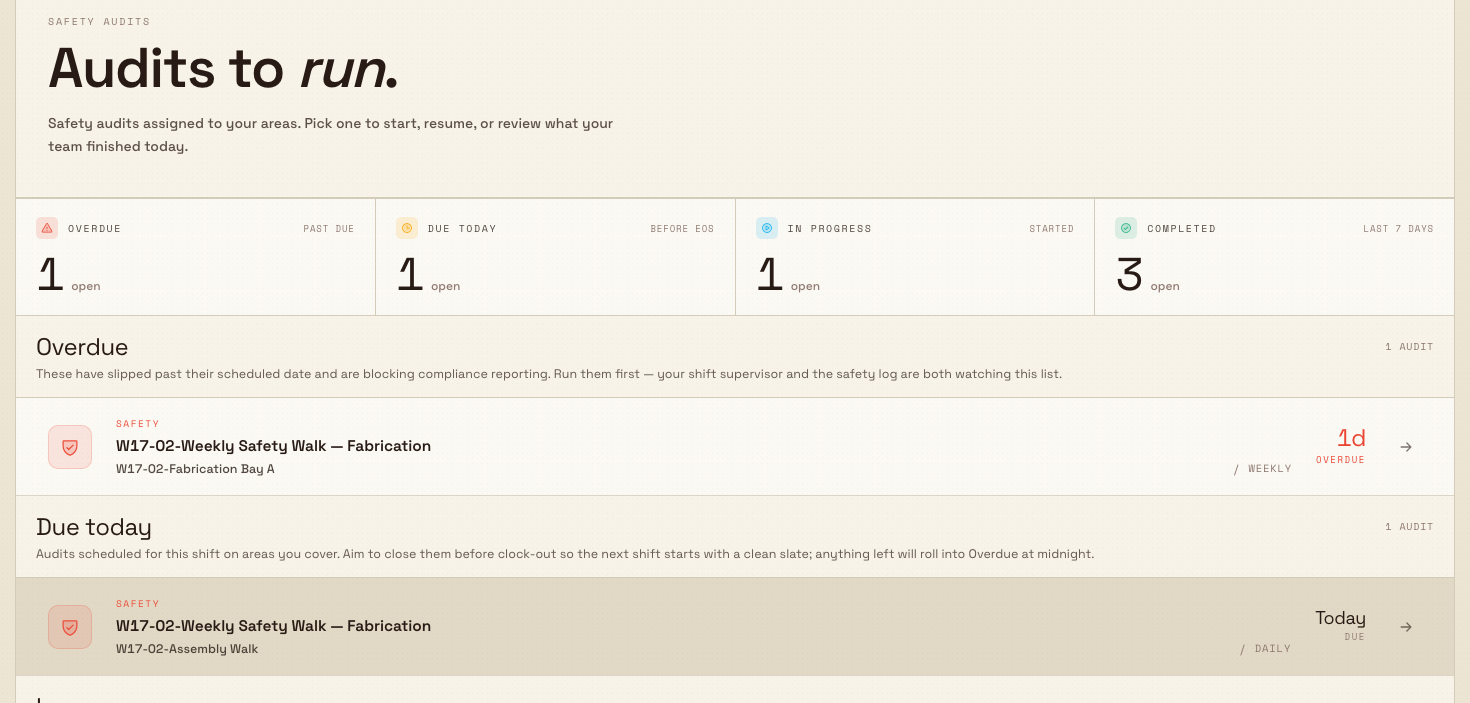
- Open the audit inbox. The page is titled Audits to run. and groups your work into Overdue, Due today, In progress, and Completed / last 7 days. A status band at the top lets you jump to any group.
- Start the safety audit. Either click a due or overdue safety row to open it directly, or use Start a new audit and press Begin to open the three-step picker. In the picker, choose the Safety type (described as "Workplace safety and compliance walks"), choose the audit template you want to run, then choose the area. The audit opens as soon as you pick the area.
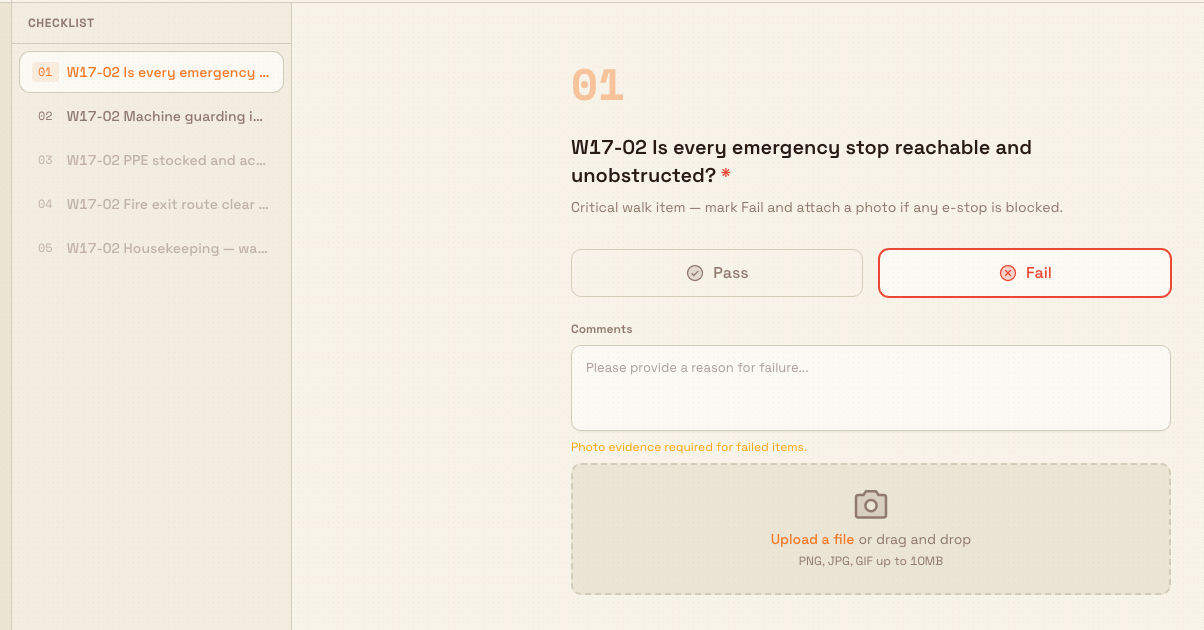
- Work through the checklist. Bulk shows one question at a time with a checklist rail on the side. Answer each item; required items must be answered before you can advance. Where a template requires it, a failed
Pass / FailorYes / Noitem prompts you for a photo or a comment — the app shows a message such asPhoto required for failed itemsand blocks the next step until you add it. - Submit. On the last question, submit the audit and confirm in the Submit Audit dialog, which shows a summary of items passed and failed.
audits.safety-01
audits.safety-02
Submitting is final
Submitting an audit cannot be undone, and cancelling an in-progress audit discards every response you have entered. Finish and check your answers before you submit, and use Keep Working rather than Cancel Audit if you are unsure.
Example: a weekly safety walk at Granite Peak
Granite Peak Manufacturing runs a weekly safety walk on the fabrication floor of its Leeds Fabrication Plant. An administrator has published a Safety-type template named "Weekly Safety Walk — Fabrication" and scheduled it every Monday against the audit area "Fabrication Bay A". The template includes a critical Pass / Fail question, "Is every emergency stop reachable and unobstructed?", set to require a photo when it fails.
On Monday morning the walk shows up in the shift lead's inbox under Due today. The lead opens it, works down the checklist — guarding in place, PPE stocked, fire route clear — and reaches the emergency-stop question. A pallet is blocking one stop, so the lead marks the item failed and attaches a photo of the obstruction. Because the item is critical, the overall audit will resolve to Fail. The lead submits, the report is stored against Fabrication Bay A, and the failure can raise the follow-up the template is configured for.
What happens after you submit
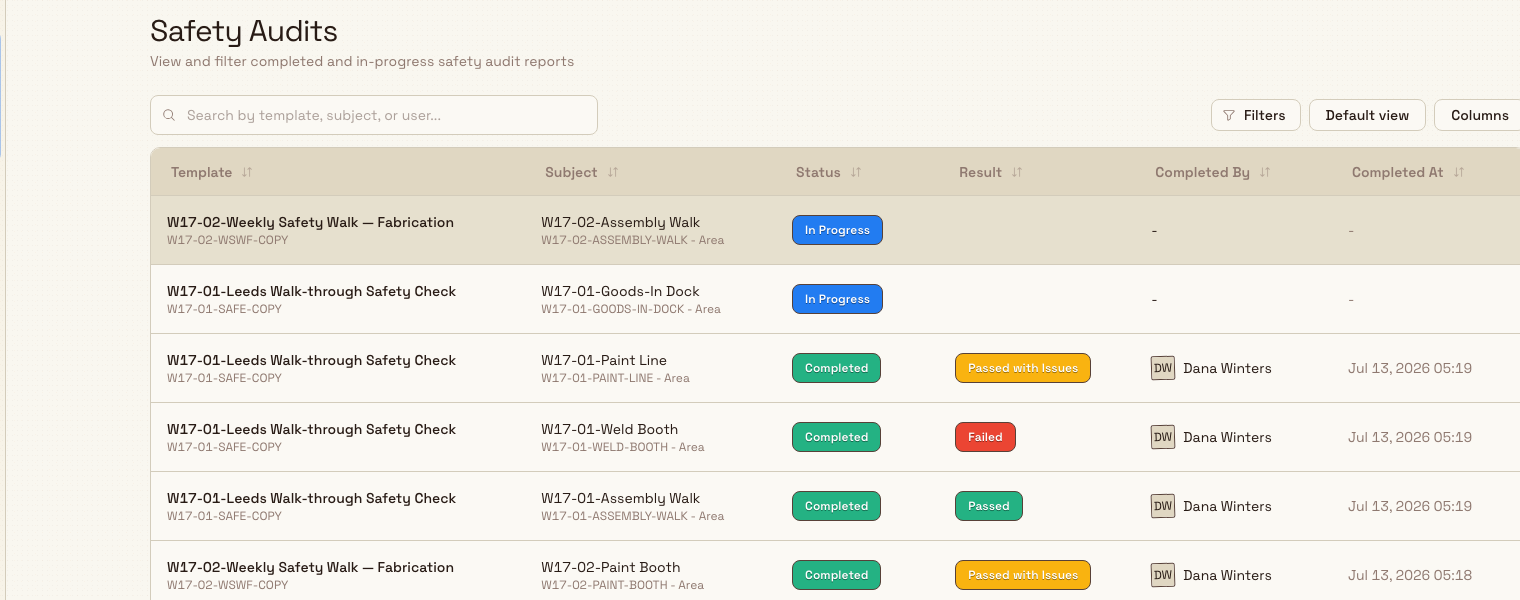
When you submit, Bulk scores the audit, sets the overall result, and confirms with a toast such as Audit submitted: Pass with Issues. The completed report is available under Audits → Safety Audits, where you can filter by status and result and open any row for the full item-by-item detail.
audits.safety-03
Depending on how the template is configured, a failing or critical-failure safety audit can also trigger automatic follow-up: blocking a linked asset from production, notifying named people, or creating a task for the area owners to resolve.
Safety audits on equipment run from the asset
Some safety audits are attached to equipment rather than to an area. Those asset-bound audits are run from the asset's readiness in the production area — not from the schedule-based inbox flow above — and a critical failure can block that asset until the issue is cleared or a supervisor overrides it.
Feature state and limitations
The audits module, including safety audits, is generally available.
- The inbox and Start a new audit flow cover scheduled, area-based safety audits only. A safety template with no active schedule will not appear there.
- Asset-bound safety audits (attached to equipment) are started from the asset's readiness view in production, not from this flow.
- Template, area, and schedule setup is an administrator task under Settings → Audits and is out of scope for running an audit.
Troubleshooting
- The Safety type is greyed out with "No audits". No published safety template has an active schedule in your assigned areas. Ask an administrator to add a schedule under Settings → Audits → Schedules, or confirm the template is published.
- You cannot advance past a question. A required item is unanswered, or a failed item still needs evidence. Bulk shows the reason — for example
Comment required for failed itemsorComment and photo required for failed items— so provide the requested input, then continue. - The submit action is unavailable. Not every required item is complete. Use the checklist rail to jump back to any unanswered question, finish it, and return to the last question to submit.
Related guides
Override an audit response
Let a supervisor clear the production block created by an incomplete, overdue, or failed compulsory audit — for a fixed time, with a signed and logged reason.
Run a quality audit
Run a scheduled quality-control checklist against an area of your plant, record pass and fail results with photo evidence, and produce a shareable audit report.