Put work on quality hold
Place a quality hold with the three-step New Quality Hold wizard to stop suspect material moving, record its containment, and set what happens next.
Last updated
A quality hold records the containment of suspect material while you investigate a problem. The standalone wizard creates a tracked hold record in Quality, records the held quantity, and generates required hold-tag details. Apply the physical tag and follow your containment procedure to keep the material out of use. Use a hold whenever you find, or suspect, a non-conformance (a part or batch that does not meet its specification) and you need to freeze the affected material before it moves to the next operation, reaches dispatch, or ships to a customer.
You place a hold with the New Quality Hold wizard, a three-step form that walks you through identifying the problem, recording how the material is contained, and deciding what should happen to it next.
Before you start
You need permission to create quality holds. This is granted by the Super user, Entity admin, and Quality roles. If your role does not include it, you can still open the wizard, but submitting the hold will fail with a permission error; ask an administrator to give you a role that includes hold creation.
Nothing else has to be set up first. You do not need an existing quality issue or NCR (non-conformance report) to place a hold, though you can link a hold to one later from the hold's detail page.
Open the New Quality Hold wizard
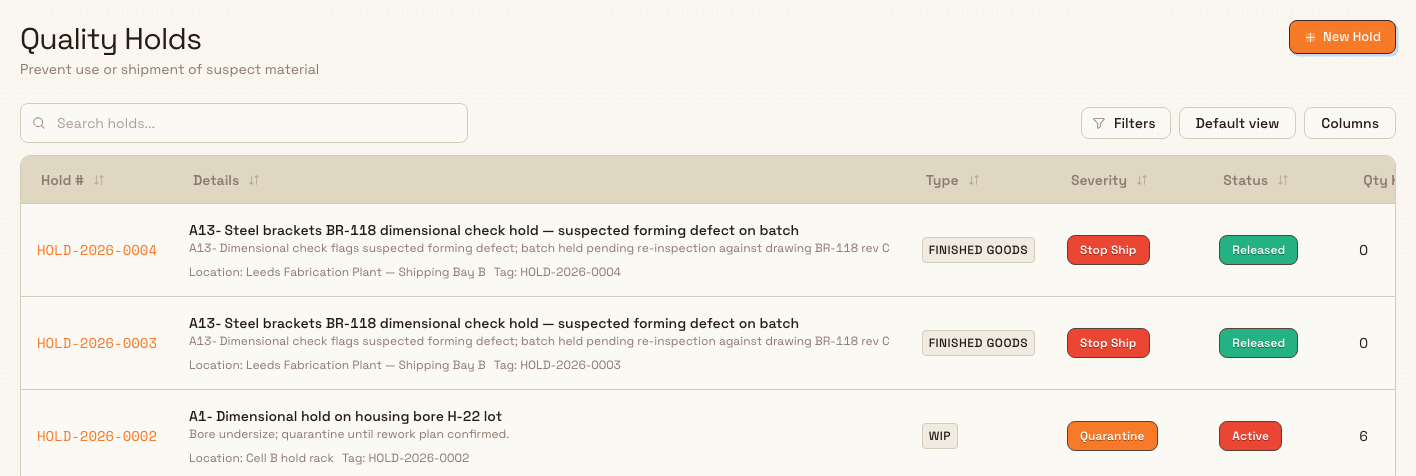
Open Quality > Holds to review hold records. The page is titled Quality Holds with the subtitle "Prevent use or shipment of suspect material".
Select New Hold in the top-right corner to open the standalone wizard.
The wizard is also available directly at /quality/holds/new.
The wizard opens at the New Quality Hold page, with the instruction "Initiate a new Quality Hold record. Please follow the 3-step wizard below." A step indicator across the top shows the three steps: Identify & Scope, Containment, and Disposition.
Watch the live preview
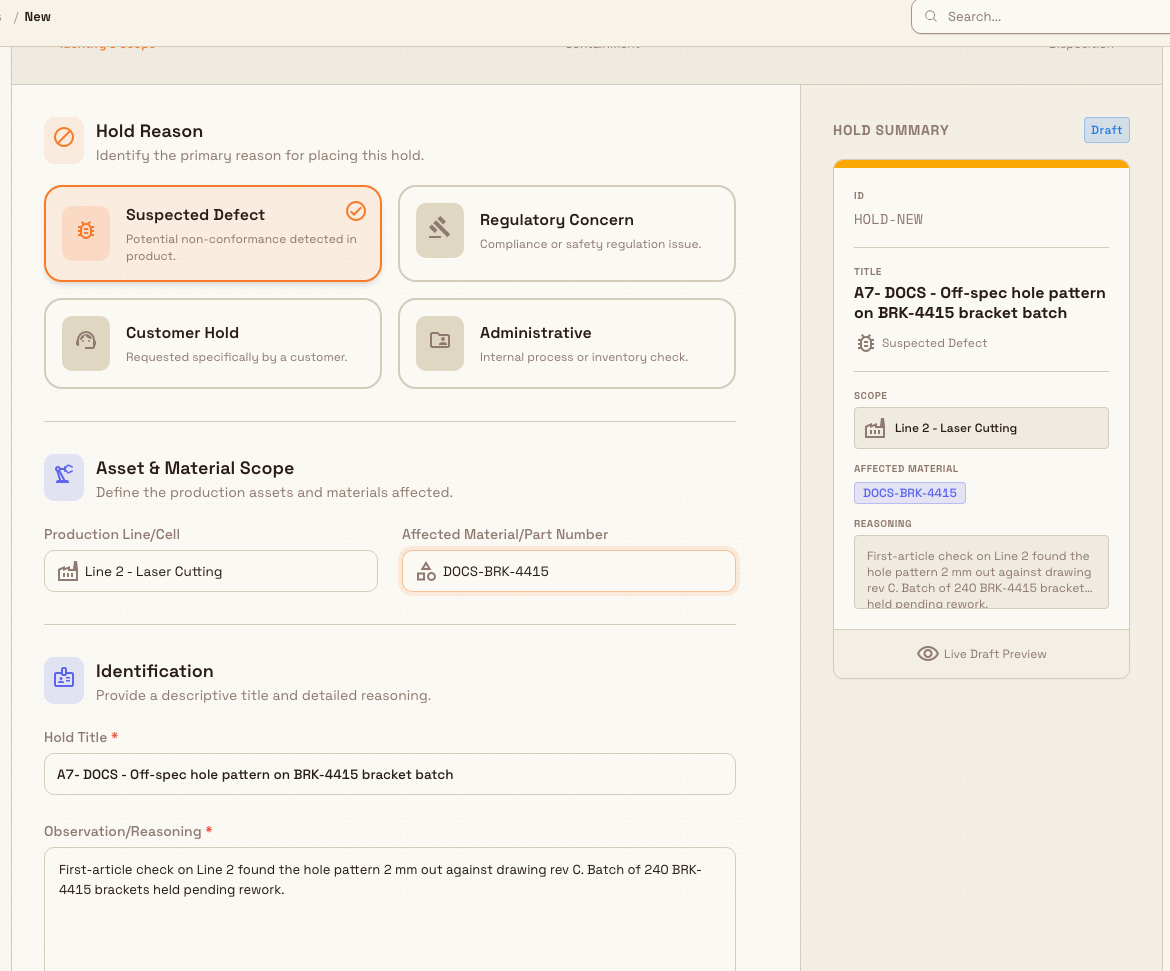
As you fill in the wizard, a preview panel on the right side rebuilds a summary of the hold in real time. Use it to sanity-check the reason, title, severity, and quantity before you submit. The preview is hidden on narrow screens.
Step 1: Identify & Scope
This step captures why the hold exists and what it covers.
- Hold Reason (required). Choose one of four cards that best describes why you are holding the material:
- Suspected Defect: a potential non-conformance detected in product.
- Regulatory Concern: a compliance or safety regulation issue.
- Customer Hold: requested specifically by a customer.
- Administrative: an internal process or inventory check.
- Asset & Material Scope (optional). Enter the Production Line/Cell and the Affected Material/Part Number so the hold points at the right place on the floor and the right part.
- Identification.
- Hold Title (required): a concise title for the hold.
- Observation/Reasoning (required): describe what you saw or why you are holding the material, up to 2000 characters.
Select Next Step once you have chosen a reason and filled in the title and the observation. The button stays disabled until those three are complete.
Step 2: Containment
This step records how the material is being kept out of use.
- Containment Strategy (required). Select one or more methods that apply. The button to continue stays disabled until at least one is selected:
- Physical Quarantine: physically segregate the material.
- Systemic Hold: a software lock on inventory batches.
- Tagging & Labeling: apply red reject or hold tags.
- Supplier Notification: alert external vendors or partners.
- Location Details. Enter the Storage Location / Bin where the material sits, and choose a Quarantine Area from the built-in list: Secure Cage A, Red Zone (Non-Conforming), QA Lab Hold Shelf, or Shipping Dock Hold.
- Immediate Actions. Tick the containment tasks you have completed: Apply physical hold tags, Move material to secure area, and Notify floor supervisor.
Select Next Step to continue.
Step 3: Disposition
This step sets what should happen to the held material and who signs it off.
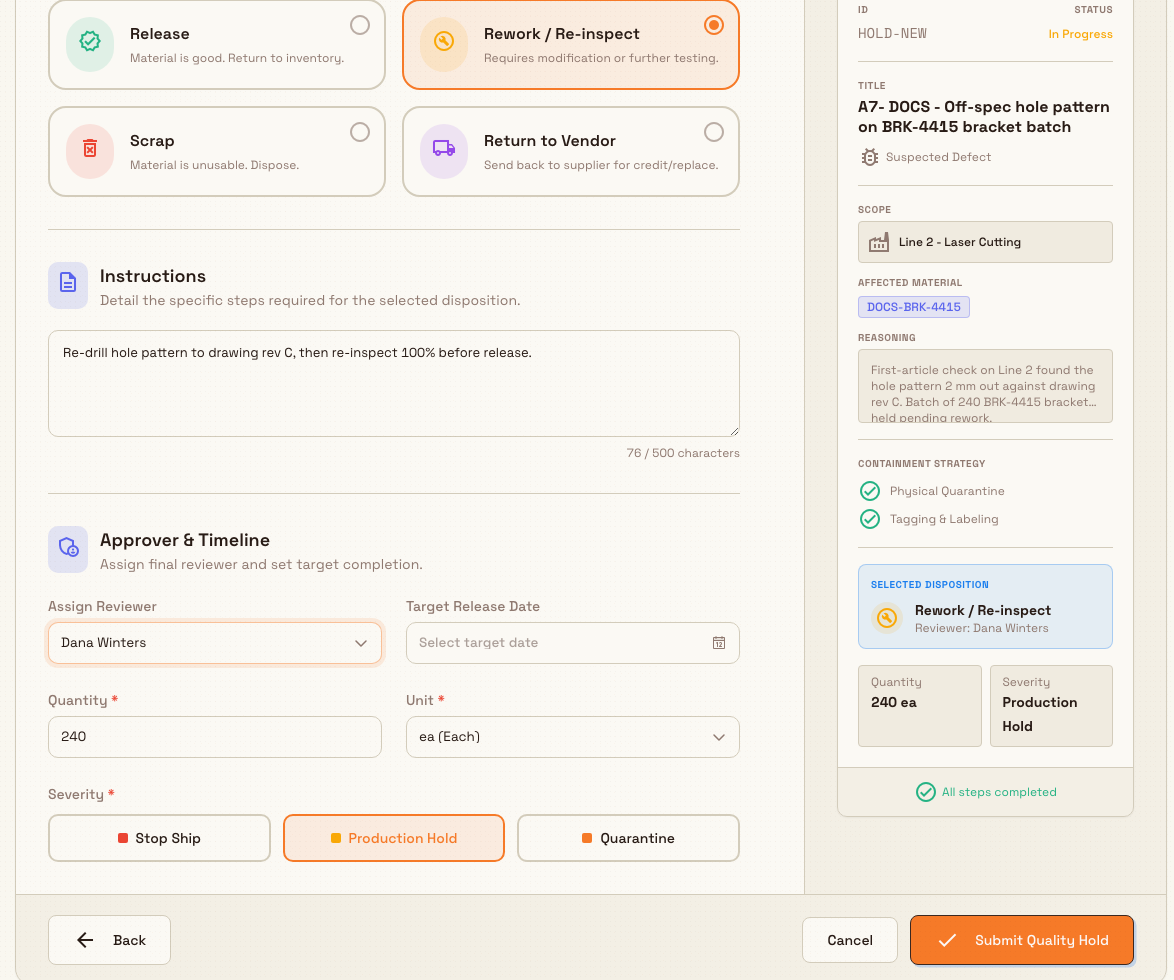
- Disposition Type (required). Choose one card:
- Release: material is good; return it to inventory.
- Rework / Re-inspect: it needs modification or further testing.
- Scrap: it is unusable and should be disposed of.
- Return to Vendor: send it back to the supplier for credit or replacement.
- Instructions (optional): detail the specific steps for the chosen disposition, up to 500 characters.
- Approver & Timeline.
- Assign Reviewer: select the person who will review the hold.
- Target Release Date: set the date you expect the hold to be resolved.
- Quantity (required): how much material is held; it must be greater than zero.
- Unit (required): the unit of measure for that quantity.
- Severity (required): choose Stop Ship, Production Hold, or Quarantine.
When the disposition type, a positive quantity, a unit, and a severity are all set, select Submit Quality Hold to create the hold.
Hold tags and severity
Every hold placed through the wizard requires a physical hold tag, and its tag colour follows the severity you choose:
- Stop Ship gets a red tag: the most urgent level, used to prevent shipment.
- Production Hold gets a yellow tag: the default level, used to stop material moving through production.
- Quarantine gets an orange tag.
If you do not enter a specific tag number, the hold's own hold number is used as the tag number, so the tag always ties back to the record.
Example: reviewing a housing batch at Gotham
At Gotham Applied Sciences, a first-article check finds that 24 housing brackets need a mounting bore review before their next operation. A quality lead opens the standalone hold wizard.
- Identify & Scope: choose Suspected Defect, enter "Gotham Assembly Cell" and "GCPD-HSG-105", and title the hold "Housing mounting bore review". Explain the dimensional concern and why the batch needs segregation.
- Containment: select Physical Quarantine and Tagging & Labeling, enter "Assembly QA shelf B2", and choose QA Lab Hold Shelf. Mark Immediate Actions only after completing them.
- Disposition: select Rework / Re-inspect, describe the required dimensional review and approved repair instruction, assign Bruce Wayne, set the planned review date, and enter 24 ea with Production Hold severity.
After submission, the hold is Active with a yellow tag number. The record captures the plan; physical quarantine and re-inspection still follow the plant's procedure.
What happens after you submit
When you submit, Bulk creates the hold, gives it a hold number in the form HOLD-2026-0001 (the prefix, the current year, and a running four-digit sequence), and confirms with a "Hold created" message. You are taken straight to the new hold's detail page.
The hold opens with status Active on its detail page. From there you can review containment and disposition, release the hold, release part of its quantity, scrap it, or link quality records. Those actions have their own guides. Return to Quality > Holds to review its status and held quantity alongside the other hold records.
Feature state and limitations
Quality holds are available. Quality, then Holds, has no Beta badge. The New Hold button opens the standalone wizard from the Holds list.
- A standalone hold does not automatically link production. The scope fields are text. This flow does not prove that a production order or job is blocked.
- The wizard always requires a physical tag. There is no control in the wizard to turn the tag off, so every hold you create this way is tagged; the tag number defaults to the hold number.
- Production Line/Cell and Affected Material/Part Number are free-text fields. Although their placeholder text reads "Search…", the current build accepts typed text and does not offer autocomplete from your master data.
- Quarantine Area is a fixed list. The four options (Secure Cage A, Red Zone (Non-Conforming), QA Lab Hold Shelf, Shipping Dock Hold) are built in and are not drawn from your own locations.
- The location stored on the hold is taken from the Production Line/Cell, or from the Storage Location / Bin if no line is entered.
Troubleshooting
- Next Step is greyed out. A step will not advance until its required fields are complete. Step 1 needs a hold reason, a hold title, and an observation. Step 2 needs at least one containment strategy. Fill the missing field to enable the button.
- Submit Quality Hold is greyed out. On the final step you must select a disposition type, enter a quantity above zero, choose a unit, and choose a severity. The button is also disabled briefly while the hold is being created.
- You are asked to discard changes. Selecting Cancel after you have started filling the form opens a Discard changes? prompt. Choose Continue Editing to keep your progress, or Discard Changes to leave the wizard and return to the Quality Holds list. Leaving discards the draft: it is not saved.
- Submitting fails with a permission error. Your role does not include quality hold creation. Ask an administrator for a role that grants it (Super user, Entity admin, or Quality).
Related guides
Create and manage a CAPA
Create a CAPA on one scrolling form, link an issue or NCR, review it on the same page layout as a quality issue, and close it from Verifying.
Release a quality hold
Clear a quality hold to return held material to use, recording who released it, why, and on what conditions, as a full release, partial release, or scrap.