Create and manage an 8D report
Run an Eight Disciplines (8D) investigation in Bulk, from problem and team through root cause and corrective action to closure with effectiveness checks.
Last updated
An 8D report is Bulk's home for the Eight Disciplines method: a step-by-step, team-based way to solve a serious quality problem, fix its true cause, and prevent it from coming back. Each 8D report walks a defined problem through nine ordered stages, labelled D0 to D8, and records the team, evidence, actions, and results for the whole investigation in one place.
Use an 8D report when a problem is important enough to justify a formal investigation: a repeat defect, a customer complaint, a supplier issue, or any non-conformance where you need to prove the cause was found and permanently removed. For smaller, one-off problems, a quality issue or NCR (non-conformance report: a record that something did not meet specification) is usually enough.
Before you start
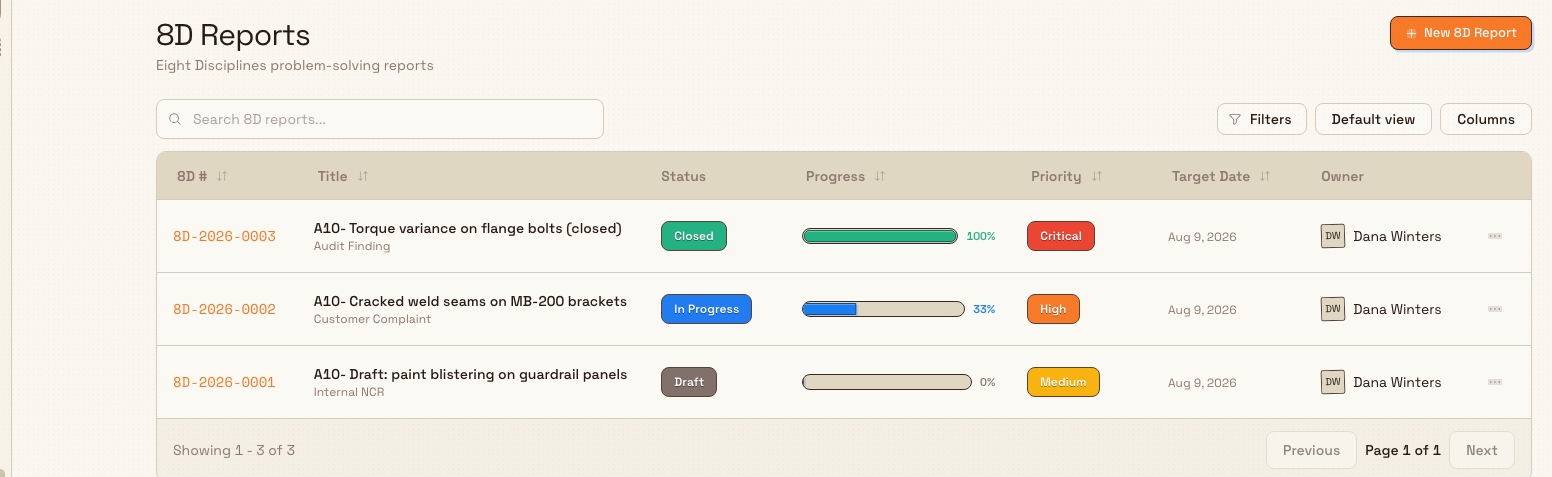
8D reports live in the Quality area. Open the Quality menu in the main
navigation and choose 8D Reports. This opens the 8D Reports list at
/quality/8d-reports.
Search and filter that list the same way you search and filter Issues. A Filter band sits above the table. Type in Search 8D reports... to find a report by its number, title, owner name, or discipline code (for example D3). Click a column header to sort it. Right-click a column header to filter it. In that menu, Filter includes Search values, Select all, and Clear. Target Date filters by date.
You need quality permissions to work with 8D reports. Each capability maps to a separate permission, so your role determines what you can do:
- View 8D reports:
quality_8d_reports.view - Create a new report:
quality_8d_reports.create - Work the disciplines, edit fields, put a report on hold:
quality_8d_reports.manage - Close a report, record effectiveness, reopen, or cancel:
quality_8d_reports.close
In a standard Bulk setup, the seeded Quality, Entity admin, and
Super user roles all include the full set of 8D permissions. If 8D
Reports does not appear in your menu, ask an administrator to grant a role
that includes quality_8d_reports.view.
How an 8D report is structured
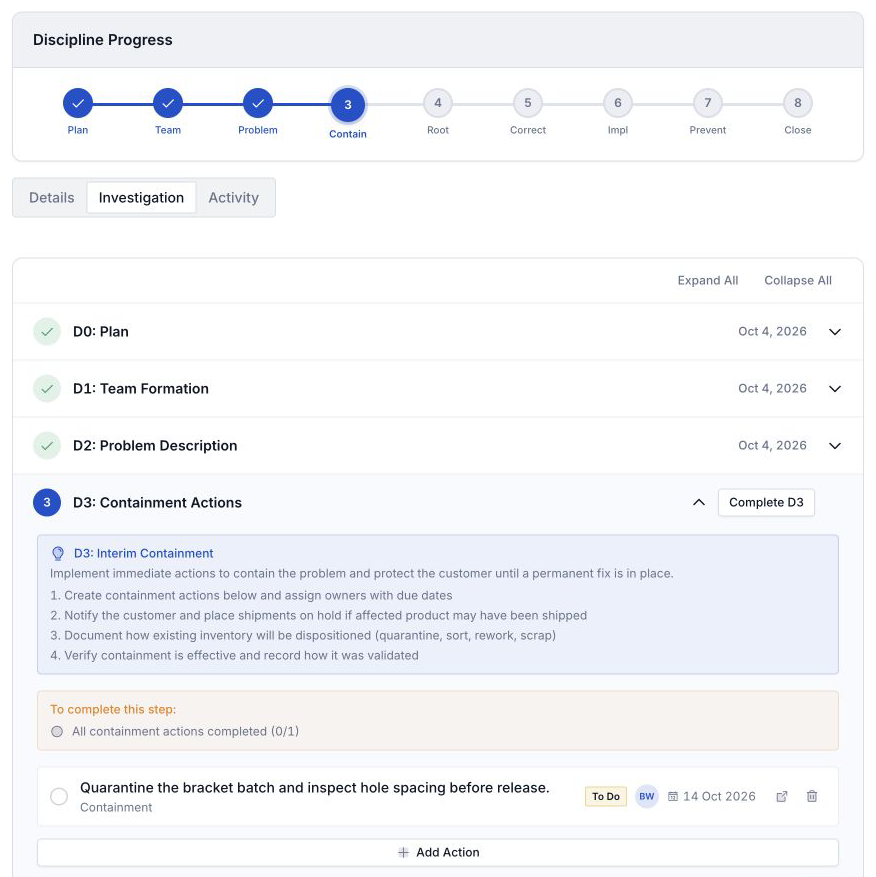
Every 8D report moves through nine ordered disciplines. Bulk shows them as a Discipline Progress stepper and as expandable cards, so you always know where an investigation stands:
- D0: Plan. Describe the symptom and any immediate response. Decide the problem is worth a full 8D.
- D1: Team Formation. Name the champion, team leader, and cross-functional members who will do the work.
- D2: Problem Description. State the problem precisely, using tools such as 5W2H (who, what, where, when, why, how, how many) and Is / Is-Not.
- D3: Containment Actions. Put interim containment actions (ICAs) in place to protect the customer until the permanent fix lands.
- D4: Root Cause Analysis. Find and verify the true root cause, and the escape point where the defect slipped past detection.
- D5: Corrective Actions. Define the permanent corrective actions (PCAs) that remove the root cause.
- D6: Implementation. Implement and validate the PCA, then remove the interim containment.
- D7: Prevention. Make systemic changes so the problem cannot recur, and capture lessons learned.
- D8: Closure & Recognition. Close the report, recognise the team, and schedule effectiveness checks.
You complete the disciplines in order. Completing one advances the report to the next and moves it along its status: Draft, then In Progress, then Closed (or Ineffective, On Hold, or Cancelled).
Create an 8D report
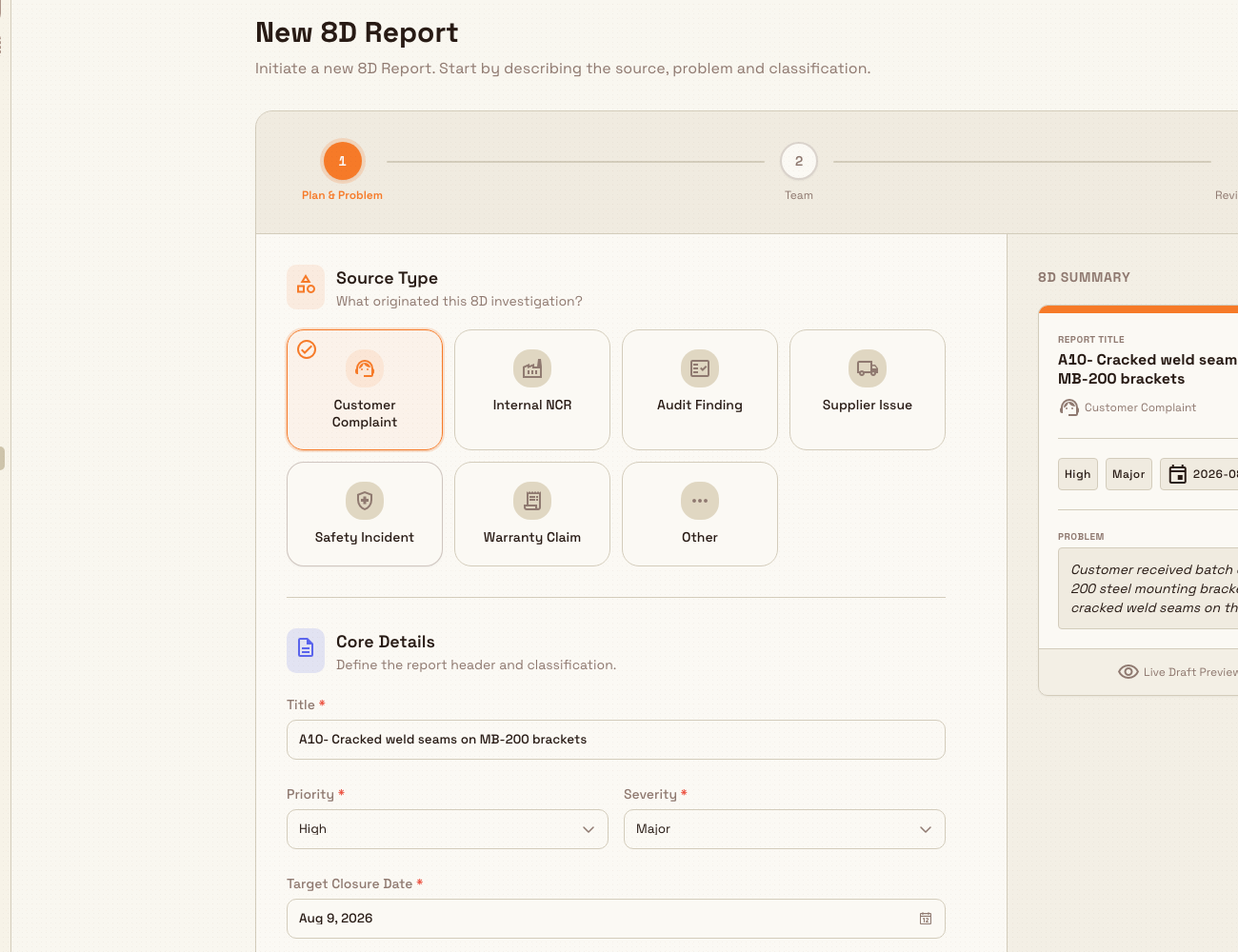
From the 8D Reports list, select New 8D Report. Bulk opens the New 8D Report page: one form that you fill in from top to bottom, with every section on the same page.
Source, problem, and classification
Under Source, select the card for what originated the investigation: Customer Complaint, Internal NCR, Audit Finding, Supplier Issue, Safety Incident, Warranty Claim, or Other. Each card has a short description to help you choose.
Under Problem Description:
- Title (required): a short summary of the issue.
- Problem Statement (required): a clear description of what is wrong.
- Symptom Description and Emergency Response Actions (both optional): what was observed, and any immediate action already taken to protect the customer.
Under Classification:
- Priority level (required): select Critical, High, Medium, or Low.
- Severity (required): select Critical, Major, or Minor.
- Target Closure Date (required): when you aim to close the report. It can be today or a later date. Bulk uses this date to flag the report as overdue if it is still open past then.
Team
Further down the same page, assign the investigation team:
- Champion (required): the sponsor with authority to approve changes and allocate resources.
- Team Leader (required): the person who guides the 8D process day to day.
- Core Team Members (optional): select Add Member to add a row, then choose a Member and enter their Department.
- Subject Matter Experts (optional): select Add Expert to add specialists who advise as needed, each with a Department.
Create the report
Create 8D Report is at the bottom of the page. The footer reads Complete the required fields first. until the source, title, problem statement, priority level, severity, target closure date, champion, and team leader are all set; selecting the button before then moves your cursor to the first missing field instead of creating the report. When the footer reads Ready to create as a draft., select Create 8D Report.
Bulk assigns a report number in the form 8D-YYYY-NNNN (for example,
8D-2026-0001), creates the report in Draft status at discipline D0,
confirms with a message such as 8D Report 8D-2026-0001 created, and opens
the report's detail page.
The New 8D Report page does not save a draft as you go, so leaving the page discards what you entered. Create the report before you navigate away.
Work through the disciplines
The report detail page is where the investigation happens. The header shows the report number and title; a sidebar shows Status, Cost Impact, Effectiveness Checks, and Audit Trail. Below the Discipline Progress stepper are three tabs:
- Details: the report summary and any linked records (such as the source NCR or issue).
- Investigation: the D0 to D8 discipline cards, where you do the work.
- Activity: comments and a full activity timeline.
On the Investigation tab, each discipline is an expandable card. The current discipline is highlighted and expanded by default. Open a card to fill in its fields; your entries save automatically as you type. When a discipline is ready, select Complete D0 (or the matching number) on the current card. Review the confirmation dialog, then select the matching Complete button to record it and advance to the next.
Several disciplines have built-in checks before you can complete them:
- D3: Containment Actions requires at least one completed containment action. Add actions in the Containment Actions list, assign owners and due dates, and mark them done. You can also record whether the customer was notified, whether shipments are on hold, how affected inventory is dispositioned, and how containment was verified.
- D4: Root Cause Analysis is the analytical core. Add root causes from your shared root cause library (managed in Settings) or as custom causes, mark them Verified, and choose one as the Final root cause. Record the escape point (where the defect escaped detection) and any contributing factors. Three structured tools are built in: Fishbone (Ishikawa), Fault Tree Analysis, and 5 Why Analysis.
- D5: Corrective Actions requires at least one permanent corrective action defined in the Corrective Actions list.
- D6: Implementation requires the PCA Validated toggle to be on before you can complete it: you confirm the permanent fix actually removes the root cause.
If you complete a discipline by mistake, open the most recently completed card and select Undo to step the report back one discipline. Undo is available on the last completed discipline only.
Start an 8D from an existing record
An 8D report can carry a link back to the record that triggered it. When you create a report from a quality issue or NCR, that source appears under Linked Records on the Details tab. A single quality issue can be linked to only one active 8D report at a time, so Bulk blocks a second active link and tells you the issue is already assigned.
Close the report and verify effectiveness
Once D7 is complete the report reaches prevention_complete, and the D8: Closure & Recognition card offers Close 8D Report. This opens the closure dialog, where you record:
- Closure Notes (required): a summary of findings and resolution.
- Team Recognition and Before / After Summary (both optional).
- 30-Day, 60-Day, and 90-Day Check dates: Bulk pre-fills these 30, 60, and 90 days out.
Closing is a deliberate, one-way step
Closing a report is irreversible. Bulk marks the closure dialog as destructive and asks you to review everything first. After closing, the only way back into the investigation is if a later effectiveness check is recorded as ineffective.
Closing moves the report to Closed (pending effectiveness) and schedules the three checks. An effectiveness check confirms, after time has passed, that the fix is still working. Record each check from the Effectiveness Checks sidebar card in order: 30-day, then 60-day, then 90-day: marking each Effective, Partial, or Ineffective:
- When all three checks are Effective, the report becomes Closed (effective): a terminal, verified-closed state.
- If any check is Ineffective, the report becomes Ineffective. From there you can reopen it, which returns it to In Progress at D1 so the team can revisit the analysis.
Hold, resume, and cancel
Use the actions menu (the three-dots button in the report header) to manage a report's overall state:
- Put on Hold: pauses the investigation with a required hold reason. A held report cannot have its disciplines edited or completed until you Resume it. Resuming returns it to the discipline it was on.
- Cancel Report asks for a reason, then cancels the report. A cancelled report cannot be reopened.
Cancel Report is in the actions menu when your role includes
quality_8d_reports.close and the report can still be cancelled. That
includes a report still in Draft. The menu item is hidden for On Hold,
Closed, Ineffective, and Cancelled.
The dialog is titled Cancel 8D Report. For report 8D-2026-0001, the
description reads "Cancel 8D-2026-0001. The report stays on record as
cancelled." The field is labelled Reason, and the placeholder is "Why is
this report being cancelled?" If you leave Reason blank, Bulk shows "A
reason is required". Keep report closes the dialog and leaves the report
unchanged. Cancel Report cancels it. Bulk then shows "8D Report
cancelled", and the status becomes Cancelled.
A Gotham Rail Works example
Gotham Applied Sciences receives a customer complaint: a batch of steel mounting brackets shipped with cracked weld seams. Because this is a customer escape on a safety-relevant part, the quality manager opens a formal 8D.
- Create the report. In Quality → 8D Reports, they select New 8D
Report, select the Customer Complaint source, title it "Cracked weld
seams on MB-200 brackets", select High priority and Major severity, and
pick a target closure date four weeks out. The problem statement describes
the crack location and the affected shipment. On the same page they make
themselves champion and the welding supervisor team leader, and add core
members from Welding and Engineering. Bulk creates
8D-2026-0001in Draft. - Form the team (D1). The team confirms its members and roles in the D1 discipline card.
- Contain (D3). The team quarantines remaining brackets, places the open shipment on hold, notifies the customer, and adds a containment action to sort finished stock. They complete D3 once the sort is done and verified.
- Find the cause (D4). Using 5 Why and a Fishbone, they trace the cracks to an incorrect weld current setting, and record the escape point as final inspection, which sampled too few units. They set the current setting as the Final root cause.
- Correct and prevent (D5 to D7). They define a corrective action to update the welding procedure and inspection sampling, validate the fix on a pilot run (D6), then update the standard work instruction and review similar bracket lines (D7).
- Close (D8). With the fix proven, they close the report with closure notes
and schedule 30-, 60-, and 90-day effectiveness checks. Three effective
checks later,
8D-2026-0001is Closed (effective).
Status reference
The list and detail pages group the underlying workflow states into six status badges:
- Draft: created but not yet started (still at D0).
- In Progress: actively moving through D1 to D7.
- On Hold: paused; resume to continue.
- Closed: closed and awaiting or passing effectiveness checks.
- Ineffective: an effectiveness check failed; can be reopened.
- Cancelled: stopped permanently.
Limitations
- Export to PDF and Print Report appear in the actions menu, but they do not export or print the report.
- Root causes in D4 draw on a shared root cause library configured in Settings. Custom causes you add stay local to the individual 8D report.
Troubleshooting
- The Complete button will not finish a discipline. Each discipline lists its requirements in a banner. D3 needs at least one completed containment action, D5 needs at least one corrective action, and D6 needs PCA Validated switched on. Meet the listed requirement, then try again.
- You cannot edit a discipline. Editing and completing disciplines are disabled while a report is On Hold or after it is closed or cancelled. Resume the report first, or reopen it from an ineffective effectiveness check.
- An issue will not link to a new 8D report. A quality issue can be attached to only one active 8D report. Bulk blocks the second link and reports that the issue is already assigned; find and continue the existing report instead.
Dates and time zones
8D target and effectiveness-review dates are calendar days in the report's plant and stay on the selected day, even when the report is viewed from another timezone. Created, submitted, approved, held, resumed, and closed timestamps preserve their exact event moment and display in the plant's local time.
Related guidance
Release a quality hold
Clear a quality hold to return held material to use, recording who released it, why, and on what conditions, as a full release, partial release, or scrap.
Link quality and production records
How a production defect links to a quality issue, where you trace that link, and when a station rework closes the issue with a disposition and a note.