Review and disposition an NCR
Review a submitted NCR, approve it for the Material Review Board, record the disposition decision, and close the record from its detail page.
Last updated
A nonconformance report (NCR) records material, in-process work, finished goods, or a process that does not meet its specification. Creating the NCR captures the problem. Reviewing it and recording a disposition is how you decide what happens to the affected material and close the record.
This page covers the work after an NCR exists: find it, approve it for the Material Review Board (MRB), record the MRB disposition, and close it. Use it when you review NCRs or you are making the MRB decision.
To create an NCR, see Create an NCR.
Where to find it
Open Quality, then NCRs. The list is titled Non-Conformance Reports (/quality/ncrs).
Before you start
You need an NCR that has already been created, plus the permission for the step you are taking:
- View NCRs (
quality_ncrs.view) lets you open the list and an NCR. - Create NCRs (
quality_ncrs.create) shows Submit for Review on a draft. Saving that submit still requires Review NCRs. - Review NCRs (
quality_ncrs.review) lets you submit a draft and approve an NCR for the MRB. - MRB decisions (NCRs) (
quality_ncrs.mrb) lets you record the disposition and close the NCR.
The built-in Quality and Entity admin roles include these permissions. If a menu item is missing, ask an administrator to add the matching permission to your role.
How an NCR moves
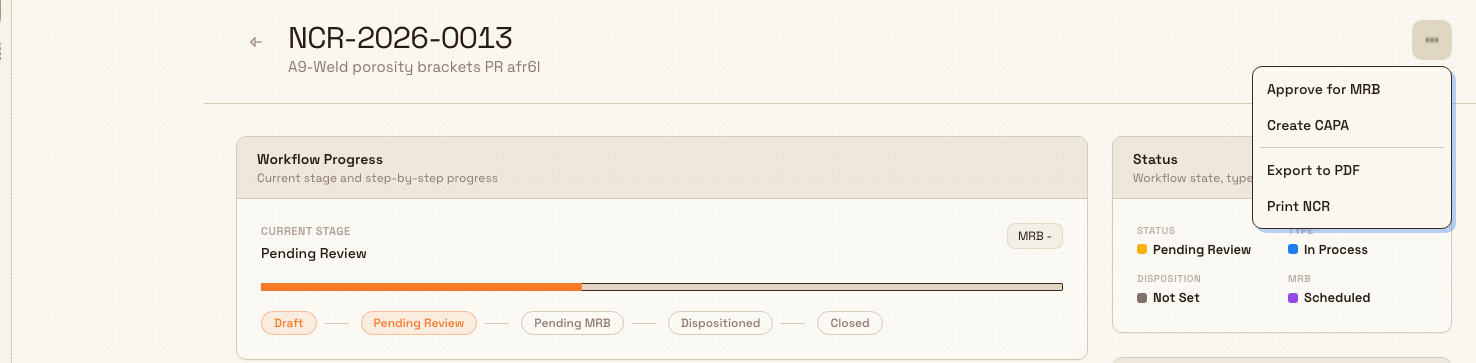
The detail page shows five stages in a strip under the header. The strip has no title of its own. A stage shows a note only when it is the current stage, or when you have already passed it.
| Stage | Note under the stage | Advanced by | Permission |
|---|---|---|---|
| Draft | Created date | Submit for Review | Review NCRs. The menu item also needs Create NCRs. |
| In review | Date the NCR was submitted | Approve for MRB | Review NCRs |
| MRB | Scheduled MRB date, when you set one | Record Disposition | MRB decisions (NCRs) |
| Disposition | Decision name, not a date | Close NCR | MRB decisions (NCRs) |
| Closed | Closed date | None. This is the last stage. | None |
Draft, In review, and Closed show the date that stage happened. The MRB stage shows the meeting date you scheduled, not the date you approved the NCR. The Disposition stage shows the decision, such as Rework or Scrap.
The status badge on the list, and on Non-Conformance Details, uses different words from the strip:
| Stage on the strip | Status badge |
|---|---|
| Draft | Draft |
| In review | Pending Review |
| MRB | Pending Mrb |
| Disposition | Dispositioned |
| Closed | Closed |
The flow only moves forward. There is no action to reject an NCR, send it back, or reopen a closed NCR.
Find an NCR
- Open Quality, then NCRs.
- Use Search NCRs... to look up a record. A new NCR shows on the first page as soon as it is created, as long as you have not applied a search or a column filter.
- Filter from a column header, the same way you filter Issues. The columns are NCR #, Title, Type, Status, Disposition, Qty, Cost at Risk, MRB Date, Created, and Owner. MRB Date and Created filter by date. Status, Type, and Disposition list the stored values, not the badge text:
draft,pending_review,pending_mrb,dispositioned,closed;material,in_process,finished_goods,process; anduse_as_is,rework,repair,scrap,return_to_vendor,downgrade. - Click the row to open the NCR. You can also right-click the row. That menu includes Open, Open in new tab, Copy NCR number, and the next workflow action when your permissions and the stage allow it: Submit for Review, Approve for MRB, Record Disposition, Create CAPA, or Close NCR.
There is no separate actions column on the list. The Type cell shows Material, In Process, Finished Goods, or Process. The Disposition cell uses a badge such as Use As Is, Rework, Repair, Scrap, Return To Vendor, or Downgrade.
Read the NCR
The header shows the NCR number and its title. Workflow actions are in the three-dot menu at the end of the header.
The page is split into tabs:
- Overview holds Non-Conformance Details (description, type, quantity, status, and disposition), Affected Items, Production Context, Linked Records, Cost Impact, and Audit Trail.
- Investigation holds Investigation & Root Cause and MRB Information.
- Actions holds Corrective Actions. After you record a decision, it also holds Disposition. The tab label includes the number of corrective action tasks, for example Actions (0).
- Attachments holds Evidence & Attachments. Until files are linked, it reads No attachments recorded.
- Activity holds Comments and Activity Timeline.
Correct the affected quantity
If the quantity on the NCR is wrong, for example the evidence shows more parts than were recorded, correct it on the record. You can do this on Draft, In review, and MRB. You need Edit NCRs (quality_ncrs.update).
- Choose Correct quantity. It is in the actions menu and on the Non-Conformance Details card.
- The Correct affected quantity dialog opens. Change Affected quantity, Unit, or both.
- Enter a Reason. On a draft the reason is optional, and the label reads Reason (optional). From In review onwards you cannot save without one.
- Click Save correction.
A toast reads "Affected quantity corrected". The NCR keeps its stage. Activity Timeline records the old and new quantity together with your reason. After the disposition is recorded, the quantity can no longer be changed.
Approve the NCR for the MRB
When the strip is on In review, check that the report is complete, then hand it to the Material Review Board.
- Read Overview and Investigation.
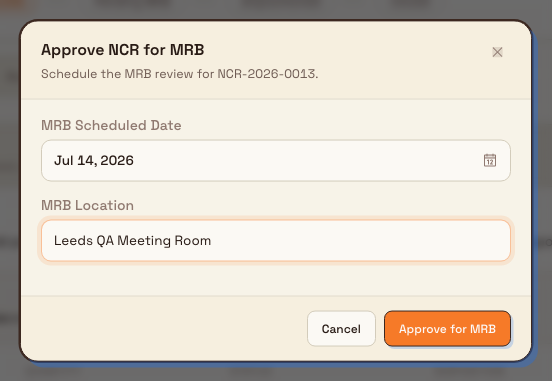
- Open the actions menu and choose Approve for MRB. The Approve NCR for MRB dialog opens. It says it will schedule the MRB review for this NCR.
- Set MRB Scheduled Date and MRB Location if you already know them. Both are optional.
- Click Approve for MRB.
The NCR moves to MRB. A toast reads "NCR approved for MRB". The scheduled date shows under MRB on the strip and as Scheduled Date on MRB Information. The location shows on that card. The dialog does not assign MRB members, so Members reads No MRB members assigned. unless members were stored another way.
Record the disposition
Record the decision when the strip is on MRB. You need MRB decisions (NCRs).
On a new NCR, disposition is a set of cards in the same layout as the NCR type cards: Rework, Repair, Scrap, Use As Is, and Return to Vendor. That screen is only on the create form, and this review page does not use it. The decision you save here is a radio list, and it also includes Downgrade.
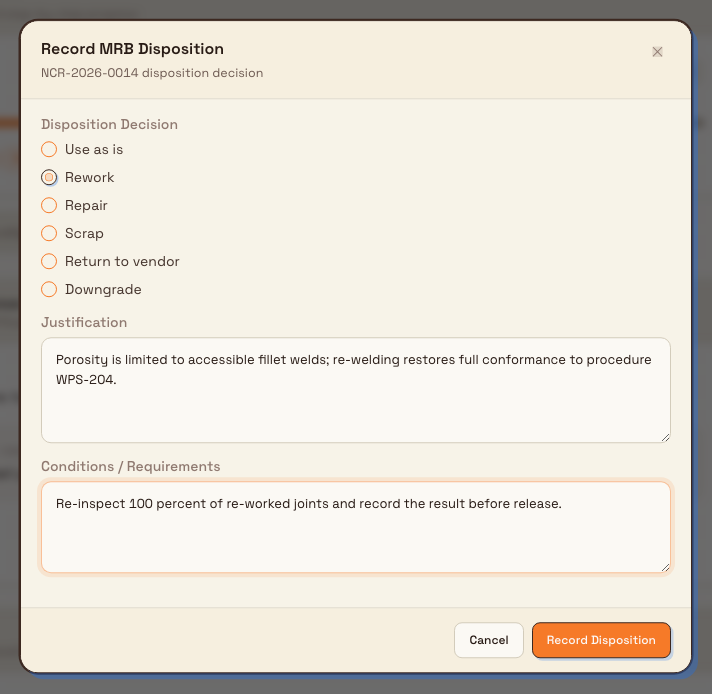
- Open the actions menu and choose Record Disposition. The Record MRB Disposition dialog opens.
- Choose Disposition Decision. Rework is already selected when the dialog opens. The choices are:
- Use as is
- Rework
- Repair
- Scrap
- Return to vendor
- Downgrade
- Enter a Justification. You cannot save without one. If you leave it empty, the form shows "Justification is required".
- Optionally enter Conditions / Requirements.
- Click Record Disposition.
The NCR moves to Disposition. A toast reads "Disposition recorded". The strip shows the decision under Disposition. The wording there, and on the disposition badge, is Use As Is, Rework, Repair, Scrap, Return To Vendor, or Downgrade. The status badge becomes Dispositioned.
On the Actions tab, Disposition shows Decision, Approved (the date), Signatures, Justification, and Conditions when you entered them. The dialog does not collect signatures, so Signatures stays at 0 and no MRB Signatures list appears. You cannot record the decision again from the Disposition stage.
Close the NCR
Close the NCR after the disposition is carried out. This is available on the Disposition stage and needs MRB decisions (NCRs).
- Open the actions menu and choose Close NCR.
- The NCR moves to Closed. A toast reads "NCR closed", and you return to the NCRs list.
The Closed stage shows the closed date. Audit Trail on Overview also shows Closed with that date. Closing is written to the compliance audit trail.
Closing is final
There is no action to reopen a closed NCR. Close it only after the disposition is done and any conditions are met.
Example at Gotham Applied Sciences
At Wayne Enterprises' Gotham Applied Sciences site, final inspection finds weld porosity above the limit on 48 mounting brackets. You open NCR-2026-0087, type In Process, after it has been submitted.
- Review. The strip is on In review, and that stage shows the submit date. The description and quantity look complete, so you choose Approve for MRB, set MRB Scheduled Date to the following Tuesday, and set MRB Location to "Gotham QA Meeting Room". The strip moves to MRB and shows that date.
- Disposition. The board agrees the porosity is limited to fillet welds that can be re-welded. You open Record Disposition, leave Rework selected, and enter a Justification: "Porosity is limited to accessible fillet welds. Re-welding restores full conformance to procedure WPS-204." Under Conditions / Requirements you add: "Re-inspect every reworked joint and record the result before release." The strip moves to Disposition and shows Rework.
- Close. After the rework and the re-inspection, you choose Close NCR. The record moves to Closed, and that stage shows the closed date. The decision, justification, and conditions stay on the record.
What gets recorded
- The stage strip shows the created date, the submit date, the scheduled MRB date, the disposition name, and the closed date as you pass each stage.
- Non-Conformance Details shows Status, Type, and Disposition.
- MRB Information shows Scheduled Date, Location, and Members.
- Disposition on the Actions tab shows the decision badge, the Approved date, the signature count, the justification, and any conditions.
- Audit Trail shows Created, Last Updated, Closed, Owner, and Reviewer.
- Activity Timeline records each status change and each quantity correction with its reason. Closing an NCR is also written to the compliance audit trail.
Limits
- Approve NCR for MRB only asks for MRB Scheduled Date and MRB Location. It does not assign members.
- Record MRB Disposition does not collect signatures.
- There is no reject, send-back, or reopen action.
- Evidence & Attachments does not include an upload control. It says that linked files will appear there.
Troubleshooting
- The action I need is not in the menu. Submit for Review appears on Draft when you have Create NCRs. Approve for MRB appears on In review when you have Review NCRs. Record Disposition appears on MRB when you have MRB decisions (NCRs). Close NCR appears on Disposition with that same MRB permission. Submitting still fails if your role has Create NCRs but not Review NCRs.
- "Give a reason for the correction." From In review onwards, a quantity correction needs a reason. Say why the old value was wrong.
- "Change the quantity or unit to save a correction." The values match what is already recorded. Change one of them, or close the dialog.
- Correct quantity is missing. It appears on Draft, In review, and MRB when you have Edit NCRs.
- "Justification is required." Enter the board's reasoning before you click Record Disposition. Rework is already selected when the dialog opens, so change it if that is not the decision.
- No MRB members are listed. Member assignment is not part of Approve NCR for MRB. Record the attendees in the justification, in the conditions, or in Comments.
- In review has no date. That date appears only after the NCR is submitted, and only on the In review stage once you have reached it. A draft shows the created date under Draft and nothing under the later stages.
Related guidance
- Create an NCR explains how an NCR is raised and submitted into this workflow. Disposition there is the card layout shared with NCR type, not the MRB radio list on this page.
- Create and manage a CAPA is where you open a corrective and preventive action. Create CAPA is in the NCR actions menu, and on Linked Records, when no CAPA is linked yet. Saving it requires Create CAPAs (
quality_capas.create). - Put work on quality hold quarantines affected material while you review the NCR.
- Link quality and production records connects an NCR to the jobs and orders it affects.
- Quality overview lists the quality capabilities.
Create an NCR
Create a non-conformance report on one scrolling form. Pick the source, record the affected quantity, choose a disposition, link jobs, add actions, then sign across the form before you save.
Create and manage a CAPA
Create a CAPA on one scrolling form, link an issue or NCR, review it on the same page layout as a quality issue, and close it from Verifying.