Link quality and production records
How a production defect links to a quality issue, where you trace that link, and when a station rework closes the issue with a disposition and a note.
Last updated
Bulk keeps your quality records and your production records connected, so a problem found on the shop floor stays traceable to the exact job, step, and machine where it happened. A quality issue is the formal record the Quality module tracks and works through to resolution. A production record is a job, an order, or an invoice: the day-to-day units of work that flow through production. This article explains how the two are linked, where you can move between them, and when a station rework closes the linked issue.
You would use this when a quality manager needs to see the production context behind an issue (which job, which operation, which asset), or when a production supervisor reviewing a job wants to see every defect logged against it and its current quality status: without re-keying anything or hunting across modules.
How the link is created
The link is made for you. You do not build it by hand.
When someone records a defect during production: a "bad" outcome logged against a quality step in the job's routing: Bulk does two things at once:
- It stores a defect against the production record (the job and the specific step, and the asset if one was selected).
- It automatically creates a matching quality issue in the Quality module and links the two records to each other in both directions.
The new quality issue starts with its source marked as production and carries over the details captured on the line: the quality category, the root cause (if one was chosen), the disposition, the quantity affected, and the job, step, asset, and batch it came from. Its status starts as open. From that moment the production defect and the quality issue stay tied together, so an update in one place is reflected wherever the pair is shown.
Recording the defect itself happens during production, not in this screen. For the recording steps, see Complete production quality steps.
When a station rework closes the issue
Recording the defect opens the quality issue. It does not close it. A station rework can close that linked issue, and when it does, it saves a disposition and a note. A stage change on its own does not close it. Complete Stage can block the job while a run is still waiting for rework, but finishing the stage leaves the quality issue unchanged.
You record the rework on the station. See Complete production quality steps. Cycle runs, and what Complete Stage blocks, are in Record process cycles.
The close is set on the production item, not by the name of a routing stage. Go to Settings, then Master Data, then Production Items, and open the item. The steps are named Mark for rework and Rework. A production item can include only one of Cycle, Mark for rework, and Rework. How to add them is in Manage production modes and items.
On a Rework step, turn on Close the linked quality issue. Choose a Disposition: Rework (the default), Use as is, Scrap, Return to supplier, or Concession. The Closure note is saved on the issue. If you leave it blank, Bulk saves "Reworked at the station". The note can be at most 500 characters.
When you record that Rework step, Bulk closes the quality issue that was linked when the run was marked for rework. You do not need permission to close quality issues to record the step. You do need that permission to turn Close the linked quality issue on, or to change the disposition or the note. By default, Quality, Entity admin, and Super user have it.
Mark for rework closes the issue in the same press only when Reworked in the same press is on, Close the linked quality issue is on, and the item's behavior is Bad. That press records the defect, links the new quality issue, reworks the run, and closes the issue. If Reworked in the same press is off, marking the run does not close the issue. A later Rework press closes the issue linked at mark time, and only if that Rework step has Close the linked quality issue on.
An issue that is already closed stays closed, and its note is left as it was. A rework of a run with no linked quality issue does not close one. Mark for rework on an Inspection item can flag a run, but that press does not raise the quality issue, so a later rework has no linked issue to close. Deleting the recording does not reopen an issue the rework closed. Reopen it from the Quality module if you still need it open.
One defect, one linked issue
Each production defect is linked to a single quality issue, and each production-sourced quality issue points back to a single defect. The link is idempotent: recording the same defect does not create duplicate issues.
See the link from a production record
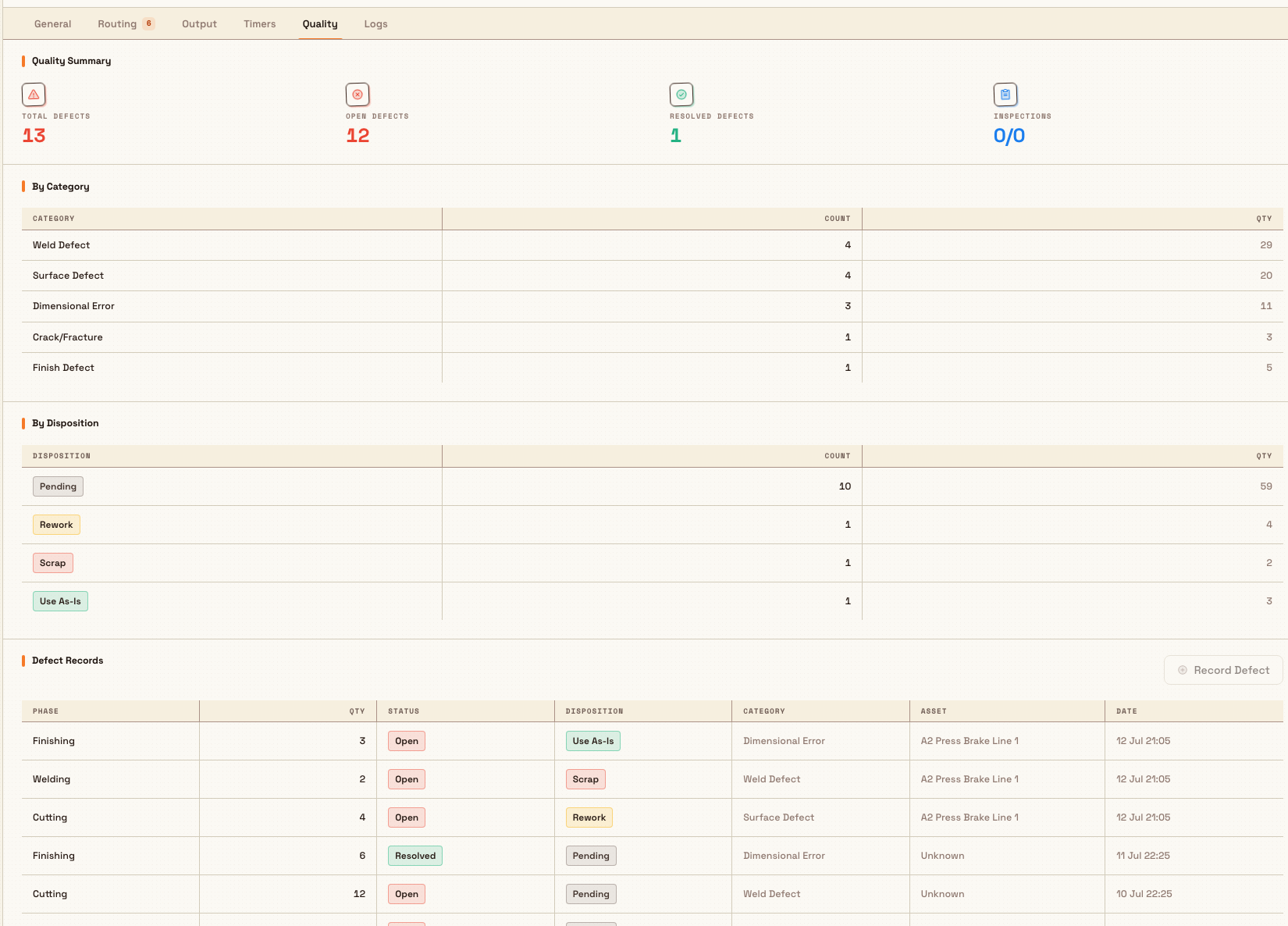
Open a production job, order, or invoice and select the Quality tab. The same view appears in all three places, and also on an individual production transaction (a single step within a job).
The tab aggregates every defect linked to that record:
- Quality Summary: a band of totals: Total Defects, Open Defects, Resolved Defects, and Inspections.
- By Category and By Disposition: counts and quantities grouped so you can see where problems cluster.
- Defect Records: one row per defect, showing the Phase (the operation), Qty, Status, Disposition, Category, Asset, and Date. On an order or invoice, where defects span several jobs, a Job # column is added so you can tell them apart.
Each defect row's Status follows its linked quality issue. Resolving or closing the issue in the Quality module moves the row, and so does a station rework that is set to close the issue. A closed issue shows Closed and counts under Resolved Defects.
See the link from a quality issue
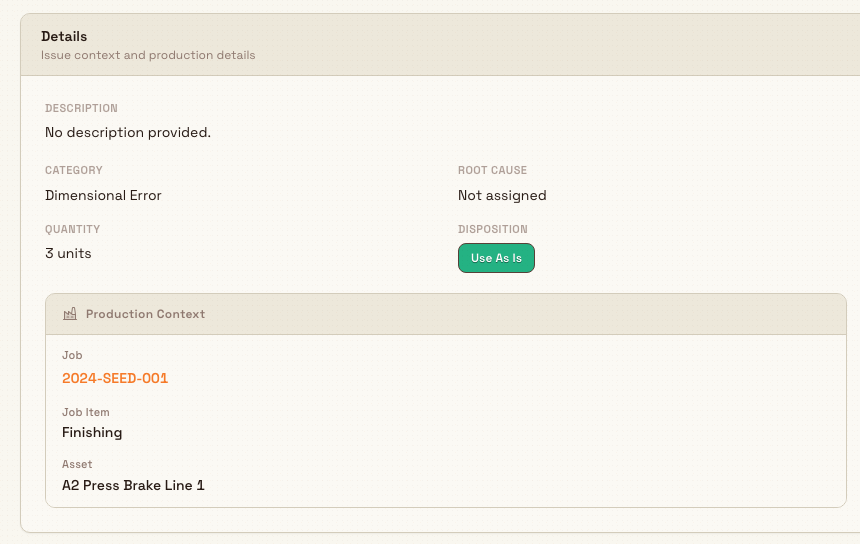
Go the other way by opening the quality issue itself. From the Quality module, open Issues and select the issue, or use the issue number shown on the defect. On the issue detail page, the Details card includes a Production Context section for any issue that came from production. It shows:
- Job: a link straight to the production job it was recorded against.
- Job Item: the operation, or step, where the defect was found.
- Asset: the machine or workstation involved, when one was recorded.
- Batch: the batch number, when the work was batch-tracked.
Selecting Job opens its production-job detail dialog. Select Quality in that dialog to review the linked defects, or use its open-in-new-tab control to open the full job page.
Prerequisites
Roles and their permissions are configurable, so your administrator may have adjusted these. By default:
- Recording a defect: which is what creates the link: needs the production add permission. Roles such as Tablet user, Entity admin, and Super user have it.
- Seeing the Quality tab on a production record needs view access to that record: production jobs view for a job, production orders view for an order, or invoicing view for an invoice. Operators, tablet users, and admins typically have the relevant view.
- Opening the linked quality issue needs the quality issues view permission, held by the Quality role, Entity admin, and Super user.
- Turning on a station close needs permission to close quality issues. Quality, Entity admin, and Super user have it by default. The operator who records the rework does not need it.
Example: Leeds Fabrication Plant
Priya, a press operator at Granite Peak Manufacturing's Leeds Fabrication Plant, is running a job for 200 steel brackets. At the deburring step she finds four parts with cracked edges. She records them as a defect at that quality step, selecting the category "Surface defect" and the press she was using.
Bulk immediately creates quality issue QI-1042, marks its source as production, and links it to the defect on the job. When Dana Winters, the quality manager, opens QI-1042 later that morning, the Production Context section already shows the job, the deburring step, and the press: she does not have to ask which line it came from. She sets a disposition of rework and, once the parts are fixed, resolves the issue. Back on the job's Quality tab, that defect row now reads Resolved, and the Open Defects count drops by one.
Expected result
After a defect is recorded, you should be able to start from either side and reach the other: from the production job, order, or invoice Quality tab you can read the defect and its live status; from the quality issue you can jump back to the exact job, step, and asset. Summary counts and statuses update as issues are worked through in the Quality module. They also update when a station rework closes the linked issue. A stage change does not close it.
Limitations and feature state
The connection between quality and production records is generally available. Two related controls are not yet in service, and it is worth knowing before you look for them:
- The Record Defect and New Inspection buttons on the Quality tab are present but disabled; hovering either one shows a tooltip that the feature is not yet available. You record defects during production at a quality step, not from this tab.
- Inspections are not yet stored. The Inspections total always reads as zero of zero with no data, and the Inspections table stays empty. Only defect records are populated today.
Linking a quality record to production by hand: for example attaching a Nonconformance Report (NCR) to specific jobs: belongs to the separate quality record features, several of which are in beta. See Create an NCR for that flow and its current state.
Troubleshooting
- A defect is not showing on the Quality tab. Confirm it was recorded as a defect at a quality step against this job or step, and that you are viewing the right record. Good output and inspection passes are not defects and will not appear here. On an order or invoice, check the Job # column, since defects from every underlying job are combined.
- You cannot open the linked quality issue. Opening it needs the quality issues view permission. Ask your administrator to add it to your role, or ask someone with the Quality role to review the issue.
- A defect's status is not changing. The Status on the Quality tab follows the linked quality issue. Completing the stage does not close it. Close the issue in the Quality module, or record a Rework step (or a same-press Mark for rework on a Bad item) that has Close the linked quality issue turned on. The row then shows Closed, and it counts under Resolved Defects.
- Disposition on the Quality tab did not change after that close. That column is the disposition saved with the production defect. The disposition and closure note from the station rework are saved on the quality issue.
Related guidance
- Quality: the Quality module overview.
- Create a quality issue and Review and close a quality issue : working an issue through to resolution.
- Complete production quality steps : how defects are recorded during production.
- Record process cycles for cycle runs and for what Complete Stage blocks while a run waits for rework. Completing the stage does not close the linked quality issue.
- Manage production modes and items for Mark for rework, Rework, and Close the linked quality issue.
- Review production orders and jobs and Review production transactions : where the Quality tab lives on production records.
Create and manage an 8D report
Run an Eight Disciplines (8D) investigation in Bulk, from problem and team through root cause and corrective action to closure with effectiveness checks.
Safety
The Safety area brings risk assessments, incident reports, and equipment readiness onto one dashboard and links to the guide for each safety task.