Review and close a quality issue
Review and close one quality issue from its detail page, or disposition and close a matching group from the Issues list.
Last updated
A quality issue is a record of a defect or nonconformance found in production, at inspection, or reported by a customer or supplier. After an issue is logged, someone in the quality team works through it: they review the evidence and root cause, decide what happens to the affected parts (the disposition), and close the issue once the resolution is confirmed. This article covers that review-and-close side of the workflow. To raise a new issue in the first place, see Create a quality issue.
You review and close issues to keep your quality log accurate: open issues represent work that still needs attention, and closed issues form the historical record you report on and audit against.
Before you begin
- The issue must already exist. Issues are created from production, from an inspection, from the web form, or logged against a customer or supplier. See Create a quality issue.
- To set a disposition and resolve an issue, you need the "set disposition" quality permission. To close an issue, you need the separate "close" quality permission.
- Both permissions are included by default in the Super user, Entity admin, and Quality roles. If your buttons are missing, ask an administrator to check your role.
If you have the "set disposition" permission but not the "close" permission, you can resolve issues but a colleague with the close permission has to finish the last step.
How a quality issue reaches Closed
Every quality issue has a status that moves through a fixed lifecycle. For one issue, you set its disposition before closing it. For a matching group, Disposition & Close completes both stages in one action.
- Open: a newly logged issue that still needs attention.
- In Review: an optional state that signals someone is actively investigating.
- Resolved: reached once you set a disposition for the affected quantity. An issue cannot become Resolved until it has a disposition.
- Closed: the final state. An issue can only be Closed after it is Resolved, and only by someone with the close permission.
Two gates protect closure
You must set a disposition before an issue can be Resolved, and an issue must be Resolved before it can be Closed. Because of these gates, the Close Issue button only appears on an issue once it is already Resolved.
The bulk Disposition & Close action follows the same rules. It records the disposition, marks any unresolved issue as resolved, and closes it in one confirmation.
A Closed issue is not permanent: it can be reopened to Open if new information appears. See Reopen a closed issue below.
Open the issue and review it
- Go to Quality, then open the Issues list.
- Select the issue row to open its detail page. The web address ends in
/quality/issues/followed by the issue's identifier. The heading is the issue number. The page does not show the internal recording id. - Review the issue from its three tabs. Details opens first.
Details
- The Details group shows the description, category, root cause, quantity, disposition, status, and severity. Severity is a colored badge that uses the same colors as CAPA priority: red for Critical, orange for High, amber for Medium, and slate for Low.
- When the issue is linked to production, Production Context shows the job, the job item, the asset, and any batch, lot, or serial numbers. Select a job number to open that job in a dialog.
- Audit Trail lists the lifecycle timestamps: Created, Last Updated, Resolved, and Closed.
- Linked Records shows any linked NCR (nonconformance report), 8D report, or CAPA (corrective and preventive action).
Investigation
- Evidence holds photos and supporting files. Use Upload to add more if you have edit access.
- Root Cause Analysis holds the investigation findings and notes.
Activity
- Comments is the discussion thread, where you can record your review notes.
- Activity Timeline lists the changes recorded on the issue.
Set a disposition to resolve the issue
A disposition is the decision about what happens to the affected parts. Setting one moves the issue to Resolved.
- On the issue detail page, select Set Disposition in the header. This button appears when you have the disposition permission and the issue is not already Closed.
- In the Set Disposition dialog, choose one option:
- Scrap: discard the affected parts.
- Rework: repair or reprocess the parts.
- Use As Is: accept the parts unchanged.
- Return to Supplier: send the parts back to the supplier.
- Concession: accept the parts under a documented concession.
- Enter the Quantity the disposition applies to and a Reason describing the decision.
- Select Set Disposition to save.
Bulk records the disposition and moves the issue to Resolved, and you see a confirmation that the disposition was updated. The Resolved timestamp now appears in the Audit Trail.
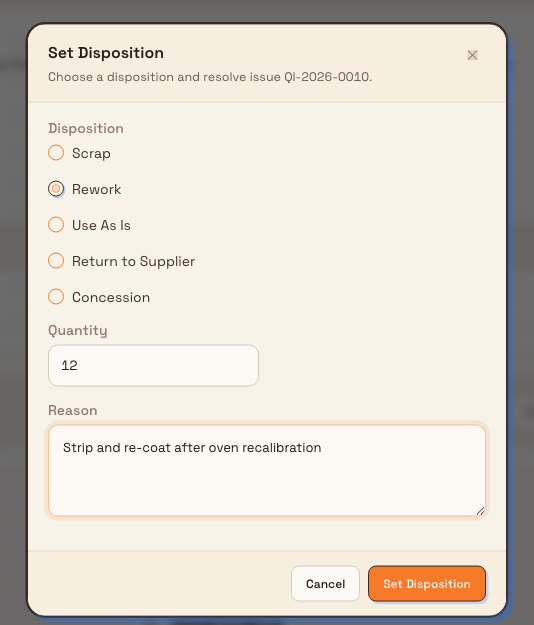
Close the resolved issue
Once the issue is Resolved and you have confirmed the resolution, close it.
- On the detail page of a Resolved issue, select Close Issue in the header. This button only appears when the issue is Resolved and you have the close permission.
- Bulk sets the status to Closed and shows a confirmation that the issue was closed. The Closed timestamp appears in the Audit Trail, and the change is written to the issue's activity history.
Closing from the header is a single action and does not prompt you for separate closure notes, so capture any final commentary in the Comments thread before you close.
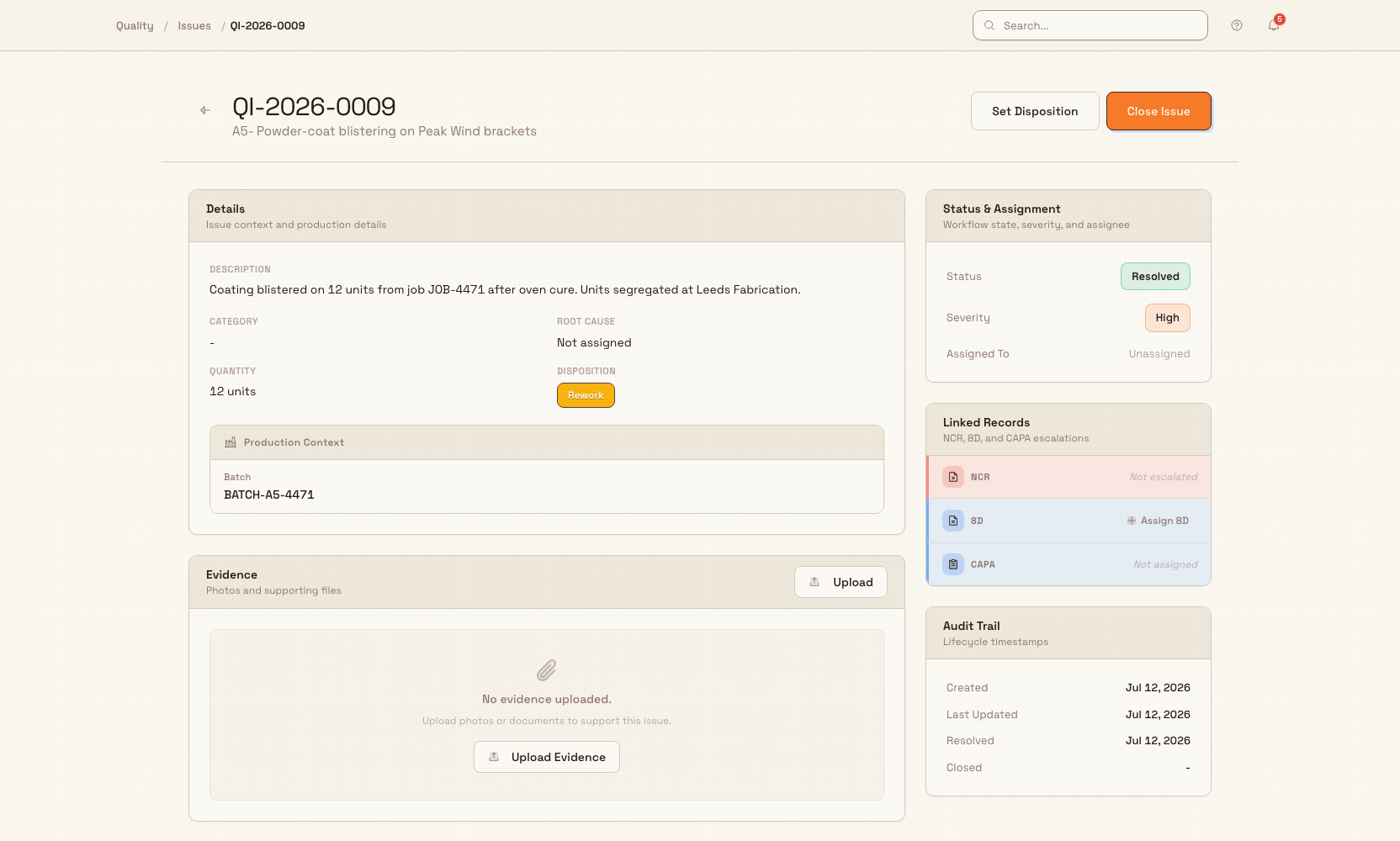
Example: reviewing coating blistering at Gotham Applied Sciences
An inspector logs Housing coating blistering for 12 housing brackets found during the Gotham finish review. The issue has High severity and the Surface Defect category. The affected brackets are segregated for assessment.
Bruce opens the issue from Quality then Issues and reviews the description and preliminary investigation notes. He selects Set Disposition, chooses Rework, enters 12, and records: "Strip and recoat 12 brackets after checking oven temperature stability. Verify the finish before returning them to production." Saving moves the issue to Resolved and records the resolution date.
After the brackets have been reworked and their finish verified, Bruce can select Close Issue. Closing records the final status and closure date. The screenshots show the saved Resolved state; they do not claim that physical rework or final closure has already happened.
Review and close several issues at once
When several issues need the same next step, work from the Issues list.
- Filter or sort the list to find the group you need.
- Select the first issue. This sets the status for the group, such as Open or In Review.
- Select more issues with the same status. Issues with another status cannot be selected.
- Choose an action from the bulk action bar.
The actions are:
- Select all Open (or the selected status): select matching issues across all pages in the current view.
- Change Status: choose a status that is allowed for every selected issue.
- Disposition & Close: apply one disposition and reason, then close the selected issues in one step.
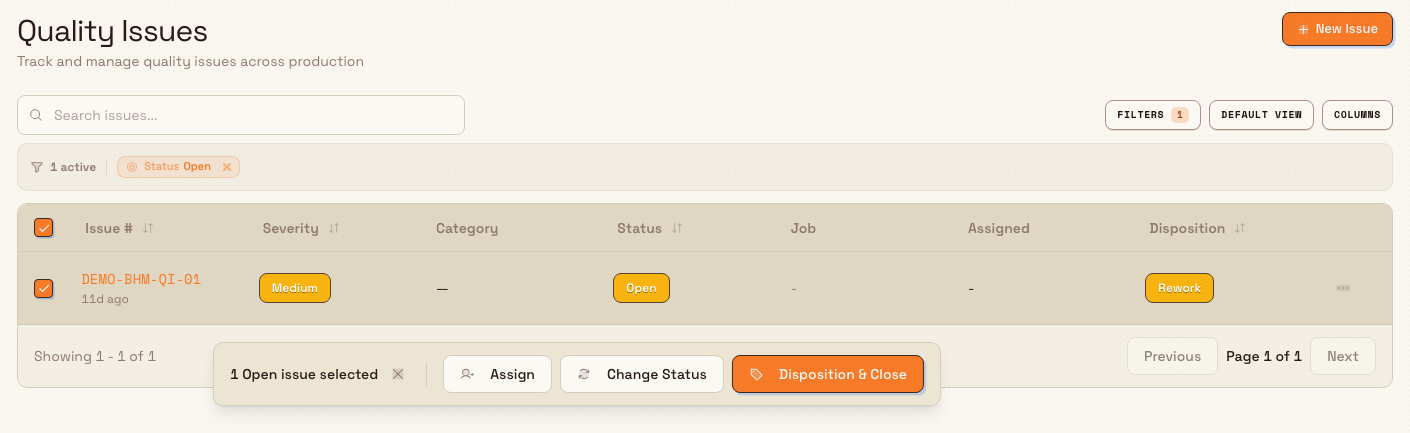
For Disposition & Close, choose Scrap, Rework, Use As Is, Return to Supplier, or Concession. Enter a reason, check the status summary, then confirm.
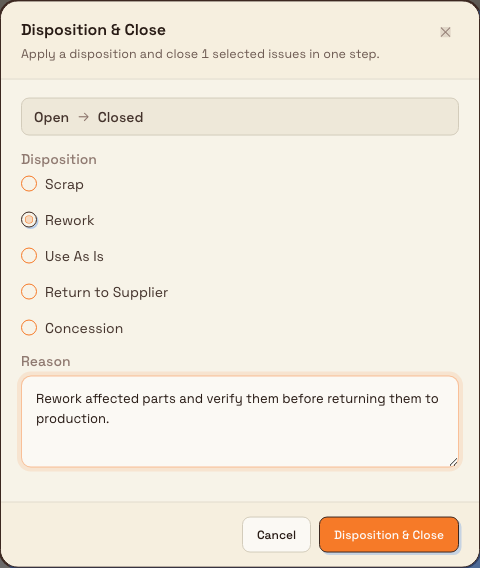
Bulk applies the disposition to the full affected quantity on each issue. It records resolved and closed times, adds the reason to each issue's history, and shows how many issues were closed.
Selection stays within one status
Use the table selection menu to select the current page, or Select all Open to select matching Open issues across pages. Selection survives paging and sorting. Changing the site, search, or filters starts a new selection.
Bulk rechecks every issue when you confirm. If an issue changed status after you selected it, Bulk skips that issue and tells you how many were skipped.
The In Review status is set from the list using Change Status, not from the issue detail page.
What to expect after closing
- The issue's status reads Closed, shown as a slate badge on the detail page and in the list.
- The Audit Trail shows the Resolved and Closed timestamps, and Bulk records who closed the issue.
- A "status changed" entry is added to the issue's activity history.
- The issue no longer counts toward your open quality work and can be filtered by the Closed status in the Issues list.
Reopen a closed issue
If a closed issue needs more work, reopen it from the list rather than the detail page.
- On the Issues list, select the closed issue's checkbox.
- Select Change Status and choose Open.
The issue returns to Open, and the Set Disposition and (once resolved again) Close Issue buttons become available on its detail page. Reopening requires edit access to quality issues.
Limitations and availability
This workflow is generally available.
- A disposition is required to resolve. You cannot mark an issue Resolved until it has a disposition that is not "pending". If you try, Bulk reports that you must set a disposition first.
- Closing requires the Resolved state. The Close Issue button is hidden until the issue is Resolved, and the close action is blocked for issues that are not yet Resolved.
- The detail-page close does not capture closure notes. Record final notes in the Comments thread before closing.
- In Review and reopening are list-only. You set the In Review status, and reopen a closed issue, from the Issues list using Change Status: the detail page header does not expose these.
- Bulk actions run in batches of 100. Larger selections run as sequential batches. If a batch fails, earlier completed batches stay saved and Bulk reports where processing stopped.
- Disposition & Close needs both permissions. You need permission to set a disposition and permission to close quality issues.
Troubleshooting
- The Close Issue button is missing. The issue is not Resolved yet, or you lack the close permission. Set a disposition to resolve the issue first; if the button still does not appear, ask an administrator to confirm your role includes the close permission.
- The Set Disposition button is missing. You lack the disposition permission, or the issue is already Closed. Reopen a closed issue from the list to make the button available again.
- You see a message that a disposition is required before resolving. Open the issue and use Set Disposition before trying to move it to Resolved.
- You see a message that the issue must be resolved before it can be closed. Resolve the issue with a disposition first, then use Close Issue.
- Disposition & Close is unavailable. The selected issues may include no eligible records, or your role may be missing the disposition or close permission.
- Some selected issues were skipped. Their status changed after selection. Refresh the list, review those issues, and try again if they still need action.
Related guidance
Create a quality issue
Create a quality issue on one scrolling form. Set source, title, colored severity, category, quantity, and evidence, and filter the job from a column header.
Create an NCR
Create a non-conformance report on one scrolling form. Pick the source, record the affected quantity, choose a disposition, link jobs, add actions, then sign across the form before you save.