Release a quality hold
Clear a quality hold to return held material to use, recording who released it, why, and on what conditions, as a full release, partial release, or scrap.
Last updated
A quality hold records the containment of raw material, work in progress, or finished goods while conformance is in question. Releasing it records the clearance of the held quantity. Follow the plant's physical release procedure and check any linked production restrictions separately. You release a hold once the material has been re-inspected, reworked, or otherwise cleared, so the held quantity can move back into normal production and shipping.
This guide covers the three ways to close out an open hold from the quantity it is holding:
- Release: clears the entire remaining held quantity and closes the hold.
- Partial Release: clears a chosen quantity now and keeps the rest on hold.
- Scrap: writes off the remaining held quantity instead of returning it to use.
All three actions are controlled by the same permission and are reached from the same places, so this guide treats them together.
Before you start
To release, partially release, or scrap a hold you need the Release quality holds permission (quality_holds.release). In the default role set this permission is granted to the Quality, Entity admin, and Super user roles. Users with only view access can open a hold. They cannot submit a release; the
current list may show disabled actions explaining why they are unavailable.
The hold itself must still be open. A hold can be released only while its status is Active or Partial Release and at least one unit remains held. Holds that already read Released or Scrapped are closed: their release actions no longer appear, and the backend rejects a second attempt with the message "Hold already closed".
Where to release a hold
You can start a release from two places:
- Quality Holds list: open Quality > Holds. Right-click an available hold row to open its context menu. Release actions depend on permission, status, and whether the hold is linked to a production order.
- Hold detail page: open a hold to see its full record. The same Release, Partial Release, and Scrap actions sit in the "more actions" menu in the page header.
If the current list does not show a saved standalone hold, open its detail page using the saved link. If release actions are unavailable, check the hold status, permissions, and linked order. See Troubleshooting.

Release the full hold
Use Release when all of the remaining held material has been cleared and can return to normal use.
- From an available Quality Holds row context menu or the hold detail header menu, select Release.
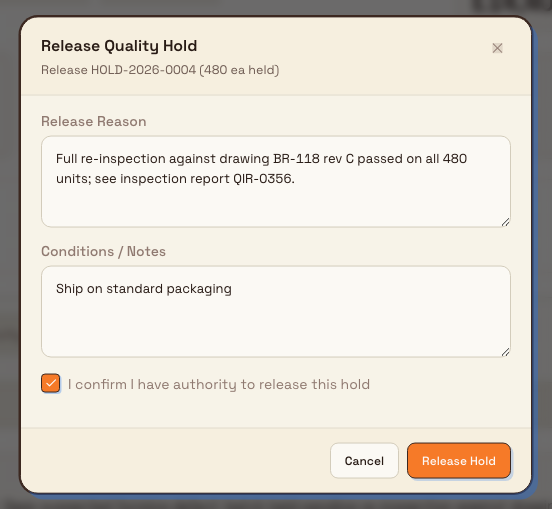
- The Release Quality Hold dialog opens. Its subtitle confirms the hold number and how much is currently held, for example "Release HOLD-2026-0042 (480 units held)".
- In Release Reason, describe why the material is being cleared. This field is required: you cannot submit without it. Reference the evidence that supports the decision, such as a re-inspection result or a disposition record.
- Optionally, use Conditions / Notes to capture any conditions attached to the release, such as "acceptable for internal use only".
- Tick I confirm I have authority to release this hold. The dialog will not submit until this box is checked.
- Select Release Hold.
On success, a confirmation appears ("Hold HOLD-2026-0042 released"), the dialog closes, and the hold moves to the Released status.
Release part of a hold
Use Partial Release when only some of the held material has been cleared and the rest must stay on hold.
- Select Partial Release from the row menu or the hold detail header menu.
- In the Partial Release dialog, enter the Quantity to Release. You must release at least one unit and no more than the quantity currently held.
- Enter a Release Reason and tick the authority confirmation, exactly as for a full release.
- Select Record Partial Release.
The released quantity is deducted from the amount held and logged as a partial release. If the amount released empties the hold, the hold moves to Released; otherwise it moves to Partial Release and stays open so you can release, partially release, or scrap the remainder later.
Scrap the remaining quantity
Use Scrap when the remaining held material cannot be used and must be written off rather than returned to production. Scrap clears the whole remaining held quantity and closes the hold with a Scrapped status.
- Select Scrap from the row menu or the hold detail header menu.
- In the Scrap Hold dialog, enter a Scrap Reason.
- Tick I understand this action will scrap the remaining held quantity.
- Select Scrap Hold.
Releasing and scrapping are final
Releasing records the held quantity as cleared; scrapping records it as written off. Follow the plant's physical handling procedure and verify linked production restrictions separately. Neither action can be reversed from the hold: a released or scrapped hold is closed. Because a quality hold exists to stop potentially non-conforming material from being used or shipped, confirm the disposition is correct before you release. If the same material needs holding again later, place a new hold rather than trying to reopen the closed one.
What happens after you release
Once a hold is released:
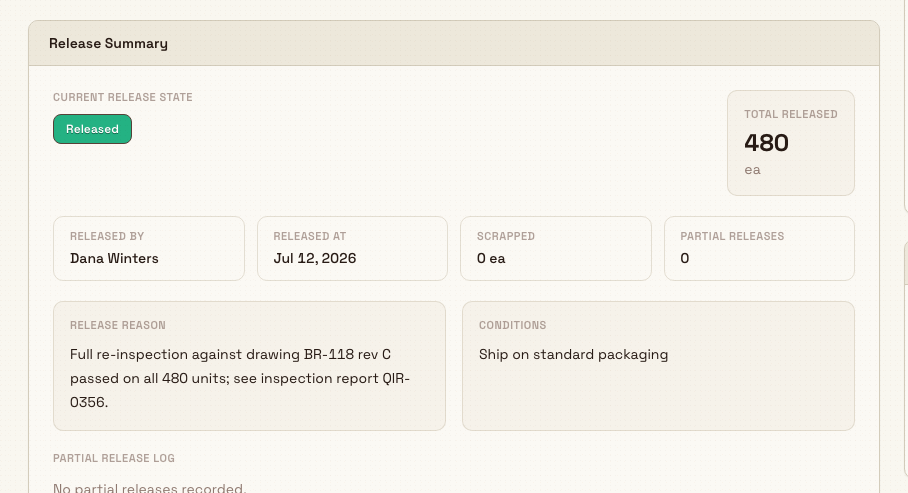
- The held quantity drops to zero and the total released quantity is recorded.
- The hold's status badge changes to Released (or Partial Release while quantity still remains after a partial release).
- The person and time of release are stored, along with the reason and any conditions.
- The release is written to the hold's activity and audit trail, so there is a durable record of who cleared the material and why.
You can review all of this on the hold's Release tab, in the Release Summary card. It shows the current release state, the total released quantity, who released it and when, the release reason, the conditions, and a log of any partial releases.
Example: closing a housing review hold at Gotham
At Gotham Applied Sciences, HOLD-2026-0002 records a mounting bore review for 24 housing brackets. It is a standalone Production Hold with no production order or inventory lot linked.
Bruce Wayne reviews its recorded scope and disposition, opens the header menu, and selects Release. He records "Hold scope and recorded disposition reviewed. No production order or inventory lot is linked to this standalone record." The condition states that any linked production material requires its own release review before use.
After confirming authority and selecting Release Hold, the record shows Released, 24 ea released and 0 ea held. The Release tab preserves Bruce's name, the actual release date, reason, and condition. This standalone record does not prove that physical rework or a linked production release has been completed.
Limitations
- The authority confirmation is an on-screen attestation. The "I confirm I have authority to release this hold" checkbox is enforced in the dialog to make you confirm before submitting. It is not a separate approval step, and the backend release does not check it or verify the approver named when the hold was created. Any user with the release permission can release any open hold in their plant.
- Release is per hold, not per line. A full release clears the entire remaining held quantity at once. To keep part of the material held, use Partial Release instead.
- Order-linked holds have a different release boundary. Current source disables Partial Release and Scrap for holds linked to a production order. Follow the order hold release path for those records; the examples here use a standalone hold.
- No un-release. There is no action to move a released or scrapped hold back to Active. Re-holding requires placing a new hold.
Troubleshooting
- No Release, Partial Release, or Scrap actions appear. Release requires
quality_holds.releasepermission and an open hold with quantity remaining. The list can show disabled actions with a reason; order-linked holds cannot use Partial Release or Scrap. Check the status badge: if it reads Released or Scrapped, the hold is already closed. If it is Active but you still see no actions, your role may not include the release permission. Ask an administrator to grant a role such as Quality or Entity admin. - "Hold already closed" error. The hold was released or scrapped, possibly by someone else since you loaded the page. Refresh the hold. If the material genuinely needs holding again, place a new hold.
- Cannot submit the release dialog. The Release Reason is required and the authority checkbox must be ticked. Fill both and try again.
- Partial release is rejected. The quantity must be at least one unit and no greater than the quantity currently held. Enter a value within that range.
Related guidance
- Put work on quality hold: how a hold is placed in the first place.
- Link quality and production records: connect holds to the orders, jobs, and NCRs they affect.
- Review and disposition an NCR: decide the fate of non-conforming material that a hold protects.
- Quality: the full quality module overview.
Put work on quality hold
Place a quality hold with the three-step New Quality Hold wizard to stop suspect material moving, record its containment, and set what happens next.
Create and manage an 8D report
Run an Eight Disciplines (8D) investigation in Bulk, from problem and team through root cause and corrective action to closure with effectiveness checks.