Create and manage a CAPA
Create a CAPA on one scrolling form, link an issue or NCR, review it on the same page layout as a quality issue, and close it from Verifying.
Last updated
A CAPA (corrective and preventive action) is the quality record you use when a problem needs a managed fix and a check that the fix worked. A corrective action deals with a problem that has already happened. A preventive action reduces the chance of a problem that has not happened yet. You create the CAPA, assign the work, move it through its stages, record whether the fix was effective, and close it.
Use a CAPA when the problem is serious or keeps coming back, such as a repeat defect, an audit finding, or a customer complaint. For a single defect, start with a quality issue or a nonconformance report (NCR). Open a CAPA from that NCR when the record needs this follow-up.
Before you begin
Open Quality, then CAPAs. The list is titled Corrective & Preventive Actions. CAPAs does not carry a Beta badge.
You need these permissions:
- View the list and a CAPA requires
quality_capas.view. - Create a CAPA requires
quality_capas.create. - Manage a CAPA requires
quality_capas.manage. That covers changing status, recording verification, adding or removing actions, and linking records. - Close a CAPA requires
quality_capas.close.
The Quality and Entity admin roles include all four. A Super user has full access. If an action is missing, ask an administrator to check your role.
Each CAPA belongs to the plant you are working in. Bulk numbers it CAPA-YYYY-NNNN, for example CAPA-2026-0042. A new CAPA starts in Draft.
Find a CAPA
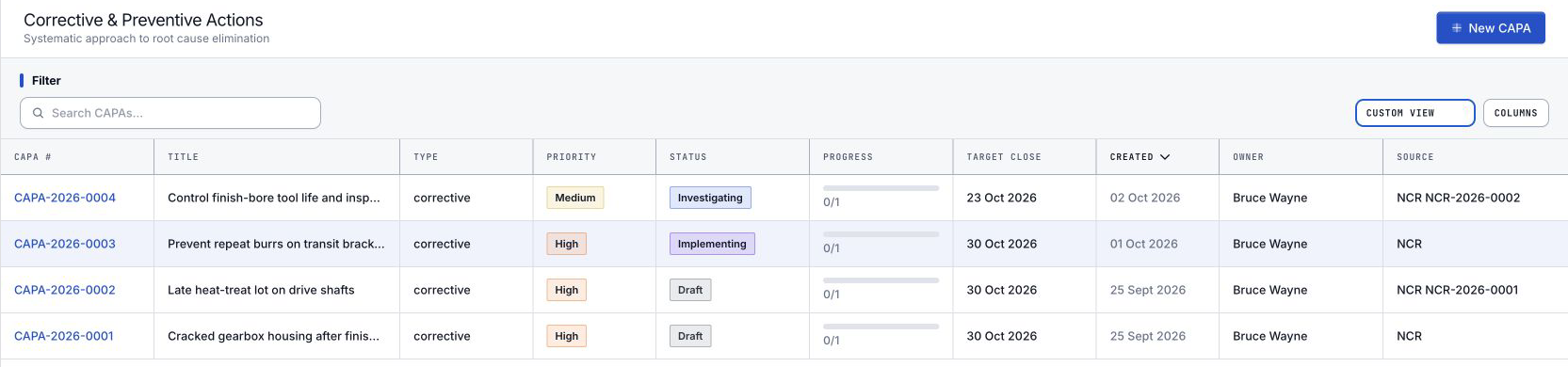
The CAPA list searches and filters the same way as Issues. Type in Search CAPAs. Filter from a column header. Every column can be filtered, and Target Close and Created use date filters. The view control reads Default view until you pick a saved view or the list is showing a Custom view. Columns lets you show or hide columns. Paging works the same way as Issues. The CAPA list does not include the bulk selection bar that Issues uses.
The columns are CAPA #, Title, Type, Priority, Status, Progress, Target Close, Created, Owner, and Source. Select a row to open the CAPA. The row menu can copy the CAPA number. When your role allows it, that menu also offers Change Status, Record Verification (only while the CAPA is Verifying), and Close CAPA (only while it is Verifying and you can close it).
New CAPA opens the create form. An empty list says No CAPAs yet. A search or filter with no matches says No CAPAs found and Try adjusting your search or filter criteria.
Create a CAPA
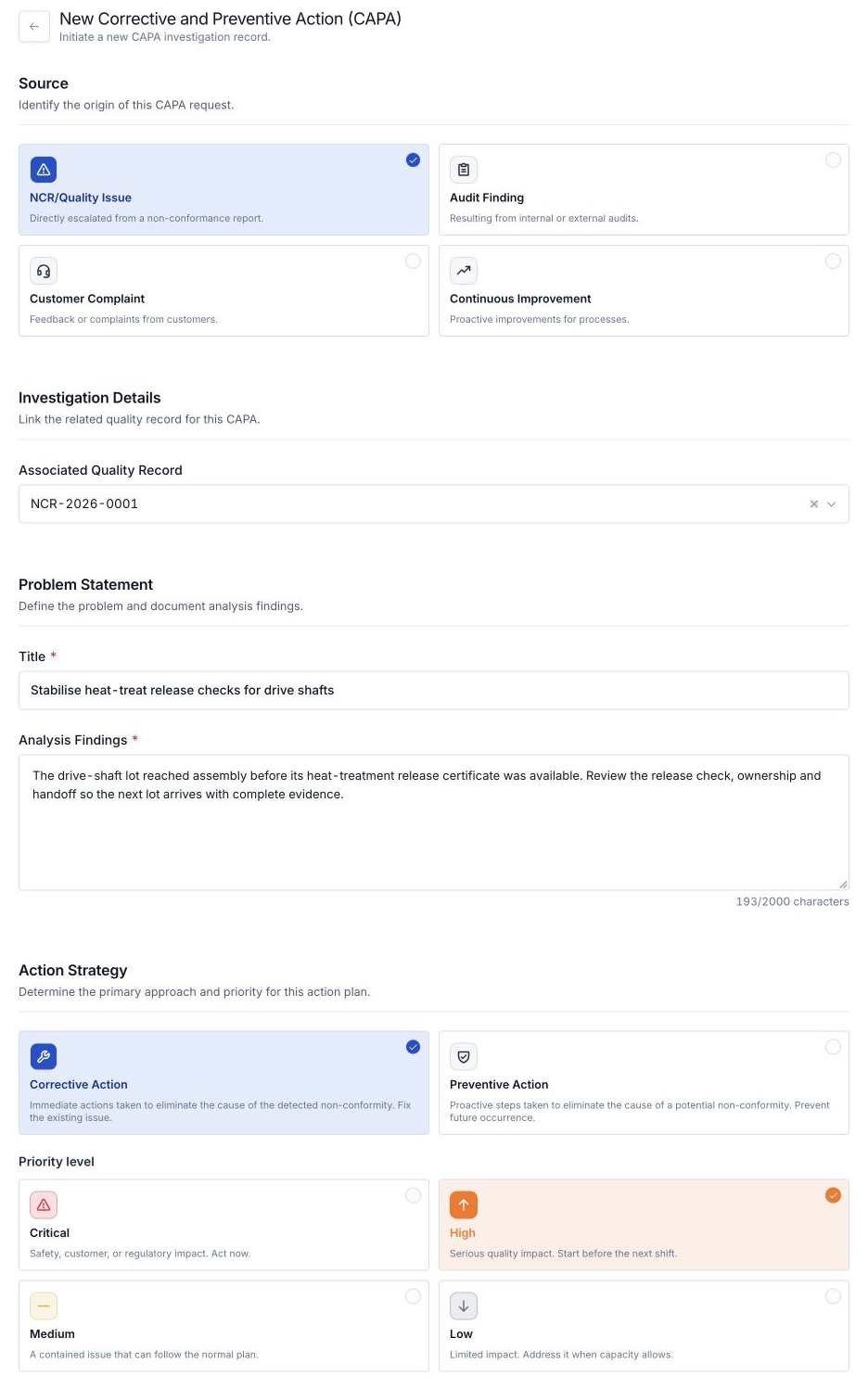
For example, a Gotham drive-shaft lot may need a stronger release check for its heat-treatment certificate. Draft a title such as Stabilise heat-treat release checks for drive shafts, link the related NCR and explain the handoff that needs correction. The screenshot below shows an unsaved example.
Select New CAPA. The page is titled New Corrective and Preventive Action (CAPA) and the description reads Initiate a new CAPA investigation record. The address is /quality/capas/new.
This is one scrolling form. There is no step indicator and no preview sidebar. The form does not include a locked evidence section. You do not upload files while you create the CAPA.
Create CAPA stays pending until the required fields are complete. The footer reads Complete the required fields first. until then, then Ready to create.
Source
Under Source, choose where the CAPA came from. The choices are cards. A blank form starts on NCR/Quality Issue.
- NCR/Quality Issue. The card says this CAPA was directly escalated from a non-conformance report. This choice is also where you link a quality issue.
- Audit Finding. From an internal or external audit.
- Customer Complaint. From customer feedback.
- Continuous Improvement. A proactive process improvement.
While NCR/Quality Issue is selected, Investigation Details shows Associated Quality Record. The field placeholder is Search NCR #, Issue #.... An empty search lists recent NCRs and issues, newest first. Scroll the list to load more. Select a record to link it, or clear the field. The other source cards hide this field and clear a record you already picked.
Problem statement
Under Problem Statement, enter a Title and Analysis Findings. Both are required. The title allows 200 characters. Analysis findings allow 2000 characters, and a counter shows how many you have used.
Priority and action type
Under Action Strategy, choose Corrective Action or Preventive Action. These are the same kind of cards as the source choices. Corrective Action is selected by default. The corrective card is for eliminating the cause of a nonconformity you have already found. The preventive card is for removing the cause of a potential nonconformity.
Under Priority level, choose a priority card. Medium is selected by default.
- Critical. Safety, customer, or regulatory impact. Act now.
- High. Serious quality impact. Start before the next shift.
- Medium. A contained issue that can follow the normal plan.
- Low. Limited impact. Address it when capacity allows.
Tasks, owner, and review
Under Tasks, select Add Task. Each task needs an Action Description, an Assigned Owner, and a Due Date. Action Type is Immediate, Corrective, or Preventive, and it starts on Corrective. Select Add Action to keep the task. You need at least one task before you can create the CAPA. You can edit or delete a task before you submit. If you have not added a task, the form says No tasks added yet.
Under Ownership, choose a CAPA Owner. That person is required. Executive Sponsor is optional.
Under Resource Allocation, Required Resources/Tools is optional. What you type here is stored as the impact assessment and shown later on the CAPA.
Under Review Criteria, choose a Verification Method. This is required.
- Audit
- Test/Validation
- Observation
Expected Outcome is optional.
Under Review Schedule, set Target Close Date. That date is required. Assigned Reviewer is optional.
Select Create CAPA. Bulk numbers the record, shows a confirmation that includes the CAPA number, and opens the CAPA. Cancel returns to the list. If you have changed the title, the findings, the source, or added a task, cancel asks Discard changes? Choose Continue Editing or Discard Changes.
Create a CAPA from an NCR
On an NCR that does not already store a CAPA, and when you can create CAPAs, Create CAPA is in the NCR actions menu, in Linked Records on the NCR, and on the NCR row menu in the list.
That opens the CAPA form with NCR/Quality Issue selected, that NCR linked, the NCR title copied into Title, and the NCR description copied into Analysis Findings. Finish the required task, owner, verification method, and target close date, then select Create CAPA.
After you create it, the CAPA shows under Linked Records on the NCR, in the CAPA group. On the new CAPA, that NCR shows under Linked Records in the NCRs group.
Review the CAPA
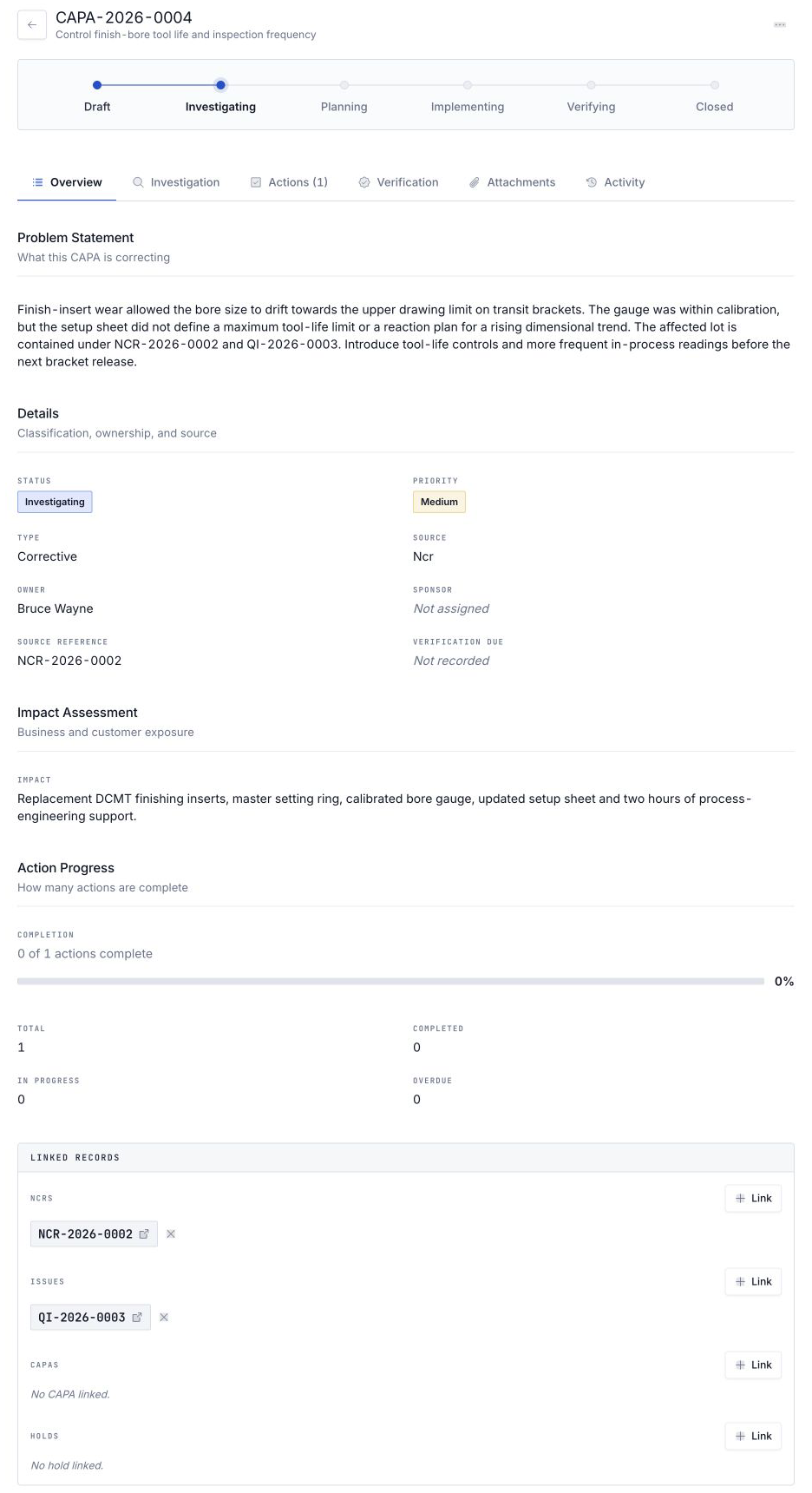
The CAPA page uses the same layout as a quality issue. You get a compact header with the record number and title, a back control, an actions menu, section tabs, and stacked cards. A CAPA also shows a stage strip above the tabs: Draft, Investigating, Planning, Implementing, Verifying, and Closed.
The tabs are Overview, Investigation, Actions (with a count), Verification, Attachments, and Activity.
Overview includes these cards:
- Problem Statement, which shows the analysis findings you entered.
- Details, with status, priority, type, source, owner, sponsor, source reference, and verification due.
- Impact Assessment.
- Action Progress, with how many actions are complete, in progress, and overdue.
- Linked Records.
- Audit Trail, with created, target close, closed, days open, owner, and sponsor.
Investigation shows Investigation Team, 5-Why Analysis, and Root Cause Summary. The create form does not fill these cards, and this page does not edit them. Empty cards say No team members assigned., No why analysis recorded., and Not assigned for a missing root cause category.
Actions is titled Action Items. Add further tasks here. Each task can set an Action Type of immediate, corrective, or preventive.
Verification is Effectiveness Verification. Before a result is recorded it shows Pending. After you record one, the badge reads Effective, Partial, or Not Effective.
Attachments says No attachments recorded and Documents and evidence added to this CAPA will appear here. There is no upload control.
Activity includes Comments and Activity.
Change the stage
Open the actions menu and select Change Status when you have manage permission. The dialog title is Change CAPA Status. Choose Draft, Investigating, Action Planning, Implementing, Verifying, or Closed, then Update Status. The dialog does not force the next stage only. On the stage strip, action planning is labelled Planning. The dialog label is Action Planning.
On the CAPA page, Record Verification is in the actions menu and on the Verification tab whenever you have manage permission. On the list, the row menu offers Record Verification only while the CAPA is Verifying.
The dialog title is Record Effectiveness. You can enter Criteria, Method, Verification Due Date, a Result, and Notes. The result choices are Effective, Partially effective, and Not effective. Select Record Verification to save. The confirmation says Verification recorded.
Link other records
On Overview, Linked Records groups NCRs, Issues, CAPAs, and Holds. Link opens a search dialog titled Link NCR, Link Issue, Link CAPA, or Link Hold. You can unlink a record when you have manage permission.
A quality issue can belong to only one CAPA. If it is already assigned, Bulk rejects the link and reports that the issue is already assigned to a CAPA.
Close the CAPA
Close CAPA appears in the actions menu only when the CAPA is Verifying and you have the close permission. The same rule applies to Close CAPA on the list row menu. Selecting it closes the CAPA immediately. There is no extra dialog. The confirmation says CAPA closed, and the audit trail Closed date is filled in. If the CAPA is not verifying, the close is rejected.
Change Status can also set Closed, including from another stage, when you have manage permission. That path does not write the close time. Use Close CAPA when you want the closed date recorded.
The actions menu also lists Export PDF and Clone CAPA. Those entries do not run an action.
What to expect
- A new CAPA is numbered
CAPA-YYYY-NNNNand starts in Draft. - Tasks you add on the form, and tasks you add later, show on Actions and in Action Progress.
- A CAPA you create from an NCR shows under Linked Records on that NCR. The NCR shows under Linked Records on the CAPA.
- The create form has no evidence section. The Attachments tab does not accept files.
- Export PDF and Clone CAPA are visible and do nothing.
Limitations
CAPAs are available. Quality, then CAPAs, has no Beta badge.
- You set the title, findings, type, priority, owner, sponsor, source, and target close date on the create form. There is no separate form for editing those fields afterward.
- Investigation is display only.
- Attachments does not accept uploads.
- Export PDF and Clone CAPA do not run an action.
- Change Status can move a CAPA to any status in the dialog, including Closed. Only Close CAPA requires Verifying and records the close time.
- A quality issue cannot be linked to a second CAPA while it is already assigned.
Troubleshooting
- Create CAPA stays unavailable. Enter the title, analysis findings, at least one task, the CAPA owner, a verification method, and a target close date. You also need
quality_capas.create. - Close CAPA is missing. The CAPA is not Verifying, or your role does not include
quality_capas.close. - You cannot link an issue. It is already assigned to a CAPA. Unlink it on that CAPA first.
- Associated Quality Record is missing. That field shows only while NCR/Quality Issue is selected.
- CAPAs is missing from Quality. You need
quality_capas.view.
Related guidance
Review and disposition an NCR
Review a submitted NCR, approve it for the Material Review Board, record the disposition decision, and close the record from its detail page.
Put work on quality hold
Place a quality hold with the three-step New Quality Hold wizard to stop suspect material moving, record its containment, and set what happens next.