Use AI assistance in a risk assessment
Upload a PDF or photo to an editable draft risk assessment and let the Assistant propose a task description and control measures that you review and apply.
The Assistant is an optional helper built into every editable risk assessment. You upload a document or photo — such as a machine manual, a safety data sheet, or a marked-up paper form — and the Assistant reads it and proposes draft content: a task description and one or more control measures. You then review each proposal and choose what to apply. Nothing is written to the assessment until you accept it.
A risk assessment in Bulk is a safety record for a task or activity. It names the work, lists the hazards, and records the control measures that keep people safe. A control measure is a single row that captures a hazard, who is at risk, the controls already in place, and a risk score before and after those controls. Building one from scratch — reading a supplier manual and turning it into structured rows — is slow. The Assistant does the reading and structuring for you, so you can spend your time checking and refining rather than transcribing.
Use it when you are drafting a new assessment from a source document, when you want a second pass over an existing draft, or when a photo of a machine or workspace captures hazards you want written up.
Where to find it
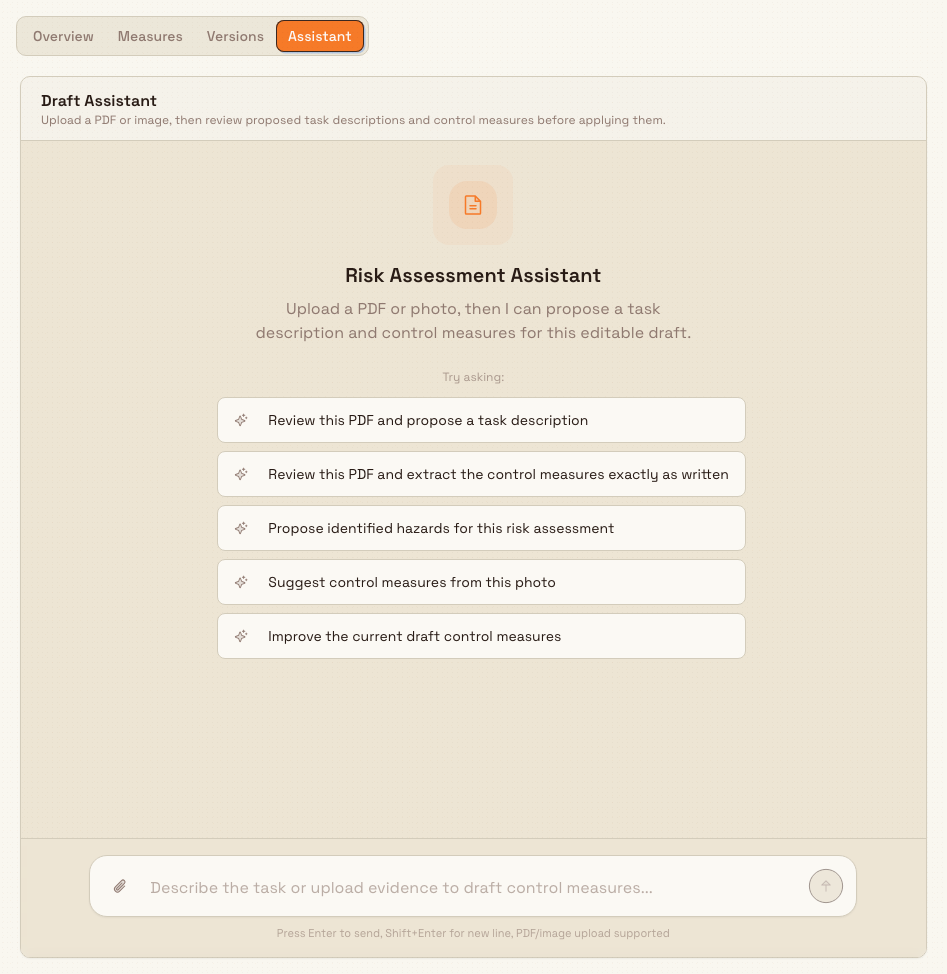
The Assistant is a tab on a single risk assessment. Open Safety in the left navigation, choose Risk Assessments, and open the assessment you are drafting. Its detail page lives at /safety/risk-assessments/ followed by the assessment's id. Along the top you will see Overview, Measures, Versions, and — when the assessment is editable — Assistant.
The Assistant tab only appears while the assessment is an editable draft. Once it is submitted for approval, approved, or archived, the tab disappears, because its content is locked. If you do not see the tab, the assessment is either not in a draft state or you do not have permission to edit it.
safety.ai-risk-assessment-01
Before you start
To use the Assistant you need:
- The
safety.create_assessmentpermission. This is the same permission that lets you create and edit risk assessments. By default it is granted to the Super user, Entity admin, Manager, and Safety roles. If you can edit an assessment, you can use its Assistant. - An editable draft assessment. The Assistant works only on the latest open revision while it is in the Draft (or Refused) state. Submitted, approved, and archived assessments are read-only and have no Assistant tab.
- Evidence to work from. The Assistant accepts a PDF or an image. Other file types — for example a Word or Excel document — are rejected. If your source is a spreadsheet or document, export or screenshot the relevant page as a PDF or image first.
How the Assistant proposes content
Open the Assistant tab. The panel is headed Draft Assistant with the note: upload a PDF or image, then review proposed task descriptions and control measures before applying them. Before you send anything, the panel greets you as the Risk Assessment Assistant and offers starter prompts you can click, including:
- Review this PDF and propose a task description
- Review this PDF and extract the control measures exactly as written
- Propose identified hazards for this risk assessment
- Suggest control measures from this photo
- Improve the current draft control measures
To get proposals, attach your evidence using the attachment control in the message box, optionally type an instruction (or click a starter prompt), and send. The message box accepts PDF and image files; a hint under it confirms that PDF and image upload is supported. The Assistant reads the attachment together with the assessment's existing task name, hazards, and measures, then replies with proposal cards inside the conversation.
The Assistant is deliberately conservative. It is instructed to use only what is present in your uploaded files, to leave a field blank rather than guess when the source does not say, and to return no more than twelve measures, merging obvious duplicates. That means a proposal reflects your document — not invented content — and some proposals will come back deliberately incomplete for you to finish.
There are two kinds of proposal.
Task Description Proposal
A Task Description Proposal is a single draft description for the assessment, marked with a Draft badge. The card explains that you can review and apply this draft description to the current revision. If the Assistant can justify its wording, it adds a Why this fits note, and it tags the source files it drew from.
You have three choices:
- Apply writes the description onto the assessment's current revision. The card then confirms Task description applied.
- Edit / Stop Editing opens the text for changes so you can adjust the wording before applying.
- Dismiss discards the proposal without changing anything.
Screenshot placeholder
No asset at /docs/en/safety.ai-risk-assessment/safety.ai-risk-assessment-02.png yet
- Caption
- A Task Description Proposal — review or edit the wording, then Apply it to the current revision.
- Framing
- A single Task Description Proposal card: the 'Task Description Proposal' heading with the Draft badge, the boxed description text, the 'Why this fits' section, the source-file badge, and the Apply / Edit / Dismiss button row.
- Product state
- A Task Description Proposal card returned by the Assistant, showing the Draft badge, the proposed description text, a 'Why this fits' rationale, a source-file badge, and the Apply, Edit, and Dismiss buttons.
- Setup
- On the Assistant tab of a draft assessment at Leeds Fabrication Plant, attach a machine safety PDF and send the prompt 'Review this PDF and propose a task description'. Wait for the Assistant to return a Task Description Proposal card.
safety.ai-risk-assessment-02
Control Measure Proposals
A Control Measure Proposals card lists the measures the Assistant found, with a count of how many are proposed. Each measure is collapsed to its title; expand one to see everything the Assistant extracted: the task description, the hazard, who is at risk, the current controls, any additional controls, an initial risk score, a residual risk score, notes, and an Evidence excerpt quoting the source. A risk score is written as likelihood times severity — for example likelihood 4 times severity 4 equals 16 — where likelihood and severity each run from 1 to 5. The initial risk is the score before the measure's controls; the residual risk is the score that remains once those controls are in place.
Each measure gives you three actions:
- Add places the measure straight onto the assessment. If the Assistant judged that the measure should supersede existing rows, the button reads Replace & Add and lists the measures it will remove. Add is only enabled when the measure is complete — that is, when it has a task description, a hazard, at least one person at risk, current controls, and both risk scores. An incomplete measure shows a Missing: note listing the fields it still needs.
- Review opens the standard Add Control Measure form pre-filled with the proposal, so you can complete or correct any field — including anything marked missing — before you save it.
- Dismiss removes the proposal from the list.
Complete a measure by reviewing it
If a measure's Add button is greyed out, the proposal is missing a required field. Use Review to open it in the Add Control Measure form, fill in what is missing, and save. This is the intended path for any proposal the Assistant could only partly extract.
Screenshot placeholder
No asset at /docs/en/safety.ai-risk-assessment/safety.ai-risk-assessment-03.png yet
- Caption
- Control Measure Proposals — add complete measures directly, or Review to finish an incomplete one before saving.
- Framing
- The Control Measure Proposals card: the heading with the 'N proposed' count, one expanded measure showing its fields (hazard, who at risk, current controls, initial and residual risk, Evidence), a 'Missing:' warning on an incomplete measure, and the Add / Review / Dismiss actions.
- Product state
- A Control Measure Proposals card with several proposed measures, one expanded to show the hazard, who at risk, current controls, initial and residual risk scores, and an Evidence excerpt, with the Add, Review, and Dismiss buttons visible and one measure showing a Missing warning.
- Setup
- On the Assistant tab of a draft assessment at Leeds Fabrication Plant, attach a machine safety PDF and send 'Review this PDF and extract the control measures exactly as written'. When the Control Measure Proposals card returns, expand one measure so its full detail is visible; ensure at least one proposed measure is incomplete so its Missing note and disabled Add button are shown.
safety.ai-risk-assessment-03
Example: drafting a plasma-cutting assessment at Leeds Fabrication Plant
Granite Peak Manufacturing is introducing manual plasma cutting of steel plate on a new bench at its Leeds Fabrication Plant. The plant's safety lead creates a risk assessment titled Manual plasma cutting — steel plate, then opens the Assistant tab.
She attaches the cutter manufacturer's safety data sheet — a PDF — and clicks the starter prompt Review this PDF and extract the control measures exactly as written. The Assistant returns a Task Description Proposal and a Control Measure Proposals card listing four measures:
- Arc radiation / arc eye — who at risk: Operators, nearby staff; current controls: welding curtains and shade-appropriate face protection; initial risk likelihood 4 times severity 4 equals 16, residual risk likelihood 2 times severity 3 equals 6.
- Hot metal and sparks — current controls: flame-retardant PPE, clear work zone; initial risk 12, residual risk 4.
- Fume inhalation — current controls: local exhaust ventilation at the bench; both risk scores present.
- Noise — this one comes back with a Missing: residual risk note, because the source did not state the score after controls.
She reads each one against the manual. Three are complete, so she clicks Add on each and they drop onto the assessment. For the noise measure, she clicks Review, the Add Control Measure form opens pre-filled, she sets a residual risk of likelihood 2 times severity 2 equals 4, and saves. Finally she reads the Task Description Proposal, tightens one sentence with Edit, and clicks Apply. In a few minutes she has a structured draft grounded in the manufacturer's own document, ready to score and submit.
What you get
When you apply proposals:
- Applied task descriptions replace the description on the assessment's current revision.
- Applied measures appear as rows on the Measures tab, exactly as if you had added them by hand, and count toward the assessment before you submit it for approval.
The draft is now yours to finish through the normal flow — adjust scores, add or remove measures, then submit for approval.
Limits and behaviour to expect
This feature is generally available. There is no separate opt-in, but it behaves in specific ways you should know about:
- Draft-only. The Assistant tab is present only on the latest open Draft or Refused revision. It is hidden on submitted, approved, and archived assessments.
- Permission-gated. You need
safety.create_assessment(Super user, Entity admin, Manager, or Safety by default). Roles without it — for example a plain Operator — cannot open the tab. - PDF and images only. Uploads are limited to PDF and image files. Other types are refused with the message Only PDF and image attachments are supported in the assistant.
- Storage counts. Each upload is stored against your tenant's storage allowance. If you are over the limit the upload fails with Storage limit exceeded.
- Extraction is bounded and grounded. The Assistant returns at most twelve measures per extraction and merges duplicates. It will not invent data: fields the source does not support are left blank, which is why some proposals arrive incomplete.
- It drafts; it does not decide. The Assistant proposes content only. It does not score, submit, approve, or review the assessment, and no proposal changes the assessment until you Apply or Add it.
Review every proposal against your source
The Assistant speeds up drafting, but it does not replace your judgement. A risk assessment is a safety record. Read each proposed hazard, control, and risk score against the actual document and the real task before you apply it, and correct anything that does not match the workplace.
Troubleshooting
- The Assistant tab is missing. The assessment is not an editable draft — it has been submitted, approved, or archived — or your role lacks
safety.create_assessment. Only the latest open draft revision shows the tab. Return to a draft revision, or ask an administrator to confirm your role. - Your upload is rejected. You will see Only PDF and image attachments are supported in the assistant. Convert the source to a PDF or take a screenshot image, then attach that.
- A measure's Add button is greyed out. The proposal is missing a required field, shown in its Missing: note. Click Review, complete the field in the Add Control Measure form, and save.
- The upload fails with a storage error. Storage limit exceeded means your tenant is out of storage. Remove unused files or ask an administrator to review your plan, then retry.
- You want to start over. Use the circular Start new conversation button in the panel header. It clears the conversation only — task descriptions and measures you have already applied are not affected.
Related guidance
- Create a risk assessment — start a new assessment before you open the Assistant.
- Score risk with the risk matrix — how likelihood and severity combine into the risk scores you see on each measure.
- Submit and approve a risk assessment — the approval step that follows drafting.
- Review a risk assessment — keeping an approved assessment current.
- Safety overview — the rest of the safety area.
Score risk with the risk matrix
Understand Bulk's 5x5 likelihood-by-severity risk matrix, score a hazard's initial and residual risk inside a control measure, and read where an assessment lands on the Risk Matrix.
Submit and approve a risk assessment
Send a draft risk assessment for review, then approve or refuse it so the assessment becomes the active, official version your team works to.