Review the safety overview
See your plant's safety at a glance — active risk assessments, pending approvals, open incidents, high-risk items, the risk matrix, and overdue pre-use checks — then jump straight to whatever needs your attention.
The safety overview is the home page of the Safety module: a single dashboard that summarises how your plant is doing on safety right now. Instead of opening risk assessments, incidents, and pre-use checks one at a time, you read the headline numbers here and then jump straight to whatever needs your attention.
In Bulk, the Safety module covers three linked areas. A risk assessment is a documented review of a task or piece of equipment that scores how likely a hazard is and how badly it could hurt someone. A safety incident is a recorded accident, injury, or near miss. A pre-use check is a short inspection an operator completes before using a machine. The overview rolls all three up into one screen, so a supervisor or manager can see the whole safety picture in a few seconds.
Use it at the start of a shift, before a safety meeting, or whenever you need to know what is outstanding — which assessments are waiting for sign-off, which incidents are still open, and which machines have overdue checks.
Before you start
To see the safety metrics on this page you need the View safety permission (safety.view). In the default role set this permission is held by the Super user, Entity admin, Manager, and Safety roles, so most supervisory and safety-facing roles can open the overview.
The Pre-use Checks widget reads from your audit records, so it also needs the View audits permission (audits.view) — held by the Super user, Entity admin, Manager, Operator, Tablet user, and Invoicing roles. A user who has safety.view but not audits.view still sees the rest of the dashboard.
Everything on this page is read-only reporting. The numbers reflect the current plant (the entity you are signed in to); switching entity switches the whole picture. Opening the overview does not change any assessment, incident, or check.
Where to find it
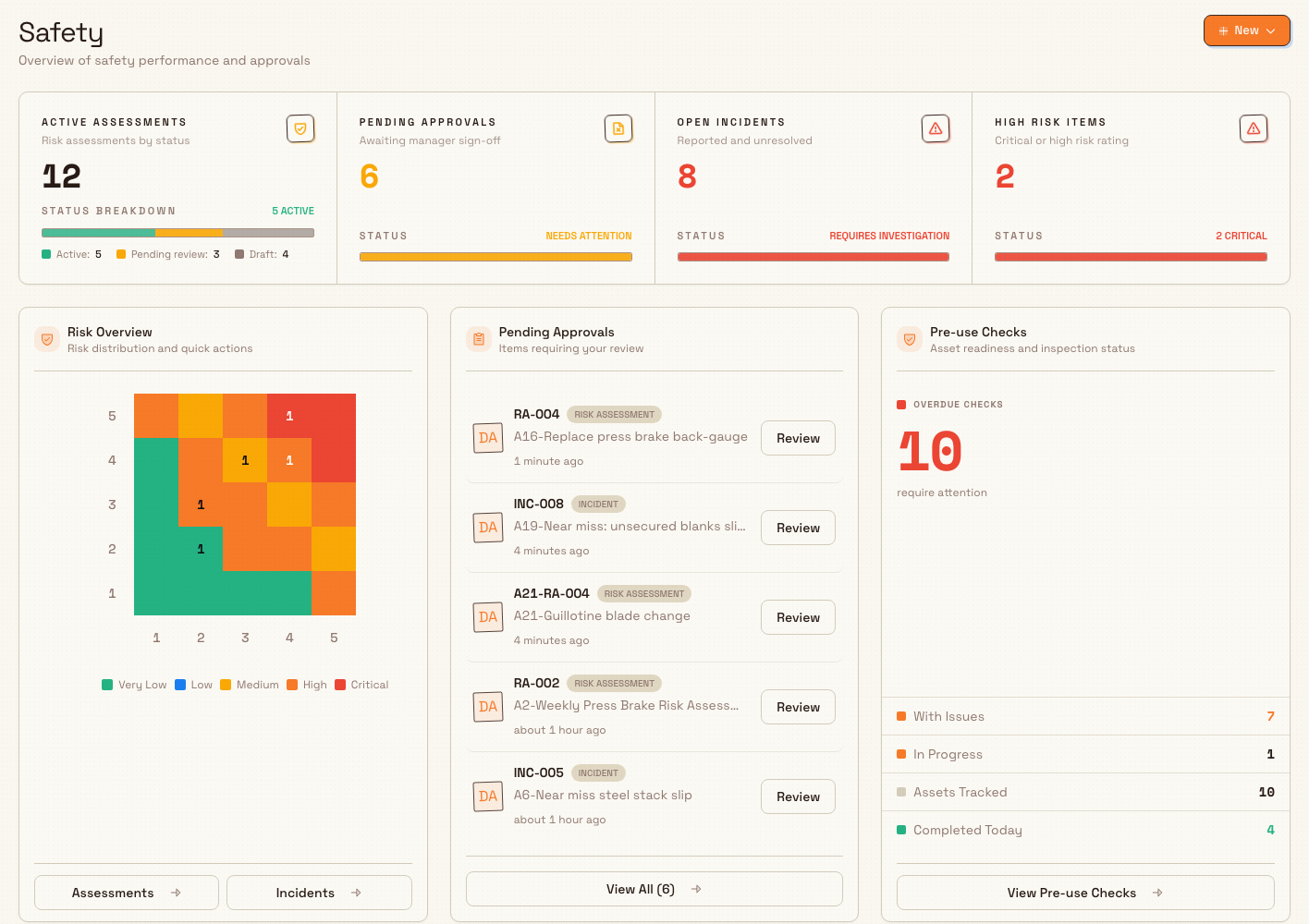
Open the Safety area in the left navigation and choose Home. The page lives at /safety/home (and at /safety). Its header reads Safety, with the subtitle Overview of safety performance and approvals.
safety.review-overview-01
Read the summary strip
The strip across the top gives you four headline numbers for the current plant. Each tile changes colour with its value, so a problem stands out without you reading the figure.
- Active assessments — subtitle Risk assessments by status. The number is your total risk assessments, and a segmented bar underneath breaks them down by status with a legend: Active, Pending review, Draft, Refused, and Archived. The footer summarises how many are active.
- Pending approvals — subtitle Awaiting manager sign-off. The count of risk assessments and incidents that have been submitted and are waiting for someone to approve them. Its status line reads Needs attention when the count is above zero, or All caught up when it is zero.
- Open incidents — subtitle Reported and unresolved. The number of safety incidents that are not yet closed. Its status line reads Requires investigation when any are open, or No incidents when there are none.
- High risk items — subtitle Critical or high risk rating. The number of active assessments scored at critical or high risk. Its status line reads N critical when any exist, or All within tolerance when none do.
Screenshot placeholder
No asset at /docs/en/safety.review-overview/safety.review-overview-02.png yet
- Caption
- The summary strip: four headline safety metrics that change colour with their values.
- Framing
- Close-up of just the summary strip: the four tiles Active assessments, Pending approvals, Open incidents, and High risk items, with their values, status lines, and the assessment status breakdown bar and legend.
- Product state
- The four-tile summary strip with non-zero values in each tile: active assessments with a multi-colour status breakdown bar, a non-zero pending approvals count reading Needs attention, a non-zero open incidents count reading Requires investigation, and a non-zero high risk items count.
- Setup
- On the safety overview for Leeds Fabrication Plant, ensure the entity has assessments across several statuses, at least one item awaiting approval, at least one open incident, and at least one critical or high-risk active assessment, so no tile shows an all-clear state.
safety.review-overview-02
Work the three widgets
Below the strip, three widgets let you drill into each area and act on it.
Risk Overview
Titled Risk Overview with the subtitle Risk distribution and quick actions, this widget shows a risk matrix — a five-by-five heat map of your active risk assessments. The columns are Likelihood (1 to 5) and the rows are Severity (5 down to 1); each cell is coloured by its risk level and shows how many active assessments fall on that combination. The legend runs from very low through low, medium, and high to critical. Two buttons at the foot, Assessments and Incidents, take you to the full lists.
The matrix answers "where is my risk concentrated?" at a glance: a cluster of counts in the top-right corner (high likelihood, high severity) is where your most serious hazards sit.
Pending Approvals
Titled Pending Approvals with the subtitle Items requiring your review, this widget lists the risk assessments and incidents waiting for sign-off, newest first. Each row shows the item's document number, a badge marking it as a Risk Assessment or an Incident, its title, who submitted it, and how long ago — with a Review button that opens the item. When there are more items than fit, a View All button with the total count opens the full pending list. When nothing is waiting, the widget shows No pending approvals and You're all caught up!.
This is the fastest route from "something needs approving" to the actual record — select Review and you land on the assessment or incident, ready to approve or refuse it.
Screenshot placeholder
No asset at /docs/en/safety.review-overview/safety.review-overview-03.png yet
- Caption
- Pending Approvals lists everything awaiting sign-off; Review opens the record directly.
- Framing
- Close-up of the Pending Approvals widget: the card header, two or three approval rows with their avatars, document numbers, Risk Assessment / Incident badges, titles, submitter and time, and the Review buttons.
- Product state
- The Pending Approvals widget populated with two or more rows — a mix of Risk Assessment and Incident types — each showing a document number, a type badge, a title, the submitter, a relative submitted time, and a Review button.
- Setup
- On the safety overview for Leeds Fabrication Plant, submit at least one risk assessment and report at least one incident so both reach an awaiting-approval state and appear in the Pending Approvals widget. If more than five are pending, the View All button with the total also shows.
safety.review-overview-03
Pre-use Checks
Titled Pre-use Checks with the subtitle Asset readiness and inspection status, this widget leads with a large Overdue Checks count — the machines whose required pre-use checks are past due — labelled require attention when above zero, or all current when zero. Beneath it, four rows summarise the rest: With Issues, In Progress, Assets Tracked, and Completed Today. A View Pre-use Checks button opens the Asset Readiness page for the machine-by-machine breakdown.
Create from here
The New button in the top-right corner opens a short menu with two shortcuts: New Incident starts a new incident report, and New Risk Assessment takes you to the risk assessments area to begin one. This means you can report a hazard the moment you spot it while reviewing the overview, without hunting for the right page.
Example: Monday shift review at Granite Peak Manufacturing
Granite Peak Manufacturing runs a metal fabrication line at its Leeds Fabrication Plant. Every Monday the plant's safety lead, Dana, opens Safety > Home before the team huddle.
The summary strip reads: 18 Active assessments, 3 Pending approvals (Needs attention), 1 Open incident (Requires investigation), and 2 High risk items. Dana starts with the incident — the Open incidents tile in red tells her one is unresolved — then turns to the Pending Approvals widget, where three rows are waiting: two risk assessments and one incident report. She selects Review on the incident row, which opens the record so she can check the investigation and approve it.
Back on the overview, the Risk Overview matrix shows both high-risk assessments clustered at high likelihood and high severity, so she notes them for the huddle. Finally, the Pre-use Checks widget shows 2 Overdue Checks requiring attention, so she selects View Pre-use Checks to see which machines are affected and assigns an operator to clear them. In one screen she has triaged the week's safety work.
Expected result
After reviewing the overview you know, for the current plant: how many risk assessments are active and how they break down by status, how many items are waiting for approval, how many incidents are open, how many assessments are rated high or critical, where your risk is concentrated on the matrix, and how many pre-use checks are overdue. Every number is a jumping-off point to the record or list behind it.
Availability and limitations
This feature is generally available; no part of the safety overview is in preview.
- It reports the current plant only. All figures are scoped to the entity you are signed in to. To review a different plant, switch entity.
- It is read-only. You review and navigate from here, but you approve, investigate, score, and complete work on the dedicated pages linked below.
- The Pending Approvals widget shows a capped list. It shows the most recent pending items; when more are waiting, use View All to open the complete list.
- Pre-use figures need the audits permission. The Pre-use Checks widget depends on
audits.view; without it, that widget cannot load its numbers even though the rest of the dashboard works.
Troubleshooting
- The safety metrics do not load. You likely lack the View safety permission (
safety.view). Ask an administrator to confirm your role includes it. - Every tile shows zero or an all-clear state. That usually means the current plant genuinely has no active assessments, pending items, open incidents, or overdue checks — or that you are signed in to the wrong entity. Confirm the entity, then create or import your first records from the linked pages.
- The Pre-use Checks widget is empty but other widgets have data. Confirm your role includes
audits.view, and that at least one asset in this plant has a pre-use check assigned. See Review asset readiness.
Related guidance
- Create a risk assessment — start a new assessment for a task or asset.
- Score risk with the risk matrix — how likelihood and severity combine into a risk level.
- Submit and approve a risk assessment — the approval step behind the Pending Approvals widget.
- Report a safety incident — what the New Incident shortcut starts.
- Approve a safety incident — clear an incident from the pending list.
- Review asset readiness — the machine-by-machine view behind the Pre-use Checks widget.
- Review pre-use-check results — the history of completed checks.
- Safety overview — the rest of the safety area.