Review asset readiness
See at a glance which machines are cleared to run, which are blocked by unfinished pre-use safety checks, and which are running under a supervisor override.
Asset readiness is the review page that tells you, for every machine on your shop floor, whether it is cleared to start production right now. It reads the current state of each asset's pre-use checks and turns them into a single, plain-language status you can scan in seconds.
A pre-use check is a short safety inspection an operator completes before using a machine — for example, confirming guards are in place and emergency stops work. In Bulk, an asset is any piece of equipment you track, such as a press brake, a laser cutter, or an overhead crane. When a required pre-use check for an asset is unfinished or out of date, Bulk can block production on that asset until the check passes or a supervisor authorises an exception. The Asset Readiness page is where you review that picture across the whole plant, without opening each machine one by one.
Use it at the start of a shift, before assigning work, or whenever you need to know why a machine cannot be started.
Where to find it
Open the Safety area in the left navigation and choose Asset Readiness. The page lives at /safety/asset-readiness.
You need the audit view permission (audits.view) to load the page. That permission is granted to the Super user, Entity admin, Operator, Manager, and Tablet user roles by default, so most production-facing roles can review readiness. If you cannot see the Safety area or the page fails to load its data, ask an administrator to confirm your role includes it.
This page is a review surface: it shows readiness but does not run checks or grant overrides itself. Those actions happen elsewhere and are covered under Related guidance below.
safety.asset-readiness-01
Read the summary strip
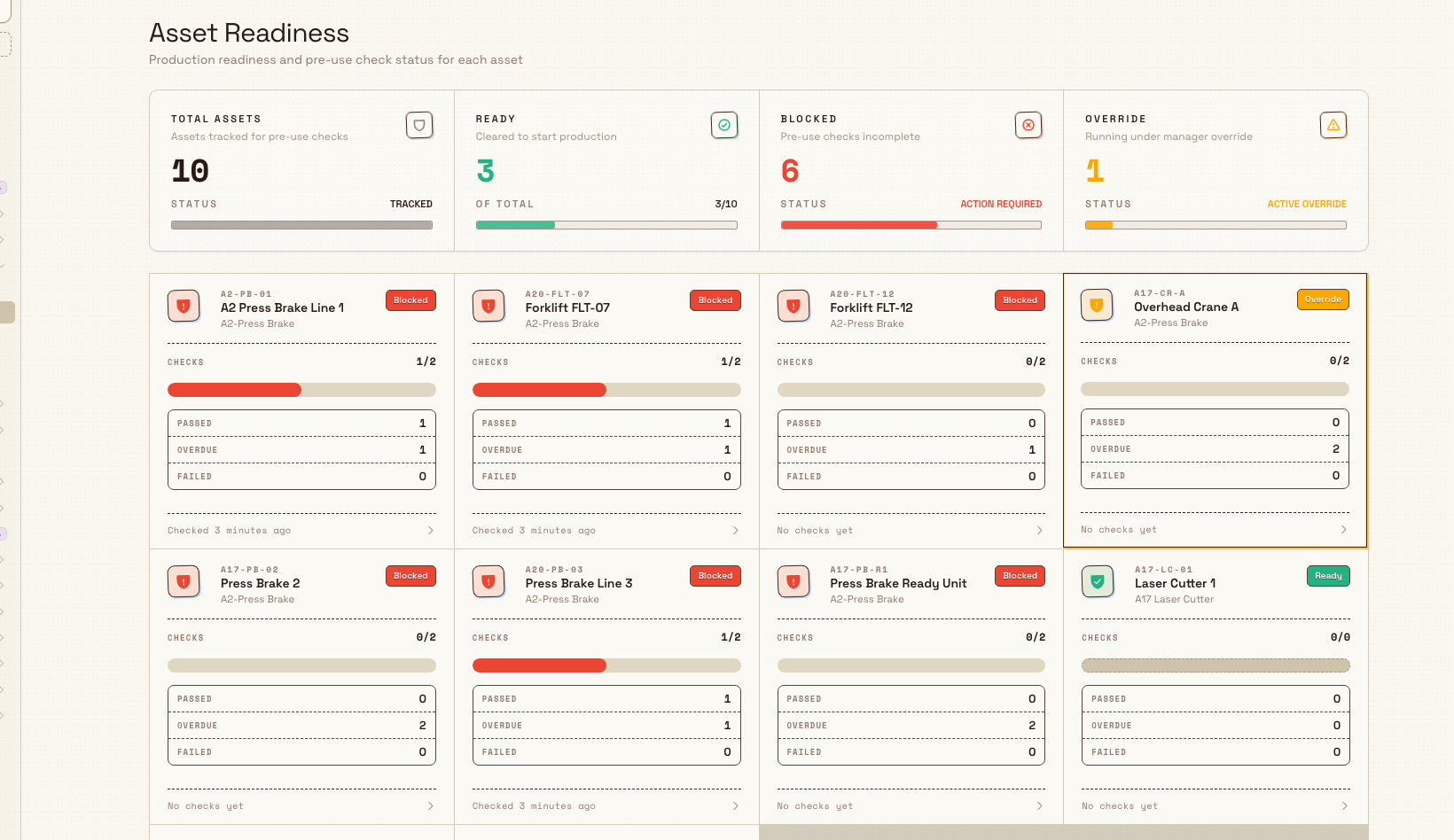
The strip across the top gives you the plant-wide picture. It has four tiles:
- Total assets — every active asset tracked for pre-use checks in the current plant.
- Ready — assets cleared to start production, labelled Cleared to start production.
- Blocked — assets whose pre-use checks are incomplete, labelled Pre-use checks incomplete. When this count is above zero the tile reads Action required.
- Override — assets Running under manager override. When one or more overrides are active the tile reads Active override.
The three status buckets are mutually exclusive: each asset is counted once, as Ready, Blocked, or Override. So the Ready, Blocked, and Override counts always add up to the total.
Read an asset card
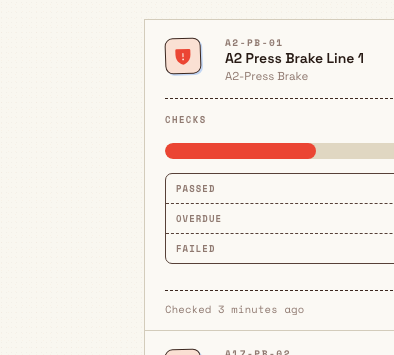
Below the strip, each asset appears as a card. A card shows:
- The asset code (small, above the name), the asset name, and its asset type underneath.
- A status pill on the right — Ready, Blocked, or Override — with a matching shield icon.
- A Checks bar showing how many of the asset's pre-use checks are currently complete, as a completed / total count (for example
3/4) with a progress bar. - Three counts underneath: Passed, Overdue, and Failed. Overdue and Failed turn red when they are above zero, so problems stand out.
- A footer line — either Checked followed by how long ago the last check was completed, or No checks yet if the asset has never been checked.
Assets that need attention float to the top: any asset with an overdue or failed check is listed first, and the rest follow in alphabetical order by name. You do not need to hunt for problems — they are already at the top of the grid.
safety.asset-readiness-02
What each status means
Understanding the three states is the whole point of the page:
- Ready — the asset can be started. Either none of its required pre-use checks are currently due, or its asset type is not set to block production while checks are incomplete.
- Blocked — at least one required pre-use check is due or overdue, and there is no active override. Bulk stops operators from starting production on this asset until the check is completed and passes, or a supervisor grants an override. Recommended and optional checks being due do not, on their own, block an asset.
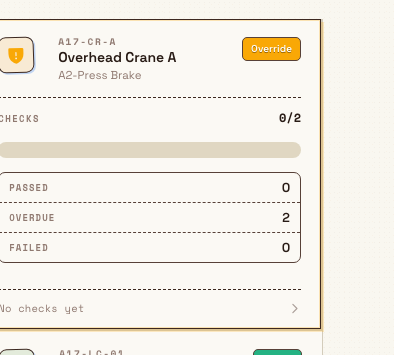
- Override — the asset is blocked on paper, but a supervisor has granted a temporary override that lets it run anyway. An override always has an expiry (for example one, two, four, eight, or twenty-four hours), after which the asset returns to Blocked unless the check has been completed in the meantime.
An override is a deliberate safety decision
Running an asset under override means production continues even though a required safety check has not passed. Treat the Override count as a live list of machines that need a check finished as soon as possible, and make sure the reason and expiry are understood before work continues on that equipment.
Open an asset's checks
Select any card to open the asset's checks panel on the right. It repeats the asset name, code, and its Ready / Blocked / Override status, then lists every pre-use check assigned to that asset. Each check shows:
- Its name and a requirement badge — Required, Recommended, or Optional.
- Its frequency, such as Daily, Weekly, Monthly, or One-time.
- Its current status — Due, Expired, In Progress, Completed, or Not Started — and, once completed, its result: Passed, Failed, or Passed with Issues.
Select a check in the panel to open its full detail, where you can see the question-by-question results of the most recent run. This is how you move from "this machine is blocked" to "this specific check is the reason".
safety.asset-readiness-03
Example: shift start at Leeds Fabrication Plant
Granite Peak Manufacturing runs a metal fabrication line at its Leeds Fabrication Plant. Before the morning shift begins, the shift supervisor opens Safety > Asset Readiness.
The summary strip reads: 12 total assets, 9 Ready, 2 Blocked, 1 Override. Because blocked and overdue assets sort first, the two Blocked cards are already at the top of the grid:
- PB-02 Press Brake 2 shows a Blocked pill, a
0/1checks bar, and Overdue: 1. Its required Press Brake Daily Safety Check has not been done today, so operators cannot start it. - LC-01 Laser Cutter 1 shows Ready with
1/1and Checked 2 hours ago — the early-shift operator already completed its check. - CR-A Overhead Crane A shows an Override pill because a supervisor granted a four-hour override to finish an urgent job while its inspection is rescheduled.
The supervisor selects the Press Brake 2 card, sees the Press Brake Daily Safety Check marked Due, and sends an operator to complete it. A few minutes later the check passes, the card flips to Ready, and the Blocked count drops to 1 — all without leaving the page.
What you can and cannot do here
- Read-only. You review readiness on this page. You complete a pre-use check in the Audits module, and you grant an override at the workstation when starting production — not from this page.
- All active assets are shown. The page lists every active asset in the current plant, each with its check summary; there is no search or filter control on the page today. Deleted and inactive assets do not appear.
- Empty state. If the plant has no active assets at all, the page shows "No assets with pre-use checks" and a note that assets with assigned pre-use check templates will appear here.
This page is generally available; no part of it is in preview.
Troubleshooting
- An asset is missing. Only active, non-deleted assets appear. If a machine is not listed, confirm it exists and is marked active in your asset settings.
- An asset is Blocked and you need to run it. Complete and pass its required pre-use check, or ask a supervisor with the override permission to grant a temporary override at the workstation. See the related guidance below.
- An asset is always Ready with an empty checks list. That asset has no required pre-use check assigned, or its asset type is not set to block production while checks are incomplete. Assign a pre-use check template to the asset or its type if it should be gated.
Related guidance
- Review pre-use check results — the history of completed checks across your assets.
- Run a pre-use audit — how an operator completes a pre-use check.
- Blocking pre-use checks in production — how blocking and overrides work when starting production at a workstation.
- Override a response — how supervisors authorise a temporary exception.
- Safety overview — the rest of the safety area.
Approve a safety incident
Review a submitted safety incident, approve it or return it for changes, and close it once every linked corrective task is finished.
Review pre-use-check results
Find, filter, and open completed pre-use safety checks to confirm an asset passed, investigate failed checklist items, review captured evidence, and export a PDF report.