Review a risk assessment
Schedule, complete, and cancel periodic reviews of an active risk assessment, recording whether it is still up to date or needs a new revision.
A risk assessment is a controlled document that records the hazards of a task, who is at risk, and the control measures that reduce that risk. Once an assessment is approved it becomes Active and stays in force until something changes. A review is the checkpoint that keeps it trustworthy: on a schedule you set, a nominated reviewer confirms the assessment still reflects how the job is actually done, and records the outcome against the document.
This article covers the review side of the lifecycle: scheduling a review, completing it with a result, cancelling one you no longer need, and how Bulk reminds people when a review is due. Creating an assessment, adding measures, and getting it approved are separate steps — see Create a risk assessment and Submit and approve a risk assessment.
You review assessments to satisfy your review cadence and to catch drift: a control that is no longer in place, a new piece of equipment, or a near-miss that shows the current measures are not enough. A completed review leaves a dated, attributed record you can show an auditor, and — when needed — spins up a new draft revision so the document can be updated without losing its history.
Before you begin
- The assessment must be Active. Reviews can only be scheduled or recorded against the current active revision of an assessment. You cannot review a Draft, Pending Approval, Archived, or Refused assessment, nor a superseded older revision. The status badge on the assessment must read Active.
- To open an assessment and complete a review, you need the safety view permission. Completing a review (recording its result) only requires view access.
- To schedule a review, cancel a scheduled review, or create a new revision, you need the safety create assessment permission (the same permission used to build and edit assessments).
- Both permissions are included by default in the Super user, Entity admin, Manager, and Safety roles. The Operator role does not include safety access. If the actions described here are missing, ask an administrator to check your role.
Review versus approval
A review is a periodic check on an assessment that is already Active. An approval is the sign-off that moves a new draft into the Active state in the first place. They use different permissions and appear in different cards on the assessment page. This article is about reviews.
Where reviews live
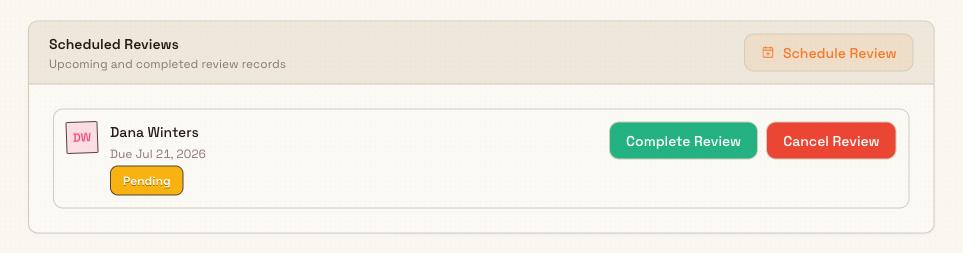
Open the assessment first, then work in its Scheduled Reviews card.
- In the left sidebar, open Safety, then Risk Assessments. The list opens at
/safety/risk-assessments. - Find the assessment you want to review. Use the status tabs to narrow the list to Active assessments, then select the row to open its detail page. The web address ends in
/safety/risk-assessments/followed by the assessment's identifier. - On the Overview tab, scroll to the Scheduled Reviews card. It lists upcoming and completed review records, with a Schedule Review button in its header when you have the create permission and the assessment is Active.
If no reviews exist yet, the card shows "No reviews scheduled" and a prompt to schedule periodic reviews to keep the assessment current.
safety.review-risk-assessment-01
Schedule a review
Scheduling a review nominates who will carry it out and when it is due.
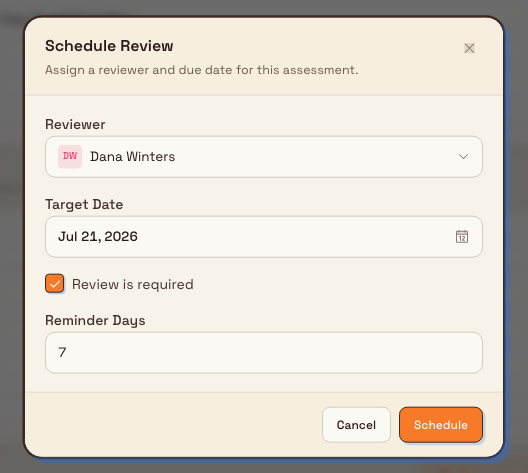
- In the Scheduled Reviews card, select Schedule Review.
- In the Schedule Review dialog, fill in the fields:
- Reviewer — the person responsible for carrying out the review. Only users assigned to the current site appear in the picker.
- Target Date — the day the review is due.
- Review is required — leave this ticked for a mandatory review that Bulk should chase with reminders. Leave it unticked for an optional review (see the limitations below for how this changes reminders).
- Reminder Days — how many days before the target date the "due soon" reminder is sent. The default is
7.
- Select Schedule.
The review appears in the card with a Pending badge and a Due date. Bulk records the scheduling in the assessment's activity history.
safety.review-risk-assessment-02
Complete a review
When the review has taken place, record its outcome. Completing a review is available on any pending review row and needs only view access.
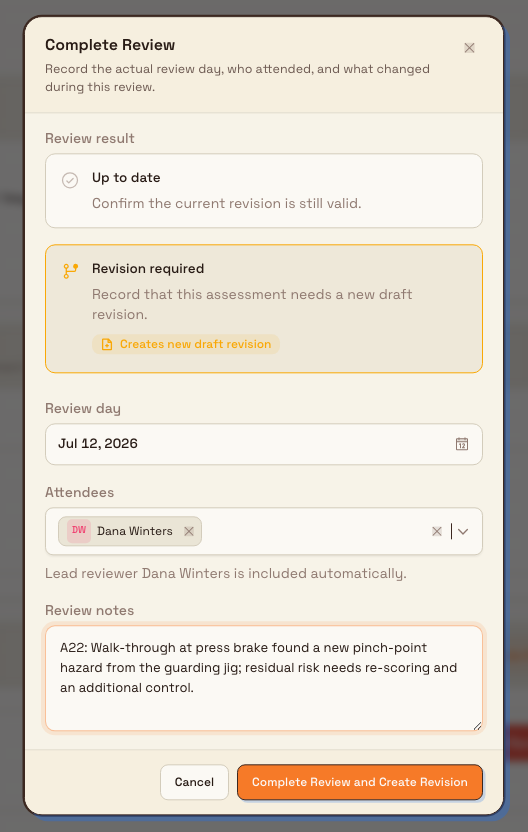
- On the pending review row, select Complete Review.
- In the Complete Review dialog, choose a Review result:
- Up to date — confirms the current revision is still valid. Choose this when nothing needs to change.
- Revision required — records that the assessment needs a new draft revision. This option is labelled "Creates new draft revision" because, when you have the create permission, completing the review will open a fresh draft you can edit.
- Set the Review day — the date the review actually took place. It defaults to today.
- Choose the Attendees who took part. The lead reviewer is included automatically; add anyone else who attended.
- Write Review notes summarising what was checked and what needs attention. Notes are required.
- Select Complete Review. If you chose Revision required and you have the create permission, the button instead reads Complete Review and Create Revision.
Once saved, the review row updates: an Up to date result shows a green badge, and a Revision required result shows an amber badge together with the reviewed date, who completed it, the attendees, and your notes.
safety.review-risk-assessment-03
What happens when a revision is required
If you complete a review as Revision required and you hold the create permission, Bulk creates a new Draft revision of the assessment (or opens an in-progress one if a draft already exists) and takes you to it so you can update the measures. Back on the original assessment, the review row shows an Open Revision button and a note that a draft revision was created from this review. Editing and re-approving that draft is covered in Create a risk assessment and Submit and approve a risk assessment.
If the person completing the review does not have the create permission, the review is still recorded as Revision required, but no draft is created automatically. The dialog explains that a user with assessment edit rights must create the new draft afterward.
Cancel a scheduled review
If a pending review is no longer needed — for example it was scheduled against the wrong assessment — you can cancel it. Cancelling needs the create permission.
- On the pending review row, select Cancel Review.
- In the Cancel Review? confirmation, select Yes, Cancel Review, or Keep Review to back out.
The review is removed from the card and the cancellation is written to the assessment's activity history. Only pending reviews can be cancelled — a completed review is a permanent record and cannot be cancelled or edited.
Reminders and overdue alerts
For reviews marked Review is required, Bulk sends in-app notifications so a due review is not missed:
- Risk assessment review due soon is sent the number of days before the target date set by Reminder Days.
- Risk assessment review overdue is sent once the target date has passed and the review is still not complete.
Both notifications go to the nominated reviewer and to everyone with safety view access at that site, and they link straight to the assessment. Reviews left unticked for Review is required do not send reminders — they still show an Overdue badge on the card once past due, but no notification is raised. Archived assessments do not generate review alerts.
Example: reviewing a manual-handling assessment at Leeds Fabrication Plant
At Granite Peak Manufacturing's Leeds Fabrication Plant, assessment RA-014 — "Manual handling at the press brake" — has been Active since it was approved last year, and its annual review is coming up.
Marcus, the plant's safety lead, opens Safety, then Risk Assessments, filters to Active, and opens RA-014. In the Scheduled Reviews card he selects Schedule Review, picks the line supervisor Aisha as the Reviewer, sets the Target Date to the review anniversary, leaves Review is required ticked, and sets Reminder Days to 14. Two weeks before the date, Aisha and Marcus both receive a "Risk assessment review due soon" notification.
On the review day the team walks the press brake and finds a new pinch-point hazard introduced by a recently added guarding jig. Aisha opens the pending review, selects Complete Review, chooses Revision required, keeps the Review day as today, adds the two operators who joined the walk-through as Attendees, and writes a note describing the new hazard. She selects Complete Review and Create Revision. Bulk records the review, creates a new Draft revision, and opens it so a control for the pinch point can be added, scored, and sent for approval. The original RA-014 now shows the completed review with an Open Revision button and the note that a draft was created from it.
Expected result
- A completed Up to date review leaves the assessment Active and adds a dated, attributed record — reviewer, attendees, review day, and notes — to the Scheduled Reviews card.
- A completed Revision required review adds the same record and, when created by a user with edit rights, produces a new Draft revision linked from the review row.
- The review appears in the assessment's activity history, and required reviews stop generating due-soon and overdue notifications once complete.
Limitations and availability
Risk assessment reviews are generally available.
- Reviews apply only to the current active revision. Scheduling or recording a review against a Draft, Pending Approval, Archived, Refused, or superseded assessment is blocked; Bulk reports that reviews can only be scheduled for the current active revision.
- Only required reviews raise notifications. Reviews without Review is required ticked show an Overdue badge on the card but send no due-soon or overdue alerts.
- Completed reviews are permanent. A completed review cannot be cancelled or edited; attempting to cancel one is refused because completed reviews cannot be cancelled.
- Creating the revision needs the create permission. Completing a review as Revision required without that permission records the result but does not create a draft — someone with assessment edit rights must create it.
- Review notes are required. You cannot complete a review with an empty outcome.
Troubleshooting
- The Schedule Review button is missing. The assessment is not Active (or is not the current revision), or you lack the safety create permission. Confirm the status badge reads Active; if it does and the button is still hidden, ask an administrator to confirm your role includes safety create access.
- The Complete Review button is missing. The review is already completed, or you are viewing the assessment in a read-only context. Completed reviews cannot be re-completed.
- You cannot cancel a review. The review has already been completed — completed reviews are permanent — or you lack the create permission needed to cancel.
- The reviewer never got a reminder. The review was not marked Review is required, the target date has not yet reached the reminder window, or the assessment has since been archived. Only required, active reviews send reminders.
- Completing "Revision required" did not create a draft. The person who completed the review did not have assessment edit rights. Ask a user with those rights to create the revision, or use the Open Revision button once it exists.
Related guidance
Submit and approve a risk assessment
Send a draft risk assessment for review, then approve or refuse it so the assessment becomes the active, official version your team works to.
Report a safety incident
Capture a workplace safety incident through the four-step report wizard and submit it for approval so your team has a documented record and follow-up actions.