Approve a safety incident
Review a submitted safety incident, approve it or return it for changes, and close it once every linked corrective task is finished.
A safety incident in Bulk is a record of something that went wrong on the plant floor — an injury, a near miss, a spill, or equipment damage — together with its investigation and the corrective actions that follow. Approving an incident is the review gate that sits between the safety team finishing that work and the record being finalised. As an approver you confirm the report is complete and accurate, then either approve it, return it to the team for more work, or close it once every corrective action has been carried out.
Use this page when an incident has been submitted for review and someone with approval authority needs to sign it off. Approving does not change the facts of the incident; it confirms the record is ready to move forward and, ultimately, to be closed.
Approving and closing are two separate steps
Approving marks a submitted report as accepted. Closing finalises the incident, and Bulk only lets you close it after every linked corrective task is finished. An approved incident stays open until you close it, so you can approve the report now and close it later once the follow-up work is done.
Before you start
To approve, refuse, or close an incident you need the Approve incidents permission (safety.approve_incident), described in Bulk as "Approve/close safety incidents." In the default role set this permission is held by the Super user, Entity admin, Manager, and Safety roles. You also need View safety (safety.view) to open the Safety module and read the incident. People who can only create and edit incidents (the Create incidents permission) can submit a report for review but cannot approve it — that separation keeps a reviewer distinct from the reporter.
An incident must also be in the right state before you can act on it:
- You can approve or refuse an incident only while its status is Awaiting Approval.
- You can close an incident only while its status is Approved.
Permissions apply to the plant (entity) you are signed in to, so make sure you are working in the plant that owns the incident.
How incident approval fits the lifecycle
Every incident moves through a fixed set of states. The approval steps you control are the middle and end of that journey:
- Draft — the report is being written and can still be edited.
- Awaiting Approval — the team has submitted the report; it is now waiting for your review. This is the only state from which you can approve or refuse.
- Approved — you accepted the report. Editing is locked, and the incident waits to be closed once its corrective tasks are done.
- Refused — you returned the report for changes. The team edits it and resubmits, which sends it back to Awaiting Approval.
- Closed — the incident is finalised. This is the end state and it cannot be reopened.
The current state is shown as a coloured badge on the Incident Status card and next to each incident in the list.
Open an incident that is awaiting approval
In the left sidebar, open the Safety module and select Incidents. The list page is titled Incident Reporting and shows every incident recorded for your plant, each with a status badge. Incidents ready for you carry an amber Awaiting Approval badge.
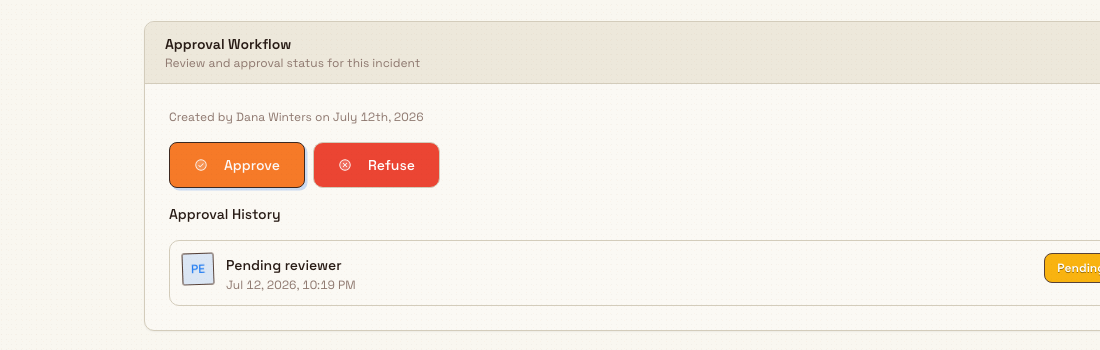
Select the incident's row to open its detail page. The page opens on the Overview tab, with Investigation and Actions tabs alongside it. The Approval Workflow card lives at the bottom of the Overview tab; it is subtitled "Review and approval status for this incident" and holds the approve and refuse actions.
safety.approve-incident-01
Approve an incident
On the Overview tab, in the Approval Workflow card, select Approve. A dialog titled Approve Incident opens with the prompt "Confirm that this incident report is complete and ready to move forward." It offers an optional Comments (Optional) field where you can note anything about your decision. Add a comment if it is useful, then select Approve Incident to confirm.
Bulk records your approval, moves the incident to Approved, and confirms with the message "Incident approved." Your name, the date, and any comment are added to the Approval History shown in the same card, tagged with a green Approved badge. Once approved, the report is locked against editing and the only remaining action is to close it.
Screenshot placeholder
No asset at /docs/en/safety.approve-incident/safety.approve-incident-02.png yet
- Caption
- Approving confirms the report is complete; a comment is optional.
- Framing
- The Approve Incident dialog centred, including its heading, prompt text, the Comments (Optional) textarea, and the footer buttons. Desktop width.
- Product state
- The Approve Incident dialog open over the incident detail page, showing the title, the confirmation prompt, the optional Comments field, and the Cancel and Approve Incident buttons.
- Setup
- On an incident with status Awaiting Approval, select Approve in the Approval Workflow card so the Approve Incident dialog opens. Optionally type a short approval comment into the Comments field before capturing.
safety.approve-incident-02
Return an incident for changes
If the report is incomplete or inaccurate, return it to the team instead of approving. In the Approval Workflow card, select Refuse. The Refuse Incident dialog opens with the note "Provide a reason for refusing this incident. It will return to the team for updates." A Reason for Refusal is required — if you leave it blank, Bulk prompts "Please provide a reason for refusal" and will not continue. Enter a clear reason so the team knows what to fix, then select Refuse Incident.
The incident moves to Refused and your reason is saved to the Approval History with a red Refused badge. The team can now edit the report and select Resubmit for Approval, which returns it to Awaiting Approval for another review.
Close an approved incident
Closing finalises the incident. Once a report is Approved, a Close Incident button appears in the page header. Selecting it opens a confirmation dialog whose contents depend on whether the incident's corrective work is finished.
Corrective actions are the Immediate Actions, Preventive Measures, and System Changes listed on the Actions tab. When the incident is submitted for approval, Bulk turns each of these into a linked Safety task. Before it will let you close, Bulk checks that every one of those tasks exists and has reached a finished state (Done or Cancelled):
- If all linked tasks are finished, the dialog reads Close Incident? with "All linked action tasks are resolved. Review one last time before closing." Select Close Incident to finalise. Bulk confirms "Incident closed" and the status becomes Closed.
- If some tasks are still open or missing, the dialog reads Cannot Close Yet with "This incident has unresolved tasks that must be completed before closing." It shows counts of open and missing tasks and a Blocking tasks list, and the Close Incident button stays disabled until the work is done.
Closing an incident cannot be undone
Closing marks the incident as finished and the record cannot be reopened. Confirm that the investigation is complete and every corrective task has genuinely been carried out before you select Close Incident.
Screenshot placeholder
No asset at /docs/en/safety.approve-incident/safety.approve-incident-03.png yet
- Caption
- Bulk blocks closing until every linked corrective task is Done or Cancelled.
- Framing
- The Close Incident dialog centred, including the heading, the explanatory text, the task-count tiles, the Blocking tasks list, and the disabled Close Incident button. Desktop width.
- Product state
- The Close Incident confirmation dialog open over an approved incident. Ideally capture the Cannot Close Yet state, showing the open-tasks count and a Blocking tasks list, with the Close Incident button disabled.
- Setup
- Open an incident with status Approved that still has at least one linked corrective task that is not Done or Cancelled. In the page header select Close Incident to open the dialog; it should show the Cannot Close Yet heading, the task counts, and the Blocking tasks list.
safety.approve-incident-03
Example: Granite Peak Manufacturing
At Granite Peak Manufacturing's Leeds Fabrication Plant, an operator reports a near miss: a hydraulic hose on press brake PB-03 burst and sprayed fluid close to the operator station. The report is logged as incident INC-014. The safety team completes the investigation on the Investigation tab, adds an Immediate Action to isolate and tag out PB-03, a Preventive Measure to replace the hose across all press brakes, and a System Change to add hose inspection to the monthly pre-use checklist. They then submit the report for review.
Dana Winters, who holds the Safety role, opens Safety → Incidents, sees INC-014 with an Awaiting Approval badge, and opens it. On the Overview tab she reviews the Approval Workflow card, confirms the investigation and actions look sound, selects Approve, adds the comment "Root cause and actions agreed — proceed," and confirms with Approve Incident. The incident moves to Approved.
Two weeks later, once maintenance has replaced the hoses and the checklist has been updated, Dana returns to INC-014, selects Close Incident in the header, sees the Close Incident? dialog confirm that all linked action tasks are resolved, and closes the incident. It now shows a Closed badge in the incident list.
Expected result
After approving, the incident's status is Approved, the report is locked against edits, and your decision and any comment appear in the Approval History. After refusing, the incident is Refused and back with the team, with your reason recorded. After closing, the incident is Closed and finalised, with every corrective task confirmed finished.
Availability and limitations
This feature is generally available.
- State-gated actions. Approve and Refuse are available only while an incident is Awaiting Approval; Close is available only while it is Approved. If you do not see these actions, check the status badge — the incident may still be a draft, or already approved or closed.
- A reason is required to refuse. Refusing without a reason is rejected. Enter text in the Reason for Refusal field before confirming.
- Closing depends on corrective tasks. You cannot close an incident while any linked Safety task is still open, or while an expected task is missing. Finish or cancel the blocking tasks first. The dialog's Blocking tasks list tells you exactly which ones remain.
- Closing is irreversible. A closed incident cannot be reopened.
- Approving does not require comments. The comment on approval is optional; a refusal comment is mandatory.
Troubleshooting
- You cannot see the Approve, Refuse, or Close actions. Confirm you hold the Approve incidents permission and that you are signed in to the plant that owns the incident. If your permission is correct, check the status badge: approve and refuse appear only on Awaiting Approval incidents, and Close appears only on Approved ones.
- "Incident not found." The incident may belong to a different plant (entity) than the one you are signed in to, or it may have been removed. Return to Incidents and confirm you are in the correct plant.
- The Close Incident button is disabled. The dialog is showing Cannot Close Yet because linked corrective tasks are still open or missing. Open the Blocking tasks list, complete or cancel each task, then reopen the dialog.
- Refusal will not submit. The Reason for Refusal field is empty. Enter a reason and try again.
Related guidance
- Report a safety incident — how an incident is created and submitted for review.
- Investigate a safety incident — how the root cause and corrective actions are worked up before approval.
- Approve a risk assessment — the equivalent review gate for risk assessments.
- Safety overview — the rest of the safety module.
Investigate a safety incident
Establish why a safety incident happened using fishbone and five-why analysis, then track the corrective actions it produces to completion on the incident's Investigation and Actions tabs.
Review asset readiness
See at a glance which machines are cleared to run, which are blocked by unfinished pre-use safety checks, and which are running under a supervisor override.