Submit and approve a risk assessment
Send a draft risk assessment for review, then approve or refuse it so the assessment becomes the active, official version your team works to.
A risk assessment in Bulk is a controlled safety document: it names a task, lists the hazards involved, and records the control measures that reduce each hazard to an acceptable level. Before a risk assessment governs real work, it goes through an approval workflow — the person who wrote it submits it for review, and a responsible approver either approves it (making it the active, official version) or refuses it (returning it for changes).
This article covers that submit-and-approve workflow: how to send a draft for approval, how an approver signs it off or returns it, how to pull back or resubmit a request, and how each decision is recorded. Use it when a draft assessment is complete and ready to become the version your operators and supervisors are expected to follow.
This is the sign-off step, not the writing step
Building the assessment itself — describing the task, listing hazards, and adding control measures — is a separate task. See Create a risk assessment. This article picks up once a draft exists and is ready for review.
The approval lifecycle
Every risk assessment has a status that tells you where it is in its life. The approval workflow moves an assessment through these statuses:
- Draft — being written or revised. Editable. This is where an assessment starts.
- Pending Approval — submitted and waiting for a decision. Locked for editing.
- Active — approved. This is the official, in-force version your team works to.
- Refused — an approver returned it for changes. Editable again, so it can be corrected and resubmitted.
- Archived — an older version that a newer approved revision has replaced.
The normal path is Draft → Pending Approval → Active. If an approver returns the assessment, the path is Pending Approval → Refused → Draft (after you resubmit) and back to Pending Approval. The current status is shown as a badge in the Details card in the right-hand column of the assessment page.
Before you start
Two separate permissions divide the work between the person who writes the assessment and the person who signs it off:
- Create risk assessments (
safety.create_assessment) lets you create and edit assessments and submit them for approval. It also lets you cancel a request you submitted, and resubmit after a refusal. - Approve risk assessments (
safety.approve_assessment) lets you approve or refuse an assessment that is Pending Approval.
In the default role set, both permissions are held by the Super user, Entity admin, Manager, and Safety roles. The Operator and Tablet user roles have neither, so a shop-floor operator cannot submit or approve assessments unless an administrator grants them a role that includes these permissions.
You also need a draft (or refused) assessment that has at least one control measure. Bulk will not let you submit an empty assessment for approval — there must be something to review. The assessment must also be the latest revision in its history; you cannot submit or approve a superseded version.
Approval is a formal safety sign-off
Approving a risk assessment makes it the active control document that operators and supervisors are expected to follow while doing the work. Treat approval as a deliberate safety decision, not a formality. Note that the default Manager, Safety, Entity admin, and Super user roles can both submit and approve, so the same person could sign off their own assessment. Because the two permissions are separate, an administrator can build a role that can create but not approve when you need separation of duties between author and approver.
Where the workflow lives
Open Safety in the left navigation and choose Risk Assessments. The list at /safety/risk-assessments shows every assessment, and you can filter it by status — including Pending Approval, which is the fastest way to find assessments waiting for a decision.
Select an assessment to open its detail page at /safety/risk-assessments/:id. On the Overview tab you will find the Approval Workflow section, subtitled "Review and approval status for this risk assessment". Every action in this article happens in that section, and the buttons you see there depend on the assessment's status and your permissions.

safety.approve-risk-assessment-01
Submit a draft for approval
When you are viewing a Draft assessment and you have the Create risk assessments permission, the Approval Workflow section shows a Submit for Approval button.
- Confirm the assessment is complete: the task and hazards are described on the Overview tab, and the Measures tab lists at least one control measure.
- Select Submit for Approval.
- Read the confirmation dialog, titled Submit for Approval?. It explains that the assessment will be sent to approvers and that you will not be able to edit it until it is approved or returned for revision.
- Select Submit.
The status changes to Pending Approval, editing is locked, and a pending entry appears in the Approval History at the bottom of the section. Anyone with approval rights can now act on it.
Cancel a request you submitted
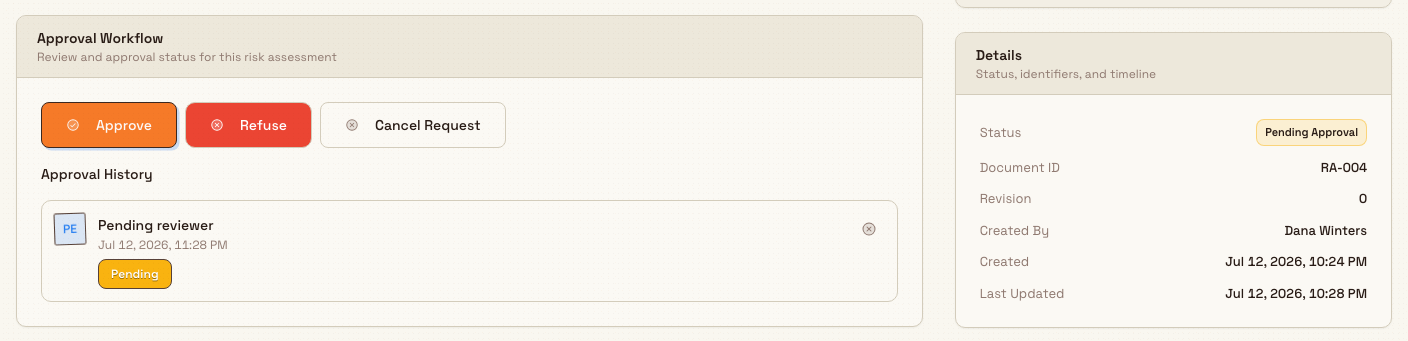
If you need to make a change before anyone has responded, you can pull the request back. While the assessment is Pending Approval, the person who submitted it sees a Cancel Request button (and a matching cancel action beside the pending Approval History entry).
Selecting it opens the Cancel Approval Request? dialog, which explains that the assessment will return to draft so you can make changes and resubmit, and that reviewers will no longer see the pending request. Confirm with Cancel request (or keep it with Keep request). The status returns to Draft. Only the person who submitted the request can cancel it.
Approve or refuse an assessment
If you have the Approve risk assessments permission and the assessment is Pending Approval, the Approval Workflow section shows two buttons: Approve and Refuse.
safety.approve-risk-assessment-02
Approve
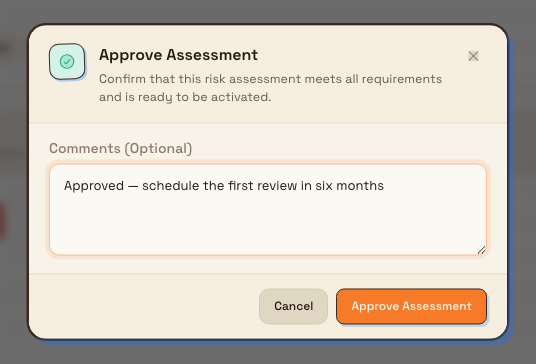
- Select Approve. The Approve Assessment dialog opens, asking you to confirm that the assessment meets all requirements and is ready to be activated.
- Optionally add a note in the Comments (Optional) field — for example, a condition of approval or a date for the next review.
- Select Approve Assessment.
The status changes to Active, and the assessment becomes the official version. If an earlier revision of the same assessment was Active, approving the new one automatically moves the older revision to Archived so there is only ever one in-force version. Your name, the time, an Approved badge, and any comments are recorded in the Approval History.
safety.approve-risk-assessment-03
Refuse
Refusing returns the assessment to its author for changes, and a reason is required.
- Select Refuse. The Refuse Assessment dialog opens.
- Enter a Reason for Refusal. This field is required — if you leave it empty, Bulk shows "Please provide a reason for refusal" and will not submit.
- Select Refuse Assessment.
The status changes to Refused, the assessment becomes editable again, and your reason is stored against a Refused entry in the Approval History so the author knows exactly what to fix.
Resubmit after a refusal
When an assessment is Refused, the author (anyone with the Create risk assessments permission) can edit it and then select Resubmit for Approval, which sends it back to Pending Approval for another decision. The workflow repeats until the assessment is approved.
The Approval History
Below the action buttons, the Approval History lists every decision on the assessment in order. Each entry shows the reviewer's name and avatar, the date and time, a status badge — Approved, Refused, or Pending — and any comments that were entered. A pending entry shows as "Pending reviewer" until someone acts on it. This history is the audit trail of who reviewed the assessment and what they decided.
If no one has submitted the assessment yet, the section shows a "No approval activity yet" message inviting you to submit it for review.
Example: Granite Peak Manufacturing
At Granite Peak Manufacturing's Leeds Fabrication Plant, the safety lead, Priya Nair, writes a new risk assessment for the task Replace press brake back-gauge. She lists the hazards — stored energy in the hydraulic ram, pinch points, manual handling — and adds a control measure for each on the Measures tab.
With the draft complete, Priya opens the Overview tab and selects Submit for Approval, confirms the dialog, and the assessment moves to Pending Approval. It is now locked, and a pending entry appears in the Approval History.
The plant manager, Dana Winters, filters the Risk Assessments list to Pending Approval, opens the assessment, and reviews the measures. She notices the assessment does not call out isolating and locking off the hydraulic supply before work begins. She selects Refuse, enters the reason "Add a lockout-tagout step for the hydraulic ram before removing the guard", and confirms. The assessment returns to Refused, and Priya sees the exact change required.
Priya adds the lockout-tagout control measure, then selects Resubmit for Approval. This time Dana reviews it, selects Approve, adds the comment "Approved — schedule the first review in six months", and confirms. The assessment becomes Active. It is now the official version the maintenance team must follow when replacing the back-gauge, and the whole exchange is preserved in the Approval History.
Expected result
After approval, the assessment's status is Active and it is the single in-force version for that task; any previously active revision is automatically Archived. After a refusal, the status is Refused and editable, with the approver's reason recorded so the author can correct it and resubmit. Either way, the Approval History holds a dated, named record of every submission and decision.
Availability and limitations
This feature is generally available.
- Editing is locked while pending. Once you submit, the assessment cannot be edited until it is approved, refused, or you cancel the request. To change it before a decision, cancel the request to return it to Draft.
- A measure is required to submit. The Submit for Approval button is only available when the draft has at least one control measure. An empty assessment cannot be submitted.
- No forced separation of duties by default. The default Manager, Safety, Entity admin, and Super user roles all hold both the create and approve permissions, so the same person can submit and approve. The permissions are separate, so an administrator can define a role with create but not approve to require a different approver.
- Only the latest revision moves through approval. You can only submit, approve, or refuse the latest open revision of an assessment. Older revisions are read-only.
- Only the submitter can cancel. A pending request can be cancelled only by the person who submitted it; an approver responds by approving or refusing instead.
- Changing an Active assessment. An approved (Active) assessment is not edited in place. To revise it you create a new revision, which returns to Draft and must be submitted and approved again. See Review a risk assessment.
Troubleshooting
- No Submit for Approval button on a draft. Confirm you have the Create risk assessments permission, that the assessment has at least one control measure on the Measures tab, and that you are viewing the latest revision. The button is hidden when any of these is not met.
- No Approve or Refuse buttons on a pending assessment. Approving and refusing need the separate Approve risk assessments permission. If you only have the create permission, you can submit and cancel but not decide; ask a colleague with approval rights to review it.
- Refusal will not submit. A reason is required. Enter text in the Reason for Refusal field; the dialog blocks an empty reason with "Please provide a reason for refusal".
- The Cancel Request button is missing. Only the person who submitted the request sees it. If someone else submitted the assessment, they must cancel it, or an approver must act on it.
- The assessment is not in the list. The Risk Assessments list defaults to the Active filter. Switch the status filter to Pending Approval, Draft, or Refused, or confirm you are working in the correct plant (entity).
Related guidance
- Create a risk assessment — write the task, hazards, and control measures before you submit.
- Score risk with the risk matrix — set the likelihood and severity for each control measure.
- Use AI assistance in a risk assessment — draft measures faster while building an assessment.
- Review a risk assessment — schedule and record periodic reviews and create new revisions of an active assessment.
- Safety overview — the rest of the safety area.
Use AI assistance in a risk assessment
Upload a PDF or photo to an editable draft risk assessment and let the Assistant propose a task description and control measures that you review and apply.
Review a risk assessment
Schedule, complete, and cancel periodic reviews of an active risk assessment, recording whether it is still up to date or needs a new revision.