Review pre-use-check results
Find, filter, and open completed pre-use safety checks to confirm an asset passed, investigate failed checklist items, review captured evidence, and export a PDF report.
A pre-use check is a safety inspection you run against a piece of equipment before it is used, recorded in Bulk as a completed audit against a pre-use template. Reviewing pre-use-check results is how you confirm, after the fact, that an asset was inspected, whether it passed, and what the operator recorded for each checklist item.
Use this page when you need to answer questions such as: did the forklift pass its start-of-shift check this morning, which checklist item failed and why, and is there a photo or signature to back up the result. You review results in two places that work together: a results list of every recorded check, and a check detail view that shows one check's full breakdown.
Reviewing results is not the same as running a check
This page covers looking back at checks that have already been carried out. To learn how an operator carries out a pre-use check on a tablet, see Run a pre-use check.
Before you start
To open pre-use-check results you need the View audits permission (audits.view). In the default role set this permission is held by the Super user, Entity Admin, Manager, Operator, Tablet User, and Invoicing roles, so most people who work in the plant can review results. Reviewing is read-only: opening, filtering, and exporting results does not change any recorded answer.
There must also be at least one recorded check to review. A check appears in the list once it has been started; a completed check shows an overall result, while a check still being carried out shows as In Progress.
Open the results list
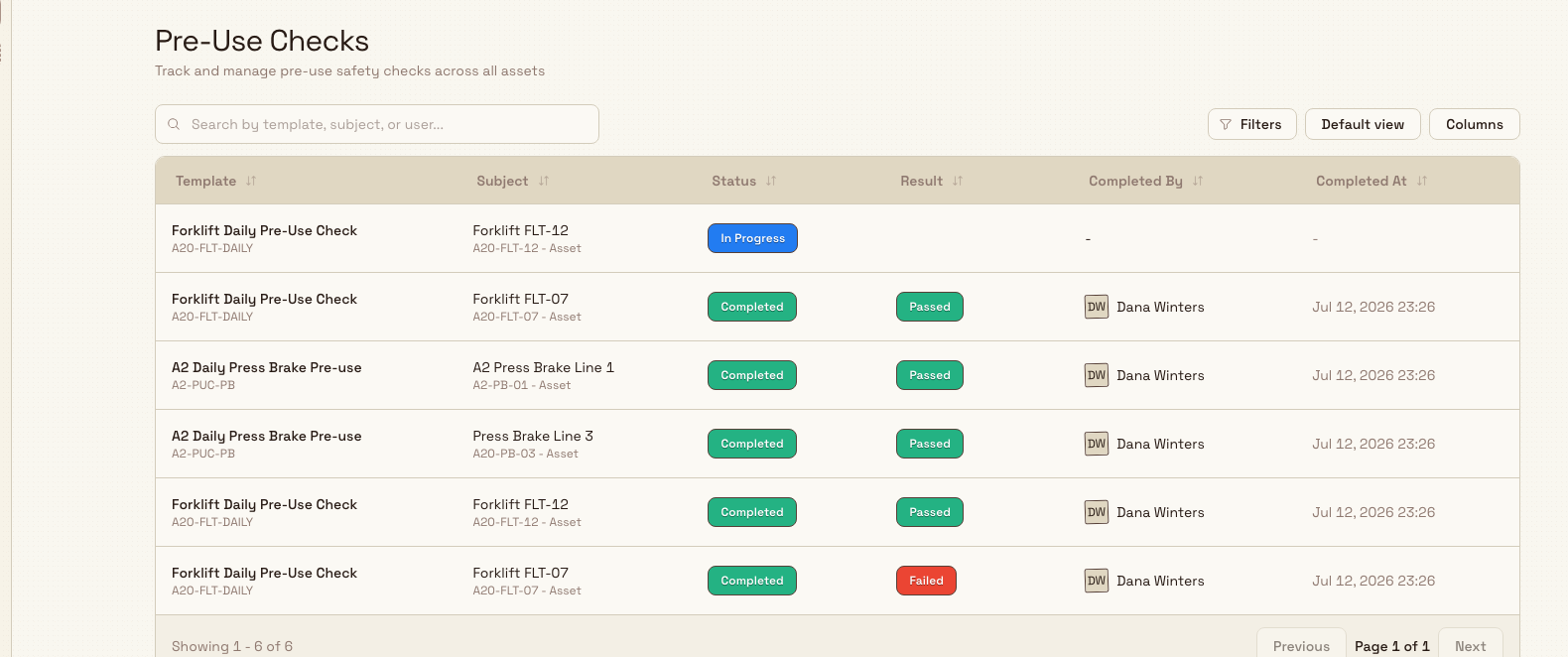
In the left sidebar, open the Audits module and select Pre-use Checks. The page is titled Pre-Use Checks and lists pre-use safety checks recorded across all of your assets.
safety.pre-use-check-results-01
Each row is one recorded check. The table shows these columns:
- Template — the pre-use checklist that was used, with its template code beneath the name.
- Subject — the asset (or area) the check was carried out on, with its code.
- Status — where the check is in its lifecycle: Not Started, In Progress, Completed, Due, Expired, or Overdue.
- Result — the overall outcome once completed: Passed, Failed, or Passed with Issues.
- Completed By — the person who finished the check.
- Completed At — the date and time it was completed.
Filter and search
Use the search box to narrow the list by template, subject, or user; the placeholder reads "Search by template, subject, or user...". Open Filters to filter by:
- Status — In Progress or Completed.
- Result — Pass, Fail, or Pass with Issues.
Filtering by Result: Fail is the fastest way to surface checks that need follow-up. Active filters appear as chips you can clear individually, or clear all at once.
Review an individual check
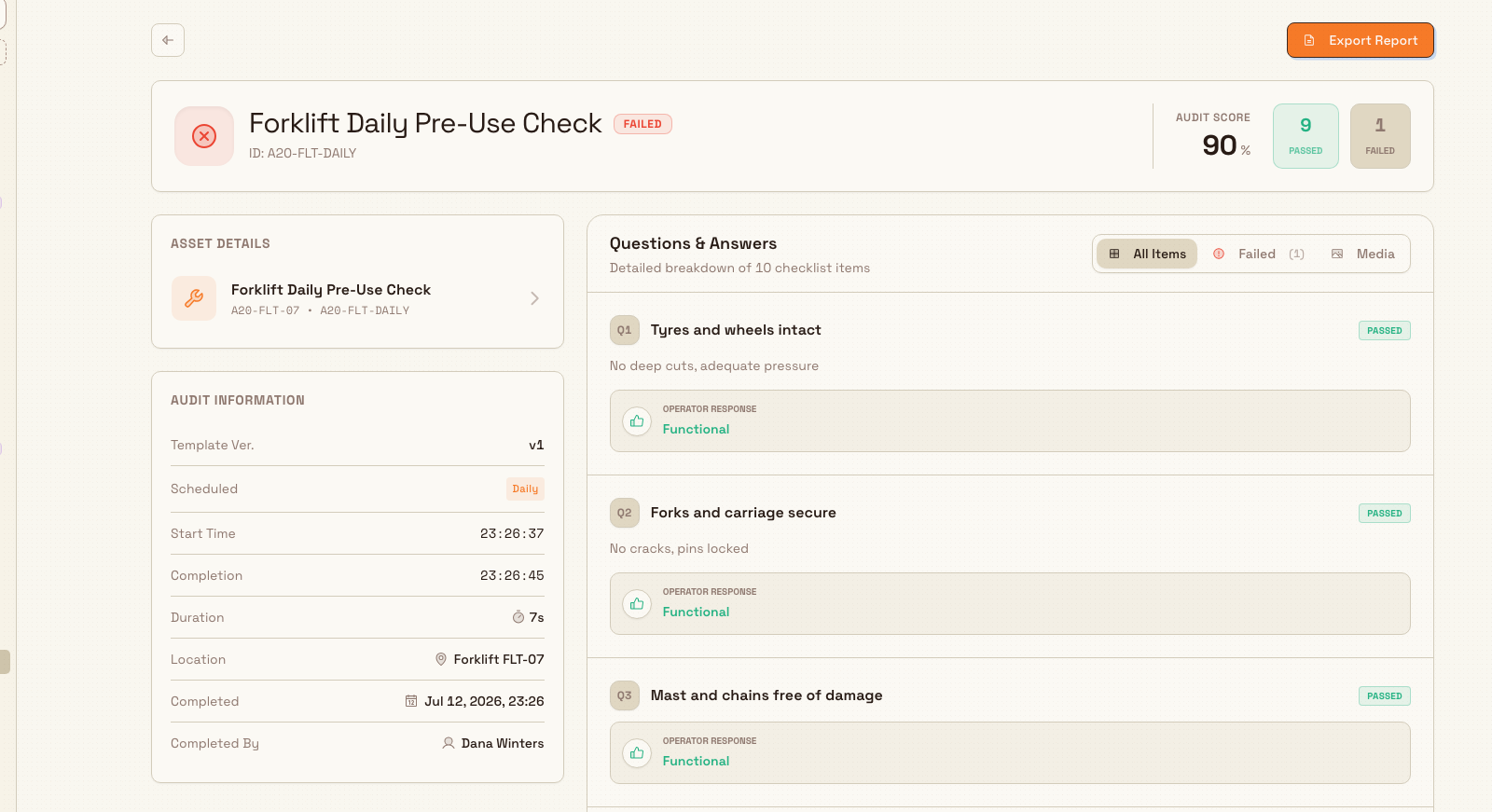
Select any row to open that check's detail view. The detail view is laid out as a header summary, a sidebar of asset and audit information, and a full list of the recorded answers.
safety.pre-use-check-results-02
Header summary
The header card gives you the outcome at a glance:
- A coloured result badge — Passed, Passed with Issues, Failed, Expired, or Cancelled — and a matching top border on the card.
- Audit Score, the percentage of checklist items that passed.
- Passed and Failed count tiles.
Asset details and audit information
The left sidebar holds two cards. Asset Details identifies the asset the check belongs to. Audit Information lists the record's context, row by row: Template Ver. (the template version used), Scheduled (how often the template is scheduled), Start Time, Completion, Duration, Location, Completed (date and time), and Completed By.
Questions and Answers
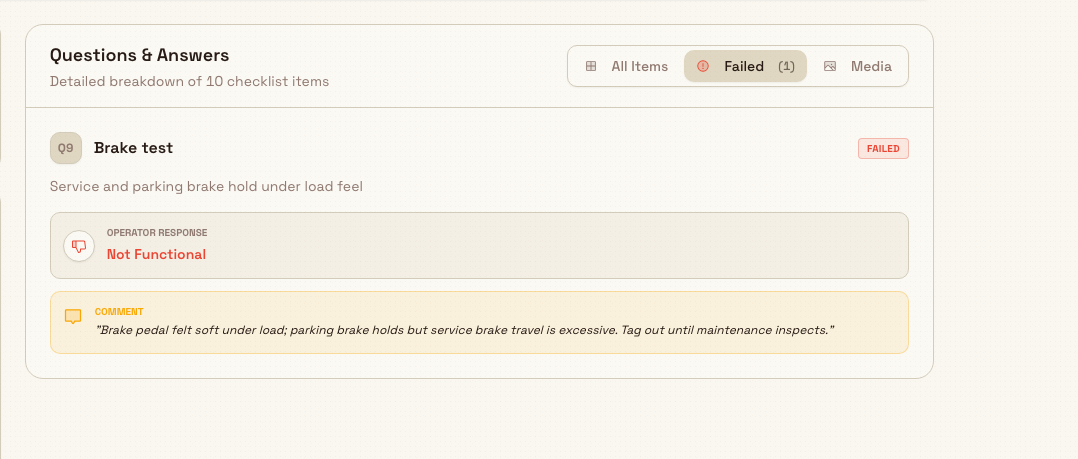
The main panel, titled Questions & Answers, shows a "Detailed breakdown" of every checklist item. Each item shows its question number, the question, a Passed or Failed badge, and the answer the operator recorded — a yes/no, a number, a chosen option, free text, a photo, or a signature. When an operator flags a problem, their note appears in a Comment box beneath the item.
Use the filter tabs above the list to focus your review:
- All Items — every checklist item.
- Failed — only the items that failed, with a count.
- Media — only items that have a photo or signature attached, with a count.
Long checks show the first few items and a Show Remaining … Items button to reveal the rest. Attached photos and signatures are shown as evidence so you can confirm what the operator saw.
safety.pre-use-check-results-03
Export a PDF report
To share a check outside Bulk, open it and select Export Report. Bulk generates a PDF of the full check — header, asset and audit information, and every question with its answer and evidence — and downloads it to your device. This is useful for maintenance work orders, audit trails, or sending a record to a customer or inspector.
A failed pre-use check can stop an asset being used
A failed or missing pre-use check can block a workstation until a passing check is recorded, keeping unsafe equipment out of use. When you review a Failed result, treat the asset as unavailable until the underlying problem is resolved and a new passing check is recorded. See Blocking pre-use checks.
Example: Granite Peak Manufacturing
At Granite Peak Manufacturing's Leeds Fabrication Plant, operators run a Forklift Daily Pre-Use Check on forklift FLT-07 at the start of every shift.
One morning, shift supervisor Priya opens Audits → Pre-use Checks and sets the Result filter to Fail. FLT-07's morning check appears with a Failed badge. She opens it and sees an Audit Score of 90%, with nine items passed and one failed. On the Questions & Answers panel she clicks the Failed tab, which isolates the failed Brake test item. The operator's Comment reads that the brake pedal felt soft, and a photo is attached under the Media tab.
Priya selects Export Report, attaches the PDF to a maintenance work order, and treats FLT-07 as out of service until it is repaired and a new pre-use check passes.
Expected result
After reviewing results you can confirm, for any asset, that a pre-use check was carried out, who carried it out and when, whether it passed, and the exact answer and evidence for each checklist item. A PDF export gives you a portable copy of that record for anyone outside Bulk.
Availability and limitations
This feature is generally available.
- The list shows recent checks. The results list loads up to the 100 most recent checks that match your current filters. Narrow the list with the status, result, and search controls to find older records.
- Reviewing is read-only. The
audits.viewpermission lets you open, filter, and export results but not change a recorded answer. To correct or override a recorded response, see Override a response. - Export requires a completed check. You can only export a check whose status is Completed. Attempting to export an in-progress check reports that an incomplete report cannot be exported.
- Expired results. A completed check is valid for a defined window. Once that window lapses the status shows Expired, which means a fresh check is needed even though the last one passed.
Troubleshooting
- "Check not found." The check may have been removed, or it belongs to a different plant (entity) than the one you are signed in to. Return to the results list and confirm you are working in the correct entity.
- You cannot export a check. Export is only available for completed checks. If the Export Report action reports that the report is incomplete, open the check and confirm its status is Completed before exporting.
- A check is missing from the list. Clear your filters and search. If it is older than the most recent 100 records, filter by result or status, or search by the asset or template name to bring it into view.
Related guidance
- Run a pre-use check — how an operator carries out a pre-use check.
- Review asset readiness — see, by asset, which equipment currently has a passing, due, or expired check.
- Review audit results — the general guide to reviewing results for every audit type.
- Attach evidence — how photos and signatures are captured during a check.
- Blocking pre-use checks — how a failed or missing check keeps an asset out of use.
- Safety overview — the rest of the safety module.
Review asset readiness
See at a glance which machines are cleared to run, which are blocked by unfinished pre-use safety checks, and which are running under a supervisor override.
Audits
How the Audits module works — the way scheduled 5S, safety, quality, maintenance, pre-use, and custom checks reach your team, and where to run, complete, and review them.