Complete production documentation steps
Add a photo, signature, or note step on the production item page, see what Bulk stores, and why the tablet does not ask for that capture yet.
Last updated
A documentation step is a workflow step on a production item. A production item is a button an operator presses on the shop-floor tablet to record output. A Good button adds to the production count ("+1 production count"). A Bad button adds to the defect count ("+1 defect count"). An Inspection button records a check and does not change either count ("No count impact"). The item can carry an ordered list of workflow steps. Those steps are the data you intend Bulk to collect when the button is pressed. A documentation step is the step for a photo, a signature, or a text note.
Use a documentation step when a count on its own is not enough. You may want a photograph of a finished part, a signature, or a short note stored with that recorded output.
Configuration today, tablet capture not yet
You can define and save documentation steps on any production item right now, and Bulk's recording backend stores the photo, signature, or note against the output. The shop-floor tablet counter flow does not yet prompt operators to capture that media when they press a button. Read the Current capabilities and limitations section before you rely on operator capture.
Where documentation steps live
Documentation steps are set on a production item, not on a job or a routing. Open the list from workspace settings:
Settings → Master Data → Production Items (/settings/master-data/production-items)
The list title is Production Items. On the Active list, select Add Production Item to create one. Bulk opens a full page at /settings/master-data/production-items/new, not a dialog. Until you type a name, the title is Create production item, and the description is "Add a new tracking button for operators".
To change an item, select its row, or select Open row actions and choose Edit. Bulk opens /settings/master-data/production-items/:itemId/edit. The title is the item name, and the description is "Update production item configuration".
Workflow steps are on that same page, in the Workflow steps section. The section says "The data operators collect when they press this button." There is no Workflow Steps tab, and you do not open a dialog to edit the item.
Production items belong to the site you are working in. The steps you save apply to that site's tablets only.
The full-page editor shows the ordered steps and Add a step together. Expand a Documentation row to set its capture type, label, and requirement.
Who can configure them
Configuring documentation steps is a master-data task, so it needs the permission to edit production items rather than the permission to run a tablet.
| You want to | Permission needed | Roles that have it by default |
|---|---|---|
| View production items | production_items.view | Super user, Entity admin, Manager, Master data, Tablet user |
| Add or change a documentation step | production_items.update (and production_items.create for a new item) | Super user, Entity admin, Manager, Master data |
If Production Items does not appear under Settings → Master Data, your role does not include these permissions. Ask a workspace administrator to grant them, or to make the change for you.
Configure a documentation step
On the production item page, go to Workflow steps.
- If the item has no steps, you see No steps yet and "Add a step below to collect data when an operator presses this button."
- Under Add a step, select Documentation. The tile says "Photo, signature, or note". Bulk adds the step at the bottom and opens its settings. You do not drag a tile onto a canvas.
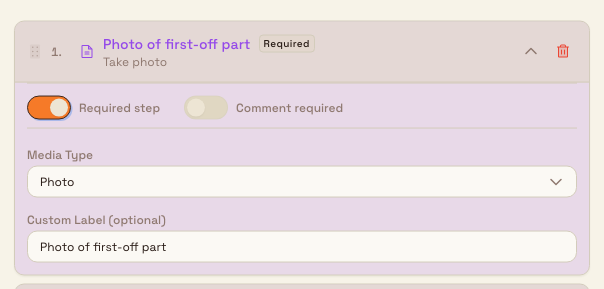
- Set Capture. This chooses what the step is meant to collect:
- Photo: an image, stored on the output as a photo.
- Signature: a signature image, stored on the output as a signature.
- Text note: free text, stored as the comment on the output. A new documentation step starts on Text note.
- Optionally set Label, for example
Photo of first-off part. The hint says "Shown to operators. Defaults to the step name." Leave Label blank to keep the name Documentation. - A new step has Required step turned on, and the row shows Required. Turn Required step off if the step should be optional. The row then shows Optional. Select the step again if you need to close or reopen its settings.
- Select Create item for a new item, or Save changes when you are editing. Cancel leaves the page. If you still have unsaved changes, Bulk asks Discard unsaved changes? Select Keep editing to stay, or Discard to leave.
The saved steps stay in the order you set, from top to bottom. Drag a step's handle to reorder it. The page says "Steps run top to bottom. Drag the handle to reorder." Use the step's remove control to delete it.
What Bulk stores
When a documentation result is recorded on production output, Bulk stores it by the Capture value:
| Capture | Stored as |
|---|---|
| Text note | The comment on the production output record |
| Photo | A photo on the output record |
| Signature | A signature on the output record |
Because the note, photo, or signature is stored on that output record, it stays with that recorded quantity rather than with the job as a whole.
Example: first-off photo at Gotham
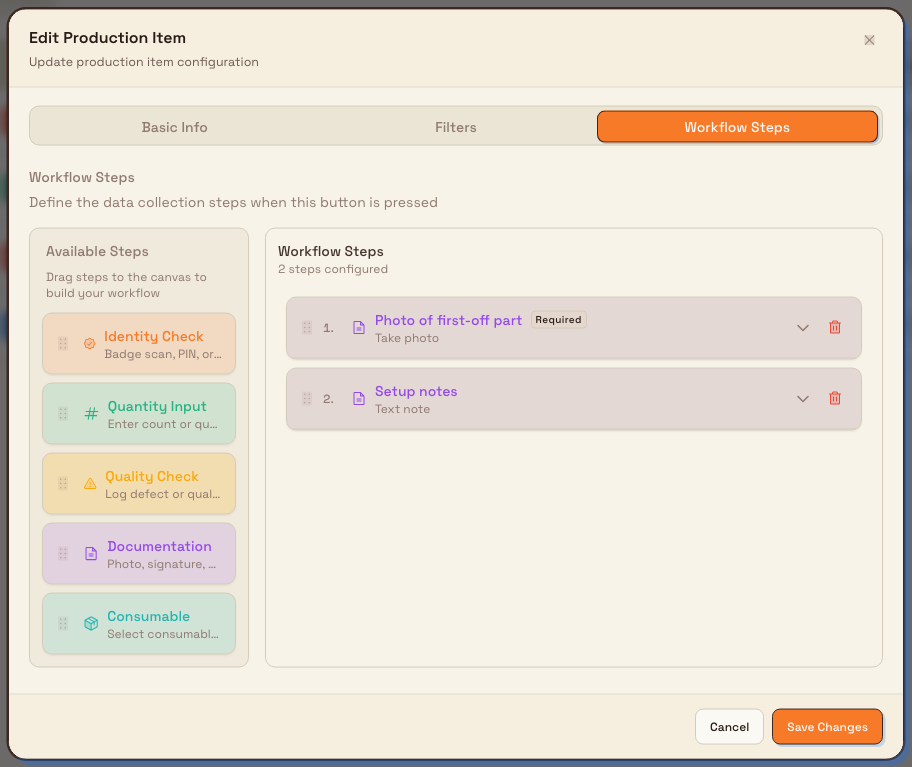
At Gotham Applied Sciences, the housing team configures First-off Inspection for Housing Fit Verification. The intended record has a photo of the first-off bracket and a short setup note.
Open Settings, then Master Data, then Production Items, and open First-off Inspection. It is an Inspection item, so Counting uses Inspection ("No count impact"). Under Workflow steps, select Documentation under Add a step. Set Capture to Photo, set Label to Photo of first-off part, and leave Required step on. Add a second Documentation step below it. Set Capture to Text note and Label to Setup notes, for the die and gauge settings. Select Save changes.
The First-off Inspection item then lists both documentation steps from top to bottom. Anyone who opens the page later can see that a first-off check on this cell is meant to carry a photo and a setup note. The tablet still does not ask for them.
Expected result
- The documentation step is listed under Workflow steps, in the order you set, with the Capture value and Label you chose.
- The configuration is saved on that site's production item. Anyone with
production_items.viewcan open the page and see it. - If a recording supplies a photo, signature, or text note for that step, Bulk stores it on the production output. The shop-floor tablet does not collect that result today.
Current capabilities and limitations
The feature state differs between configuration and shop-floor capture, so treat them separately.
Available now
- Adding, reordering, editing, and removing documentation steps on the production item page.
- Choosing Capture (Photo, Signature, or Text note), a Label, and Required step.
- Storage of a supplied photo, signature, or text note on production output.
Not yet available
- Operator capture at the tablet. When an operator presses a production button, the counter flow can open quantity, quality, consumable, cycle, mark for rework, and rework steps. It does not open a documentation step. No photo, signature, or note is requested, and none is saved from that flow. If documentation is the item's only workflow step, the counter records the count with no extra prompt. The step remains on the production item.
Configuring a documentation step saves what you want the button to collect. It does not change what the operator is asked to do on the tablet. Plan for that gap until capture is available.
Supervisor sign-off is a different feature
Capturing a supervisor signature when finishing a production phase is handled by the stage-completion flow, not by documentation steps. See Skip or complete a production phase for that sign-off.
Process and instruction PDFs are separate
Opening a process or instruction PDF on Operate is not a documentation step. See Record process cycles.
Troubleshooting
- Production Items is missing from Settings → Master Data. Your role lacks
production_items.view. Ask a workspace administrator to grant it, or to configure the step for you. Changing a step also needsproduction_items.update. A new item needsproduction_items.create. - You saved a documentation step, but operators never see it. This is the current behavior. The tablet counter flow does not present documentation steps. The step is saved, and it does not appear on the tablet yet. To collect a written reason with a count today, use a Quality check step with Allow custom reason turned on. Operators can type a note on that step while recording. See Complete production quality steps.
- The stored evidence would be the wrong kind. Check Capture. Photo and Signature are stored as images. Text note is stored as a comment. A step set to Text note does not produce an image.
Related guidance
Complete production quality steps
On the station counter, log a quality reason, flag a recorded cycle run for rework, and record rework that can close the linked quality issue.
Skip or complete a production phase
Finish a job's current routing step at a workstation with Complete Stage or Complete Step, learn when items are skipped, and undo a completed phase.