Complete production quality steps
On the station counter, log a quality reason, flag a recorded cycle run for rework, and record rework that can close the linked quality issue.
Last updated
A quality step runs while you record a count at your station. You do not open a separate quality screen. The step is part of recording on that counter.
A Quality Check step asks you to classify the count against a quality category, a named defect or quality reason such as "Surface scratch" or "Dimension out of tolerance", before the count is saved. That keeps every recorded quantity tied to a consistent quality reason, so what you see on the floor feeds reporting instead of a paper tally.
A Mark for rework step flags a cycle run that is already recorded. A Rework step records the rework, and it can close the linked quality issue with a disposition and a note. When that mark is set to Reworked in the same press, one press marks the defect and records the rework, and it can close the issue in that same press. Cycles are explained in Record process cycles.
Before you start
- You need the Tablet user role, or another role with Record production output. The shop-floor Tablet user role grants Record production output and is the intended role for recording at a station. The standard Operator role can view production but cannot record output, so it cannot complete a quality step. An administrator can adjust roles under Settings.
- A job must be loaded on the asset. You record output: and therefore complete quality steps: against the job items currently loaded on the workstation. If nothing is loaded, the counter will not record. See Load a job.
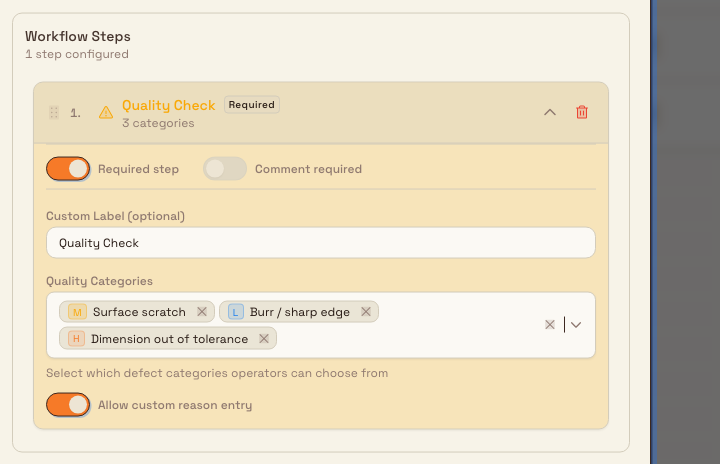
- The production item must have a Quality Check step, and quality categories must exist. An administrator configures both. Quality categories are created under Settings > Quality > Categories, and the Quality Check step is added to a production item under Settings > Master Data > Production Items in the Workflow steps section. If the step has no category selection, it offers all active categories. If none are available, the dialog shows "No quality categories configured" and you cannot classify the output.
- To flag a run or record rework, that cycle run must already be saved on the job. Record it first on a counter that has a Cycle step. See Record process cycles. If the job has no runs, the dialog says No cycle runs are recorded on this job yet.
Complete a quality step
- Open the Production area and select your asset or workstation. The operate screen shows a counter for each production item configured for that workstation. See Select an asset or workstation.
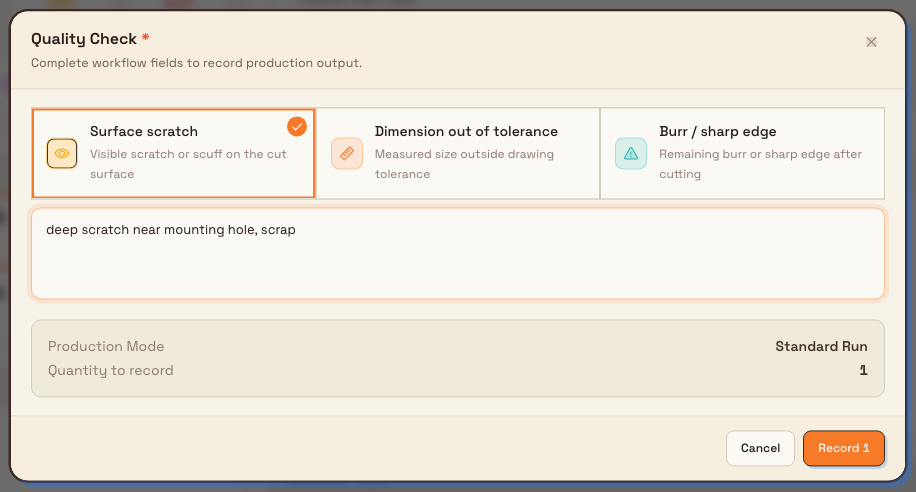
- Tap the plus control on the counter you want to record against. When the production item has a Quality Check step, a dialog opens instead of recording immediately. Steps open in their saved order. Each quality dialog uses the step's label (Quality Check by default).
- Select a quality category by tapping its tile. Each tile shows the category name and description; a required step is marked with a red asterisk next to the title.
- If a notes field is shown, type any additional notes. The field appears when the step allows a custom reason, and notes are always optional.
- Tap Next if more steps remain, or Record on the final step to save. The button shows the quantity being added (for example, Record 1). Choose Cancel to close without recording.
Workflows with several steps
Steps open in the order saved on the production item. Select Next to move to the next dialog, or Back to review an earlier answer. A Consumable step opens the same Log Material cart used by Operator Tools. Each material can have its own quantity.
Only the final step has the Record button. Until then, the quality answers and material cart are drafts. Cancel discards the workflow without recording output or material usage.
Required versus optional steps
When can you record without choosing a category?
A required quality step (marked with a red asterisk) blocks Next or the final Record button until you select a category. Use Skip to leave an optional step unanswered.
Flag a recorded cycle run
A Mark for rework step flags a cycle run that is already recorded on the job. It does not record the cycle. Use the counter that includes Mark for rework. A counter can include only one of Cycle, Mark for rework, and Rework.
- On the job card, tap the plus control on that counter. Its name is Increase count. The dialog title is Mark for rework, unless the step has its own label. A required step shows a red asterisk beside the title. The footer shows where you are, for example Step 1 of 2.
- Read the prompt: Pick the recorded run that needs rework.
- Tap the run. The row shows the cycle name, when it was recorded, and a quantity line such as 1 defect, 2 good, or 1 inspection. The name of the person who recorded the run leads that line when it is known. When your role includes View quality issues, a run that is Marked for rework also shows the issue number. Tablet user does not include that permission, so the number stays off the row. A run already flagged shows Marked for rework and Already marked for rework, and you cannot select it. A run that has been reworked shows Reworked, and you can flag it again.
- Tap Next if more steps remain, or Record on the last step. Record includes the quantity, for example Record 1. Cancel closes without saving. Back returns to an earlier step. An optional step offers Skip. Next or Record stays off on a required step until you tap a run.
If more than 50 runs exist, the dialog says Showing the 50 most recent runs.
When the step is set up as Reworked in the same press, the prompt changes to Pick the run you found the defect on. It is recorded as reworked with this press. That one press records the defect and the rework together. You do not need a separate Rework counter. When this counter records a defect, the press also raises the quality issue and links it to the run. If the step is set to Close the linked quality issue, the same press closes that issue. The defect is marked, reworked, and closed in one press. You do not pick the disposition or type the note in this dialog. There is no button for either one. The close uses the Disposition and Closure note saved on the step. Disposition is Rework, Use as is, Scrap, Return to supplier, or Concession. If none was saved, it is Rework. If the note was left blank, Bulk saves Reworked at the station.
A mark that is not reworked in the same press can be set to Must be reworked before the job can move on. That flag holds the job until the rework is recorded. A same-press mark does not hold the job.
Record the rework
A Rework step records that you reworked a cycle run. Tap the plus control on the counter that includes Rework. Its name is Increase count. The dialog title is Rework, unless the step has its own label. The prompt is Pick the run you reworked.
Runs that are waiting come first. The usual setting is Runs marked for rework. A run you can pick shows Marked for rework. Other runs say Not marked for rework and stay disabled. If the step is set to Any recorded run, you can pick any recorded run, including one that was never flagged. A run that was already reworked still shows Reworked. Finish the dialog the same way as a mark: Next, Back, Skip on an optional step, Cancel, and Record on the last step. A required step keeps Next or Record off until you tap a run.
When the step is set to Close the linked quality issue, Record also closes the quality issue raised when the run was marked. The close uses the Disposition and Closure note saved on the step. The disposition choices are the same. If that note is blank, the issue is closed with Reworked at the station. You can record that close even when your role does not include Close quality issues. Tablet user does not include it. If the run has no linked issue, the rework is still saved and no issue is closed. If the issue is already closed, it stays closed.
A Quality Check step on the same counter still asks only for a category and, when notes are allowed, Quality notes. It does not set a disposition.
Saving shows Production recorded. There is no separate button that closes the issue.
Read a Complete Stage block
Complete Stage sits under the timer. Tap it when you are ready to move the loaded jobs on. Under Job items, each job shows a badge. A job blocked by a missing required cycle, or by a run waiting for rework that holds the job, shows Blocked and a line under the job number. An optional cycle that is still empty does not block. If time is also missing, the badge says Needs time, and the cycle or rework line still appears.
The line names the block:
- A required cycle still has no run. You see the recorded count of the required total, for example 0 of 2 required cycles recorded or 1 of 2 required cycles recorded.
- Required cycles are already recorded, and a run is waiting for rework that holds the job. One run reads 1 cycle run is marked for rework. Record the rework first. More than one starts with the count, for example 2 cycle runs are marked for rework. Record the rework first.
If required cycles are missing and a holding rework is also open, the line names the missing cycles. Record those first, then record the rework. A mark that does not hold the job does not block Complete Stage. You cannot select a Blocked row. Select all leaves it out.
A job that is also loaded on another station shows Unload only. The cycle check does not block that unload.
How to record the cycles, and the rest of that dialog, is in Record process cycles.
Example: review a coupling finish at Gotham
At Gotham Applied Sciences, Bruce is checking a Wayne Drive Coupling for Fox Precision at the Coupling Inspection Bench. The Coupling finish review counter has a required Quality Check step offering Dimensional Error, Surface Finish, and Burr/Sharp Edge.
He taps the counter's plus, selects Surface Finish, and enters "Light scoring on the coupling face near the mounting shoulder. Hold for finish review against drawing revision C." The Record 1 button becomes available. Recording saves the reason and note with the count. Cancel closes the draft without adding a count. The screenshot shows a canceled training draft; it does not represent a physical inspection or a saved approval.
Expected result
When you tap Record, Bulk saves the count together with the quality category you selected and any note you entered, and shows a "Production recorded" confirmation. The workstation counter updates immediately. The recorded quality category rolls up into Bulk's quality reporting, where output is summarised by category, so the reasons you log on the tablet become the plant's quality data.
When the counter includes Mark for rework or Rework, that same confirmation saves the flag or the rework. If the step closes the linked quality issue, the issue is closed in that save with the disposition and closure note set on the step.
Limitations and scope
- Quality steps are configured, not ad hoc. You classify output using the active categories selected for the Quality Check step. An empty selection offers all active categories. You cannot create a new category from the tablet dialog.
- A Quality Check step captures a category and a comment only. It does not set a root cause, and it does not set a disposition. Disposition is set while you record only when a Rework step, or a Mark for rework step set to Reworked in the same press, closes the linked quality issue. That close uses the disposition and closure note saved on the step. With that same-press setup, one press can mark the defect, record the rework, and close the issue.
- Mark for rework and Rework do not create the cycle run. They only pick a run already recorded on the job. A counter can include only one of Cycle, Mark for rework, and Rework.
- The step belongs to a production item. A workstation shows a Quality Check dialog only for counters whose production item includes that step. Counters with other workflow steps open those steps; counters without workflow steps record directly.
- Feature state: completing production quality steps is a generally available part of production recording. It has no beta gating.
Troubleshooting
- "No quality categories configured" in the dialog. No active category matches the step. An empty category selection offers all active categories. Ask an administrator to create categories under Settings > Quality > Categories and add them to the step in the production item's Workflow steps section.
- The Record button stays disabled. Select a category for the required quality step, or a run for a required Mark for rework or Rework step, then try again. Notes on a quality step are optional.
- "Timer must be running to add items." The counter requires an active timer. Start the workstation timer, then record again. See Run production timers.
- Tapping the counter records with no dialog. That production item has none of the steps that open a dialog: quantity, Quality Check, consumable, Cycle, Mark for rework, or Rework. An administrator adds the step under Settings > Master Data > Production Items.
- No cycle runs are recorded on this job yet. Record a cycle on a counter that has a Cycle step, then open this counter again. See Record process cycles.
- Already marked for rework. That run is already flagged. Pick another run, or record the rework on the Rework counter.
- Not marked for rework. This Rework step only offers flagged runs. Pick a row that says Marked for rework.
- This cycle run is already marked for rework. or This cycle run is not marked for rework. The run changed before the save. Close the dialog and open it again.
- Complete Stage shows Blocked. Read the line under the job number. Record the missing cycles, or record the rework when the line says to record the rework first.
Related guidance
Record consumable use
Record the consumables an operator uses against the jobs loaded at a workstation, using the Log Material tool on the production operate screen.
Complete production documentation steps
Add a photo, signature, or note step on the production item page, see what Bulk stores, and why the tablet does not ask for that capture yet.