Review production transactions
Search and review every production step across your jobs, inspect its output, time, quality, and history, and complete or undo steps in one place.
Last updated
In Bulk, every production job runs through a sequence of routing steps, the individual operations that turn raw material into a finished part, such as laser cutting, forming, welding, and inspection. Each step of each job is tracked as a job item. You review those job items in two places: the Transactions page, which lists steps across jobs, and the Transactions tab on a single order. A "transaction" here is a single production step on a single job: its current status, how much it produced, how long it took, any quality issues, and the full record of who moved it through each stage.
Use the Transactions page when you need to look across jobs rather than open one order at a time. For example, search for a customer, check which steps are overdue, see who completed a step, or correct a step that was finished by mistake. Open one order and use its Transactions tab when you only need the steps on that order. That tab shows the process and routing on each row. Both are review surfaces for supervisors, planners, and administrators, not the shop-floor screen where operators record work as it happens.
Where to find it
Open the main navigation, expand Production, and select Transactions. The page lives alongside Orders and Jobs in the same Production group, at the address /production/transactions.
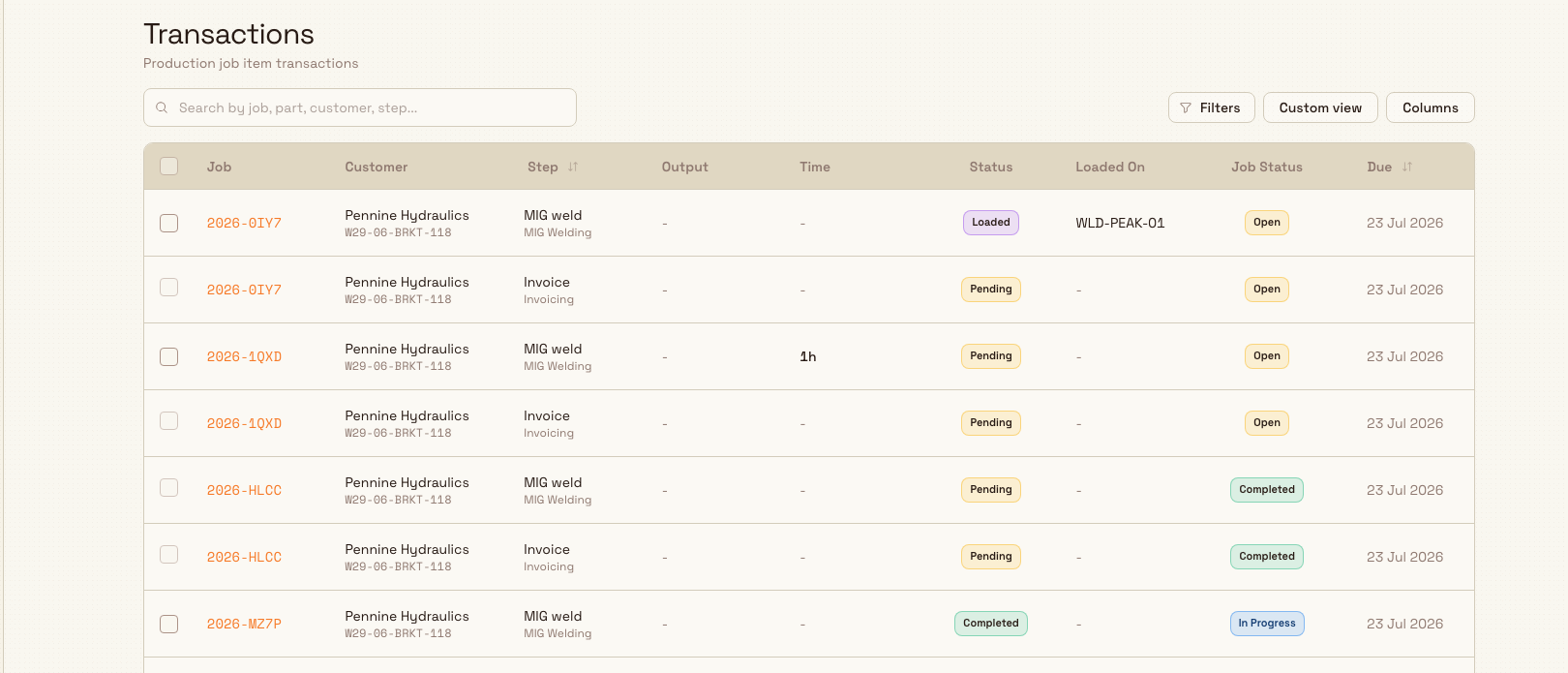
The header reads Transactions with the subtitle Production job item transactions. Below the header sit a search box, then the view menu and Columns. The view menu reads Default view until you change the layout. After that it reads Custom view, or the name of the saved view you applied.
To stay on one order, open that order and select the Transactions tab. The tab sits with General, Jobs, Datasheets, Output, Timers, Quality, and Logs. The sheet heading reads Transactions and shows how many steps have loaded.
Before you start
- You need the View production jobs permission. Opening a transaction's details is gated by the
production_jobs.viewpermission. The system roles that include it are Super user, Entity admin, Operator, Tablet user, and Invoicing. The baseline Manager role does not include it by default, so if you cannot open a transaction, ask an administrator to check your role. - The order Transactions tab needs permission to view production orders (
production_orders.view). The same baseline roles that can view jobs can open the tab. Opening a step from that tab still needs View production jobs. - The Production module must be enabled for your workspace, since Transactions sits inside the Production menu.
- There must be job items to review. Transactions appear as jobs are created and their steps are worked. A brand-new workspace with no jobs shows an empty list.
Completing or undoing a step from this page needs additional permissions, covered under Act on a transaction below.
Read the list
On the Transactions page, each row is one production step (one job item). The columns shown by default are:
- Job: the job number the step belongs to, shown as a link. Select it to open the transaction's detail page. A small sync badge may appear next to very recently created records (see the note on search below).
- Customer: the customer name, with the customer code beneath it when a code is set. A currency flag appears when the customer has a currency. This is not the part number.
- Step: the step name (for example, "Machining"), with the step number beneath it as four digits, so step 10 reads
0010. A readiness icon sits beside the name. - Output: how many units the step has produced. Hover to see a breakdown of each recorded entry, and a count of any quality issues appears in red.
- Time: the total recorded time on the step. Hover for a breakdown of timer, manual, downtime, and adjustment entries; recorded downtime is called out separately.
- Status: the step's lifecycle state as a coloured badge: Pending, Loaded, In Progress, Completed, or Skipped.
- Loaded On: the asset codes for the machines the step is loaded onto, if any.
- Job Status: the status of the parent job, such as Open, In Progress, or Completed.
- Due: the date the step is required by. Overdue dates are highlighted.
- Completed: the date the step was completed, in your site's time zone. Empty until the step is completed, and cleared again if the step is undone.
- Completed By: the person who completed the step.
Columns shows, hides, reorders, and pins columns. Open the view menu and select Save current as view… to keep a named layout. After you change the layout, that menu also includes Reset to default columns, which restores this default set. These columns stay hidden until you show them: Production Order, PO Number, Part (the part number), Currency, Value, Quantity, Routing (the routing code), Priority, and Received. Job custom fields use their field names and stay hidden until you show them. Order custom fields are labelled Order: plus the field name, stay hidden until you show them, and appear only when you can view production orders. This page has no Process column. Output, Time, and Loaded On cannot be sorted or filtered.
When the list is empty, Bulk shows No transactions yet with the note Transactions appear here as production steps are completed on a fresh workspace, or No transactions found when your search or filters exclude everything.
Search and filter
The search box matches the job number, PO number, production order number, customer, part number, step name, and step description. Its placeholder reads Search by job, part, customer, step.... Type a few characters to narrow the list. A match badge beneath the job number identifies the field that matched. Parent-job custom-field values are not included in Transactions search.
There is no Filters drawer on this page. Right-click a column heading to open its menu. The menu title is that column's name. When the column can be sorted, the menu includes Sort ascending and Sort descending. It can also include Move left, Move right, and Hide column. Under Filter, tick the values to keep. (Blanks) includes empty cells. Select all and Clear reset those ticks, and Search values narrows a long list. Due, Received, and Completed filter by date. Use Completed to find steps finished on a given day, month, or year, and Completed By to find the steps a person completed. A filtered column is marked Filtered.
The list loads 13 rows at a time. Change that with Rows per page.
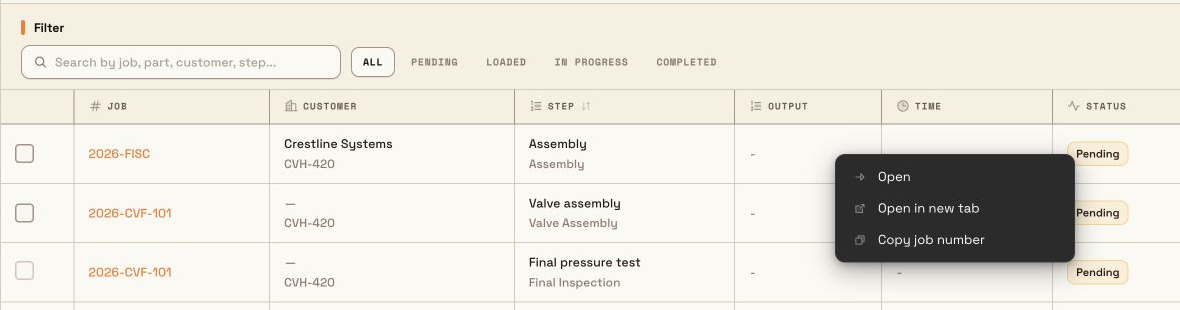
Right-click a transaction row to Open, Open in new tab, or Copy job number. Open and Open in new tab target that specific production step. Copy job number copies the displayed, read-only parent job number, not the transaction's internal ID, PO number, or step name, and confirms Job number copied.
Newly recorded steps may lag by a moment
The Transactions page is powered by search indexing, so a step you just started or completed can take a short time to appear or update. When results are still catching up, Bulk shows the note New records are still syncing. Latest results may not appear yet. Refresh after a moment if a very recent change is missing. The order Transactions tab reads that order's steps directly, so it does not show this note.
Transactions on an order
Open the order and select Transactions. This sheet lists the steps on that order's jobs. It is a different table from the Transactions page.
The heading is Transactions, followed by how many steps have loaded. While the first page is loading, Bulk shows Loading transactions. As more steps arrive, it shows a note such as Loading more transactions, 75 loaded, using the real count. An order with no steps shows No transactions in this order and Steps linked to this order's jobs will appear here.
The columns shown by default are Status, Job #, Step, Step #, Resource, Loaded on, Job status, Due, Process, and Routing. A # column numbers the rows. Status and Job # cannot be hidden, and Job # stays frozen.
Process shows the process code, a hyphen, and Rev. with the revision when both are set, for example CUT - Rev. 3. It shows the code alone when there is no revision, and the process name when there is no code. Routing shows the routing code, or the routing name when there is no code. Step is the step name. Step # is the step number as four digits, so step 10 reads 0010. Loaded on lists the asset names. Status is Pending, Loaded, In Progress, Completed, or Skipped.
Columns can also show Part (the part name, or the part number when the part has no name), PO #, Qty, Priority, Received, Started, Completed, and Created. Show all columns turns every column on. This sheet has no Output or Time column. Read those on the Transactions page or on the step itself.
The search box placeholder is Search transactions by job, step, or resource…. It matches the job number, step name, step number, resource, loaded asset, part name, process, routing, and PO number. The status buttons are All, Pending, Loaded, In Progress, Completed, and Skipped, each with a count. On a narrow toolbar they collapse into a button that reads Status: followed by the current choice, such as Status: All.
Right-click a column heading to filter it, or to choose Sort ascending, Sort descending, Move left, Move right, Reset width, Freeze up to this column, or Unfreeze all columns. If nothing matches, the sheet says No matching transactions and No transactions match your search or filter. Try adjusting them. Clear filters clears the search, the status choice, and the column filters.
Select Job #, or right-click the row, and choose Open transaction details. That opens the step in a dialog, with the same tabs as the transaction detail page. Open job details opens the job. This menu does not include Open, Open in new tab, or Copy job number.
When you can update production jobs, the sheet shows checkboxes. Select steps you can complete together and the bar offers Complete and Skip. It does not offer Undo. You can select up to 999 steps. Skip still stops at 100 steps and asks for a reason in the Skip step dialog. The selected steps must share the same step name and step number. A step that needs a signature cannot be bulk completed. A step blocked by an earlier step cannot be selected until that earlier step is done.
Open a transaction
Select a job number to open the transaction's detail page. The top bar shows the job number, a step label in the form Step n: Step name, and an optional customer and part line. A Back control returns you to the list, and an actions menu offers Open job (and Open order when the step belongs to a production order).
The detail page is organised into five tabs:
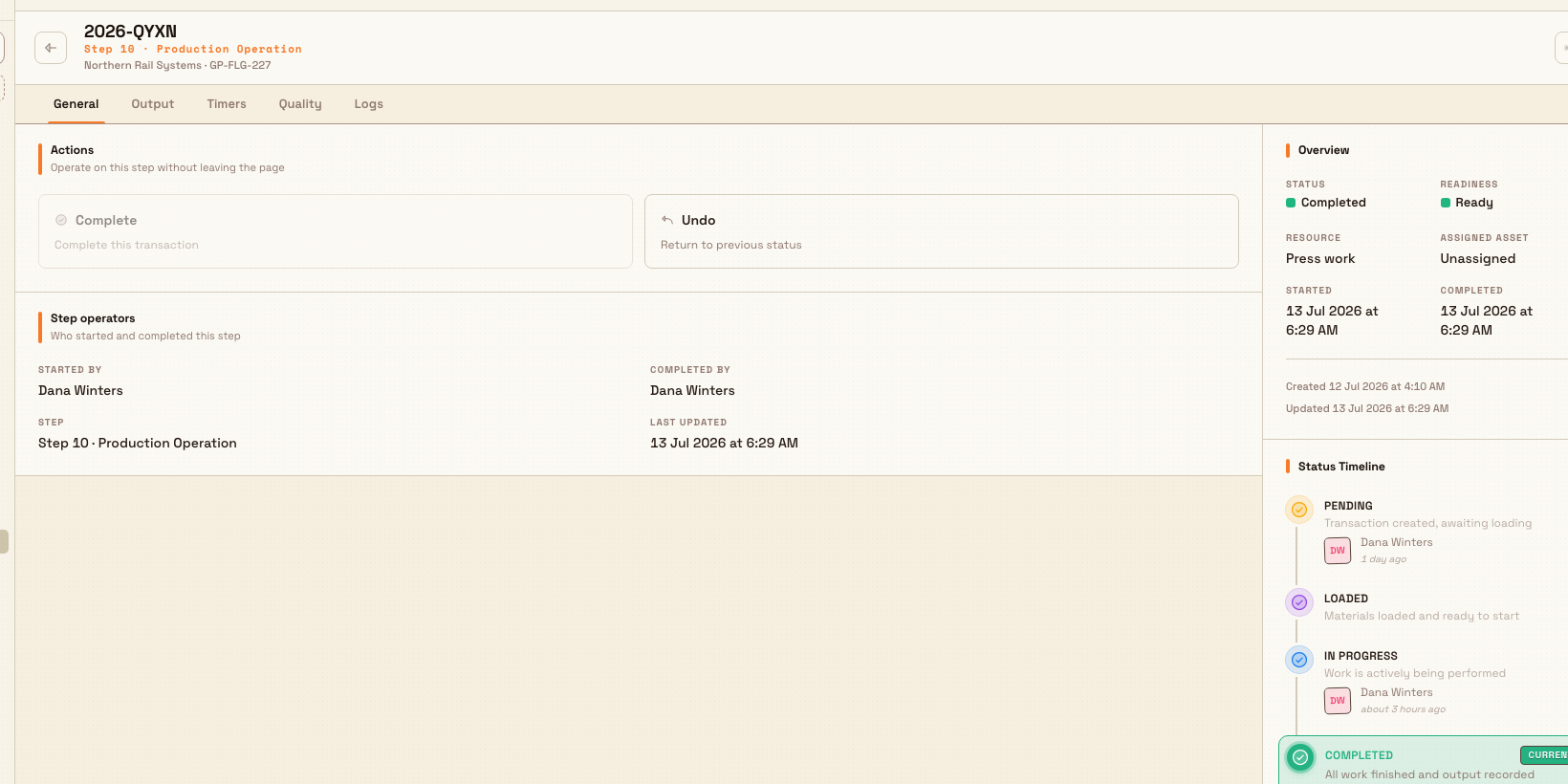
- General: the operating summary: an Actions panel (when you can operate), a Step operators card showing who started and completed the step, an Overview card with status, readiness, resource, assigned asset, and start and completion times, a Status Timeline of the step's lifecycle, and a Linked Job card with a shortcut into the full job.
- Output: the units recorded against this step, rolled up the same way as the job's output view.
- Timers: the time recorded against this step, including productive time and downtime.
- Quality: quality checks and defects recorded against this step.
- Logs: an Activity timeline of every status change, with the operator, timestamp, and any reason or note. This is the audit trail for the step.
Act on a transaction
From the General tab you can move a step through its lifecycle without leaving the page, provided you have the operate permission (production_operate.phase_complete, held by Super user, Entity admin, Tablet user, and Master data). The Actions panel offers:
- Complete: mark an in-progress step as done. This records who completed it and when, and writes an entry to the step's log. Complete is only offered when the step is ready to finish and is not blocked by an earlier step.
- Undo: return a completed step to an earlier state. A dialog lets you send it back to In Progress or Pending, and optionally reverse the production values recorded against it.
On the Output and Quality tabs, an Adjust values button appears when the step's routing allows corrections, letting you amend recorded output or quality figures.
Reversing production values changes recorded output
When you undo a completed step, the option to reverse production values removes the output and quality figures that were booked against it. This alters your production records and reporting for that step. Use it only when the values were recorded in error, and leave it unticked if you simply need to reopen the step while keeping what was already recorded.
You can also act on several steps at once from the Transactions page. When your role allows it, a checkbox column appears. A selection you can complete offers Complete and Skip. A selection you can undo offers Undo. Skip asks for a reason in the Skip step dialog and stops at 100 steps. Every selected row must be the same step and the same action. A step that requires a signature cannot be bulk completed. A blocked step cannot be selected until its previous step is done. You can select up to 999 steps to complete, and up to 100 steps to undo. Bulk Complete and Skip require the update permission (production_jobs.update, held by Super user, Entity admin, and Operator). Bulk Undo requires the operate permission above.
Starting and loading a step onto a machine happens on the shop-floor Operate screen, not here. See Complete a production phase and Record production output for the operator-side flow.
A Wayne Enterprises example
At Wayne Enterprises' Gotham Applied Sciences site, you are reviewing component jobs for Kane Industries. Open that order and select Transactions, then select In Progress. Resource shows which of those steps need machining. Due flags one that is overdue. Process and Routing show the process revision and routing on that row.
Select Job # on that row and choose Open transaction details. The Status Timeline shows it started two hours ago, the Timers tab shows a stretch of downtime while a tool was changed, and the Output tab shows only a handful of units so far. You can see why the step is behind.
Later, someone completes the wrong machining step. Set the status filter to Completed, open the step, and select Undo. Send it back to In Progress and leave the reverse-values option unticked so the genuine output already booked is kept. The Logs tab records the undo, with your name and the time, so the correction is fully traceable.
Expected result
After you filter or search, the Transactions page shows only the production steps that match, and each row reflects the latest indexed status, output, time, and due date. On an order, the Transactions tab shows that order's steps, including Process and Routing, from the order itself rather than from the search index. Opening a step gives you its complete picture across the five tabs. Completing or undoing a step updates its status, records the change against your name with a timestamp, and adds an entry to the step's Logs timeline. That same trail feeds auditing and reporting.
Feature state and limitations
Transactions is available. The Production menu does not mark it Beta. These boundaries still apply:
- It is a review surface, not the operator console. You can complete, undo, and adjust from here, but starting a step, loading it onto a machine, running timers, and recording output as work happens all belong to the shop-floor Operate screen.
- Only the most recently completed step in a job can be undone. Undo is offered for the latest undoable step so that a job is unwound in order; earlier completed steps cannot be undone until the ones after them are.
- Undo applies only to completed steps. A step that is not in a completed state has nothing to undo. The order Transactions sheet can bulk complete or skip. It does not offer bulk Undo.
- The Transactions page depends on search indexing. Very recent changes can lag briefly, signalled by the syncing note described above. The order Transactions tab does not use that index.
- Process and Routing belong on the order tab. That sheet shows Process and Routing by default. The Transactions page has no Process column. Its optional Routing column is the routing code only.
Troubleshooting
- A step you just completed is not on the Transactions page, or its status looks stale. Search indexing is still catching up. Wait a moment and refresh; the syncing note appears while results are updating. On an order's Transactions tab, clear the search and the status filter instead. That tab does not wait on the search index.
- You cannot find Process or Routing on the Transactions page. Those columns are on the order's Transactions tab. On the page, Columns can show Routing, and that column is the routing code only.
- The Complete or Undo action is not available on a step. Complete only appears for a step that is ready to finish and not blocked by an earlier step; Undo only appears for a completed step, and only for the latest completed step in the job. Confirm the step's state on the General tab.
- You cannot select a row for a bulk action. The row may be on a different step or action type than the rest of your selection, may require a signature, or may be blocked by an unfinished earlier step. Bulk selections must stay on one step and one action type.
- You can see the list but cannot open a step's details. Opening the detail page needs the View production jobs permission. Ask an administrator to confirm your role includes it.
Related
Edit a production routing
Change one job's step sequence without editing the shared routing template, and skip an optional step that has not started by recording a reason.
Respond to a blocking pre-use check
Clear a workstation that Bulk has blocked from production by completing its compulsory pre-use check, or by requesting a time-limited supervisor override.