Edit a production routing
Change one job's step sequence without editing the shared routing template, and skip an optional step that has not started by recording a reason.
Last updated
A production routing is the ordered set of steps a job travels through on its way to completion. A job is one unit of production work, and each step is normally tied to a resource: a workstation, machine, or work centre where the step is carried out. The job stores its assigned routing and revision directly; its process instruction is a separate choice and does not supply or imply the routing.
Editing a production routing lets you change that step sequence for one specific job: add a step, remove a step that has not started, reconnect steps, or reconfigure a step. The change is scoped to the job you are editing, so the shared template and every other job stay exactly as they were.
Use this when a single job needs to deviate from the standard route: for example a customer asks for an extra treatment, a job needs a rework loop, a planned step is no longer needed, or the routing simply no longer matches what the shop floor will actually do for this job.
Job routing versus master routing
This editor customizes the routing of one job. To change the template that new jobs start from, edit the routing in master data instead. See Manage routings.
Before you start
You need the following in place:
- Permission to edit jobs. Making and saving routing changes requires the
production_jobs.updatepermission. In the default roles this is included in Super user, Entity admin, and Operator. Roles that can only view jobs can open the job, but the Edit routing action does not appear for them. - A job that can be edited. A job's routing can be edited only while the job is active. Completed, cancelled, and awaiting-approval jobs cannot be edited, and neither can a job that is locked by a submitted or issued invoice. If any of these apply, the editor opens to a This job cannot be edited message instead of the canvas.
- The right plant selected. Routing edits are scoped to the entity (plant) that owns the job. Work in that plant. If you open the editor while a different plant is selected, Bulk shows This job routing is not available in this entity.
Open the routing editor
- Go to Production and open Jobs, then open the job you want to change. See Review production orders and jobs for how orders break down into jobs.
- On the job's top bar, select the Job actions button: the three-dots menu at the top right.
- Choose Edit routing. Bulk opens the routing editor for that job.

What you see on the screen
Header. The top bar shows a Back to job control, the title Job followed by the job number, and a small version pill. The pill reads custom once the job's routing has been customized, otherwise a template version such as v3, or job. A Routing tab shows the current step count, and a status line reads Unsaved changes while you have pending edits or a Saved time (for example, "Saved 2h ago") when everything is saved.
Header actions. On the right you may see:
- A locked indicator, such as "3 locked", when some steps cannot be changed (explained below).
- A Discard button, which appears once you have unsaved changes and reverts the canvas to the last saved routing.
- A Save Changes button, which commits your edits.
Canvas. The main area is the same visual builder used for master-data routings. Steps appear as connected cards flowing from a start point to an end point. A floating dock at the bottom lets you add steps: pick a resource for a normal step, or add a Conditional Split (a decision that branches the routing), a Repeat Group (a block of steps that repeats), or an Invoicing step. Drag a component from the dock onto the canvas to add it, drag between step handles to connect two steps, and double-click a step to open its configuration. If anything is invalid, a validation panel appears in the top-right corner listing what to fix.
Which steps you can change
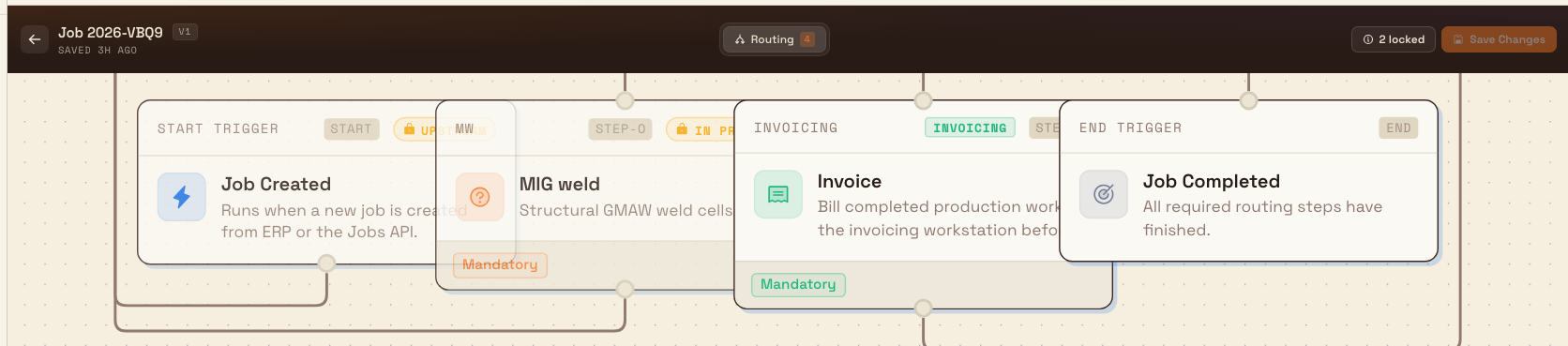
Not every step can be edited. A step is locked when it is already completed, in progress, or loaded onto an asset: and every step upstream of a locked step (any step that feeds into it) is locked too. Locked steps show a lock and a visible reason badge such as Completed, In Progress, Loaded, or Upstream of in progress step, and they count toward the "locked" indicator in the header.
You cannot move, edit, remove, or reconnect a locked step, and you cannot draw a new connector to one. In practice this means you edit the part of the routing that has not started yet: the tail of steps after the work currently underway.
Why upstream steps are locked too
Locking everything upstream of started work keeps the recorded production history consistent. If a later step is already running, the steps that led into it define how the job got there, so Bulk freezes them and lets you change only what comes next.
Make and save your changes
- Add, remove, reconnect, or reconfigure the steps that are not locked. Drag a component from the dock to add a step, connect it into the flow, and double-click it to set it up.
- Review the header status line: it switches to Unsaved changes as soon as you edit something.
- Select Save Changes. This button is enabled only when you have unsaved changes and the routing passes validation. When it is disabled, hovering it explains why, with hints such as Fix validation errors first or No changes to save.
When the save succeeds, Bulk reconciles the job's steps to match the new routing and confirms with Routing updated and a short summary such as "1 steps added, 0 steps removed". Added steps are the new ones you inserted; removed steps are pending steps you deleted, which are unwound from the job. Every routing change is written to the job's audit trail.
Changes take effect on the live job
Saving updates the steps for this job immediately. Operators at the job's downstream stations will see the revised sequence the next time they load the job. If you leave the editor with unsaved edits, Bulk asks you to confirm before discarding them.
Skip an optional step
Skipping is not the same as deleting a step on the canvas. You leave the step on the job, record that the work was not performed, and release the next step. You do this from the job's Routing tab, not from the routing editor.
A step can be skipped only when it was created as optional. That setting can come from the master routing, or from a step you add here. Steps you drag onto the canvas start with Mandatory Step switched on, and the step shows a Mandatory tag while that switch is on.
To add an optional step in this editor:
- Double-click a step that is not locked. The dialog title is the step name. For a normal step, the description reads Configure modes, items, forms and options for this manufacturing step.
- Open Options.
- Turn Mandatory Step off. Step Name is on the same tab.
- Select Done to close the step. Done does not save the routing. Select Save Changes on the editor.
Bulk copies that setting onto the step when it creates the step. If the step is already on the job, turning Mandatory Step off and saving does not change the existing step, so Skip still does not appear. To replace a step that has not started and is not locked, remove it, add it again with Mandatory Step off, and save. An Invoicing step keeps Mandatory Step locked on, so you cannot turn it off. Saving a routing that marks that step optional fails with Invoicing must remain a mandatory step.
You need Edit production jobs (production_jobs.update), the same permission as saving a routing. In the default roles that is Super user, Entity admin, and Operator.
To skip one step:
- Open the job and select the Routing tab. This is the list of steps on the job, not the routing editor.
- On the optional step, select Skip. When the step can be skipped, the tooltip reads Skip this optional step. The button stays on the step when the card is collapsed. It is shown only for an optional step, and it is never shown for an invoicing step.
- In the Skip step dialog, read the confirmation. It names the step and the job number, then says the skip releases the next routing step and records that the work was not performed.
- Enter the reason under Reason (required). The field prompt is Why is this step not needed? You must enter text. Spaces alone do not count, and the reason can be at most 1000 characters. Skip step stays disabled until the reason is valid. Cancel closes the dialog without skipping.
- Select Skip step. While it saves, the button reads Skipping.... When it succeeds, Bulk confirms Step skipped.
You can skip a step that is pending or loaded, as long as no work has been recorded on it. Skipping a loaded step unloads it from the asset. The skip does not record output or time, and it does not mark the step completed.
The reason is kept on the step and in the audit trail:
- On the Routing tab, the step shows a Skipped chip. When the card is collapsed and Bulk knows who skipped it, the line reads Skipped by that person's name, a colon, and the reason. Expand the step to read Skipped by that name on the date and time, with the reason under that line.
- On the job's Logs tab, the Event column shows
PRODUCTION.JOB.ITEM.SKIPPED. The Subject is the job number, a hyphen, and the step name. The Activity column reads as the person's name, then "skipped", then that same subject. Open the row. Under Changes, Skip Reason is the text you entered and Status changes toskipped. Under Metadata, the same text is listed as Reason. - The same text is stored on the step's status history. Open the step from Transactions and, on its Logs tab, expand the status change. That row labels the text Reason, and the status reads Skipped. If you later select Undo, the Undo Step dialog says the step will return to Pending and that the skip and its reason remain in the history. Undo clears the reason from the step card. The log rows stay.
You can skip several optional steps at once from Production, then Transactions, or from an order's Transactions tab. Select the rows. When you have Edit production jobs, the selection bar includes Skip. That dialog is also titled Skip step. It says how many items are selected and that the same reason applies to every selected step. The label is Reason with a required asterisk. The prompt is Why are these steps not needed? Ineligible rows are taken out of the selection, and the dialog reports how many were removed. If none remain, it says No selected steps are eligible to skip. and the footer button is Close. Otherwise confirm with Skip 1 step or Skip N steps (the button uses the eligible count). You can skip up to 100 steps at a time. Success reads 1 step skipped. or N steps skipped. If the skip fails, nothing in that selection is skipped, and the dialog says Nothing was skipped. Review the updated selection before confirming again.
Example: refining a housing inspection at Gotham Applied Sciences
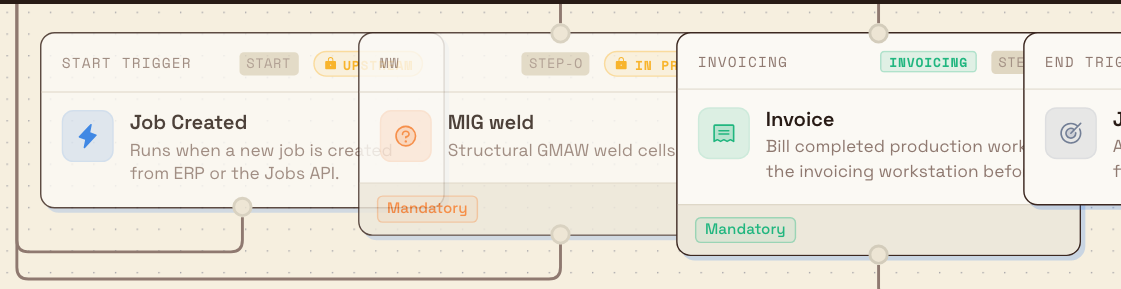
Job 2026-0MHA makes a housing for GCPD Fleet Services. Assembly is already complete, while Inspection and Invoicing have not started. Bruce opens Job actions, then Edit routing. The editor shows v2, five nodes including the start and end triggers, and two locked nodes: Assembly and its upstream start trigger.
Suppose the team wants a clearer inspection label for this one job. Bruce double-clicks the pending Inspection step, opens Options and sets Step Name to Final Inspection. After Done, the header shows Unsaved changes, Discard and Save Changes. Assembly still shows its Completed lock reason.
The screenshots show that unsaved example. Discard restores the original Inspection label. Saving instead would customize this job's routing; it would not change the master template or other jobs.
Expected result
After a successful save, the job's remaining steps follow your new sequence. The header status line shows a fresh Saved time, the version pill reads custom, and the step count reflects any steps you added or removed. Downstream stations pick up the updated routing when they next load the job. Completed and in-progress steps are unchanged: you only ever altered the not-yet-started part of the route.
If something looks wrong
- "This job cannot be edited." The job is completed, cancelled, awaiting approval, or locked by a submitted or issued invoice. Resolve the approval or invoice first; a job in a terminal state cannot have its routing changed. Use Back to Job to return.
- "This job routing is not available in this entity." You are working in a different plant from the one that owns the job. Switch to the job's plant, then reopen the editor. Use View Jobs to go back to the jobs list.
- Save Changes stays greyed out. Either you have not changed anything yet, or the routing has validation errors. Check the validation panel in the top-right corner and fix each flagged step, then try again.
- "Failed to update routing." The change broke a rule: for example an invalid placement of an Invoicing step: or the job became locked (awaiting approval or invoice-linked) while you were editing. Read the message, adjust the routing, and save again. Nothing is saved when this appears.
- A step will not move or delete. It is locked because it is completed, in progress, or loaded, or because it sits upstream of such a step. This is expected; edit the pending steps that follow instead.
- Skip is missing. The step was created as mandatory, or it is an invoicing step. Mandatory steps do not show Skip. Remove a step that has not started and is not locked, then add it again with Mandatory Step off.
- Skip stays disabled. Hover it. The tooltip is the reason Bulk is refusing, for example Only steps with no work started can be skipped., This step already has work recorded., Dependencies must be completed or skipped first., This job is not open for production., This job is locked by its invoice., This order is on hold and cannot be loaded or processed., or You do not have permission to update jobs.
- Skip step stays disabled in the dialog. The reason is empty or only spaces. Enter 1 to 1000 characters. A bulk skip that includes a step that cannot be skipped names that job and step, then asks you to review the selection and try again. Nothing in that selection is skipped.
Feature state and limits
This editor is generally available. A few things are worth knowing:
- Edits are scoped to the single job you open. They never change the master-data routing template or other jobs.
- Locked steps: completed, in progress, or loaded steps, and everything upstream of them: are read-only. You can only edit the steps that have not started.
- Jobs that are awaiting approval or locked by a submitted or issued invoice cannot be edited until that state is resolved.
- Save Changes requires both unsaved edits and a routing that passes validation; there is no partial or draft save.
- Skip is only for an optional step that is pending or loaded and has no recorded work. The reason is required. An invoicing step cannot be skipped, and turning Mandatory Step off on a step that already exists does not make that step optional.
Related guidance
- Review production orders and jobs: how orders break down into the jobs you edit here.
- Complete a phase: how operators work through a job's steps on the shop floor.
- Manage routings: edit the master template that new jobs start from, and learn the full routing builder.
- Production overview: the wider shop-floor workflow.
Review production orders and jobs
Find, filter, and inspect customer production orders and their jobs on the Production Orders and Production Jobs screens, then open either in full.
Review production transactions
Search and review every production step across your jobs, inspect its output, time, quality, and history, and complete or undo steps in one place.