Review and accept an Auto-plan
Filter work for automatic scheduling, confirm written guidance, inspect proposed placements and skipped work, then accept or reject the plan.
Last updated
Auto-plan proposes machine times for a selected part of your backlog. Select Start, review the proposal on the board, then choose Accept or Reject. Starting a preview does not place work on the saved plan.
Before you begin
Open Scheduling at /scheduling/home for the correct plant. Viewing options and previews needs View job planning (scheduling.view). Starting, confirming, accepting or rejecting needs Plan jobs (scheduling.plan). Only the person who started the preview can make its decisions.
Set up resource planning and any cycle machine restrictions first. Plan crew before starting if the machines need operators. Auto-plan does not assign people, start timers or load jobs.
Choose the work and window
- Select Auto-plan in the planning board header.
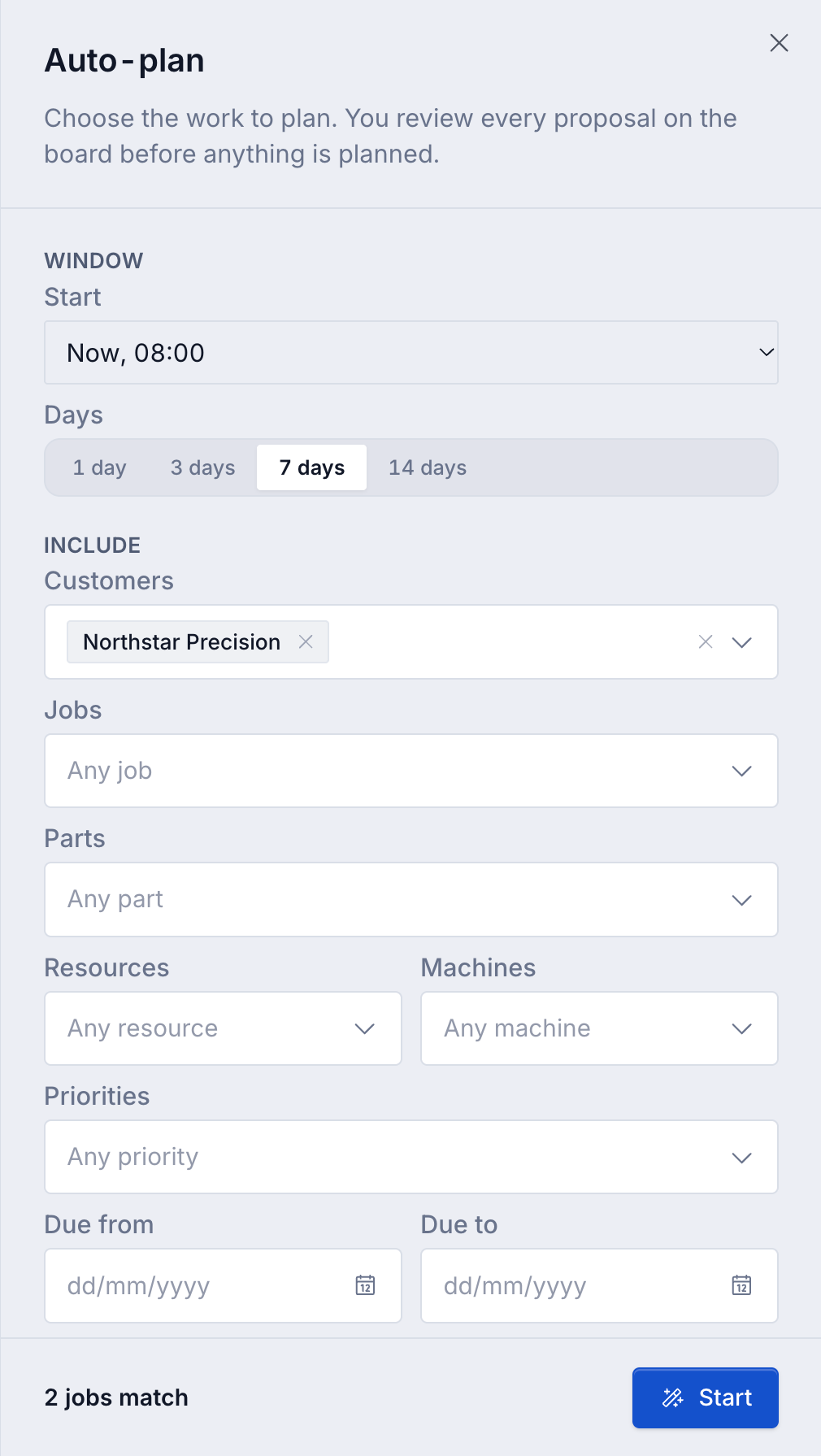
- Under Window, choose Start from the available start options and Days: 1 day, 3 days, 7 days or 14 days.
- Under Include, narrow Customers, Jobs, Parts, Resources, Machines and Priorities as needed. An empty picker means any value. Set Due from and Due to if only a range of required dates should qualify.
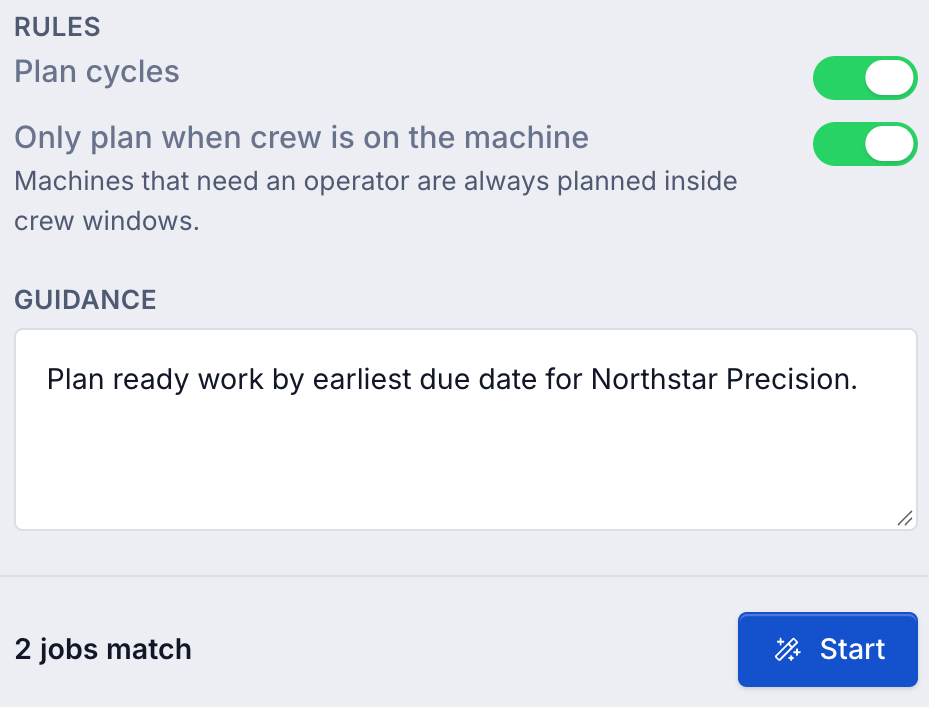
- Under Rules, choose whether to Plan cycles. Turn on Only plan when crew is on the machine to require crew for every selected machine. Machines configured to need an operator always require crew, even when this switch is off.
- Optionally enter Guidance, up to 500 characters.
- Check the matching-job count and select Start.
The count is a preview of matching jobs, not a promise of how many items will be placed. Parts and machine eligibility are checked when planning runs. Up to also warns that the available options were limited. A job can contribute several step or cycle placements.
Confirm written guidance
Guidance can ask for earliest due dates, priority or current queue order, ready work only, or preference for a selected customer or priority. It does not override machine compatibility, cycle restrictions, earlier steps, crew or occupied time.
When the interpretation needs confirmation, the board shows Confirm this reading with its summary. Choose Plan this only if the reading matches your intent. Reject ends that request so you can start again with clearer guidance. Plan this computes a proposal; it does not accept placements.
Review the proposal
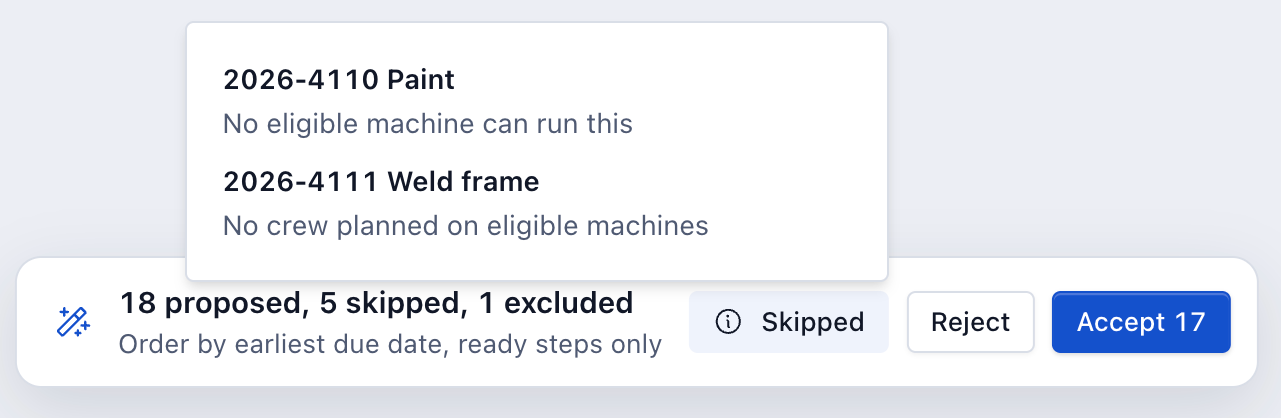
Proposed blocks appear over the board. The review bar reports how many items are proposed, skipped and excluded.
- Select a proposal to leave it out. Select it again to include it. The Accept count changes with your exclusions.
- Select Skipped to read the job, step or cycle and its reason.
- Check that the proposed machine, time and sequence fit the work before accepting.
Auto-plan keeps existing saved placements, respects earlier steps and cycle order, and finds unoccupied time in the chosen horizon. It considers up to 200 items per run. Narrow the scope and run another preview for remaining work.
Common skipped reasons are:
| Message | What to check |
|---|---|
| No eligible machine can run this | Resource compatibility, cycle restrictions, chosen machine filter, and maintenance/offline state. |
| No free time on eligible machines in this window | Occupied slots, run length and planning horizon. |
| No crew planned on eligible machines | Add a crew assignment on a suitable machine. |
| This run is longer than the crew window | Plan a suitable staffing window or review the cycle's expected duration. |
| Earlier step does not fit in this window | Plan the earlier routing work or choose a wider horizon. |
| Auto-plan places at most 200 items per run | Narrow the selection and plan the rest in another run. |
Accept or reject
Select Accept followed by the count to save the included proposals. The board shows Placing accepted items while they are applied. Wait for the result, then read the placed count and any item-specific failures.
Bulk rechecks work when applying it. If someone has already planned an item or another rule now prevents placement, that item can fail without placing it twice. Do not assume every proposed item was saved. Review the result and start a fresh preview for work that remains.
Select Reject to discard the preview without creating its placements. A preview can expire if left undecided; start a new one against the latest board rather than trying to use an old proposal.
If Auto-plan cannot finish
- Start is disabled. Wait for options to load, choose filters that match work, check Plan jobs permission, and wait for any current request to finish.
- A request is already active. Finish or reject your existing preview before starting another. Reloading can restore your current preview.
- Confirm this reading is shown. Review it and choose Plan this or Reject before computation continues.
- Auto-plan failed. Read the error. Choose Try again, or Dismiss and correct the scope or staffing first.
- Crew data is incomplete. Narrow the window or employee/assignment scope. Bulk will not compute from a truncated crew read.
- The accepted total is lower than expected. Read the failed-item reasons. The saved board, not the earlier preview, is the result.