Plan process cycles
Choose which resources are planned by step or cycle, restrict eligible machines, and place each process cycle on the planning board.
Last updated
To plan cycles separately, enable Cycles for the resource in Planning settings, then expand the job in Scheduling's Work queue and place each cycle on a compatible machine. A cycle placement is a plan. It does not record a production cycle or load the job.
Before you begin
- Select the plant whose work you are planning.
- View job planning (
scheduling.view) opens the board. Plan jobs (scheduling.plan) is needed to place, move or remove work. - Viewing the Resources tab in Planning settings needs
resources.view. Changing its switches needsresources.update. - Viewing a process catalogue's Cycles tab needs
processes.view. Changing a cycle's allowed machines needsprocesses.update.
Choose the planning level
- Open Scheduling and select the Display settings gear. It opens Planning settings at
/scheduling/display. - Select Resources.
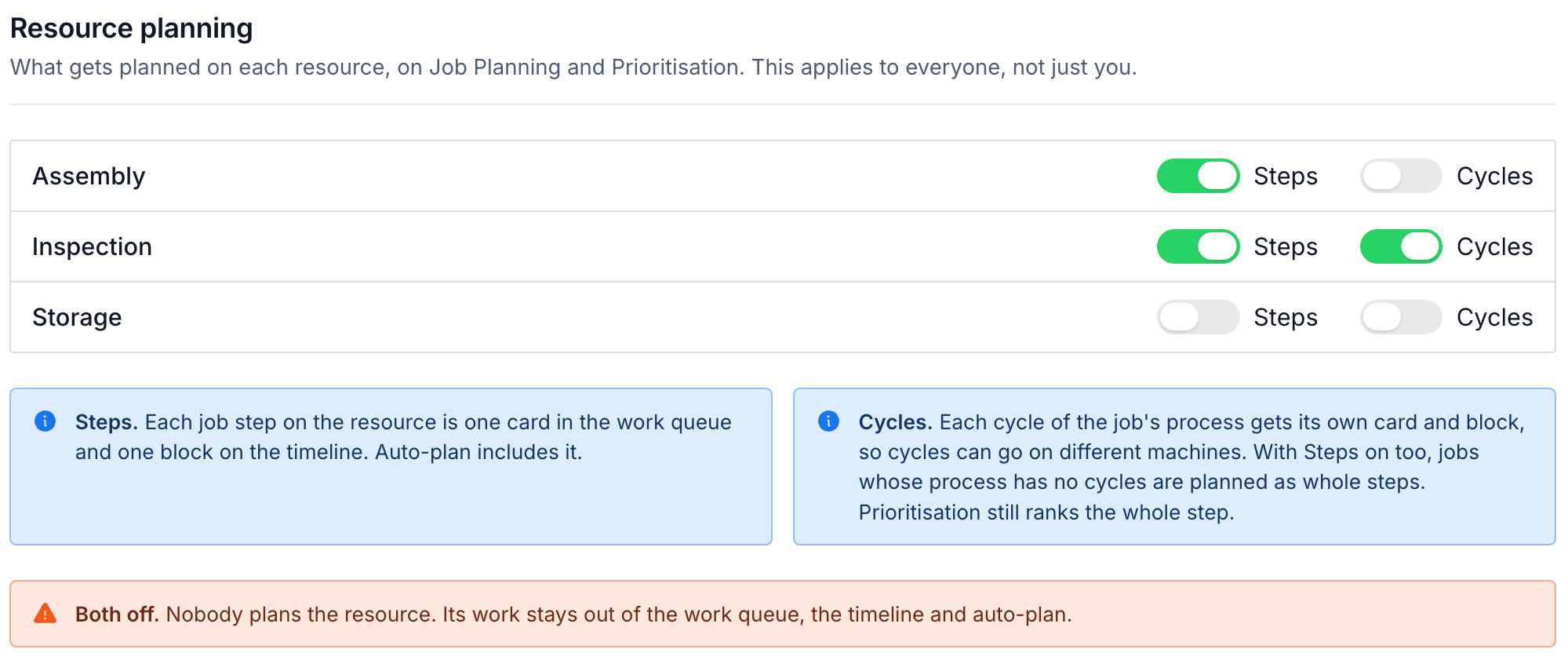
- Find the resource and choose its Steps and Cycles switches.
- Select Save changes. If you leave with changes, use the leave warning to stay and save or discard them.
These resource switches apply to everyone in the organization. They are separate from the personal display preferences on the other tabs. The same rules apply to Scheduling and the shared Prioritisation work queue.
| Steps | Cycles | What is planned |
|---|---|---|
| On | Off | Each whole job step. This is the default. |
| On | On | Individual active cycles when the process has them; otherwise the whole step. |
| Off | On | Individual active cycles only. A process with no active cycles has no work to plan here. |
| Off | Off | Work on this resource stays out of the planning queue and Auto-plan. |
Changing the switches does not delete existing placements. A placement on a resource you have made non-plannable remains visible with an issue for you to review.
Choose which machines may run a cycle
- Open Settings > Master Data > Processes, then open the process's catalogue.
- Select Cycles and find the cycle. Use Manage Cycles on the process to add or edit its cycles when needed.
- In the cycle's Machines cell, choose All machines, Asset types, or Specific machines.
- Select the allowed types or machines when required, then select Save.
A machine must also accept the step's resource. A cycle restriction narrows those compatible machines; it does not make an incompatible machine eligible. Restrictions apply when planning an individual cycle. They do not restrict a whole step planned as one block.
Place and move a cycle
- Return to Scheduling > Job planning at
/scheduling/home. - Expand the order and job in Work queue. A cycle-planned step shows its active cycles separately.
- Identify the cycle by its name, job and resource. Drag its row onto an eligible machine at the intended time, or select it and use the keyboard planning dialog.
- Check the cycle label and time on the resulting block. Move the block to change machine or start time, or resize its right edge to change duration.
- Return a placement to the queue when it should no longer be planned there.
Each cycle has its own placement. Cycle blocks cannot be quantity-split or grouped into planning batches like whole steps. A cycle that has already been recorded is treated as covered and is not offered again as unplanned work.
A planned duration uses the cycle's timer goal plus OEE target, rounded up to a 15-minute interval. With no usable cycle time, Bulk uses one hour. A whole step uses the combined time of its active cycles. Resizing changes the plan, not those process targets; Reset to estimate restores the calculated duration.
How this appears in Prioritisation
Prioritisation ranks whole steps. A step whose resource is planned by cycle still appears there as one step, rather than separate cycle chips. Ranking it does not create timed cycle placements. Use Scheduling to plan those cycle times.
If work cannot be placed
- The cycle is missing. Check that it is active, its resource has Cycles enabled, the job is open and the cycle is not already placed or recorded.
- The machine is refused. Check both resource compatibility and the cycle's Machines restriction. Maintenance or offline machines cannot take new Auto-plan work.
- Resources is missing or read-only. Ask for resource view/update permission. Plan jobs alone does not allow changing shared resource rules.
- An existing block has an issue after settings changed. Review or move that placement. Turning planning off does not remove evidence of a plan.
Related guidance
Hand planned work to production
How the Scheduling planning board hands work to the shop floor: what a plan does, how production picks it up, and how the board mirrors reality.
Plan people on machines
Assign a shift to a machine, split time between machines, resize or remove an assignment, and understand crew warnings.