Unload production work
Take finished or paused work off an asset — one job, all jobs, or a single routing step — to free the machine for the next job and stop any running timer.
Unloading is how you take work off an asset — a machine, bench, or workstation on the shop floor — when you are finished with it or need to free it for something else. It is the opposite of loading: loading assigns a job (a unit of work travelling through your routing) or a single routing step (one operation in that job's sequence) to an asset; unloading releases it again.
Use it when a job is done at this machine, when you loaded the wrong job, when you need the machine for a more urgent job, or when Bulk tells you that completed work is still sitting on the asset and must be cleared before you move on.
Unloading does not throw work away. When you unload, the step returns to a loadable state and you can reload it later from the job-loading screen. If a timer (the clock that records how long work runs on an asset) is running on the work you unload, Bulk stops that timer first and saves the time tracked so far.
Unloading is reversible
Unloaded jobs are not cancelled or completed — they simply leave the asset and go back to the queue of loadable work. You (or another operator) can load them again on the same asset or a different one.
Before you start
You need the following in place:
- Permission to unload. Unloading requires the
production_operate.unloadpermission. In the default roles this is included in Super user, Entity admin, Tablet user, Invoicing, and Master data. The default Operator and Manager roles can view and run production but do not include the unload permission, so an administrator must grant it if those users need to unload. - Something loaded to unload. An asset only offers unload controls when it currently has at least one job or step loaded on it.
- No blocking pre-use check outstanding. If a required pre-use check is blocking production on the asset, the unload controls on the production home screen are disabled until the check is completed or a supervisor overrides it. See Blocking pre-use check.
Where you can unload
There are three places to unload, depending on what you are doing:
- From the production home screen — the everyday path for an operator at a workstation. Unload one loaded job, or unload every job on the asset at once.
- From a routing step — inside a job's detail view, remove a single loaded step from its asset.
- From the automatic "Completed items still loaded" prompt — Bulk requires you to clear completed work that is still on an asset before you continue.
Unload from the production home screen
This is the usual way an operator clears an asset.
- Open Production and select the asset or workstation you are working at. See Select an asset or workstation.
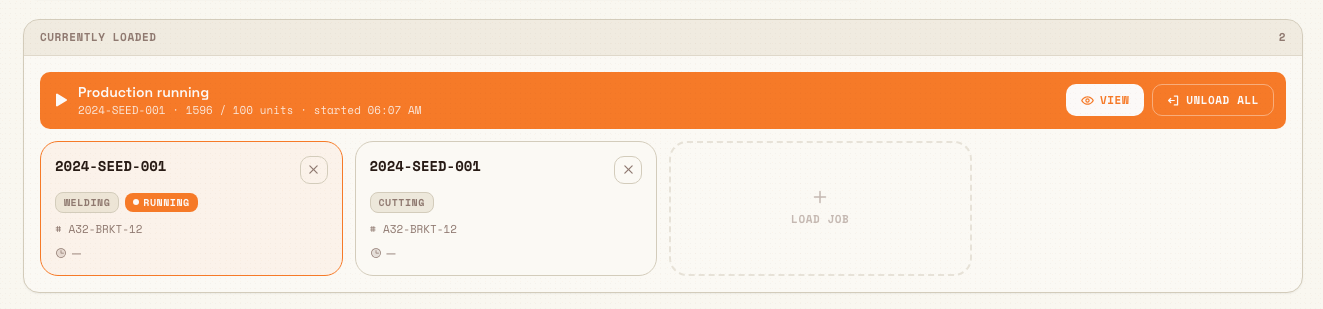
- On the workstation home screen, find the loaded-jobs area. A banner at the top shows the asset's current state:
- Production running — a timer is running. The banner shows the running job and offers View and Unload all.
- Loaded · not running — jobs are loaded but no timer is running. The banner reads "N jobs on asset · press Resume to start" and offers Resume and Unload all.
- Below the banner, each loaded job appears as its own card with an unload control (a small button labelled to unload that job number).
production.unload-work-01
Unload a single job
- On the job's card, select its unload control.
- Bulk opens the Unload Job? confirmation dialog. It reads "This will unload job [job number] ([step code]) from this asset. You can reload it later from the job selection screen."
- If that job is part of a running timer, the dialog adds a note: "Timer will be stopped. This job is part of the running timer. Unloading will stop the timer and save all tracked time." The confirm button then reads Stop Timer & Unload instead of Unload Job.
- Select Unload Job (or Stop Timer & Unload) to confirm, or Cancel to keep the job loaded.
Unload every job at once
- In the banner, select Unload all.
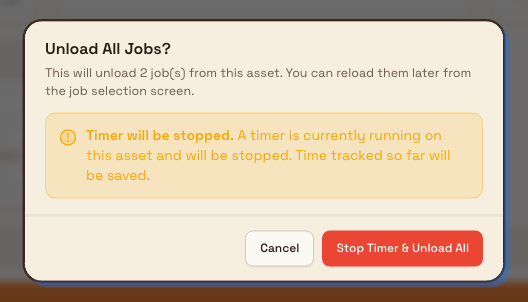
- Bulk opens the Unload All Jobs? confirmation dialog: "This will unload N job(s) from this asset. You can reload them later from the job selection screen."
- If a timer is running on the asset, the dialog adds: "Timer will be stopped. A timer is currently running on this asset and will be stopped. Time tracked so far will be saved." The confirm button reads Stop Timer & Unload All.
- Select Unload All (or Stop Timer & Unload All) to confirm, or Cancel to keep the jobs loaded.
production.unload-work-02
What happens to the timer
Stopping the timer during an unload does not discard your time. Bulk records the elapsed time against the work before the asset is cleared, so your production and downtime figures stay accurate. See Timers.
Unload a single routing step
You can also unload one step from inside a job, without going to the workstation. This is useful for correcting a step that was loaded onto the wrong asset.
- Open Production, go to Jobs, and open the job you want.
- Open the Routing tab, which lists the job's steps.
- On a step that is currently loaded on an asset, select Unload. The button carries the tooltip "Unload this step from the asset." Bulk removes the step from the asset and confirms with "Step unloaded from asset."
The Unload button only appears while a step is loaded. Steps that are still pending, or already completed, do not show it.
Why the Unload button might be greyed out
If a step's Unload button is visible but disabled with a lock tooltip, the job is linked to an invoice that is awaiting approval or has already been issued, so its production can no longer be changed. Resolve the invoice first. See Orders and jobs.
The "Completed items still loaded" prompt
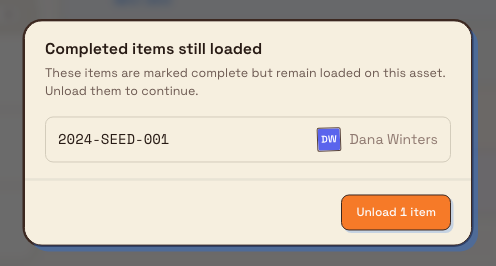
Completed work should not stay loaded on an asset. When Bulk detects job items that are marked complete but are still loaded, it shows a Completed items still loaded dialog that you cannot dismiss until you clear them. It reads "These items are marked complete but remain loaded on this asset. Unload them to continue," and lists each completed job number with the name of the person who completed it.
Select Unload N items to clear them and continue. There is no cancel — clearing completed work is required so the asset is ready for the next job.
production.unload-work-03
What happens when you unload
After you confirm an unload:
- The work leaves the asset. The loading record is closed and the asset is free to take the next job.
- The step returns to a loadable state. A step that is not loaded anywhere else goes back to pending, ready to be loaded again. If the same step is still loaded on another asset — for example, when it runs on two machines in parallel — it stays loaded there. See Load work onto multiple assets.
- Any running timer for that work stops. Bulk saves the tracked time before the asset is cleared.
- Nothing is lost. You can reload the job or step later from the job-loading screen. See Load a job.
Example: freeing a mill at Leeds Fabrication Plant
Granite Peak Manufacturing runs a production tablet on CNC Mill 2 at its Leeds Fabrication Plant. Priya, an operator, has three jobs loaded on the mill and a timer running on the first, job J-10427.
An urgent job comes in that must run on the same mill. Priya opens Production, selects CNC Mill 2, and sees the banner reading Production running with job J-10427. She selects Unload all. The Unload All Jobs? dialog warns that three jobs will be unloaded and that the running timer will be stopped, with the time tracked so far saved. She selects Stop Timer & Unload All. Bulk stops the timer, records the elapsed time against J-10427, and clears the mill. The three jobs return to the queue, and Priya loads the urgent job onto the now-empty mill.
Later, a colleague finishes a job on the same asset but leaves it loaded. When Priya next opens the operate screen, the Completed items still loaded dialog appears and lists that finished job. She selects Unload 1 item to clear it, and the asset is ready again. The three jobs she unloaded earlier are still waiting in the queue for whenever the mill is free.
Feature state and limits
Unloading production work is generally available. A few behaviours are worth knowing:
- Unloading changes only where work sits — it does not complete, cancel, or delete a job. To finish work, complete its steps instead; see Complete a phase.
- On the production home screen, unload controls are disabled while a required pre-use check is blocking the asset. The tooltip reads "Production is blocked. Complete required checks or request supervisor override."
- The Completed items still loaded prompt cannot be dismissed. You must unload the listed completed items before you can carry on at that asset.
- When a step is loaded on more than one asset, unloading it from one asset leaves it loaded on the others.
If something looks wrong
- The unload controls are greyed out. A pre-use check is likely blocking the asset. Complete the required check, or ask a supervisor to override it, then try again. See Blocking pre-use check.
- A step has no Unload button. The button only shows while the step is loaded on an asset. A pending or completed step will not offer it.
- The Unload button is disabled with a lock message. The job is tied to an invoice awaiting approval or already issued, so its production is locked. Resolve the invoice before unloading.
- You are told there is no asset to unload from. The step is not currently loaded on an asset, so there is nothing to release.
Related guidance
- Select an asset or workstation — open the asset before you unload.
- Load a job — reload work you have unloaded.
- Timers — how unloading stops and saves a running timer.
- Load work onto multiple assets — why a step can stay loaded elsewhere after you unload it.
- Complete a phase — finish work rather than just unloading it.
- Blocking pre-use check — why unload controls may be disabled.
- Production overview — the full shop-floor workflow.
Skip or complete a production phase
Finish the routing step a job is on at a workstation with Complete Stage or Complete Step, understand when items are skipped, and undo a completed phase if you need to.
Review production orders and jobs
Find, filter, and inspect customer production orders and the jobs they contain from the Production Orders and Production Jobs screens, then open either one to see its full detail.