Load a production order
Pick a customer production order at a fulfillment or invoicing workstation and open it so you can start work on its ready jobs.
Loading a production order is how an operator at a fulfillment workstation or an invoicing workstation chooses which order to work on next and opens it in one step. A production order is a customer order that Bulk has broken into one or more jobs — the individual units of work that travel through your routing steps. Order-based workstations operate on whole orders, so instead of picking single jobs you pick an order and Bulk takes you straight into it.
Use this screen when you sit down at an order workstation and need to see what is waiting, understand which orders you can actually start right now, and open one to begin production or invoicing.
Orders vs jobs
A workstation that loads orders is different from a production tablet, which loads individual jobs. If your station is a production tablet, you use the job-loading screen instead. See Load a job and Orders and jobs.
Before you start
You need the following in place:
- A fulfillment or invoicing workstation. The asset you open must have its workstation type set to fulfillment or invoicing. If you open the Load Order screen for any other kind of workstation, Bulk automatically redirects you to the job-loading screen for that asset.
- Permission to view production jobs. The order queue requires the
production_jobs.viewpermission. In the default roles this is included in Super user, Entity admin, Operator, Tablet user, and Invoicing. If your role does not include it, the queue will not load. - Orders with work at this station. An order only appears here when it has at least one job whose routing includes a step at one of this workstation's resources, and the order is in an active status (
new,open, orin_progress). Completed and cancelled orders do not appear.
Open the Load Order screen
- Open Production and select the asset or workstation you are working at. See Select an asset or workstation.
- On the workstation home screen, find the Queue section. It lists the next available orders with
OPENandOVERDUEcounts. - Select View all to open the full Load Order screen. You can also tap an order directly in the Queue preview to jump straight into it.
The Load Order screen opens with the workstation name in the header and a back control that returns you to the workstation home.
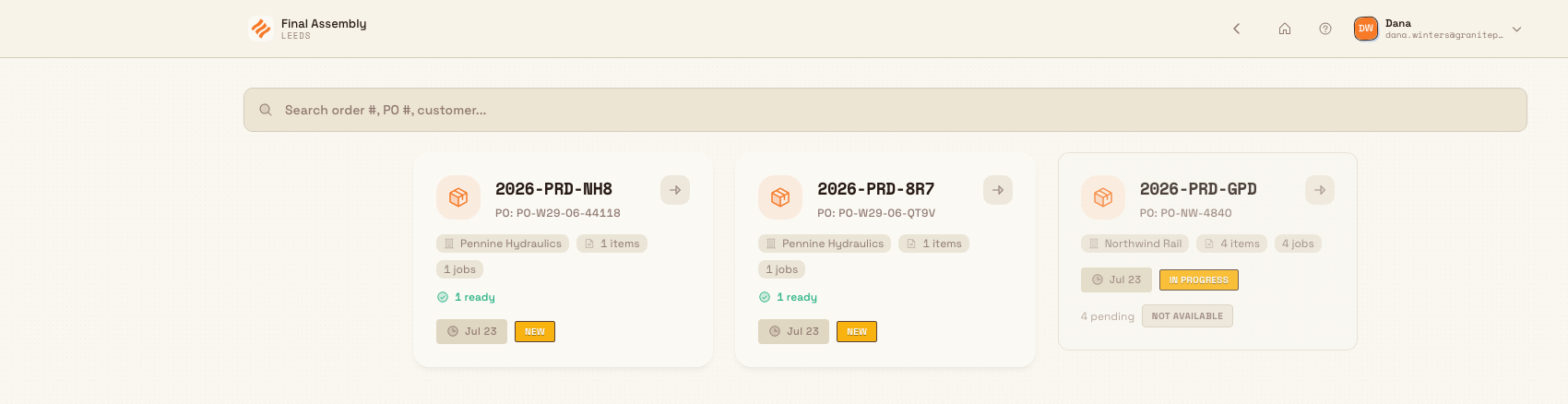
production.load-order-01
What you see on the screen
Search bar. The search box uses the placeholder Search order #, PO #, customer.... Type any part of an order number, purchase order (PO) number, or customer name to filter the list. The list holds up to 24 orders per page; use the pager in the toolbar to move between pages.
Order cards. Each order is shown as a card. Loadable orders appear first, then orders are sorted by required date with the earliest due first. A card shows:
- Order number — the order's reference, shown prominently.
- Status — a chip showing the order status, such as
in progress,new, oropen. - Customer and PO — the customer name and, when present, the purchase order number.
- Job progress — up to three chips summarising the order's jobs at this station:
ready(jobs you can work on now),pending(jobs not yet at this step), anddone(completed jobs). For example, an order might show2 ready,1 pending, and3 done. - Due date — a relative label such as
Due today,Due tomorrow,2d left, or3d overdue. Overdue orders are highlighted.
Loadable orders versus "Not available"
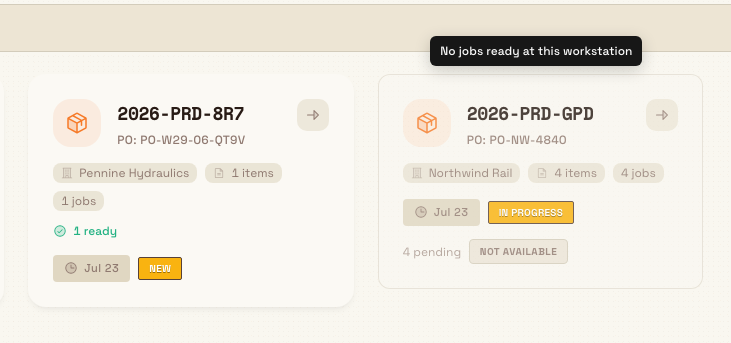
Not every order in the list can be started. An order is loadable only when both are true: the order can be started, and it has at least one ready job at this station. Loadable cards are tappable and show an arrow. Orders that cannot be started right now are greyed out, carry a Not available label, and cannot be opened. Bulk shows the reason as a tooltip on the card, such as:
- No jobs ready at this workstation — the order has jobs that pass through this station, but none of them are at their current step yet. They are still upstream and will become ready once earlier steps finish.
- Production blocked - complete required checks — a required pre-use check is blocking production on this asset. Complete the check to unblock the station. See Blocking pre-use check.
Why an order shows no ready jobs
"Ready" is measured against this station's resources. An order can be fully active elsewhere in the plant yet show 0 ready here because its next step has not reached your station. Check the pending count to confirm work is still coming.
production.load-order-02
Load an order
- Optionally, type an order number, PO number, or customer name in the search box to narrow the list.
- Find a loadable order and confirm its job-progress and due-date chips look right.
- Select the order card.
Bulk opens the operate screen for this workstation with the order in context. There is no separate confirmation or bulk-load step — selecting a loadable order takes you straight in, ready to work. From there you carry out the order's jobs: run timers, record output, and complete each phase.
Example: Final Assembly at Leeds Fabrication Plant
Granite Peak Manufacturing runs a fulfillment workstation called Final Assembly at its Leeds Fabrication Plant. Marcus, an operator, starts his shift and opens Final Assembly in Production. The Queue section shows several waiting orders, so he selects View all.
On the Load Order screen he sees order SO-4821 for customer Northwind Traders (PO 55120). Its chips read 2 ready, 1 pending, 3 done, and the due label shows 2d left. Just below, order SO-4840 is greyed out with a Not available label; its tooltip reads "No jobs ready at this workstation" because those parts are still at the upstream welding station.
Marcus types Northwind in the search box, confirms SO-4821 is the right order, and selects it. Bulk opens Final Assembly with SO-4821 loaded, and he begins the first ready job. He leaves SO-4840 alone; it will become loadable once welding finishes and its next step reaches Final Assembly.
Expected result
After you select a loadable order, you land on the operate screen for the workstation with that order's ready jobs available to start. The order does not disappear from anyone else's queue simply because you opened it — it stays in the queue and its chips update as jobs move through their steps.
Staying signed in
Order workstations often sit on a shared tablet, so Bulk can sign you out after a period of inactivity. Before it does, an Inactivity Detected dialog appears with a countdown. Touch anywhere, press a key, or select Stay Logged In to keep your session. The idle time and countdown are configured per workstation group by an administrator.
If something looks wrong
- You were sent to a different screen. If opening Load Order redirected you to the job-loading screen, the asset is not a fulfillment or invoicing workstation. Confirm the workstation type, or use Load a job instead.
- The order you want is missing. Clear the search box in case a filter is hiding it. If it is still absent, the order may be completed, cancelled, or have no job with a step at this station — none of those appear here.
- The list is empty. When no orders are waiting, the screen shows "No Orders Found" with the message "No pending orders available for fulfillment." When a search matches nothing, it shows "No orders match your search. Try a different query." Use Go Back to return to the workstation home.
- "Asset Not Found." If the screen shows "Asset Not Found" with "The selected asset could not be found", the workstation link is invalid. Select Back to Assets and choose the workstation again.
Feature state and limits
This screen is generally available. A few behaviours are worth knowing:
- The queue only ever contains orders in
new,open, orin_progressstatus that have work at this station. It is not a full order search across the plant. - Search filters the loaded queue by order number, PO number, and customer name only.
- Selecting an order navigates you into it directly; there is no multi-select or confirmation step on this screen, unlike loading individual jobs.
Related guidance
- Select an asset or workstation — open the workstation before you load an order.
- Load a job — the equivalent flow for production tablets.
- Orders and jobs — how orders break down into jobs.
- Blocking pre-use check — why a station may be blocked.
- Production overview — the full shop-floor workflow.