Load a job
Assign one or more production jobs to the asset you are working at so they appear on the operate screen, ready for timing, output, and step completion.
What loading a job does
In the Production module, an asset is a machine or workstation on the shop floor (for example a press brake or a welding bay). A job is the work needed to make a part for a customer order, broken into routing steps — the ordered operations a part passes through, such as cut, bend, then weld.
Loading a job attaches a job's current step to the asset you are standing at. Once loaded, the job shows on that asset's operate screen, where you run timers, record output and consumables, and complete the step. Loading is how an operator moves a job from "waiting in the queue" to "in progress at this station".
You load a job at the start of a shift, when you finish one piece of work and pick up the next, or when you want to stage several jobs to run together on a station that can hold more than one at a time.
Before you start
You need the Load jobs permission (production_operate.load). If you do not have it, the screen shows Load Permission Required with the message "You don't have permission to load jobs on this workstation," and a Back to Assets button. This permission is included by default in the Tablet user role (the role built for shop-floor tablets) and in administrator roles such as Entity admin. The baseline Operator role does not include it — if you cannot load, ask an administrator to grant the permission.
You also need:
- An asset to load onto. Select your asset first from the Production entry screen. See Select an asset or workstation.
- An active asset. Loading is refused if the asset is inactive.
- A station that uses manual loading. The screen described here is the manual-selection flow. An asset type can instead be set to a queue or planned loading mode, in which case jobs are picked up a different way. Loading mode is configured per asset type in settings.
Jobs vs. production orders
This screen loads jobs onto production assets. Fulfillment and invoicing workstations load whole production orders instead — see Load a production order. Recording benches use a scan-first flow — see Peak a job.
Open the Load a job screen
- Select your asset. You land on the asset home screen for that station.
- In the Jobs area of the home screen, tap Load a job. If the station already has work loaded, the same button reads Load job and adds to what is there.
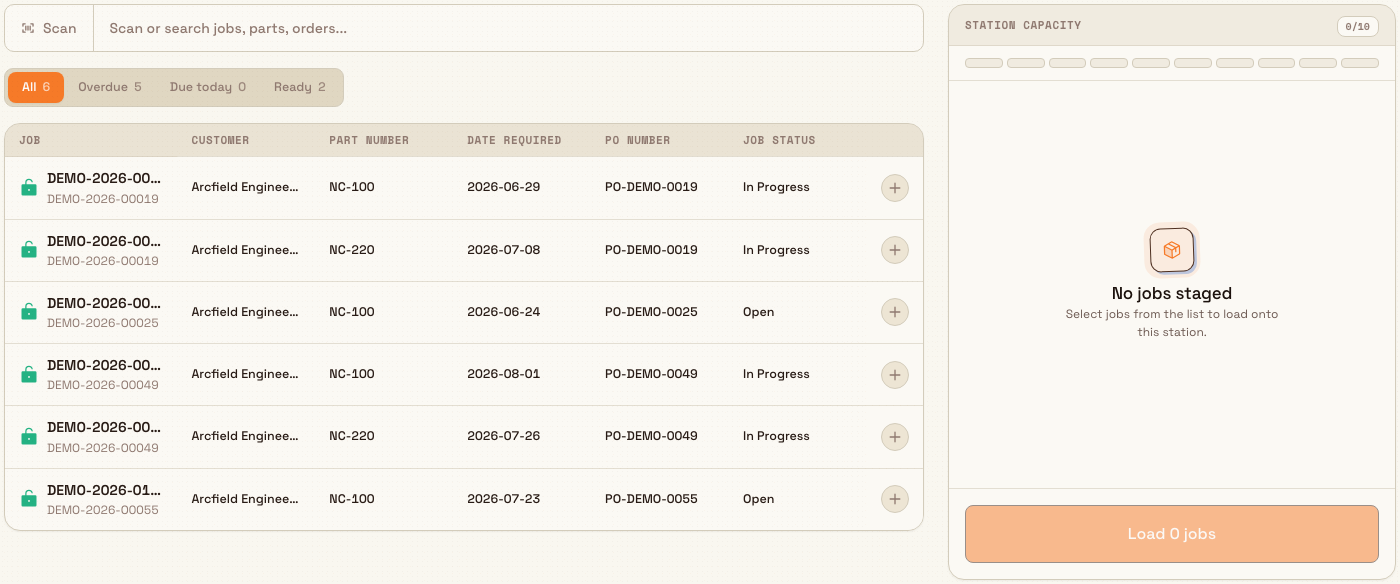
The Load a job screen opens with a results table on the left and the Station capacity panel on the right. Above the table you get a Scan control next to search (camera barcode scan when the device supports it) and the All / Overdue / Due today / Ready filter chips.
production.load-job-01
Find and stage jobs
Use the tools above the list to narrow it down:
- Search — type in the Scan or search jobs, parts, orders... box. It can match the job, PO, order, customer, part, step, or step description. A full job number is matched as one identifier, even when it contains punctuation.
- Filter chips — switch between four views. All shows every loadable job for this asset. Overdue shows jobs whose required date has already passed. Due today shows jobs required today (in your local time zone). Ready shows pending jobs whose earlier routing steps are complete, so they can be started now.
Each row keeps the job number in the first column (with the system order number underneath when available). Other columns come from the asset type's Load Job field settings — by default Customer, Part Number, Date Required, PO Number, and Job Status. A status icon beside the job number shows whether the step is ready, blocked on an earlier step, or already loaded here. An administrator can change which columns appear per asset type (and preview the same layout in Master Data).
Tap a row (or its + control) to stage the job. Staged jobs move into the Station capacity panel on the right. To remove one, tap the row again or use the remove control next to it in the panel.
If some staged jobs load and others fail (for example one is already loaded, or a step is no longer ready), Bulk stays on this screen, keeps the failed rows staged, shows the error, and refreshes the list so successfully loaded rows update.
Some rows cannot be staged and appear dimmed:
- Complete "…" first — a yellow note (for example, "Complete Cutting first") means an earlier routing step is not finished yet, so this step is not ready to load.
- Already loaded here — the job is already loaded on this asset.
- Capacity reached — once the station is full you cannot stage more until you free a slot.
Load the staged jobs
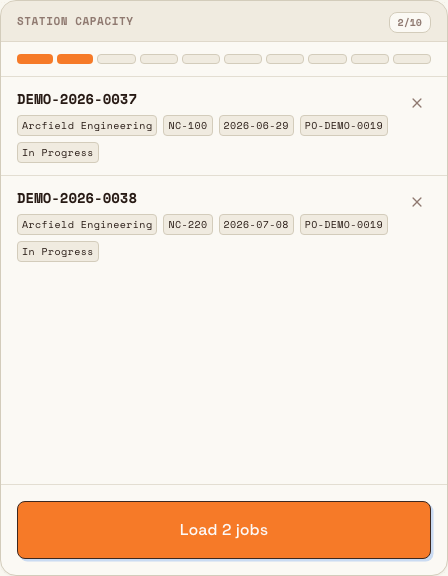
The Station capacity panel shows how full the station is as a segmented meter and a filled/maximum count, such as 2/10. Each asset type has a maximum number of concurrent jobs: 10 by default, adjustable from 1 to 999 in settings. You can stage only the remaining number of jobs.
When your selection is ready, select Load 2 jobs. The button shows the staged count and changes to Loading jobs… while Bulk checks and loads them.
If every job loads, Bulk opens the asset's Operate screen. If any job fails, Bulk stays on Load Job, keeps only the failed rows staged, and shows why they failed. Jobs that loaded successfully are not rolled back.
On a phone, staged jobs also appear in a sticky Station capacity bar at the bottom. You can load from that bar without opening the full sheet. If loading fails or only some jobs load, the error shows on the bar and the sheet opens so you can see what went wrong — you are not left staring at a quiet bar with no explanation.
production.load-job-03
A running timer blocks loading
You cannot load more jobs while a timer is running on the asset. Stop the timer first, then load. Loading is also refused while the station has an unresolved blocking pre-use check — see Respond to a blocking pre-use check.
Granite Peak example
Priya operates Press Brake 2 at Granite Peak Manufacturing's Leeds Fabrication Plant. She starts her shift, opens Production, and selects Press Brake 2. The Jobs area is empty, so she taps Load a job.
On the Load a job screen she taps the Due today chip to focus on what is needed first, then types "NR-" to find the Northgate Rail work. She stages job GP-10421 (part BRK-88, order SO-3391, step "Bend") and job GP-10430. The Station capacity meter reads 2/10. She taps Load 2 jobs, lands on the operate screen with both jobs waiting, and starts the timer on GP-10421.
Later a third job, GP-10444, still shows Complete "Cutting" first in the list — its cutting step is not finished, so Priya leaves it until the cutting station completes that step.
What happens after loading
- The loaded jobs appear on the asset's operate screen, where you run timers, record production output, log consumables, and complete steps.
- The related production order advances as its work begins.
- The same job step can be loaded on more than one asset at once when several machines run it in parallel. "Already loaded here" refers only to the asset you are on. See Work across multiple assets.
Limitations and feature state
Loading a job is generally available.
- Manual selection only on this screen. Assets set to a queue or planned loading mode pick up jobs differently and do not use this multi-select screen.
- Capacity is configured per asset type. The accepted range is 1 to 999. The count includes work already loaded on the asset and the rows you stage.
- Recording benches are stricter. Peaking and record stations require every job in one load to be at the same step, and only the job's current ready step can be loaded. See Peak a job.
- Order workstations load orders, not jobs. Fulfillment and invoicing workstations use Load a production order instead.
Troubleshooting
- "Load Permission Required." Your role does not include
production_operate.load. Ask an administrator to grant it or to use a role such as Tablet user. - "Cannot load additional jobs while a timer is running. Stop the timer first." Stop the active timer on the operate screen, then return and load.
- A job shows "Complete … first." Its earlier routing step is not finished. It becomes loadable once the previous step is completed at its station.
- "Cannot load N jobs … Maximum concurrent jobs allowed." The station is at capacity. Unload finished work (see Unload production work) or ask an administrator to raise the maximum for that asset type.
- "No jobs found." No pending jobs match this asset's capabilities, your search, or the active filter. Use Clear search & filters, or check that the job's step is routed to this asset's resource.
- Some jobs loaded and others failed. The successful jobs are already on the asset. Correct the failed rows left in the Station capacity panel, then load those rows again.
Related
Select an asset or workstation
Pick the asset or workstation you'll operate to enter Bulk's production floor — search, filter, read live status, and open the right operator screen.
Load a production order
Pick a customer production order at a fulfillment or invoicing workstation and open it so you can start work on its ready jobs.