Production
Understand how the Production area organizes manufacturing work into orders and jobs, and where operators run those jobs at a workstation on the shop floor.
Production is where the manufacturing work of a plant is organized and carried out. It has two sides that share the same data: a back office where you plan and track the work as orders and jobs, and the shop floor where an operator runs a job at a workstation — the on-machine screen at a specific bay. Use Production whenever work needs to be made, tracked, and recorded, from the moment a job is released to the moment its output is booked in. Job create, import, and bulk update paths keep using the shared customer and legal-entity fields so archived customers stay out of new work while existing job links remain.
The two sides stay connected. When a planner releases a job in the back office, it appears in the queue at the matching workstation; when an operator records output on the floor, that progress shows up on the job and its order. This page explains the vocabulary, shows you where each part lives, and links to the step-by-step guides.
Guidance for Production Home, Load Order, Load Job, and the Operate screen lives in the documentation rather than page-level tours. For instructions while you work, open Help → Search docs and use the Production guides.
The words Production uses
A handful of terms recur throughout Production. Learning them once makes every screen easier to read:
- Order (production order) — the request to manufacture a customer's items. An order groups the work and carries an overall status.
- Job — a single unit of work beneath an order. A job is what actually gets made and tracked.
- Routing — the fixed, ordered sequence of steps a job must pass through. Steps are grouped into phases.
- Workstation — the on-machine screen an operator uses on the shop floor. It runs on an asset (a machine or bay).
- Transaction — the record of one job's activity as it moves through its steps, used for reviewing what happened.
Where to find it
Production appears in two places in the main navigation sidebar, because its two sides serve different people:
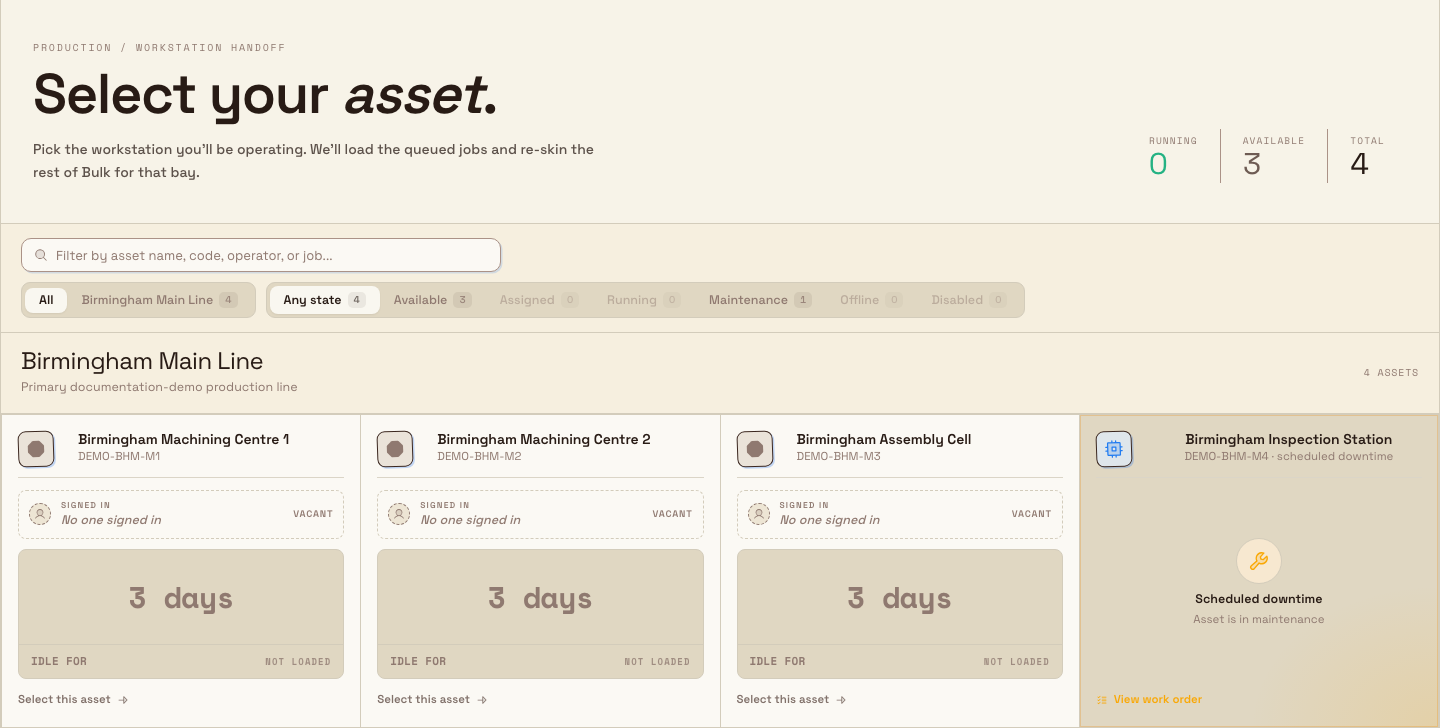
- Workstations (under the PLATFORM group) opens the shop-floor entry point — a Select your asset screen where an operator picks the machine or bay they are about to run. Choosing an asset loads that workstation and its queued jobs.
- Production (under the MODULES group) opens the back-office views for planning and tracking. It contains three destinations: Orders, Jobs, and Transactions (labelled Beta).
production.overview-01
The two sides of Production
Back office: Orders, Jobs, and Transactions
The Production module is for the people who plan and follow the work rather than run the machines.
- Orders opens the Production Orders list — "Manage and track customer production orders". An order groups the jobs made for one customer request and shows an overall status.
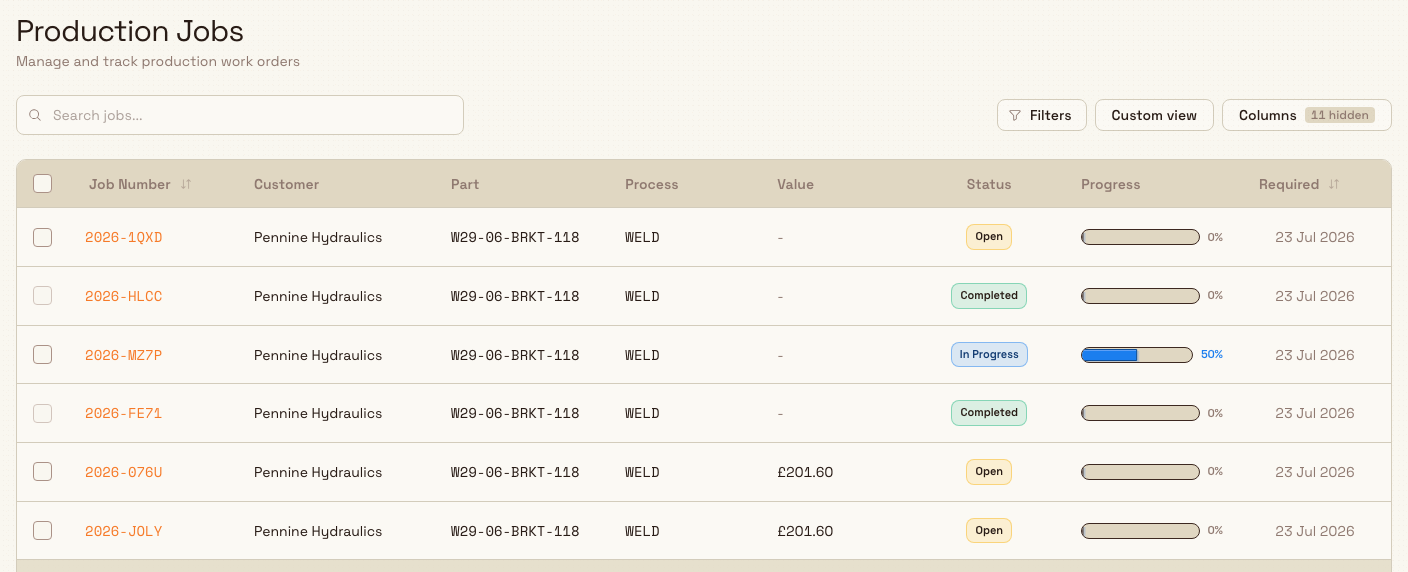
- Jobs opens the Production Jobs list — "Manage and track production work orders". A job is a single unit of work; its detail view shows the routing, progress, output, and quality information, and is where you can edit the job's routing when a change is needed.
- Transactions opens a step-by-step record of job activity, so you can review what happened at each step across the plant. This view is in beta.
Shop floor: workstations
The Workstations entry is for operators. After picking an asset, the operator works at that workstation, moving the loaded job through its routing — starting and stopping timers, recording output and consumable use, completing quality and documentation steps, and completing or skipping phases. Bulk supports several kinds of workstation for different ways of working, including standard production tablets, fulfillment workstations that load whole orders, peaking (recording) stations, and grouped multi-station screens.
Workstation Home and Operate screens
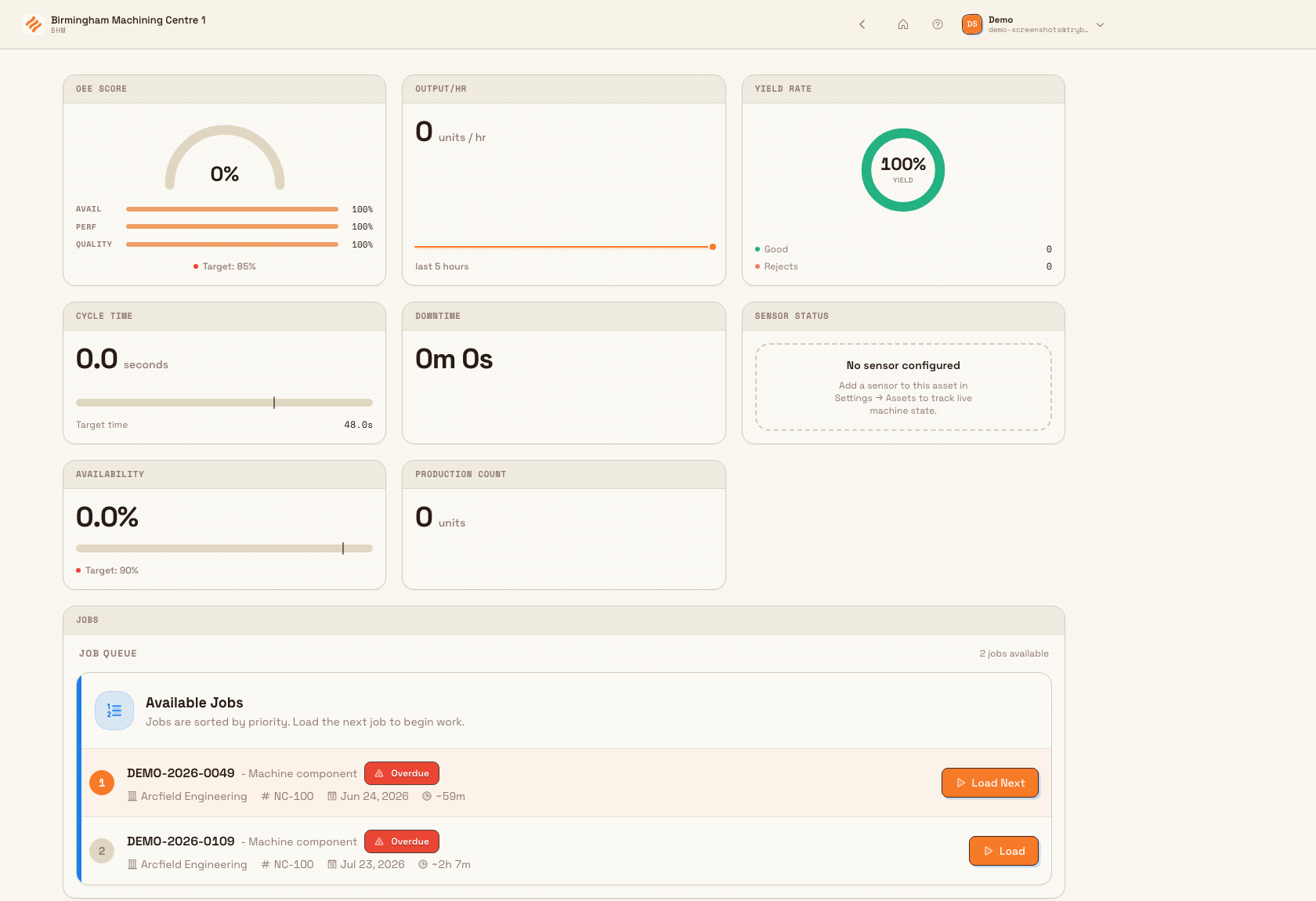
A standard production workstation opens on Home. Its board can show loaded or queued jobs, asset readiness, downtime controls, and KPI cards. Select a job or a Home action to move into the focused Operate screen.
Operators can use the actions inside Home widgets, but its arrangement is fixed for them. An administrator arranges the widgets once per asset type in Settings → Master Data → Assets → Home Layout. The same layout then appears on every asset of that type.
production.overview-03
The Operate screen contains the tools used during the run. Its exact widgets also come from the asset type's layout, so two kinds of workstation can show different controls while following the same production record.
Before you start
Production is scoped to a site — called an entity in Bulk, meaning a single plant or location. What you can see and do follows the site you have selected in the entity picker, so switch to the right plant first if you manage more than one.
Access is controlled by permissions attached to your role:
- View production (
production.view) lets you open the Production module and its dashboards for the selected site. View production jobs and View production orders let you open the Jobs and Orders lists. - Running a workstation needs the shop-floor permissions — Load jobs, Unload jobs, Record production output, Record consumable usage, Start production timer, Complete production phase, and Skip production phase. These are grouped into the built-in Tablet user role, which is designed for shop-floor tablets.
The built-in Super user and Entity admin roles include everything above. The base Operator role can view and create jobs and orders in the back office, but does not include the workstation permissions, so an operator who needs to run a machine is usually given the Tablet user role (or a custom role that grants the workstation permissions).
Two roles, two jobs
Planning work and running a machine are separate responsibilities with separate permissions. If someone can see jobs but cannot load or record on a workstation, check that their role includes the shop-floor permissions — most often by assigning the Tablet user role for the plants where they operate.
What operators do at a workstation
Once a job is loaded onto an asset, the operator works through its routing. Each of these actions has its own guide.
Some workstations are configured for invoicing. On an invoicing station the operator works through orders that still need billing: they tick ready jobs onto a draft invoice, review service lines, then choose Issue invoice. Bulk shows an issue preview that lists which jobs will be billed and warns about jobs with no service; the button stays on Preparing… until that preview is ready. After issue, a short success dialog appears, and any post-issue routing progress opens when that dialog is dismissed. Full detail for the finance side is in Issue or confirm an invoice.
- Load a job onto an asset so work can begin, or load a production order at a fulfillment workstation.
- Run production timers to track how long each step takes.
- Open Attachments to view files from the loaded jobs, their production orders, and their source inbound documents. PDFs and images open in Bulk; other file types download through the browser.
- Open Operator Tools → Instructions to view the instruction PDF attached to the process revision used by a loaded job.
- Record production output as good parts, scrap, or inspection results are produced.
- Record consumable use — the materials, such as packaging or coolant, used up during the run.
- Complete production quality steps and documentation steps that the routing requires.
- Skip or complete a production phase to move the job forward, then unload the work when the run is finished or stopped.
Use Attachments and process Instructions
The Attachments widget gathers files for every job currently loaded on the asset. It shows all direct job files first, then production-order files, then source inbound-document files. Within each source type, the newest file appears first.
The cards are one sorted list rather than separate source groups. A badge shows Uploaded for a direct job file, Library for an order file, or Source for an inbound document file. The line below the filename names its origin, such as Job 2026-0042, Order 2026-0017, or Document IN-0031. A shared order or source document is included once when several loaded jobs refer to it. A file attached directly to two jobs remains two job attachments, with the matching job shown on each card.
Select a PDF to open the PDF viewer, or select an image to open an image preview. Selecting another file type starts a browser download. If Bulk cannot obtain a file URL, a PDF opens an Unable to display PDF message; another file type does not open or download. If no loaded job has a file from any of these sources, the widget shows No attachments on the loaded jobs. This workstation widget is read-only: upload or remove the file from its job, order, or inbound document.
Process instructions are separate from job documents. Open Operator Tools → Instructions to see the PDF attached to each loaded job's exact process revision. This is the process record's own instruction file, not a job, order, or inbound-document attachment. Only files recorded as PDFs appear here.
Each card is titled with the process code and revision, followed by the process name when it has one. It also shows the original filename and the loaded job numbers using that revision. The same process revision appears once even when several loaded jobs use it; revisions are kept separate. Cards are sorted by process code, then higher revision number first. Select a card to open its PDF viewer.
The Instructions dialog loads its files only when opened. While data is loading, Attachments shows two placeholder cards and Instructions shows three. If no loaded process has an instruction PDF, Bulk shows No instructions available and explains that none of the loaded jobs has a process with an instruction PDF.
Both views require View production jobs and access to the selected site. Neither needs separate Files-module folder access: Bulk returns temporary file links for documents attached to production work the operator can already view. Missing or deleted records are left out. A query, permission, or asset error is handled by the surrounding Operate screen; these widgets do not have their own retry card.
Some assets are set up for specialised ways of working: peak a job at a recording bench, or work across multiple stations or multiple assets from one screen. Start from selecting an asset or workstation.
Attachments appears on a standard production-tablet workstation when the Attachments widget is in the Operate layout. Instructions appears under Operator Tools when an administrator adds the Options List widget and keeps its Instructions tool enabled.
Logging out of a workstation
Logging out always returns the browser to sign-in quickly; it does not wait for production timers or downtime to update. If active production state exists during a manual logout, the operator chooses whether to keep everything running or stop eligible timers and downtime. Downtime reasons protected in the asset type stay open in either case.
An inactivity or expired-session logout does not ask the operator. It follows the asset type's workstation logout policy, shows the inactivity warning before the countdown ends, and completes eligible cleanup in the background. Long-running process jobs are not stopped solely because a timer has been open for many hours — runaway or abandoned timers are cleaned up only when inactivity logout is enabled for that asset type (including when a hidden or asleep tablet cannot run the browser logout itself). Logging out in one Bulk tab also locks the other Bulk tabs open in that browser. The selected asset is kept when it remains accessible, so the next authorized operator can return to the same workstation; otherwise, Bulk falls back to asset selection.
Routing exceptions become explicit production work
Conditional formulas that cannot be evaluated take the routing's Error / Review path. Repeat groups take Exception / Review when their exit formula cannot be evaluated or their maximum number of passes is reached. Bulk creates only the work on that review path; it does not also release normal or Else work. The routed review step is final for that decision, so any inspection, correction, or recovery must be part of the routing.
A machine can be blocked until its checks are done
An asset can require compulsory pre-use checks — equipment inspection audits that must pass before production can start. When checks are outstanding, the workstation shows a Production Blocked banner and lists the audits to complete; work cannot begin until they are done or an authorised override is granted. See Respond to a blocking pre-use check.
Orders and jobs in the back office
Every order and job carries a status that shows where it is, so the lists and detail views always tell you what stage the work is at.
A production order moves through: Reserved (a number held from an inbound document), New (created; jobs being set up), Open (released — work can start), In Progress (active production), Completed (all jobs finished), and Cancelled.
A production job moves through: Draft (created, pending review), Awaiting approval (its routing requires sign-off and is locked until approved), Open (released to the floor, ready to start), In Progress (work underway), Completed (all work finished and output recorded), and Cancelled. Cancelled orders and jobs stay visible for traceability but are removed from active production and reporting.
production.overview-02
To dig into the back-office views, read Review production orders and jobs, Review production transactions, and Edit a production routing.
Example: a bracket run at Granite Peak Manufacturing
At the Leeds Fabrication Plant, Granite Peak Manufacturing has a job for 200 laser-cut steel brackets, released from an approved inbound purchase order. The job sits Open on the laser cutter's queue.
- An operator opens Workstations, sees the Select your asset screen, and picks the laser cutter. The asset's compulsory pre-use inspection is still outstanding, so the workstation shows Production Blocked. The operator completes the inspection, and the block clears.
- They load the job, start the timer for the cutting phase, and begin the run. As brackets come off the machine they record output — good parts and any scrap — and record the consumables used, such as the steel sheet and packaging.
- When cutting is finished, the operator completes the phase and moves the job to its finishing steps, including a quality step to check the first piece. Once all steps are done, they unload the job.
- In the back office, a planner watches the job move from Open to In Progress to Completed on the Production Jobs list, and its order roll up to Completed — all without leaving the Production module.
Each person works on their own side, but they are looking at the same job the whole time, so the work stays connected from release to completion.
Feature state and limitations
Production is generally available. A few things are worth knowing:
- Transactions is in beta. The Transactions view carries a Beta label in the navigation. It is safe to use, but its screen and behaviour can change between releases, so treat it as evolving rather than settled.
- Shop-floor actions depend on permissions. Loading, unloading, recording, and running timers each map to a specific permission. If an action is missing for a user, it is almost always because their role does not grant that shop-floor permission — the Tablet user role grants the full set.
- Cancelling is not deleting. Orders and jobs are cancelled, not removed; cancelled records remain visible for traceability but drop out of active production and reporting.
Related guidance
Run work on the shop floor:
- Select an asset or workstation
- Load a job · Load a production order · Peak a job
- Run production timers · Record production output · Record consumable use
- Complete quality steps · Complete documentation steps
- Skip or complete a phase · Unload production work
- Work across multiple stations · Work across multiple assets
- Respond to a blocking pre-use check
Track work in the back office:
End-to-end workflows and adjacent areas:
- Turn customer work into production · Manage materials through production · Prepare and run a workstation safely
- Scheduling places jobs before they reach the floor; Inventory tracks the materials they consume; Finance invoices the finished work.
- Inbound is where the orders and jobs come from; Quality covers the issues and holds that can pause production.
- Operations overview — how Production fits with the other shop-floor areas.
Promote inbound work to production
Turn an approved inbound document's ready items into production jobs grouped under a production order, and understand what changes when the document reaches In production.
Select an asset or workstation
Pick the asset or workstation you'll operate to enter Bulk's production floor — search, filter, read live status, and open the right operator screen.