Create a task
Create a task in an active project or directly in a project folder, choose its assignees and priority, and understand project-picker and validation behaviour.
A task is one unit of work to track to completion. Every task has a project behind it, but you can choose either a visible project or a project folder as the destination in the desktop create form.
When you choose a folder, Bulk files the task in that folder's hidden inbox project. The inbox is an implementation detail: it does not appear in project lists or in the Project picker. The task appears with the folder's other tasks.
Permissions and prerequisites
You need:
tasks.viewto use the Tasks page and load eligible Parent task choices;projects.viewto load the active projects and folders available at the selected site; andtasks.createto save the task. Creating the hidden inbox for a direct folder task uses this same permission.
The standard Super user, Entity admin, Manager, and Operator
roles include all three permissions. Custom roles can differ. The Create Task
control may still open for a user who cannot create tasks, but the backend
rejects the save without tasks.create.
You also need at least one active project or folder destination. Archived projects are excluded from the picker and cannot receive new tasks.
Open the Create Task dialog
You can open the same desktop dialog from several places:
- On Tasks, select Create Task in the page header. You can also press Ctrl + N while the page is focused.
- On a project's task page, select Create Task. That project is already selected.
- In a task-table widget on a board, teamboard, or home screen, use its add-task action.
- When the unfiltered Tasks page is empty, use its Create Task action.
Choose a project or folder
The unrestricted Project picker on the Tasks page uses the selected site and shows active projects only. Hidden folder inbox projects never appear.
When project folders exist, the picker is grouped like this:
- Each folder has a group header.
- The first choice in that group is the folder itself, labelled with the folder name and folder tasks. Choose it to create a task directly in the folder.
- The folder's visible member projects follow beneath it.
- Visible root projects appear under No folder.
An empty folder remains a valid direct destination. If no folders exist, the picker is a flat list of active projects.
If the available project list contains exactly one visible project and nothing is already selected, Bulk selects that project automatically. A project page also supplies its own project as the default.
Task-table widgets can restrict creation to a configured list of projects. In that case the picker contains only those allowed projects. It does not add folder groups or direct folder tasks destinations. A widget configured with one project selects it automatically.
What happens with a folder destination
The folder choice is resolved only when you submit:
- Bulk creates the folder's hidden inbox project if it does not exist, or reuses the existing inbox.
- The new task receives that real project ID and appears in the folder's task list.
- The hidden inbox stays out of normal project lists, counts, and future Project picker results.
Because a folder destination is not a visible project, project-specific fields such as Parent task and custom fields are not shown for that selection.
Fill in the task
| Field | Required | What it does |
|---|---|---|
| Project | Yes | Chooses an active project or a direct folder tasks destination. |
| Task Name | Yes | Names the task. The limit is 500 characters. |
| Description | No | Adds rich text. Use / for blocks or @RA, @JOB, and @ORDER to link supported records. |
| Due Date | No | Sets the date by which the task is due. |
| Priority | No | Uses Urgent, High, Medium, Normal, or Low. The default is Normal. |
| Parent task | No | Makes the new task a subtask of an eligible task in the selected project. It is hidden for a direct folder destination. |
| Assignees | No | Adds one or more people responsible for the task. |
| Custom fields | Varies | Shows fields defined by the selected project. Every field marked required must be completed. |
The Parent task picker is project-scoped. Bulk excludes invalid choices, including tasks that would break the supported nesting depth. Changing the project clears a previously selected parent.
New tasks start in To Do
The create dialog has no status field. New tasks start in To Do. Move the task through later statuses after creation.
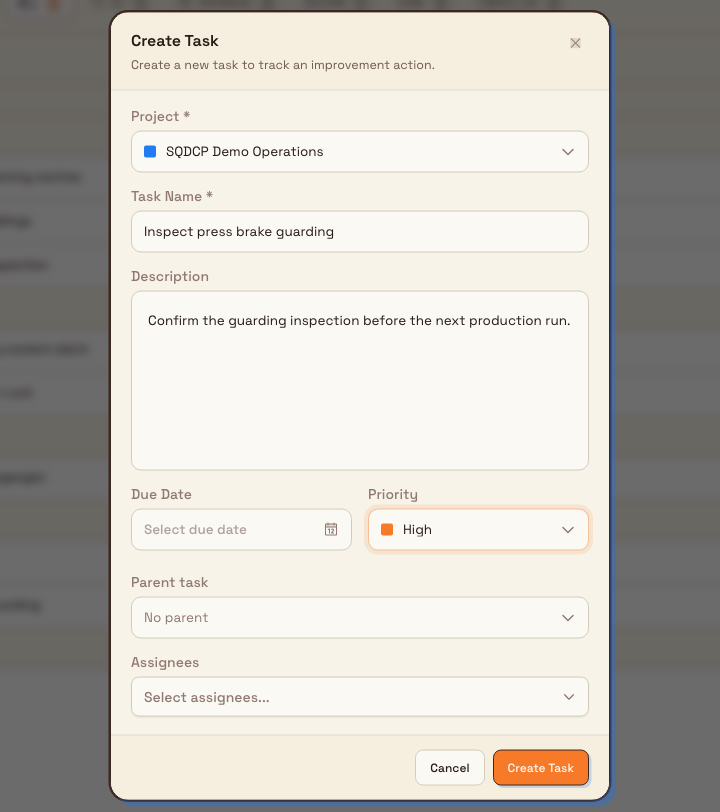
tasks.create-02
Create the task
Select Create Task. The button changes to Creating... while the request is pending.
After a successful save:
- the dialog closes;
- Bulk shows Task "<name>" created;
- the task starts in To Do with the chosen project or folder destination, priority, due date, parent, assignees, and custom values; and
- from the main Tasks page, Bulk opens the newly created task.
Search-backed task lists can briefly show a syncing notice before the new task appears in their results.
Validation and errors
- An empty Project shows Project is required.
- An empty Task Name shows Task name is required. A name over 500 characters shows the length validation message.
- Invalid required fields also produce Please fix the errors before submitting.
- Missing required project custom fields produce Please fill in required custom fields: followed by their labels.
- If an archived project is supplied outside the active picker, the backend rejects it with Cannot create tasks in archived projects.
- A missing, deleted, or inaccessible project or folder cannot be used. Bulk leaves the dialog open and shows an error.
- If the workspace has reached its active-task plan limit, creation is blocked with a plan-limit error.
Fix the named problem and submit again. Cancel or the close control exits without creating a task.