Assign a task
Assign one or more teammates to a task from its detail page so the right people own the work and are notified.
A task in Bulk is a single unit of project work — for example "Replace the hydraulic seals on Press 12". Assigning a task means naming the people responsible for it. A task can have more than one assignee, so you can share ownership across a small team. Assignees are shown on the task, appear in task lists, and are notified when they are added, which makes assignment the main way you hand work to a named person and keep accountability clear.
This page covers assigning and reassigning people on a task that already exists. To create the task itself, see Create a task.
Before you start
To change who is assigned to a task, you need:
- The "Assign tasks" permission (
tasks.assign). By default this is included in the Operator, Manager, Entity admin, and Super user roles. If your role does not include it, an administrator can adjust your role, or reassign the task for you. - Access to the task's plant. In Bulk, every project belongs to an entity — a plant or site, such as Leeds Fabrication Plant. You can only open and change a task if you have access to the plant its project belongs to.
- An existing task. Assignment happens on a task that has already been created.
Assign or reassign people from the task detail
The task detail page is where you set and change assignees.
- Open the task. Go to the Tasks area (or open a project and select the task) and click the task to open its detail page.
- Find the Overview panel on the task. It groups the task's key dates, status, and ownership.
- In the Assignees section, click the plus (+) button to start editing.
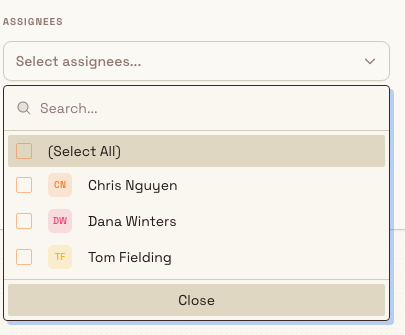
- In the Select assignees... picker, choose one or more people. You can select several at once.
- Click Save to apply your changes, or Cancel to discard them.
To remove someone without opening the full picker, hover over their name tag in the Assignees section and click the X that appears on the tag.
tasks.assign-01
Saving sets the full list of assignees
When you click Save, the people you have selected become the task's complete assignee list. Anyone you clear is removed, and anyone you add is added. Saving with no one selected removes every assignee. Reassigning is not destructive — you can open the picker again at any time to restore or change who is assigned.
Who you can assign
The picker only lists active users who have access to the task's plant. On a task in Leeds Fabrication Plant, you can only assign people who have access to that plant. Someone without access to the plant does not appear in the picker and cannot be assigned, even if they belong to your company. If a teammate is missing from the list, they usually need to be an active user with access to that plant first.
What happens after you assign
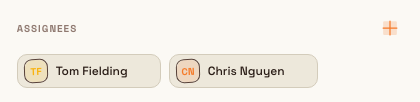
- The people you selected appear as name tags with their avatars in the Assignees section, and on the task in task lists.
- Bulk shows an "Assignees updated" confirmation.
- Each person you added receives a "Task assigned" notification telling them they were added to the task. People can control task notifications in their own notification settings, and task notifications are on by default.
- The change is recorded in the task's activity so there is a history of who assigned whom.
tasks.assign-02
Granite Peak Manufacturing example
Dana Winters, the owner at Granite Peak Manufacturing, is planning preventive maintenance at the Leeds Fabrication Plant. She opens the task DOCS-TASK "Replace hydraulic seals on Press 12" in the DOCS- "Line 3 Preventive Maintenance" project.
On the task's Overview panel she clicks the plus (+) button in the Assignees section, opens the Select assignees... picker, and selects a maintenance technician who has access to Leeds Fabrication Plant plus a supervisor to keep an eye on progress. She clicks Save. Both names now appear as tags in the Assignees section, and both people receive a "Task assigned" notification for the seal replacement, so the work has clear ownership before the maintenance window opens.
Set assignees when you create a task
You can also choose assignees at the moment you create a task: the Create Task dialog includes an Assignees field that uses the same Select assignees... picker. This is convenient when you already know who will own the work. For the full task-creation flow, see Create a task.
Change assignees from the task detail, not the Edit Task dialog
Assignee changes are saved through the Assignees section on the task detail page (or when you first create the task). Use the plus button and Save described above to reassign an existing task.
Limitations and feature state
- Feature state: available. Task assignment is a generally available part of Bulk.
- Assigning replaces the whole set. There is no separate "add just one" action — saving the picker sets the task's complete assignee list, and the per-tag X removes one person by saving the remaining list.
- Plant-scoped. Only active users with access to the task's plant can be assigned; others are not shown and are skipped.
Troubleshooting
- The person I want isn't in the picker. They need to be an active user with access to the task's plant. Confirm the person is active and has access to the plant the task's project belongs to, then reopen the picker.
- Saving assignees fails with a permissions error. Your role does not include the "Assign tasks" (
tasks.assign) permission. Ask an administrator to grant it, or have someone with that permission make the assignment. You can still open the task and view its assignees with view access alone.