Use AI assistance with tasks
Draft new tasks and refine task descriptions and checklists with Hugo, Bulk's built-in AI task assistant, which proposes every change as a plan you review and apply yourself.
Bulk's task pages include a built-in AI assistant called Hugo. Hugo turns a short request into a well-formed task — with a description, a checklist, a priority, and a due date — and helps you improve the description and checklist of a task you already have open. A task is a single unit of work you track to completion; a checklist breaks that work into steps you can tick off.
Hugo is a drafting aid, not an autopilot. Whatever you ask, it replies with a plan card you can review and edit, and nothing is created or changed until you select Apply. This keeps you in control: you always see exactly what will be written before it happens.
Use Hugo when you want to:
- capture a task quickly without filling in the full create form by hand,
- draft several related tasks at once from a single description, or
- tidy up a task's description and add a clear checklist of steps.
Hugo appears on two screens: the Tasks list, where it drafts new tasks, and any individual task detail page, where it can also update the task you have open.
Before you start
A few things need to be in place.
- The Use chat / AI assistant permission (
chat.use). A permission is the right to perform a specific action in Bulk. Opening and using Hugo requires this permission, granted by default to the Super user, Entity admin, and Manager roles. The Operator role can create and edit tasks by hand but does not include this permission, so an Operator will not see the assistant. If the chat button is missing, ask an administrator to check your role. - Permission to apply what Hugo proposes. Applying a plan runs with your own permissions: creating tasks needs Create tasks (
tasks.create) and editing a task needs Edit tasks (tasks.update). Hugo drafts the plan, but the write happens as you. - AI enabled for your Bulk deployment. The assistant relies on an AI model that your Bulk installation connects to. If AI is not configured for your deployment, Hugo cannot reply. This is set up by whoever administers your Bulk installation, not per user.
- At least one active project. Every task belongs to a project — a container that groups related work — so to create tasks you need at least one active (non-archived) project. If your plant has exactly one, Hugo uses it automatically; if there are several, Hugo asks you to choose.
Hugo never writes on its own
Every change Hugo suggests appears as a plan card with an Apply button. Until you select Apply, no task is created and no description or checklist is changed. Closing the assistant or selecting Dismiss discards the plan.
Open the assistant
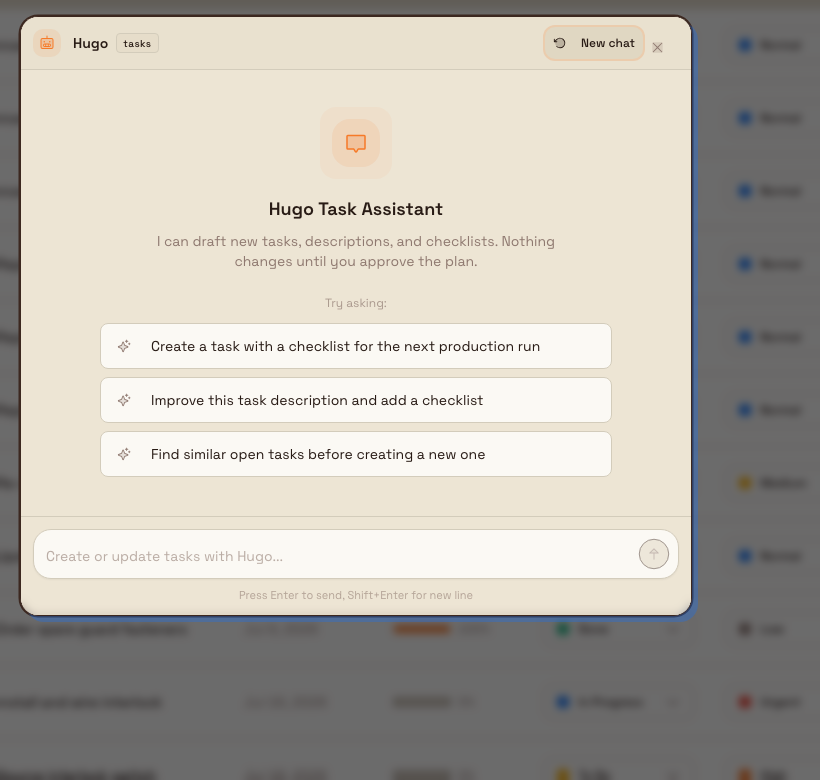
On the Tasks list or a task detail page, select the round chat button in the bottom-right corner of the screen. This opens the Hugo Task Assistant panel.
When the panel is empty it greets you with "I can draft new tasks, descriptions, and checklists. Nothing changes until you approve the plan." and offers a few starting prompts you can select, such as:
- "Create a task with a checklist for the next production run"
- "Improve this task description and add a checklist"
- "Find similar open tasks before creating a new one"
Type your request in the message box (its placeholder reads Create or update tasks with Hugo…) and send it. Select New chat in the panel header at any time to start fresh — the task-panel conversation is temporary and is not saved to your assistant history.
tasks.ai-assistance-01
What Hugo can do
On task pages, Hugo is focused on drafting and refining task content. It can:
- Draft one or more new tasks — up to five in a single plan — each with a title, description, checklist, priority, status, and due date.
- Improve the task you have open, on a task detail page, by rewriting or extending its description and adding checklist steps.
- Look things up to help it draft well. Hugo can list your active projects (so a new task lands in the right one) and search existing tasks (so it can flag work that may already exist before proposing a duplicate). On a task detail page it reads that task's current description and checklist.
Hugo does not act outside of the plan card. It will not set assignees or followers, add attachments or comments, link records, delete a task, or move a task's status after it is created. Those are things you do directly on the task — see the Tasks overview for everything a task holds.
Draft new tasks
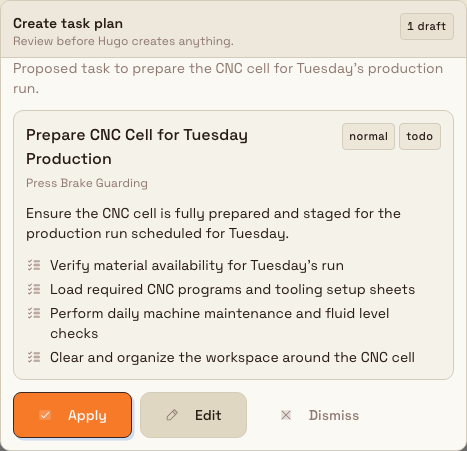
From the Tasks list (or a task detail page), open Hugo and describe the work you want to capture. For example, ask it to "create a task to prepare the CNC cell for Tuesday's run, with a checklist."
- Hugo replies with a Create task plan card headed "Review before Hugo creates anything." Each draft task shows its title, project, priority, and status, along with any description and checklist.
- If the request needs a project and you have more than one active project, Hugo shows the choices as clickable options and waits for you to pick one. If you have exactly one active project, it uses that automatically.
- Review the draft. Select Edit to change any task's title, description, checklist items (one per line), priority, status, or due date (typed as
YYYY-MM-DD). Select Stop Editing when you are done. - Select Apply to create the tasks, or Dismiss to discard the plan. While it saves, the button shows a spinner.
When the plan is applied, the card confirms "Created 1 task." (or the number created) and links each new task so you can open it. The tasks appear in your task list with the project, priority, status, and due date from the plan.
Priority and status use their normal task values
In the plan card, priority offers Urgent, High, Medium, Normal, and Low, and status offers To Do, In Progress, Review, Done, and Cancelled — the same values as the manual create form. New drafts default to Normal priority and the To Do status.
tasks.ai-assistance-02
Improve a task's description and checklist
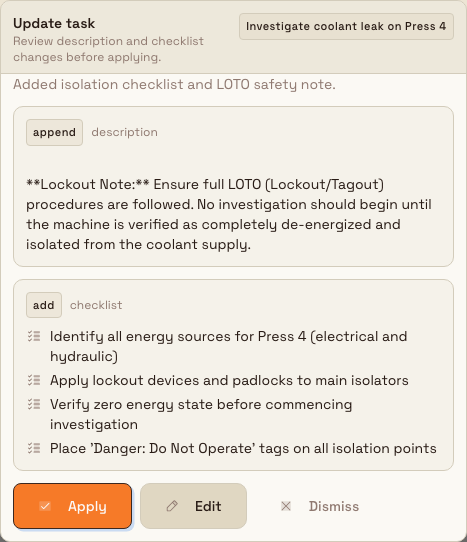
Open a task from the task list, then open Hugo on that task detail page. Because Hugo already has the task in context, you can ask it to work on the current task directly — for example, "add a checklist to isolate the coolant leak and note the lockout step."
- Hugo replies with an Update task card headed "Review description and checklist changes before applying." The card names the task and shows the proposed description change and checklist change.
- Choose how the change is applied using the two modes:
- Description: Append description (add to what is there, the default), Replace description, or Do not change description.
- Checklist: Add checklist items (keep the existing list and add to it, the default), Replace checklist, or Do not change checklist.
- Select Edit to adjust the wording, the checklist items (one per line), or the modes; select Stop Editing when done.
- Select Apply to save the change, or Dismiss to discard it. On success the card reads "Task updated." and summarises what changed — for example, that the description was updated and how many checklist items were added.
By default Hugo keeps your existing description and checklist and adds to them, so an update is safe to apply without losing what is already there.
Replace modes overwrite existing content
Replace description overwrites the current description, and Replace checklist deletes the existing checklist items before adding the new ones. Removed checklist items cannot be recovered. Use the default Append and Add modes unless you specifically want to replace what is there.
tasks.ai-assistance-03
Example: preparing for a production run at Leeds Fabrication Plant
At Granite Peak Manufacturing's Leeds Fabrication Plant, Dana is setting up work ahead of Tuesday's shift. Rather than open the create form, she selects the chat button on the Tasks page and tells Hugo: "Create a task to prepare the CNC cell for Tuesday's production run, with a checklist."
Hugo returns a Create task plan with one draft task in the Maintenance project, set to Normal priority and the To Do status, and a five-step checklist covering tooling, coolant, program load, a dry run, and a first-off check. Dana selects Edit, sets the priority to High, adds a due date of the Monday before the run, then selects Stop Editing and Apply. The card confirms the task was created and links it.
Later, an operator reports a coolant leak. Dana opens the existing Investigate coolant leak on Press 4 task, opens Hugo, and asks it to add isolation steps and a lockout note. Hugo proposes an Update task card in Append and Add mode, so the current description and checklist are preserved. Dana reviews the steps and selects Apply; the task now carries the extra guidance, and its activity timeline records the change.
Expected result
- Applying a Create task plan creates the tasks immediately; the card shows how many were created and links each one, and they appear in the task list with the project, priority, status, and due date from the plan.
- Applying an Update task plan updates the open task's description and checklist and confirms "Task updated." with a short summary of what changed.
- Every applied change is recorded on the task's Activity timeline, the same as a change you make by hand.
- If you dismiss a plan or close the assistant without applying, nothing is written.
Limitations and feature state
- The assistant is generally available, but it depends on setup. Hugo requires the Use chat / AI assistant permission and requires AI to be enabled for your Bulk deployment. Where either is missing, the assistant is unavailable even though the rest of tasks works normally.
- Proposal-first, always. Hugo cannot create or change anything without you selecting Apply on a plan card. A text reply on its own does not write anything.
- Create plans are capped at five tasks. If you ask for more, Hugo creates a plan of at most five; add the rest in a follow-up request.
- Hugo only writes task content. It creates tasks and edits a task's description and checklist. It does not set assignees or followers, add attachments, comments, or linked records, or change a task's status once the task exists. Do those on the task itself.
- Content is tidied on apply. Checklist items are de-duplicated (a plan holds up to 30), and very long task titles are shortened. Due dates must be
YYYY-MM-DD. - The task-panel conversation is temporary. The assistant that opens from a task page starts fresh each time and is not stored in your saved conversation history.
Troubleshooting
- There is no chat button on task pages. You are likely missing the Use chat / AI assistant permission (
chat.use). Ask an administrator to grant it or a role that includes it. The Operator role does not include it by default. - Hugo says it created or updated a task, but nothing changed. Nothing is written until you select Apply on the plan card. Find the plan card in the conversation and select Apply; if there is no card, ask Hugo to draft the plan again.
- "Choose a project before applying this plan." A draft task has no project. Select Edit on the card and pick a project, or tell Hugo which project to use, then apply.
- "Open a task before applying this update." Update plans apply to a specific task. Open the task's detail page and ask Hugo there, then apply.
- Apply fails with a permission or plan-limit message. Applying uses your own permissions: creating needs Create tasks and editing needs Edit tasks. A create can also be blocked if your workspace has reached its plan's active-task limit — complete or remove tasks you no longer need, or ask an administrator about the limit.
- Hugo does not reply at all. AI may not be enabled for your Bulk deployment. Ask an administrator to confirm the assistant is configured.
Related guidance
- Create a task — create a task by hand with the full form.
- Use a task checklist — add, tick off, and manage checklist steps.
- Complete a task — move a task through its statuses to Done.
- Tasks — overview of what a task holds and where to find tasks.