Use a task checklist
Break a task into check-off steps that track step-by-step completion and drive the task's overall progress.
A task checklist breaks a single task into a list of smaller steps you can tick off one at a time. Each step is a short line of text with a checkbox. As you complete steps, Bulk tracks how many are done and updates the task's overall progress automatically — so a task like "Weekly maintenance on Press Brake 2" becomes a clear, ordered set of actions instead of one large item that is either "done" or "not done".
Use a checklist when a task has several concrete steps that should happen in a set order, when more than one person needs to see what is left to do, or when you want a running record of which steps were completed.
Before you start
- A task to work on. Checklists live inside an existing task. If you do not have one yet, see Create a task.
- The right access. Anyone who can view the task (the
tasks.viewpermission) can see its checklist and current progress. To add, tick off, reorder, or delete items you need thetasks.updatepermission. Standard operational roles such as Operator and Manager, along with entity administrators and owners, can edit checklists. View-only roles — for example a dashboards-only role — can see the checklist but cannot change it.
Where to find the checklist
- Open Tasks from the navigation to see your task list.
- Select a task to open it. This opens the task's detail view.
- On the General tab, find the Checklist card (its subtitle reads "Step-by-step completion tracking").
The same Checklist card also appears on the General tab when you open a task in its quick-view dialog, so you can work through steps without leaving the list.
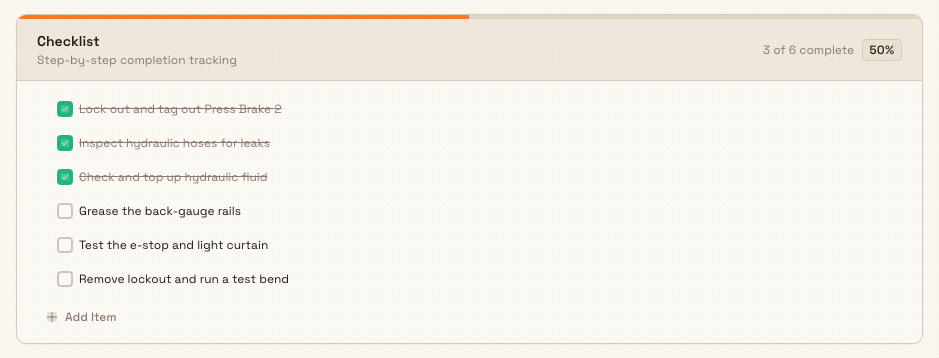
tasks.checklists-01
Add items
- In the Checklist card, select Add Item.
- Type the step into the Add an item... field.
- Press Enter to add it. The field stays open so you can keep typing the next step and press Enter again.
- When you are finished, select the close (X) control or press Escape.
Blank items are not accepted, and Bulk trims leading and trailing spaces, so each step is stored cleanly.
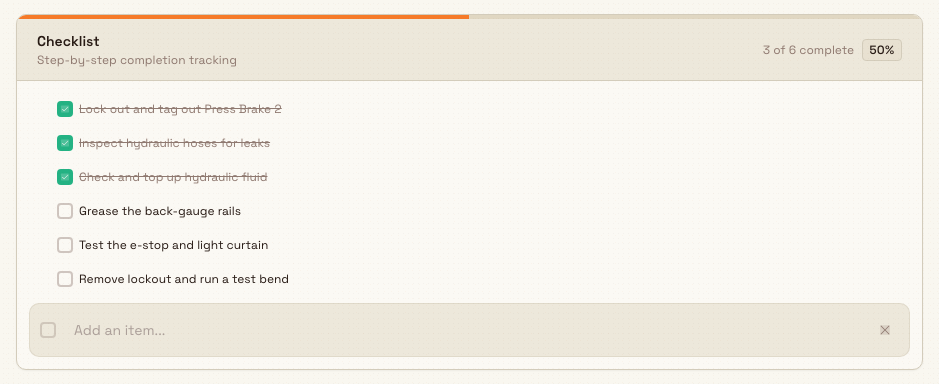
tasks.checklists-02
Tick items off and track progress
Select the checkbox next to an item to mark it complete. The item shows a check mark and its text is struck through and dimmed. Select the checkbox again to reopen the step.
As you tick items, the Checklist header updates live:
- an X of Y complete count, where X is the number of ticked items and Y is the total;
- a percentage badge showing how far through the list you are;
- a thin progress bar across the top of the card.
When every item is complete, the progress bar and badge turn green to signal the checklist is finished. Completing items also raises the task's overall completion progress, which Bulk calculates from the share of checklist items that are done. Adding, completing, and removing items is recorded in the task's activity history, so you keep an audit trail of who changed what.
If a checklist step needs its own owner, due date, or comments, convert it to a subtask instead of keeping it as a checkbox. See Break work into subtasks.
Reorder and remove items
- Reorder: hover over an item to reveal its drag handle, then drag the item up or down. Bulk saves the new order, so the checklist reflects the real sequence of work.
- Remove: hover over an item and select the trash control. Bulk removes the item and confirms with an "Item deleted" message, then recalculates progress.
Deleting an item is permanent
Removing a checklist item deletes it immediately — there is no undo and no trash to restore it from. Delete a step only when you are sure it is no longer needed.
There is no in-place rename for a checklist item. To change the wording of a step, delete it and add a new item with the corrected text.

tasks.checklists-03
Example: preventive maintenance at Leeds Fabrication Plant
A maintenance technician at Granite Peak Manufacturing's Leeds Fabrication Plant is assigned the task "Weekly PM — Press Brake 2". Rather than treat it as one big job, they add a checklist so nothing is skipped and the shift supervisor can see progress from the task list:
- Lock out and tag out Press Brake 2
- Inspect hydraulic hoses for leaks
- Check and top up hydraulic fluid
- Grease the back-gauge rails
- Test the e-stop and light curtain
- Remove lockout and run a test bend
As the technician works down the list, they tick each step. Halfway through, the card reads "3 of 6 complete" with a 50% badge, so the supervisor can glance at the task and know the machine is not yet ready. When the final step is ticked, the bar turns green, the badge reads 100%, and the task's progress reflects that the maintenance is done.
What to expect
- Ticked items show a check mark, strikethrough, and dimmed text; unticked items stay plain.
- The complete count, percentage badge, and progress bar always match the current state of the list.
- The task's overall progress rises and falls with the share of checklist items completed.
- Reordering and deletions are saved right away and reflected for everyone viewing the task.
Availability and limits
This feature is generally available.
- View-only roles cannot edit. If you can open a task but the checkboxes, Add Item, drag, and delete controls do nothing, you have view access but not
tasks.update. Ask an administrator to grant an editing role. - No item rename. Items cannot be edited in place; correct a step by deleting it and adding a replacement.
- No reusable templates. A checklist belongs to one task. There is no shared checklist template you can apply across many tasks; add the items on each task, or seed them when importing tasks.
- Deletions are permanent. There is no undo for a removed item.
- Completion is not governed here. This article covers building and tracking a checklist; whether a task can be marked complete with items still unticked is handled by the task-completion flow, not the checklist itself.
Troubleshooting
- I can see the checklist but can't change anything. Your role has view access only. Editing requires the
tasks.updatepermission — an administrator can add a role such as Operator or Manager. - My new item won't save. Empty items are rejected. Type at least one non-space character before pressing Enter.
- The percentage looks wrong after I add an item. The percentage is the share of completed items out of the total. Adding a new, unticked item increases the total, so the percentage drops until you tick it.
Related
- Create a task — start the task a checklist belongs to.
- Assign a task — decide who works through the checklist.
- Complete a task — how a task's progress and completion relate.
- Tasks overview — everything you can do inside a task.