Comment on a task
Post, read, and manage the comment thread on a task so your team can discuss the work in context, mention the right people, and keep decisions on the record.
Every task in Bulk carries its own Comments thread — a running discussion attached directly to the work item. Use it to ask a question, record what you found, hand work off to a colleague, or leave a note that stays with the task instead of getting lost in chat or email. Because the thread lives on the task, anyone who opens that task later sees the full history of what was said and when.
Comments are best for the back-and-forth around a task: a question for the assignee, a status note for followers, or a decision you want on the record. For the description of the work itself, edit the task description; for a step-by-step to check off, use a checklist.
Where comments live
Comments appear on the task's detail view, inside the Details tab.
- Open a task from your task list to reach its detail page.
- Select the Details tab.
- Scroll to the Comments card, labelled Comments with the subtitle Discussion and feedback.
The same Comments card also appears when you open a task in the quick task view without leaving your current page — again under the Details tab.
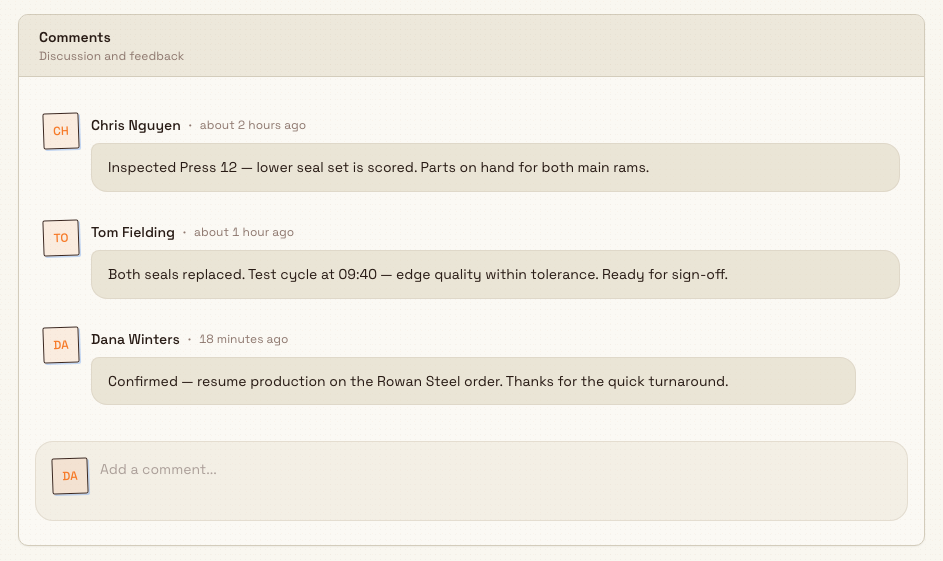
tasks.comments-01
Before you start
To read and post comments you need the right permission in the entity (plant or site) that owns the task:
- See comments — the
tasks.viewpermission. - Post, edit, or delete your own comment — the
tasks.commentpermission.
In the default roles, the Operator, Manager, Entity admin, and Super user roles can post comments. A role with only view access (for example the Dashboards role) can read the thread but not add to it. If you can open a task but the comment box is missing or inactive, ask your administrator to confirm your role includes tasks.comment.
Post a comment
- In the Comments card, click into the Add a comment... box. Your avatar appears beside it so you can see who the comment will be posted as.
- Type your message. The box grows as you type, and you can add line breaks with Shift + Enter.
- Press Enter, or click Send, to post. While it saves, the button reads Sending....
A comment cannot be empty — if you try to send blank or whitespace-only text, Bulk rejects it. Comments are plain text: line breaks are preserved, but there is no rich formatting or file embedding in the comment itself. To share a document, use the task's attachments instead.

tasks.comments-02
Mention a teammate
Type @ immediately followed by a teammate's email address, or the username part of their email (the text before the @ sign), to mention them in a comment — for example @marcus.hale. When Bulk matches the mention to an active member of your organisation, that person receives a You were mentioned notification pointing back to the task, so you can pull the right person into the conversation without leaving the task.
You can mention more than one person in a single comment. You are never notified for mentioning yourself. The mention is matched by email address, by the email username, or by a single-word display name — so mentioning by email or email username is the most reliable form.
No name picker as you type
The comment box is a plain text field, so no list of names pops up while you type a mention. Enter the teammate's email or email username exactly. If the text does not match an active member of your organisation, it is posted as ordinary text and no one is notified.
Read the thread
Comments are listed oldest first, so the conversation reads top to bottom. To keep long tasks tidy, only the most recent three comments show by default; select Show N more comments to expand the full history, and Show less to collapse it again. Each comment shows the author's name and avatar and a relative time such as 2 hours ago; hover the timestamp to see the exact date and time. A task with no comments yet shows No comments yet with the prompt Start a conversation below.
Who gets notified
When you post a comment, Bulk notifies the people who are watching the task — its assignees and its followers — with a There is a new comment alert (shown as 1 new comment or N new comments when several land together). Anyone you @-mention is notified separately that they were mentioned. You are not notified about your own comment, and notifications follow each recipient's own preferences, including their chosen frequency and quiet hours. If a task has been muted, its comment notifications are suppressed for everyone.
To make sure the people who need to see the discussion actually get pinged, add them as followers of the task first — see Follow a task.
Delete a comment
You can remove a comment you posted:
- Hover the comment you wrote. A ⋯ (more options) button appears at the right of that comment.
- Click it to open the menu and choose Delete.
Bulk confirms with a Comment deleted message and removes the comment from the thread. The delete option only appears on comments you authored — you will not see it on other people's comments in this card.
Deleting is not reversible here
There is no undo for a deleted comment in the app. If you might need the content later, copy it before you delete. Deleting a comment removes it from the thread for everyone.

tasks.comments-03
Editing a posted comment
The Comments card lets you add and delete comments, but it does not offer an edit action once a comment is posted. If you need to correct a comment, delete it and post a new one.
Example: a hand-off at Leeds Fabrication Plant
A maintenance operator at Granite Peak Manufacturing's Leeds Fabrication Plant is working the task Replace worn cutting blades — Laser Cutter 2. After finishing the swap, they open the task, go to the Details tab, and post in the Comments card:
Both blades replaced. Test cut passed at 09:40, edge quality within tolerance. @dana.winters please confirm before we resume the Rowan Steel order.
Dana Winters, the plant supervisor, is mentioned, so she gets a You were mentioned notification. The task's followers also see 1 new comment. Dana opens the task, reads the note, and replies:
Confirmed — resume production. Thanks for the quick turnaround.
The whole exchange stays on the task, so when the same line runs next month, anyone reviewing the task history sees exactly what happened and who signed it off.
Limitations and troubleshooting
- Comments are plain text. Line breaks are kept, but there is no bold, headings, links, or inline images. Attach files to the task when you need to share a document.
- You cannot edit a posted comment from this screen. Delete it and post again to correct it.
- The delete action is limited to your own comments in this card. Removing someone else's comment is not offered here.
- A mention that does not match a person is just text. If a mentioned teammate was not notified, check that you used their exact email or email username and that their account is active.
- A comment will not send. An empty or whitespace-only comment is rejected — add some text and try again. If a comment still fails to post, confirm your role includes
tasks.commentfor that entity, then retry.
Related guidance
- Create a task — start the task a comment thread belongs to.
- Assign a task — the assignee is notified of new comments.
- Follow a task — followers are notified of new comments.
- Attach a file to a task — share documents that comments cannot hold.
- Tasks overview — how tasks fit into work management.