Link a task to another record
Connect a task to a related risk assessment, production order, or production job from the task description so your team can open the source record in one click.
A task in Bulk often exists because of another record in your plant: a risk assessment that flagged a hazard, a production order a customer raised, or a production job on the shop floor. Linking a task to that record keeps the connection explicit. Anyone reading the task can see exactly what it relates to and open the source record in one click, instead of searching for it by number.
In Bulk, a task is a unit of work assigned to people, and a linked record is a reference from that task to another object in your workspace. You add links from inside the task's description, and Bulk collects them into a Linked Records panel on the task.
When to link a record
Link a record whenever the task only makes sense alongside something else:
- A corrective task raised from a risk assessment, so the person doing the work can read the hazard and controls.
- A follow-up task tied to a customer production order, so order context travels with the task.
- A rework or inspection task attached to a specific production job running on the floor.
What you can link
You can link three record types. Each shows a short badge in the picker and its own icon:
| Record type | Badge | What it is |
|---|---|---|
| Risk Assessment | RA | A safety risk assessment from the Safety module |
| Production Order | ORDER | A customer order in Production |
| Production Job | JOB | A job on the shop floor in Production |
These are the only record types the linker supports today. Bulk only shows record types you have permission to view, and only records from the same site (entity) as the task.
Before you start
To add or remove links you need permission to change the task, plus permission to view the records you want to link:
- Edit tasks — lets you edit the task description, which is where links are added and removed. Without it the description is read-only and you cannot link anything.
- View safety — required for risk assessments to appear in the picker.
- View production orders — required for production orders to appear.
- View production jobs — required for production jobs to appear.
If your role is missing one of the view permissions, that record type simply will not appear in the search results. A role with full access sees all three.
Link a record from the task description
Links live inside the task Description, an editor that also holds your work instructions and notes.
- Open the task and stay on the General tab. The Description card is at the top.
- Click into the description where you want the reference, then type
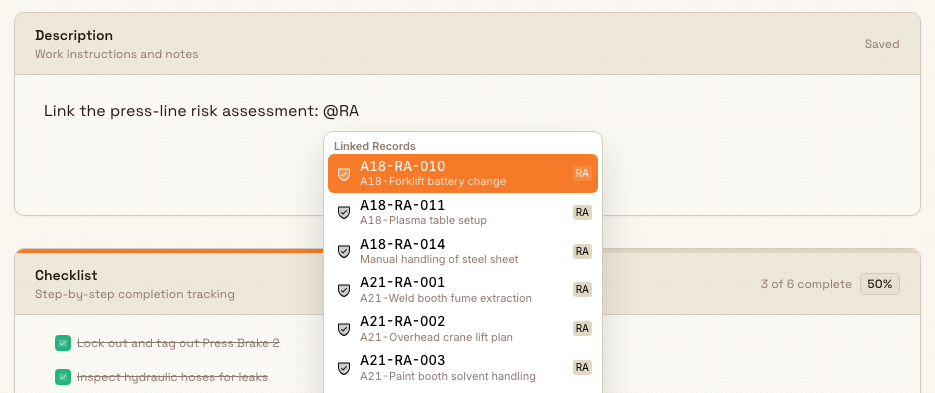
@. A Linked Records search opens. The field prompt readsType "/" for commands or "@" to link a record. - Type part of the record's number or name to filter the results. To search one type only, start with its badge:
@RA,@ORDER, or@JOB, followed by your search text. With no badge, Bulk searches all three types at once. - Choose a result. Bulk inserts a small chip into the description showing the record's icon, badge, and label.
- Stop typing or click away. The description saves on its own — the card header shows
Saving...and thenSaved.
tasks.linked-records-01
You can also link records while creating or editing a task. The create and edit dialogs contain the same Description field, where the prompt reads Use "/" for blocks or "@RA", "@JOB", "@ORDER" to link records. Pick a project first — the search only works once the task has a site to search within.
A Granite Peak example
An operator at Granite Peak Manufacturing's Leeds Fabrication Plant spots a coolant leak under Press Line 2 and raises a task, "Investigate coolant leak on Press Line 2."
In the task description they type @RA and pick the press line's hydraulic-safety risk assessment, then type @JOB and pick the job that was running when the leak appeared. Two chips now sit in the description. When the maintenance lead opens the task, they see the linked records at a glance, open the risk assessment to check the isolation steps, and open the job to see what was in progress — without hunting for either by number.
Where linked records appear
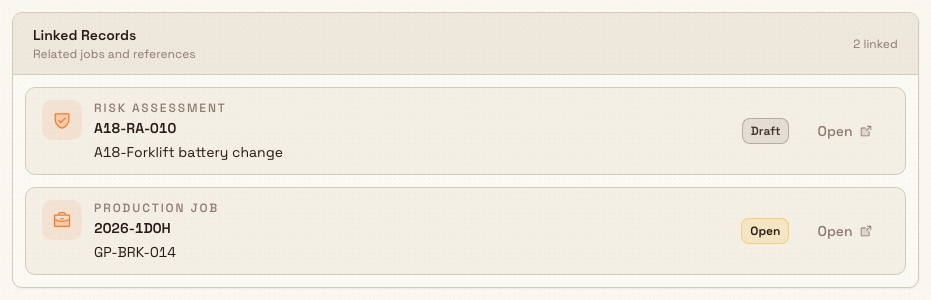
Saved links surface as a Linked Records card on the task's Details tab. The card is titled "Linked Records" with the subtitle "Related jobs and references," and shows how many are linked. Each row lists the record type, its identifier, a short title, a live status badge, and an Open button that takes you straight to the record.
tasks.linked-records-02
The Linked Records card only appears once a task has at least one link. A task with none does not show an empty card.
Remove a link
Links are driven entirely by the description, so you remove them the same way you added them:
- Open the task's Description on the General tab.
- Delete the record's chip from the text.
- Let the description save. Bulk rebuilds the task's link set from the description each time it saves, so the removed record drops off the Linked Records card.
Feature state and limits
This feature is generally available. Keep these behaviors in mind:
- Three record types only. You can link risk assessments, production orders, and production jobs. Other objects — such as inbound documents, other tasks, or customers — cannot be linked here.
- Same site only. The picker searches records in the task's own site (entity). You cannot link a record that lives in a different site.
- Links follow the description. Because Bulk derives links from the description on every save, editing the description is the only way to change them. There is no separate add-link or remove-link button outside the editor.
Duplicate picks are ignored
If you insert the same record twice, Bulk keeps a single link. The Linked Records card lists each record once, however many times its chip appears in the description.
Troubleshooting
A record you expect is missing from the search. Check that you have the matching view permission (View safety, View production orders, or View production jobs) and that the record belongs to the same site as the task. Records from other sites never appear.
A just-created record does not show up yet. Search runs against an index that updates a moment after a record is created. If you link a brand-new order or job, the picker may briefly show a Search still syncing note ("Latest production orders may not appear yet."). Wait a few seconds and search again.
The description will not accept links. If typing @ does nothing or the description is read-only, you likely lack the Edit tasks permission, or no project/site is selected yet on a new task. Confirm your role and, on a new task, choose a project first.