Attach a file to a task
Add photos, documents, and other files to a task from its Details tab so evidence and reference material stay with the work.
A task in Bulk is a unit of work you assign, track, and complete — an inspection to run, a corrective action to close out, a machine to check. Attachments let you keep the supporting files for that work in one place: a photo of a defect, the signed inspection report, a supplier certificate, or a spreadsheet of measurements. Instead of emailing files around or storing them on a shared drive, you attach them to the task itself, where anyone with access to the task can find them.
Use attachments whenever a task needs evidence or reference material to be understood, actioned, or audited later.
Where to find attachments
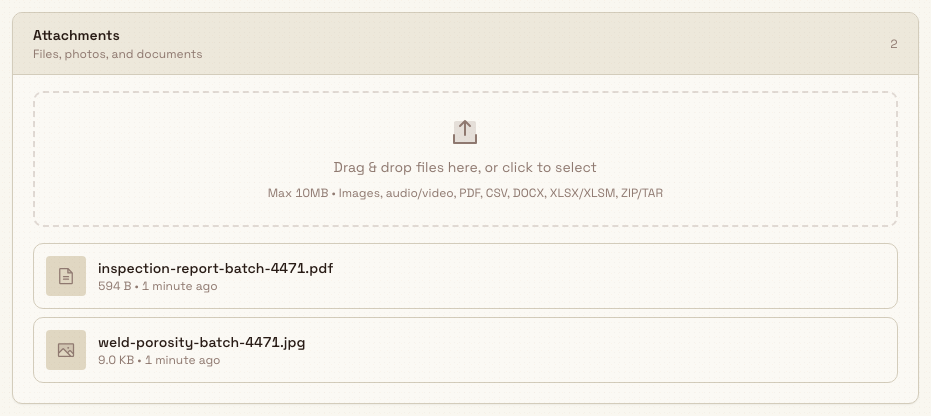
Open a task to see its detail view, then select the Details tab. A task's detail view is organised into four tabs — General, Details, Activity, and Root Cause. Attachments live under Details, in the Attachments card (labelled with the subtitle "Files, photos, and documents"). The card header shows a count of how many files are currently attached.
You can open a task from the Tasks list in the main navigation, or from anywhere a task is linked in the app.
tasks.attachments-01
Before you start
Attachments follow the same permissions as the rest of the task:
- To see and download attachments, you need the tasks.view permission (a permission is the specific right that a role grants).
- To add or remove attachments, you need the tasks.update permission — the same right that lets you edit the task.
Standard roles that can edit tasks — such as Entity admin, Manager, and Operator — can add and remove attachments. A view-only role such as Dashboards can open and download existing files, but the upload area and the delete control are hidden for them.
Add a file
- On the Details tab, find the Attachments card.
- Drag one or more files onto the upload area, or click it to open your file picker. The area reads "Drag & drop files here, or click to select" and changes to "Drop files here..." while you drag a file over it.
- Release or select the file. The area shows "Uploading..." while the file transfers, then the file appears at the top of the list and a "File uploaded successfully" confirmation appears.
The upload area lists what it accepts directly beneath it: "Max 10MB • Images, audio/video, PDF, CSV, DOCX, XLSX/XLSM, ZIP/TAR". In full, the supported file types are:
- Images — JPG, PNG, GIF, WebP
- Documents — PDF, DOCX, XLSX, XLSM, CSV
- Archives — ZIP, TAR
- Audio — MP3, WAV, M4A, AAC, OGG, WebM
- Video — MP4, M4V, MOV, WebM, OGV
Each file must be 10 MB or smaller. Both the type and the size are checked in your browser and again on the server, so an unsupported or oversized file is rejected before it is stored.
Work with attached files
Newest attachments appear first. Each row shows the file's icon (or a thumbnail preview for an image), its name, its size, and how long ago it was uploaded. Hover over a row to reveal its actions:
- Download — save the file to your device.
- Open in new tab — available for images, opens the picture in a new browser tab.
- Delete — remove the attachment (shown only if you can edit the task).
If the file is a PDF, click the row to preview it in an in-app viewer (titled "Attachment Preview") without leaving the task.

tasks.attachments-02
Remove a file
Hover over the attachment you want to remove and select the Delete (trash) action. The file leaves the list immediately and an "Attachment deleted" confirmation appears.
Deleting an attachment can permanently remove the file
When you delete an attachment that was uploaded to the task, and no other task still references that file, the underlying file is removed from storage as well. There is no undo and no trash to restore it from — you would need to upload the file again. Download a copy first if you might need it later.
Example: Granite Peak Manufacturing
At the Leeds Fabrication Plant, an operator raises a quality task, "Investigate weld porosity on Batch 4471." To document the problem, they open the task, go to the Details tab, and attach three files:
- a photo of the affected weld (JPG), taken on the shop floor,
- the inspection report (PDF) recording the finding, and
- the measurement log (XLSX) with the porosity readings.
The reviewer picks up the task the next shift, previews the PDF report inline, downloads the measurement log to check the numbers, and opens the photo in a new tab. Because every file is attached to the task, the batch's quality record stays complete — and if the plant is audited, the evidence is exactly where the task history says it should be.
Expected result
The files you add stay attached to the task and are visible to anyone who can view it. The attachment count in the card header updates, and adding or removing a file is recorded in the task's history — it appears on the Activity tab as "added attachment" or "removed attachment" with the file's name, so there is a clear trail of who changed what.
Limitations and troubleshooting
This feature is generally available. Keep these limits in mind:
- Type and size are enforced — each file must be 10 MB or smaller and use a supported type. If a file is too large, you will see "File is too large and cannot be uploaded. Max size is 10MB." If the type is not supported, you will see "File type is not supported. Use images, audio/video, PDF, CSV, DOCX, XLSX/XLSM, ZIP, or TAR." Convert or compress the file, or save it in a supported format, and try again.
- Account storage limit — if your Bulk plan includes a storage cap and your organisation has reached it, an upload is blocked with a "Storage limit exceeded" message that shows your current usage and the limit. Remove files you no longer need, or ask an administrator about your plan's storage allowance.
- No undo on delete — as noted above, deleting an attachment is immediate and can permanently remove the file.
Files can also live inside the description
Alongside the Attachments card, you can embed images and files directly inside a task's description using the description editor. Those embedded files follow the same upload rules described here.
Related
Comment on a task
Post, read, and manage the comment thread on a task so your team can discuss the work in context, mention the right people, and keep decisions on the record.
Follow a task
Add followers so people can track a task's activity and receive its notifications without being assigned the work.